What Is the Copilot Key? How to Remap or Disable It
The Copilot key replaces right Ctrl on new Windows 11 PCs and opens Copilot. Here's what it does and how to remap or disable it with PowerToys or Settings.

Quick AnswerThe Copilot key sits where right Ctrl used to be on Windows 11 keyboards from 2024 on, and one press opens Microsoft Copilot. Remap it with PowerToys now, or through Settings once the 2026 Windows update reaches your PC.
The Copilot key is the button that replaced the right Ctrl key on Windows 11 keyboards built since 2024, and one press opens Microsoft Copilot. That’s handy if you lean on Copilot and irritating if your pinky keeps landing on it. PowerToys is the quickest fix today, while Windows Settings is the cleaner long-term option once the update reaches your PC.
- The Copilot key replaces the right Ctrl key on most Windows 11 keyboards made since early 2024, and one press opens Microsoft Copilot
- Microsoft PowerToys can remap the key to any other key or shortcut today, and the change takes effect without a restart
- A 2026 Windows 11 update adds a built-in option under Settings, Bluetooth and devices, Keyboard to switch the key to Context Menu or right Ctrl
- A registry edit can stop Copilot from launching, but it leaves the key doing nothing rather than restoring the old right Ctrl behavior
- Remapping the key does not remove Copilot, which still opens from the taskbar icon or its keyboard shortcut
#Where the Copilot Key Came From
Microsoft announced the Copilot key in January 2024, the first new key added to the Windows keyboard in about three decades. New laptops from Dell, HP, Lenovo, and Surface shipped with it almost at once, and most put it in the right Ctrl key’s old spot.
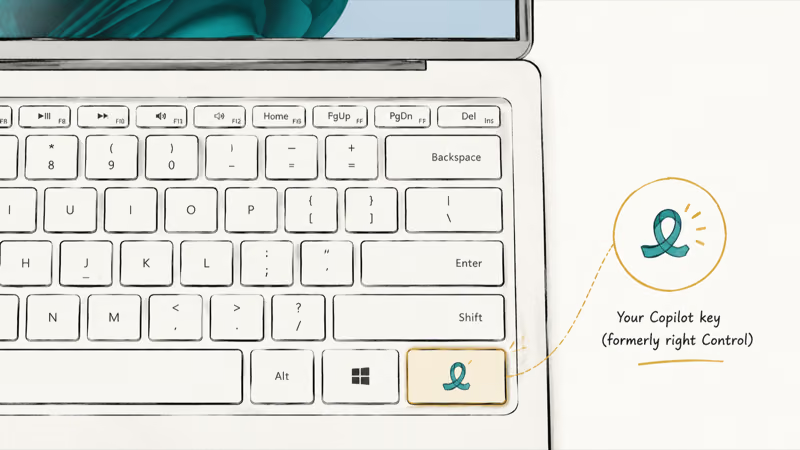
That swap is why so many people notice it. Muscle memory expects Ctrl in that corner, and the press opens an AI assistant instead.
The key is part of the wider push toward Copilot Plus PCs, though it isn’t exclusive to that hardware. Plenty of standard Windows 11 machines carry it too. For what the assistant does once it opens, the guide to using Copilot in Windows 11 walks through the features.
#What Does the Copilot Key Actually Do?
Press it once and Windows launches the Microsoft Copilot app. That’s the whole function: one key, one action, no long-press menu or hidden second job.
According to Microsoft’s PowerToys documentation, the key sends a normal keyboard input that the system maps to a Copilot launch, which is exactly what makes it remappable. On machines where the Copilot app isn’t installed or isn’t available in your region, the key falls back to opening Windows Search.
The key is designed as an immediate launch shortcut. That speed cuts both ways: a stray tap pulls Copilot over your work the moment you brush the key.
#How Do You Remap It with PowerToys?
Microsoft’s PowerToys documentation states that Keyboard Manager can remap keys and shortcuts, making it the most flexible fix on Windows 11 with no waiting. Its Keyboard Manager can point the Copilot key at almost anything: another key, a shortcut, or a specific app.
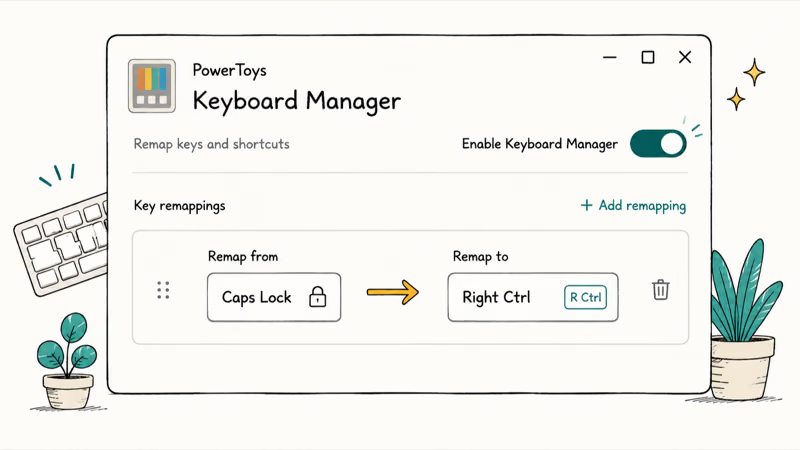
- Install PowerToys from the Microsoft Store or GitHub, then open it and confirm it’s running in the system tray
- Select Keyboard Manager in the sidebar and turn the toggle on
- Click Remap a key
- Under Select, click the pencil icon and press your Copilot key so PowerToys captures it
- Under To send, choose Ctrl (Right) to restore the original behavior
- Click OK and approve the warning
The remap applies right away and can persist through a restart, with one catch: it only works while PowerToys runs, so the key reverts if you uninstall the app or stop it from launching at startup.
Leave PowerToys on at boot so the remap sticks. Keys dead entirely? The locked Dell keyboard fix rules out the hardware side.
#Remapping It Through Windows Settings
A Windows 11 update arriving in 2026 finally adds a native way to change the key with no extra software. Thurrott reported that the option lives under Settings, Bluetooth and devices, Keyboard, with a dropdown that sets the key to act as Context Menu or Right Ctrl.
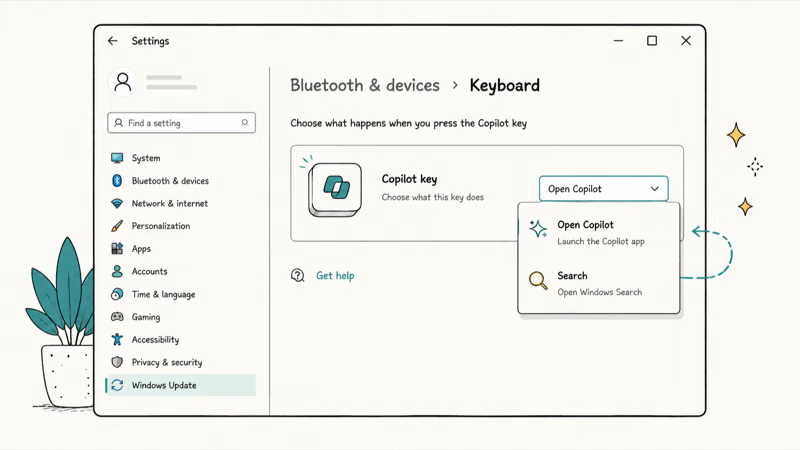
This path needs no background app, the cleanest option once it reaches you. The catch: only those two presets.
So the choice is simple: wait for the Settings update if you only want right Ctrl back, or stay on PowerToys for a custom shortcut or app launch. The rollout is staged, so check Windows Update now and then.
#Disabling the Copilot Key in the Registry
There’s a registry route, but set expectations first. It stops Copilot from launching, yet it doesn’t give the key a new job. The button just goes dead.
Editing the registry carries real risk if you change the wrong value, so back up first and only proceed if you’re comfortable in the Registry Editor. A registry edit can stop Copilot from opening on the keypress, but it can also leave the key with no useful replacement action. That’s why PowerToys or the Settings update is the safer first choice for most people.
Prefer a one-click option without the registry? A small open-source utility called NoCopilotKey restores right Ctrl on affected laptops. Since it’s third-party software, download it only from its official repository and review what it does first.
#Remap It or Just Leave It Alone
If you never used right Ctrl in that corner, you can ignore the whole thing. Some people honestly like Copilot a thumb-reach away.
The case for remapping comes down to two groups. Gamers and power users rely on right Ctrl for in-game binds and shortcuts. Everyone else who triggers Copilot by accident often enough to break their flow.
Practical answer: remap to right Ctrl with PowerToys today if stray launches bug you, then switch to Settings once the 2026 update lands so you can drop the utility. Microsoft’s Copilot Plus PC feature list shows how much the company is investing here, so the key isn’t going anywhere. If you’re weighing platforms, the look at Apple Intelligence versus Windows Copilot puts the two side by side.
#Bottom Line
The Copilot key is a single-action button that opens Microsoft Copilot and usually replaces right Ctrl on Windows 11 hardware from 2024 on. PowerToys remaps it to any key or shortcut now, and the change sticks through reboots as long as the app keeps running. The 2026 Windows update adds a no-software Settings option limited to Context Menu or right Ctrl, the better long-term fix. A registry edit only mutes the key, so reach for it last.
#Frequently Asked Questions
Can I get rid of the Copilot key completely?
Not physically, since it’s a hardware key on the board. What you can change is what it does. PowerToys or the upcoming Settings option turn it into right Ctrl or another key, and a registry edit can stop it from launching Copilot.
Does remapping the Copilot key disable Copilot?
No. Remapping only changes what that one button does. Copilot still opens from the taskbar icon or its keyboard shortcut. You’re repointing a shortcut, not uninstalling the assistant.
Which laptops have a Copilot key?
Most Windows 11 laptops and keyboards released since early 2024 from Dell, HP, Lenovo, Microsoft Surface, ASUS, and Samsung include one. It’s common on, but not limited to, Copilot Plus PCs. Machines made before 2024 don’t have it.
Is the Copilot key the same as the right Ctrl key?
Physically it usually sits in the right Ctrl key’s old spot, but it sends a different signal. That’s why pressing it opens Copilot instead of acting as Ctrl. Remap it to Right Ctrl and the original behavior comes back.
Do I need PowerToys, or can I wait for the Windows update?
If you only want right Ctrl back, you can wait for the 2026 Settings option and skip extra software. PowerToys is the choice when you want it sooner or need to map the key to something beyond the two Settings presets. Both are reversible.
Will remapping the key break any keyboard shortcuts?
Mapping the Copilot key to Right Ctrl actually fixes shortcuts that expect a right Ctrl there, which is why gamers remap it. Mapping it to an unrelated key could shadow a shortcut you already use, so pick the target on purpose. PowerToys warns you before it applies a remap.
What is NoCopilotKey and is it safe?
NoCopilotKey is a small open-source utility that restores right Ctrl where the Copilot key took its place. Because it’s third-party software, download it only from its official repository and review what it does before running it. PowerToys is the first-party alternative.
Can I remap the Copilot key on a desktop keyboard too?
Yes. PowerToys works the same on desktops, so any external keyboard with a Copilot key can be remapped from the connected Windows 11 PC. The 2026 Settings option will apply to recognized keyboards once it reaches your system.

Bluetooth Not Working on Snapdragon X? Fixes for 2026
Bluetooth not working on your Snapdragon X Copilot+ PC? Generic audio, mice, and keyboards work, but vendor apps often lack an ARM build. Fixes inside.

Docker Desktop and WSL2 Not Working on Snapdragon X? Fix It
WSL2 runs fine on Snapdragon X, but Docker Desktop ARM is Early Access and throws WSL errors. Use WSL2 plus native ARM64 Ubuntu and Docker Engine.
Does iTunes Work on Snapdragon X? ARM Windows 11 Guide
Yes, iTunes runs on Snapdragon X laptops through Prism emulation, but the Apple Devices app is the smoother route. Here is what to install on ARM.

Does OBS Studio Work on Snapdragon X? ARM64 Build Guide
Yes, OBS Studio has an experimental ARM64 build since version 31.1, but x64 plugins won't load and hardware encoding is missing. Here is what works.