How to Use Claude Projects: Your Complete Practical Guide
Claude Projects create a persistent workspace with uploaded files and custom instructions. Set one up in under 5 minutes for any recurring workflow.
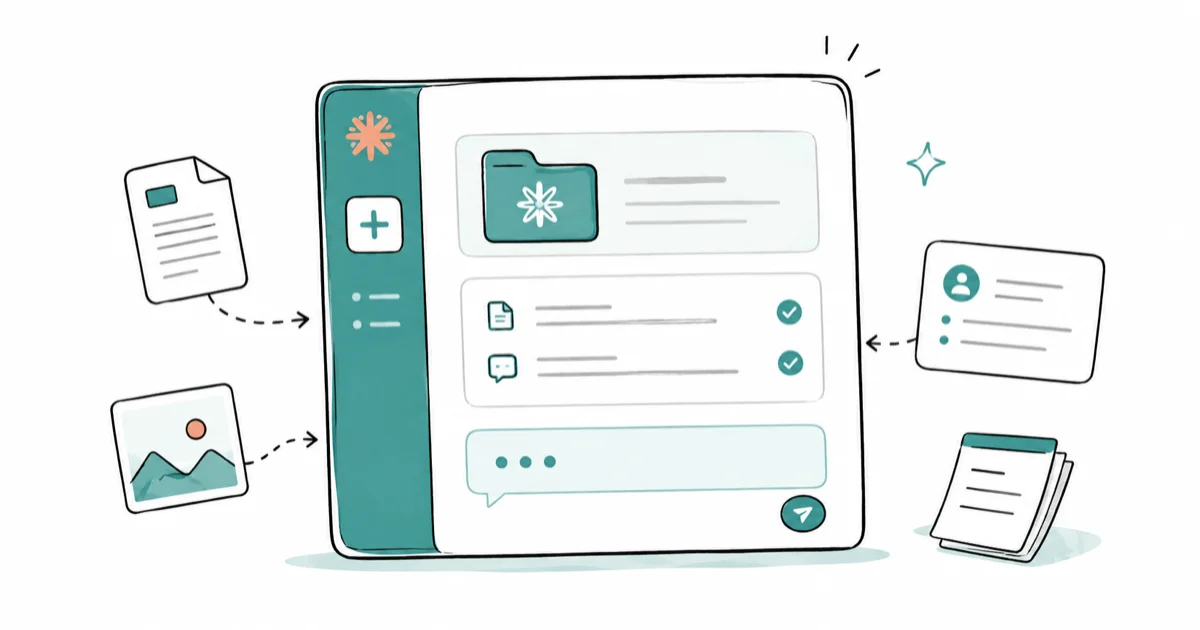
Quick AnswerOpen Claude.ai, click New Project in the sidebar, add files to the knowledge base, write custom instructions, then start a chat inside the project. Every chat in the project shares the same uploaded context and instructions automatically.
Claude Projects give you a persistent workspace. Unlike a one-off chat, a Project holds your uploaded files and custom instructions so every conversation you start inside it begins with full context already loaded.
- Projects require a paid Claude plan (Pro, Max, Team, or Enterprise) and are not available on the free tier
- Each Project has its own knowledge base where you can upload documents, code files, PDFs, and other reference material
- Custom instructions let you set Claude’s role, tone, and rules once so you don’t have to repeat them in every chat
- All chats inside a Project share the same knowledge base, but each chat keeps its own conversation history
- Projects work best for recurring workflows: tasks you do weekly with the same context, like writing for a specific brand or reviewing code in a familiar stack
#What Is a Claude Project?
A Project is a folder that holds three things: a knowledge base of files you upload, a set of custom instructions, and all the chats you start within it. When you open a new chat inside a Project, Claude automatically loads your uploaded files and follows your instructions before you type a single word.
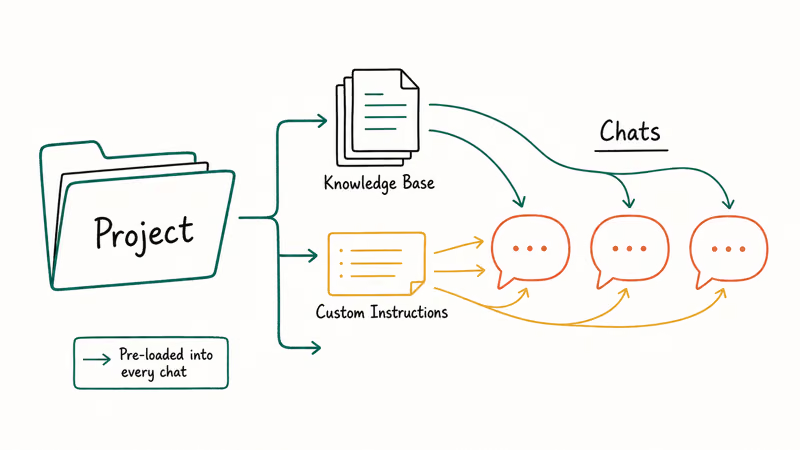
Here’s a useful analogy: a regular Claude chat is a blank whiteboard. A Project is a whiteboard with context pre-loaded. Your style guide, codebase summary, and standing instructions are already there.
According to Anthropic’s Projects announcement, each Project draws from a context window large enough to hold hundreds of pages of reference material. 9to5Mac reported that the underlying context capability can handle codebases with more than 75,000 lines of code in a single request. That scale is what makes it practical to upload a full style guide, a product spec, or a substantial codebase summary without running short.
Projects are available to Pro, Max, Team, and Enterprise plan subscribers. The free tier doesn’t include Projects access. Anthropic’s official pricing page lists current plan costs. Check there rather than relying on any specific numbers here, since plans and prices change regularly.
#How to Create a Claude Project
Creating a Project takes under a minute. Here are the steps:
- Go to claude.ai and sign in with a paid account.
- In the left sidebar, click New Project (or the folder icon, depending on your app version).
- Give the Project a name. Pick something specific. “Content for Acme Corp” is clearer than “Work Stuff.”
- You’ll land on the Project dashboard, which has three areas: knowledge base, project instructions, and the chat list.
That’s it. The Project exists. Now you need to populate it.
#How to Add Files to Your Knowledge Base
The knowledge base is where you put everything Claude should know before answering. You can upload documents, PDFs, text files, code files, and spreadsheets. According to Anthropic’s file upload documentation, supported formats include PDF, Word, plain text, CSV, and several code file types.
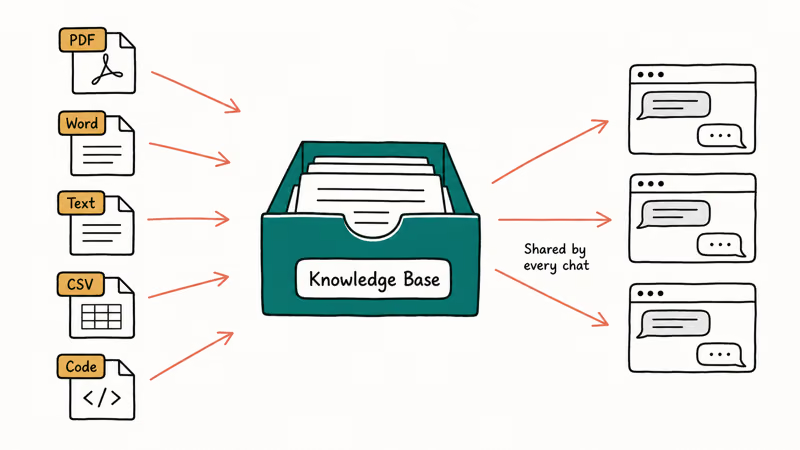
To add files:
- Open your Project and click Add to project knowledge (or the upload icon).
- Select files from your computer or paste text directly.
- Wait for the upload to finish. Larger files take a few seconds to process.
- Repeat for each file you want Claude to reference.
After files finish processing, Claude can cite relevant sections from the Project knowledge base in follow-up chats. The knowledge base updates right away.
Keep your uploads relevant. Claude reads everything in your knowledge base for every chat in the Project, so a 300-page contract that applies to one edge case will dilute focus. Upload what you actually need. You can add more later.
#How to Write Custom Instructions
Custom instructions tell Claude how to behave inside this Project. They’re different from general memory or profile preferences. Instructions apply only to this Project’s chats and override defaults.
Find the instructions panel on the Project dashboard, usually labeled Project instructions or Instructions for Claude.
Write instructions in plain sentences. Good examples:
- “You are a copywriter for Acme Corp. Always match the brand voice in the uploaded style guide.”
- “Respond in UK English. Avoid using the word ‘utilize.’”
- “When I share code, review it for security issues first before suggesting optimizations.”
- “Keep responses under 300 words unless I ask for more detail.”
Anthropic’s help center confirms that concise instructions focused on role, tone, and key constraints work better than long paragraphs. The specifics matter: “respond formally” produces less reliable results than “avoid contractions and address the reader as ‘you.’”
You can update instructions at any time. Changes take effect in the next chat you start.
#How to Start Chats Within a Project
Once your knowledge base and instructions are set up, start new chats from the Project dashboard. Don’t start a regular chat from the sidebar. That won’t load your Project context.
To start a Project chat:
- Open your Project from the sidebar.
- Click New chat or the chat icon inside the Project.
- Type your message. Claude already knows your files and instructions.
Each chat inside a Project has its own thread. Chat 1 and Chat 2 stay separate; they don’t share conversation history. But both chats can see the same knowledge base files.
This structure works well for managing multiple tasks under the same topic. Separate chats keep things tidy, while the shared knowledge base means you’re not re-uploading files each time.
For a broader overview of how Claude works outside Projects, see our guide to using Claude AI.
#When Should You Use a Project vs a Regular Chat?
Projects add setup overhead. A regular chat is faster for one quick answer. Here’s when a Project is worth it:
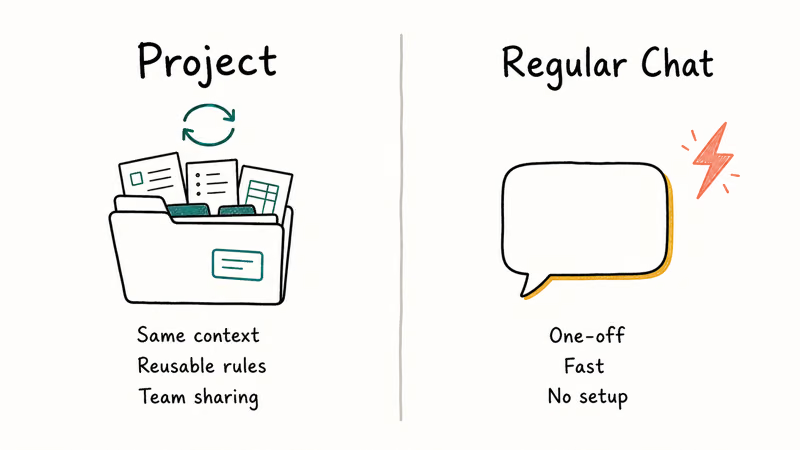
Use a Project when:
- You work with the same context repeatedly (same client, same codebase, same brand)
- You want Claude to follow specific rules every time without retyping them
- You’re managing multiple related tasks under one topic
- You’re on a Team plan and want to share context with colleagues
Use a regular chat when:
- You have a one-off question that won’t repeat
- You’re exploring something new with no prior files to upload
- Speed matters more than consistency
Projects also stand out for team workflows. On a Team plan, you can share a Project with colleagues so everyone uses the same knowledge base and instructions. A new team member asking Claude about your product spec gets the same grounded context as the senior employee who built the Project two months ago.
If you’re comparing how Claude and ChatGPT handle similar persistent-workspace features, our Claude vs. ChatGPT Projects guide covers the differences in detail.
#Limits and Gotchas to Know First
Before investing time building a Project, a few things are worth knowing upfront.
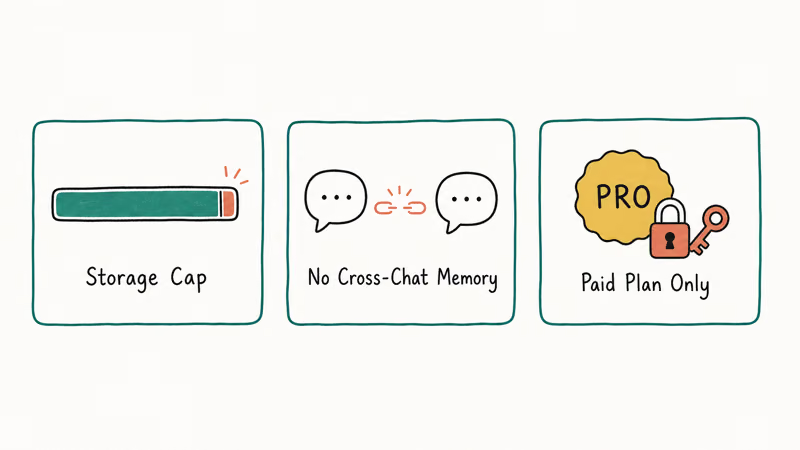
Storage caps: The knowledge base has a total storage limit, but Anthropic doesn’t publish an exact number. Hit the cap and you’ll need to remove older files before adding new ones.
No cross-chat memory: Projects don’t persist memory between separate chats. Files you upload stay in the knowledge base. But Claude doesn’t recall what you said in Chat 1 while you’re in Chat 2. If you want Claude to reference an old conversation, paste the relevant content into a new message or add it to the knowledge base directly.
Plan dependency: Projects are tied to your paid plan. If you cancel, you lose access to starting new chats or reading the knowledge base until you resubscribe. Your data isn’t deleted immediately, but it’s not accessible without an active subscription.
For a look at Claude’s inline code and document rendering features, our guide to Claude Artifacts explains the tool that works alongside Projects.
#Claude Projects: Strengths and Weaknesses
Claude Projects fit structured, recurring work well. They’re less useful for spontaneous, one-off questions where the setup overhead adds no value.
Plan level also shapes what you can do. Team and Enterprise accounts get collaborative sharing; Pro and Max accounts work solo. If team collaboration is your main goal, verify your plan supports it before committing.
For a side-by-side view of how Claude compares to other AI assistants for both Projects and general use, see our ChatGPT vs. Claude vs. Gemini comparison.
#Is Claude Projects Worth It?
Yes — if you spend more than a few hours a week doing the same type of work with Claude. The first-time setup runs maybe 20 minutes, and after that you stop re-uploading the same files and re-explaining the same context every session. That time savings compounds quickly for writers, developers, researchers, and anyone managing ongoing client work.
For casual users who ask Claude a question once a week, a regular chat is faster. Projects make sense when consistency and context depth matter more than launch speed.
If you’re still deciding whether Claude is the right AI tool, our comparison of Claude vs. ChatGPT for writing covers the practical differences in depth.
#Bottom Line
Start with one Project for your most repetitive Claude use case. Upload the files you always need, write 3-5 clear instructions, then run five chats inside it. By the end of that session, you’ll know whether the format fits your workflow. Most people who try Projects don’t go back to one-off chats for that same use case.
#Frequently Asked Questions
Do I need a paid Claude plan to use Projects?
Yes. Projects require a Pro, Max, Team, or Enterprise subscription. The free tier does not include Projects access. Check Anthropic’s pricing page for current plan costs.
How many files can I upload to a Claude Project knowledge base?
There’s no published hard file count limit, but Projects have a total storage cap. Hit the cap and you’ll need to remove files you no longer need before adding new ones. Anthropic doesn’t publish exact byte limits, so it’s worth testing your specific files if you’re uploading a large collection.
Can I share a Claude Project with my team?
Yes, on Team and Enterprise plans only.
Does Claude remember things I said in a previous Project chat?
No. Claude doesn’t carry memory between separate chats inside a Project. Each chat is its own thread. To reference something from an older conversation, copy the relevant content into a new message or add it to the knowledge base.
Can I use Claude Projects on mobile?
Yes. The Claude mobile app supports Projects. You can view existing Projects, start new chats inside them, and read uploaded files. Adding new files to the knowledge base may require the web version depending on your app version.
What file types can I upload to a Project?
PDF, plain text, Word, CSV, and code files.
Image-based PDFs (scanned documents with no selectable text) may not process well. For the full current list of supported formats, check Anthropic’s file upload support article.
How is a Claude Project different from ChatGPT’s Projects feature?
Both create persistent workspaces with custom instructions and uploaded files. The main differences are in interface, file handling, and model behavior. Both platforms support file uploads, custom instructions, and shared team access, but the way each handles context and conversation history differs in practice.

Is This Bank App Real? Spot a Fake App on Your Home Screen
A bank app can land on your home screen from a web page with no install warning. Learn the checks that tell a real banking app from a phishing web app.
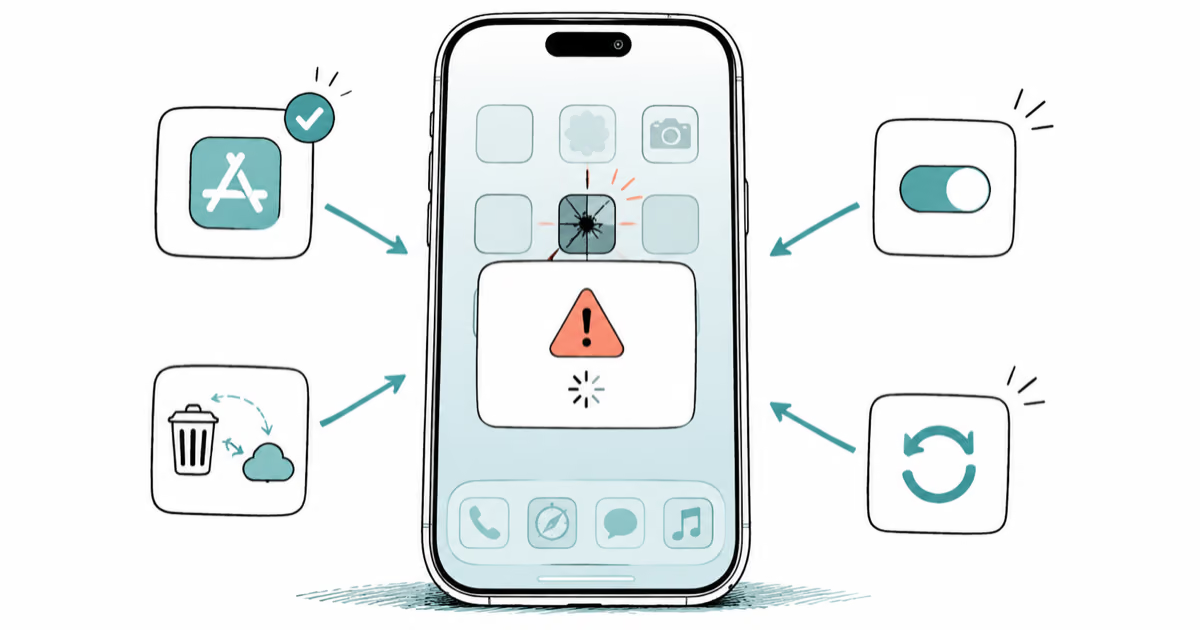
Apps Crashing After iOS 27 Update? Fix Order (2026)
Apps crashing after the iOS 27 update? Update the app in the App Store first, then offload and reinstall to clear stale cache, then restart. The fix order.
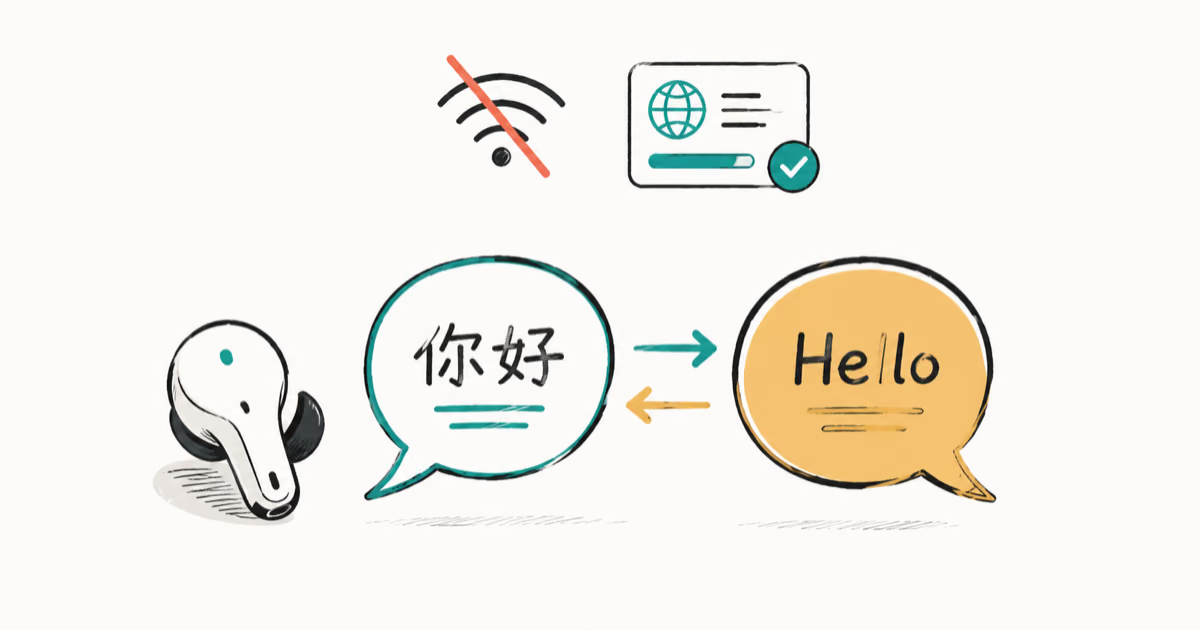
Do AI Translation Earbuds Work Offline? What to Know
Do AI translation earbuds work offline? A few do with downloaded language packs, but most need the cloud. Here's what works offline and what you give up.
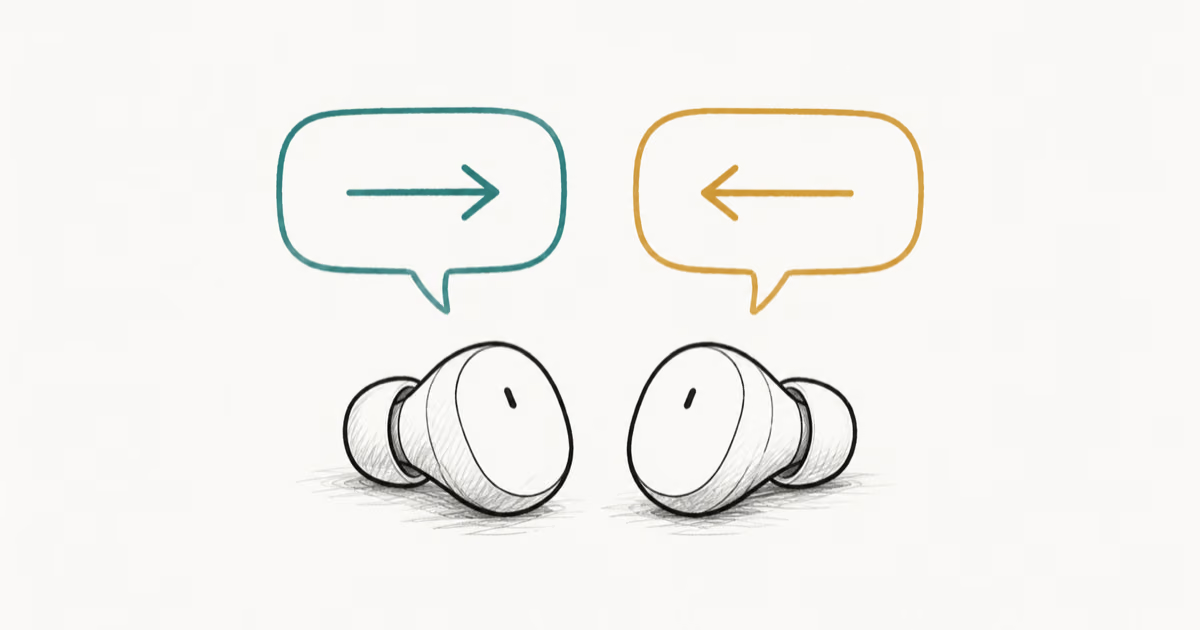
How to Set Up Translation Earbuds (Pairing and Modes)
How to set up translation earbuds: charge, install the app, pair over Bluetooth, pick two languages, and choose a mode. A step-by-step first-use guide.