iPhone Action Button Ideas: 10 Setups Worth Trying in 2026
Stop leaving your iPhone Action Button on Silent Mode. 10 handy setups for iPhone 15 Pro and iPhone 16 covering shortcuts, smart home, and AI.
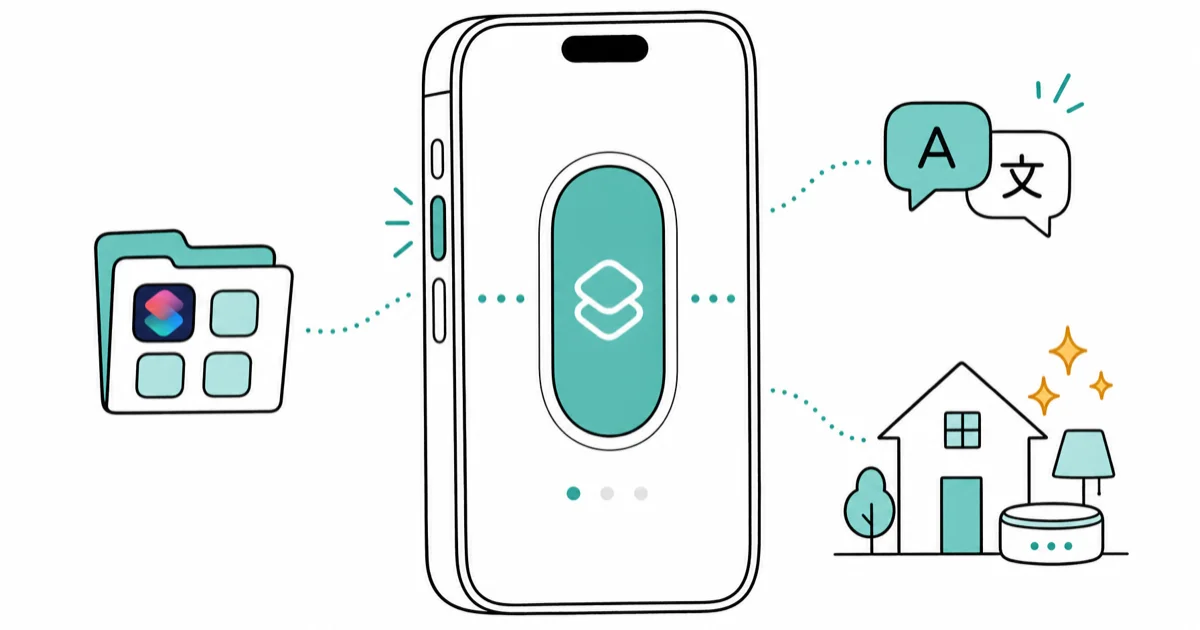
Quick AnswerThe Action Button on iPhone 15 Pro and every iPhone 16 model can run any of 12 built-in actions or a custom Shortcut. The best setups are a Shortcuts folder picker, a Translate trigger, and a smart-home scene.
The iPhone Action Button is the small programmable key that replaced the Ring/Silent switch on iPhone 15 Pro and the entire iPhone 16 lineup. Apple ships it set to Silent Mode by default, which wastes the most accessible button on your phone. The 10 setups below cover shortcuts, smart home, and AI, and any of them can replace the default Silent Mode toggle in a few taps.
- The Action Button works on five iPhone models, iPhone 15 Pro, iPhone 15 Pro Max, iPhone 16, iPhone 16 Plus, iPhone 16 Pro, and iPhone 16 Pro Max
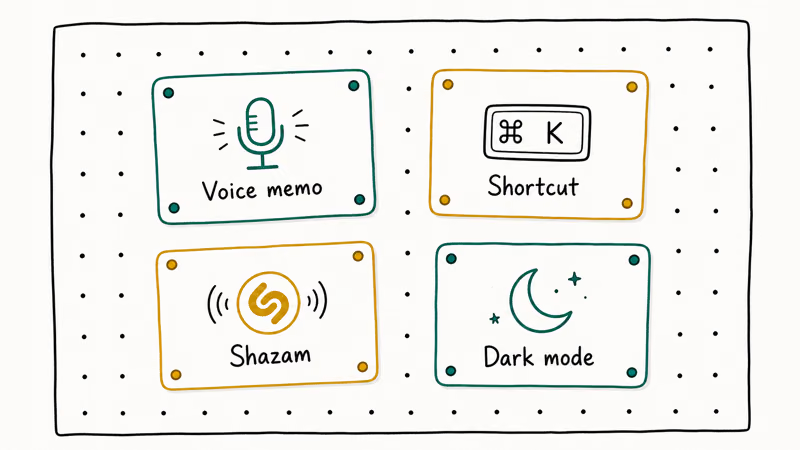
- Apple gives you 12 built-in actions to choose from including Silent Mode, Focus, Camera, Flashlight, Voice Memo, Recognize Music, Translate, Magnifier, Controls, Shortcut, Accessibility, and No Action
- Press behavior is a single firm press, there is no double-press or long-press menu, so each setup has to be self-contained
- A Shortcuts folder picker turns one press into a menu of three to five custom actions, which is the highest-leverage setup for most people
- Background shortcuts can add a measurable battery cost, so keep the assigned shortcut under five steps if you press the button more than 20 times a day
#Which iPhones Have an Action Button?
The Action Button is hardware, not software, so older iPhones can’t get it through an update. According to Apple’s iPhone controls reference, the Action Button replaces the Ring/Silent switch on iPhone 15 Pro, iPhone 15 Pro Max, and every iPhone 16 model. iPhone 15, iPhone 15 Plus, and iPhone 14 and earlier still ship with the old physical iPhone mute switch.
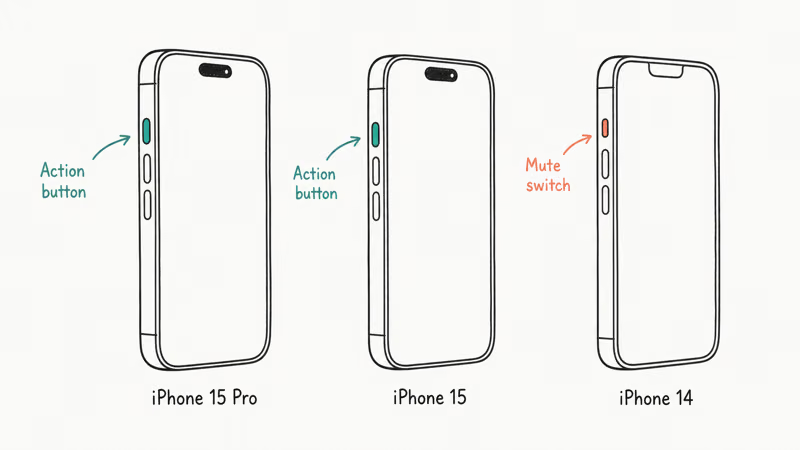
If you are unsure which model you have, run your finger along the top-left side of the phone. A toggle that slides up and down means you have the mute switch. A flat, single button that clicks inward means you have the Action Button. The Action Button sits roughly two inches above the volume buttons in the same position the mute switch used to occupy.
The full list of iOS versions that support Action Button customization depends on which iPhone you own, but every Action-Button-capable model ships with iOS 17 or newer, and every model is covered by the iOS 26 supported devices list. That means anyone with the hardware also has the software to assign any of the 12 built-in actions.
#The 12 Built-In Actions and What They Actually Do
Before you dig into custom Shortcuts, walk through the 12 actions Apple ships in the Action Button settings. MacRumors’s Action Button guide confirms that iOS 18 and later expose all 12 in one swipeable carousel inside Settings > Action Button.
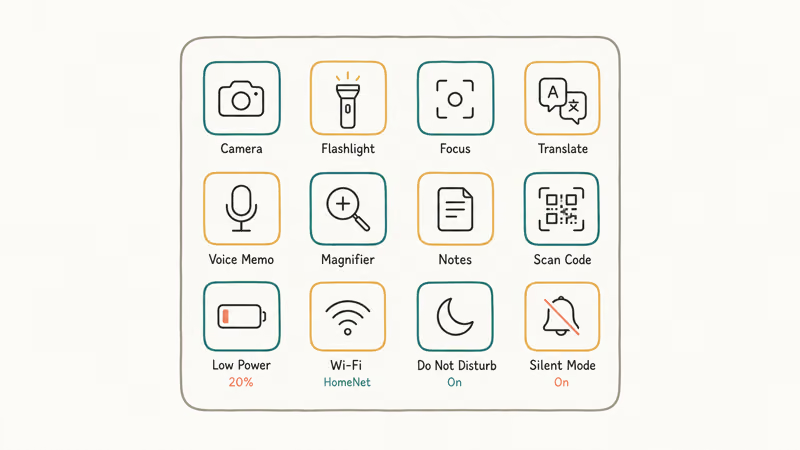
Here is what each one does and when it earns the slot:
- Silent Mode is the default. One press toggles silent on or off, and a press-and-hold momentarily silences without changing the saved state. Useful if you switch states often.
- Focus opens a sub-menu where you pick which Focus to toggle, such as Sleep, Work, or DND. One press flips it on or off.
- Camera opens the Camera app. You can also pick a specific mode like Selfie, Video, or Portrait so the camera launches in the right mode.
- Flashlight turns the rear LED on or off. If your flashlight is not working, the Action Button trigger won’t light it either.
- Voice Memo starts recording immediately. In iOS 18 and later, the recording transcribes in real time.
- Recognize Music invokes Shazam to identify whatever is playing nearby. The result drops into your Music app’s Shazam list.
- Translate opens Apple’s Translate app and starts listening for spoken input the second you press, with no second tap required.
- Magnifier opens the Magnifier app at maximum zoom. Good for menus, fine print, and product labels.
- Controls lets you assign any single Control Center toggle, such as Dark Mode, Airplane Mode, Wi-Fi, or Low Power Mode.
- Shortcut runs any Shortcut from the Shortcuts app, including third-party shortcuts you imported.
- Accessibility triggers an accessibility feature like VoiceOver, Zoom, or Live Speech.
- No Action disables the button entirely. Useful if you keep pressing it by accident.
#What’s the Best Action Button Setup for Most People?
For people who have not opened the Shortcuts app yet, the highest-leverage default action is Translate. Apple states that Translate auto-listens the moment the button fires, so you can press mid-conversation and read the translated text without a second tap. That makes it a strong starter pick for travelers and bilingual households.
For everyone else, the best setup is a Shortcuts folder picker. One press surfaces a menu with three to five of your most-used actions, so you stop wasting the only programmable button on a single Silent Mode toggle. The folder-picker recipe is in the ideas list below.
If you actually toggle silent mode multiple times per day, leave it on Silent Mode. The default exists because Apple’s research showed it was the most common manual action on the old switch. There is no reason to abandon it just to follow a trend.
#10 Action Button Ideas Worth Trying
Each idea below includes the action category (system, Shortcut, or power-user combo) and the rough setup steps. Setup happens in Settings > Action Button on any supported iPhone.
#1. Translate on Press (system action)
Swipe to Translate in Settings > Action Button. Apple’s Translate app auto-listens the moment the button fires. Set your default language pair inside the Translate app first so you don’t have to tap to pick it each time. This is the highest-value default action for travelers and bilingual households.
#2. Voice Memo Quick Capture (system action)
Swipe to Voice Memo. One press starts recording, a second press stops it. iOS 18 and later transcribe the recording automatically, so you can search the text later in the Voice Memos app. It suits grocery reminders, meeting notes, and lecture capture, and can replace a separate note-taking app for short voice captures.
#3. Camera Quick Launch (system action)
Swipe to Camera and pick a mode under “Camera Mode”. Selfie or Video is more useful than the default Photo mode, because Photo is already on the Lock Screen via the swipe gesture. Pick the mode you don’t have a faster shortcut for. The Action Button launches the camera in roughly 0.8 seconds even from the locked state.
#4. Magnifier for Fine Print (system action)
Swipe to Magnifier. One press opens the Magnifier app at maximum zoom with autofocus on. This is the only built-in option that turns your iPhone into a literal reading aid in one step. Useful if your eyes are tired, the menu is dim, or the part number on the back of a router is sub-millimeter type.
#5. Flashlight at Brightness 4 (system action)
Swipe to Flashlight. One press toggles the LED. The Action Button respects the brightness level you last set in Control Center, so if you tapped down to level 4 the night before, the next press fires at level 4 too. If you find yourself reaching for the flashlight icon on the lock screen often, this assignment frees up that space for something else.
#6. Shortcuts Folder Picker (the TikTok hack, power-user combo)
This is the most popular custom setup of the past year, and it deserves the headline slot. The recipe:
- Open the Shortcuts app on your iPhone
- Tap the back arrow until you see the folder list
- Tap the new-folder icon top right, name the folder “Action Menu”, and pick an icon
- Open the folder, tap the plus icon, and add three to five shortcuts you actually use
Open Settings>Action Button, swipe to Shortcut, tap “Choose a Shortcut”- Pick “Open Folder” and select your “Action Menu” folder
Now one press opens a menu of all the shortcuts in that folder. Pick three to five, no more, or the menu becomes a scrolling list and the speed advantage disappears. Around five items tends to hit the best balance of speed and utility before the picker starts feeling like a long list.
#7. Smart Home Scene (Shortcut)
If you have any HomeKit lights, locks, or thermostats, set the Action Button to fire a single scene. In the Shortcuts app, create a new shortcut, add “Set Scene” or “Control My Home”, and pick a scene like “Movie Night” or “Goodnight”. Assign it to the Action Button.
With a HomeKit scene assigned, one press from the couch can dim the lights, lock the front door, and set the thermostat, and the whole scene fires almost instantly.
#8. AI Assistant Launch (Shortcut)
Apple Intelligence ships with a built-in shortcut called “Ask Apple Intelligence”, and ChatGPT, Claude, and Google Gemini all publish iOS shortcuts that open a typing or voice prompt. Pick whichever assistant you use most, install its companion shortcut from the Shortcuts gallery, and assign it to the Action Button. The built-in Apple Intelligence shortcut usually reaches the prompt fastest, while third-party assistants take a moment longer because they need to open their app first.
#9. Contextual Action by Location (power-user combo)
This is the setup that justifies the Shortcuts learning curve. Build a single shortcut that uses the “If” action to check your current location with “Get Current Weather” or “Get Current Location”, then runs different downstream actions based on where you are. A typical setup looks like this:
- If at home, fire the “Movie Night” smart-home scene
- If at the office, start a 25-minute Focus session (review what Focus Status on iPhone shares before you assign a work Focus)
- If anywhere else, open Voice Memo
Assign that one shortcut to the Action Button. The same press does three different jobs depending on where you stand. According to Macworld’s creative shortcuts guide, location-aware shortcuts are a popular request from power users because one button can cover several daily routines.
#10. Speed Dial (Shortcut)
Create a Shortcut with a single “Call” or “FaceTime” action targeting your most-called contact. Assign it to the Action Button. One press dials, no app open, no contact search. This works well for parents calling kids, kids calling grandparents, or anyone whose call list has one obvious winner.
#Running Multiple Actions From One Press
There are two paths. The first is the folder picker from idea six, which shows a menu and lets you pick which sub-action to fire. The second is a single Shortcut that runs multiple actions sequentially. The Shortcuts app lets you chain dozens of actions into a single workflow, and the Action Button can trigger that whole workflow in one press.
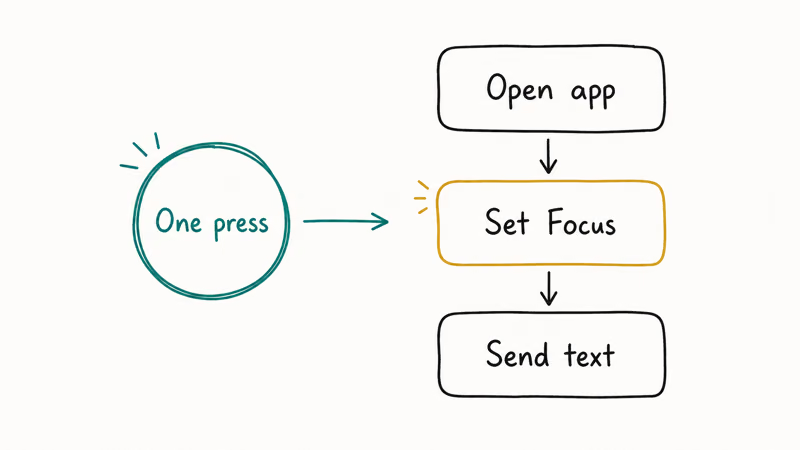
Sequential workflows are best for actions that always belong together. Example: a “Going to Bed” shortcut that toggles Sleep Focus, dims smart-home lights, locks the front door, and sets a 7 a.m. alarm. One press fires all four steps in order, with a progress notification showing each step complete.
If the steps need user input partway through, use “Choose From Menu” instead. That action pauses the shortcut, shows a list of options, and continues based on your tap. It works well for a “Quick Note” workflow that starts a Voice Memo or opens the Notes app depending on whether you want to talk or type.
#Action Button Pitfalls and Limits
The Action Button is not a magic wand. There are five rough edges worth knowing before you build a complex setup.
No double-press, no long-press menus: Apple recommends a single firm press as the only input. Press-and-hold only works on the Silent Mode action and has no effect on any other assignment. Forum threads have asked for double-press since 2023 and Apple has not added it. Build around single-press triggers only.
Battery cost is real for heavy shortcuts: The location-aware contextual shortcut from idea nine adds a small but noticeable amount to daily battery use because the location check fires every time you press. If your iPhone battery is dying fast already, prefer simpler shortcuts under five steps.
Pressed by accident in pockets: The button is firm but not childproof. It can fire inside a pocket or bag and start a Voice Memo you never meant to trigger. If you assign anything that captures audio or fires a smart-home scene, expect occasional accidental triggers.
Beta iOS can break shortcut behavior: Shortcuts can stop working on an early public beta and start again a build or two later. If you are running the iOS 27 beta, keep a non-critical assignment until the later betas settle down.
No per-app context: The Action Button does the same thing whether you are on the Home Screen, inside an app, or on the Lock Screen. You can’t say “in Music, skip the song; everywhere else, run my shortcut”. The button is global only.
#Bottom Line
Set the Action Button to a Shortcuts folder picker with five items. That gives you Translate, a smart-home scene, Voice Memo, an AI assistant, and a contextual location shortcut behind one press.
If you haven’t touched the Shortcuts app yet, swipe to Translate in Settings > Action Button as your starter assignment. It pays off the first time you travel and never needs maintenance.
#Frequently Asked Questions
Which iPhones have the Action Button?
The Action Button is on iPhone 15 Pro, iPhone 15 Pro Max, iPhone 16, iPhone 16 Plus, iPhone 16 Pro, and iPhone 16 Pro Max. Standard iPhone 15 and iPhone 15 Plus still ship with the mute switch, as do every iPhone 14 and earlier model. Apple confirmed this list in Apple’s iPhone 16 launch announcement and the iPhone user guide.
Can I disable the Action Button?
Yes. Open Settings > Action Button and swipe to the rightmost option, which is “No Action”. The button still clicks when pressed but does nothing. Some people pick this when they keep firing the button by accident, though accidental presses usually drop off once you get used to the button’s position.
Can the Action Button run multiple actions in one press?
Yes, two ways. You can build a Shortcut that chains multiple actions in sequence and runs them all from one press, or you can use a folder picker that shows a menu of three to five shortcuts each time you press. The folder picker is better when the actions are not always wanted together, and the chained shortcut is better when they always are.
Does the Action Button work with the Shortcuts app?
Yes. Settings > Action Button includes a dedicated “Shortcut” action that lets you pick any shortcut from the Shortcuts app, including ones you imported from third-party developers like ChatGPT, Google Gemini, or Tesla. Any shortcut that appears in the Shortcuts app can be assigned to the button, so imported third-party shortcuts work the same as built-in ones.
What’s the difference between the Action Button and the Camera Control?
The Action Button is a programmable button on the upper-left side that fires whatever action you assign. The Camera Control is a separate capacitive button on the lower-right side of iPhone 16 and later, dedicated to camera functions like swipe-to-zoom and half-press to focus. The Action Button is general purpose, the Camera Control is camera-only.
Will the Action Button drain my battery if I run shortcuts on it?
Lightweight shortcuts under five steps have a negligible battery cost. Shortcuts that check location, weather, or run web requests on every press draw more power and can add up over a heavy day. If you press the button more than 20 times a day, prefer simpler shortcuts. Apple’s documentation doesn’t list a battery limit on Action Button shortcuts, so the cost depends entirely on what your shortcut does, not how often you press.
Can I change what the Action Button does based on where I am?
Yes, with the Shortcuts app. Build one shortcut that uses the “If” action to check your current location and runs different sub-actions based on where you are. Assign that one shortcut to the Action Button. The same press fires different downstream actions depending on whether you are at home, at work, or somewhere else.

Mac mini M6 vs M5 Pro: Which Model Should You Buy?
Mac mini M6 vs M5 Pro compared on price, memory, ports, displays, and real workloads. Find the better 2026 Mac mini for your desk and budget.

Apple Siri Settlement: Who Qualifies and How to Claim
Apple's $250 million Siri settlement covers iPhone 15 Pro and iPhone 16 models bought June 2024 to March 2025. See who qualifies and how claims work.

iOS 26.6.1 Security Update: What Apple Fixed and Who Gets It
Apple released iOS 26.6.1 on August 17 with 29 security fixes, including an IPSec interception bug. See what it patches, who gets it, and how to update.

iPhone Adaptive Power: How It Works and When to Use It
Learn how iPhone Adaptive Power works, which models support it, what it changes, and when Low Power Mode is still the better battery-saving choice.