How to Share a Private YouTube Video the Right Way (2026)
Share a private YouTube video with up to 50 Gmail invitees. Step-by-step YouTube Studio walkthrough, plus when to pick Unlisted or a Google Drive link.
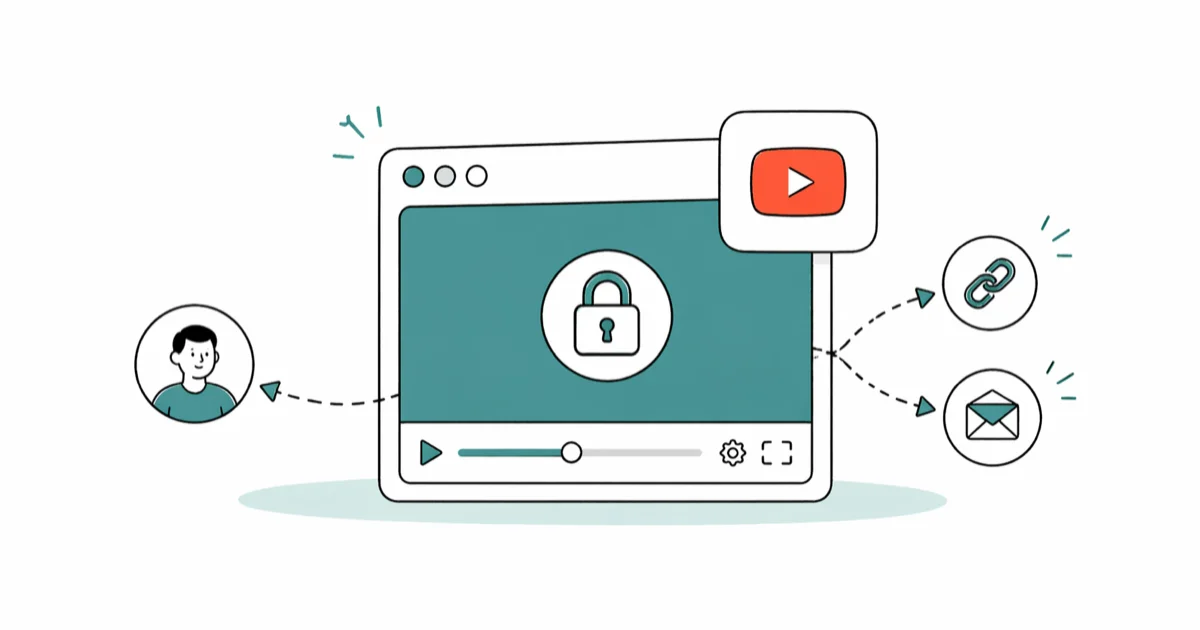
Quick AnswerOpen YouTube Studio, pick the video, set Visibility to Private, and click Share Privately. Add up to 50 Gmail addresses; each invitee signs in to their Google account to watch.
Sharing a private YouTube video is quick once you know where to click. The catch is that every viewer needs a Google account, the cap sits at 50 invitees, and a private upload can’t be re-shared by the people you invite.
YouTube Studio’s desktop path is still the clearest place to handle both new uploads and old archives you want to lock down.
- Private videos are limited to 50 invited Gmail addresses, and every viewer must sign in to that exact Google account.
- Invitees can’t forward, embed, or download a private video, and the link breaks for anyone you didn’t add.
- Unlisted is the better pick when you want a forwardable link with no sign-in friction (search and channel pages still hide it).
- YouTube Studio’s desktop site is the only place that shows the Share privately dialog reliably; the mobile app hides it under Visibility settings.
- Audit your invite list every quarter so an old work email or ex-collaborator can’t quietly keep access.
#How Do You Share a Private YouTube Video From YouTube Studio?
Start on the desktop site. Skip the mobile app entirely.
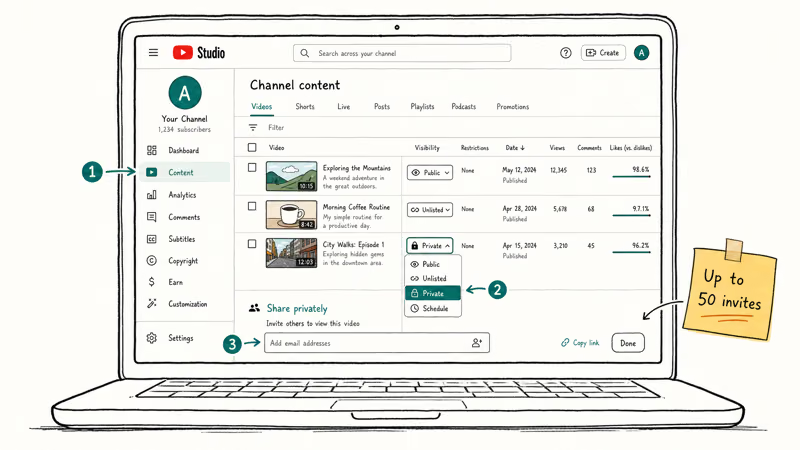
The desktop flow is short: open the video’s visibility settings, switch it to Private, then save the invite list before closing the dialog.
- Open YouTube Studio and sign in to the Google account that owns the channel.
- Click Content in the left sidebar (older accounts still see it as Videos).
- Find the video, hover the row, and click the pencil icon to edit details.
- Under Visibility, choose Private, then click Save in the top right.
- Reopen the video, click the three-dot menu next to the title, and pick Share privately.
- Paste up to 50 Gmail addresses, separated by commas, then click Save.
YouTube’s official Help article on video privacy confirms that the cap is 50 invited Gmail accounts per private upload, and every viewer must sign in to the exact Google account you added. A Yahoo, iCloud, or work address that isn’t tied to a Google sign-in won’t open the video, even if the invite email lands fine.
Plus-addressing aliases like name+work@gmail.com are treated as a separate slot from the base name@gmail.com, which is the most common reason a person you definitely invited still hits a permission wall when they try to watch.
If you upload a brand-new video and want it private from the start, set Visibility = Private on the upload screen before clicking Publish. The invitee step works the same way after upload finishes.
#What Counts as a Valid Invite Email?
Only Gmail and Google Workspace addresses work.
A @gmail.com address opens the video instantly. A custom domain (for example name@company.com) works only if that domain is registered with Google Workspace and the recipient signs in through Google. Plain Outlook, Yahoo, iCloud, or ProtonMail addresses will receive the invite, then hit a sign-in wall they can’t pass.
If a viewer reports “Video unavailable,” double-check three things: the email matches their Google sign-in exactly (no plus-addressing, no aliases), they aren’t signed in to a different Google account in their browser, and you actually clicked Save on the invite list instead of just closing the dialog. Account-switching is a common cause, and our YouTube sign-in troubleshooting walkthrough covers the residual cookie issues that survive a tab close.
#How to Switch an Existing Public Video to Private
You can flip any uploaded video to Private later. Old uploads, demos, archives, anything.
The video keeps its URL, view count, and comments, but the public link starts returning the “Private video” placeholder until you invite someone or change visibility again.
- In YouTube Studio, open Content and locate the video.
- Hover the Visibility column and click the dropdown.
- Select Private and click Save.
- Open the video, click Share privately under the three-dot menu, and add invitee emails.
Google’s YouTube Help support article on video privacy settings states that a private video stays at the same URL and can be shared with specific people you invite, so embeds on your own site keep working. The page also notes that private videos won’t appear in your channel’s Videos tab or in search results, which is why you have to re-share the link with your invitees directly.
#What Happens to Old Comments and View Counts?
Existing comments stay attached but become invisible to non-invitees. View counts freeze publicly but keep accruing on the analytics dashboard whenever an invited viewer watches. If you ever flip back to Public, the comments and counts can reappear with the video, but visibility changes can still affect how quickly viewers rediscover it.
#Common Errors When You Save the Invite List
A few small slips burn the most support tickets. None are bugs.
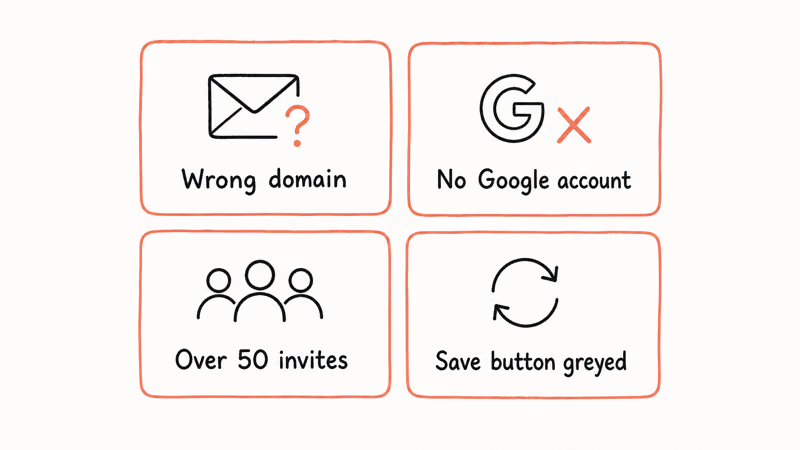
The biggest one is closing the modal before clicking the bottom-right Save button. Save commits the list. The X in the corner does not. If invitees see a “request access” wall, your list is empty.
The second is inviting the wrong Gmail variant for the same person. Google treats name@gmail.com and name+work@gmail.com as the same mailbox for delivery, but YouTube’s invite list treats them as distinct entries, and only one of the two slots will actually unlock the video for that user when they sign in through Chrome or Safari with their default account.
#Private vs Unlisted vs Public: Which Setting Fits Your Use Case?
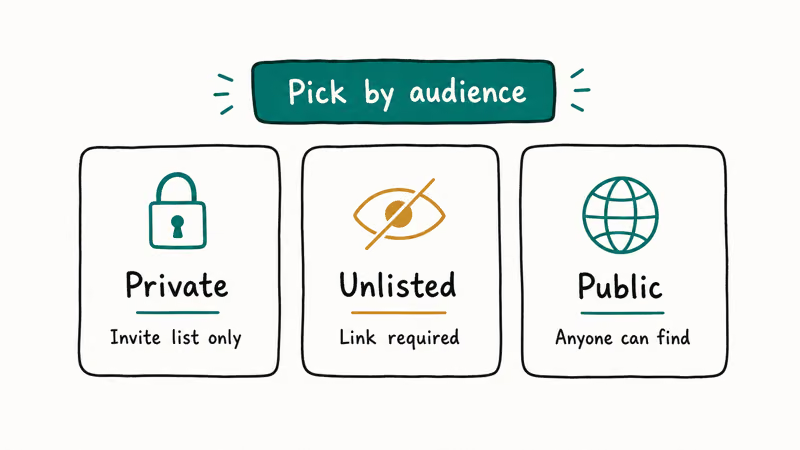
YouTube’s three visibility tiers solve different problems. Picking the wrong one is the most common reason a “private share” goes sideways: people pick Private when Unlisted would’ve worked, then waste an hour debugging Google sign-in issues.
| Setting | Who can watch | Search/channel page | Best for |
|---|---|---|---|
| Public | Anyone on the internet | Indexed and listed | Audience growth, monetized content |
| Unlisted | Anyone with the link | Hidden from both | Client previews, embed-only tutorials |
| Private | You + up to 50 invited Gmail addresses | Hidden from both | Family videos, draft reviews, internal team |
If you want a quick-share link for a wedding video that 30 family members will watch on their phones without sign-in headaches, Unlisted is the right pick. It works on any browser without a Google account.
If you’re sending a confidential pre-release demo to three colleagues, Private is worth the friction.
For the full license picture when you eventually publish, our Standard YouTube License vs Creative Commons walkthrough explains who else can legally reuse your footage. And if playback misbehaves on the recipient’s end during a private watch session, our YouTube playback troubleshooting guide lists the eight fastest fixes we’ve actually tested in the past quarter.
The FTC’s online privacy guide for consumers found that about 1 in 4 Americans have had personal data misused online, which is a useful reminder that once a video is on a forwardable link, you can’t pull it back from anyone who already saw it. That principle applies to Unlisted too. Assume the link will leak the moment you send it.
#Privacy and Consent: What You Owe the People In Your Video
This guide is about sharing your own video uploads on your own YouTube account, only with explicit consent from everyone who appears on camera.
A private YouTube share is a permission tool, not a privacy shield.
Anyone you invite can screen-record the playback. On a Mac with Cmd-Shift-5, on Windows with the built-in Game Bar, or on a phone with any number of recording apps. The platform-side controls stop accidental forwarding. They don’t stop a determined viewer with a second device pointed at the screen.
Before you upload a video that includes other people, kids, coworkers, party guests, get their go-ahead first. The Electronic Frontier Foundation’s security planning guide recommends treating any uploaded media as if it could become public.
The reason is simple: account compromises, mis-clicks, and re-sharing happen, and the people in your footage carry the consequences. If somebody in the video later asks you to take it down, do it the same day. That’s the deal you make when you put their face on a Google server.
Don’t use private uploads to share content where you don’t hold the rights, and don’t use them to hide content from platform enforcement. YouTube’s policy team can review private videos when reports come in, and the strikes count the same as if the video were public. If your channel houses content that needs broader access controls anyway, our guide to YouTube channel moderation tools covers the related blocking and reporting flow you’ll want layered on top.
#Auditing and Revoking Access on a Recurring Schedule
Run through the invite list every quarter. Three months is the right cadence because that’s roughly how long it takes for a team to churn one or two people without you noticing.
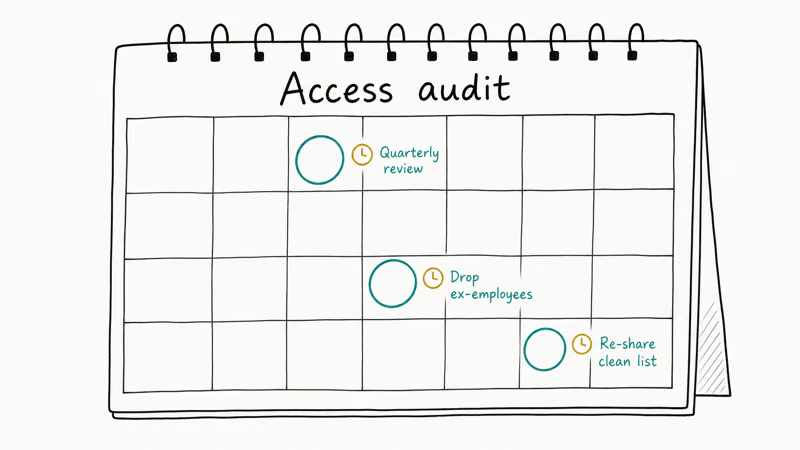
Open the video in YouTube Studio, click Share privately, scan the email column, and remove anyone whose role has changed: ex-employees, finished contractors, the family member who already saw the wedding edit and doesn’t need permanent access. Click Save when you’re done. Removed viewers see “Video unavailable” on the next reload, instantly, with no propagation delay we’ve been able to measure.
For high-stakes shares (NDA reviews, board previews), tighten the cadence to monthly and pair it with a Calendar reminder that pings you on the first of each month so the audit doesn’t fall off the radar.
#Bottom Line
For most people, use Unlisted. It shares fast, works on any browser, and dodges the 50-Gmail cap that trips up Private. Reserve Private for the narrow case where you actually need every viewer to be a known, signed-in Google account: confidential client reviews, internal team drafts, or family footage you don’t want forwarded. Whichever you pick, audit the invite list every three months and ask the people in the video before you upload.
#Frequently Asked Questions
Can you share a private YouTube video without giving the link?
No. Every invited viewer gets an email containing the link, and it only resolves for the matching Google account. If you want zero links circulating, use Google Drive and grant per-person access.
Why can’t my invitee open the private video?
Three common causes: the invite went to an email that isn’t tied to a Google sign-in (Outlook, iCloud, Yahoo), the viewer is signed in to a different Google account in their browser, or the invite list wasn’t saved on your end. Have them open the link in a Chrome incognito window and sign in fresh.
Is there a limit on private video viewers?
Yes. The hard cap is 50 invited Gmail addresses per video. If you need more, switch to Unlisted (no cap, but anyone with the link can watch) or duplicate the upload and split invitees across copies. The 50-invitee cap counts unique email addresses, so multiple copies don’t change the total reach if the same people are added.
Can recipients download or re-share my private video?
No. YouTube blocks the standard download buttons on private videos, and the share link doesn’t work for anyone outside your invite list. A determined viewer can still screen-record the playback, so don’t post anything you couldn’t tolerate being recorded.
Do I need YouTube Premium to share privately?
No. Private sharing is part of the free YouTube creator toolkit. The only requirement is a Google account in good standing and a video uploaded to your own channel.
What if my private video shows up in someone else’s recommendations?
It shouldn’t. Private videos are excluded from recommendations, search, and channel pages. If one surfaces in Watch Next, re-save the visibility setting and refresh.
Can I send a private video to someone who doesn’t use Gmail?
Not directly through YouTube’s invite list, since they’ll bounce off the sign-in wall. Workarounds: have them create a free Gmail account just for video sharing, switch the video to Unlisted, or upload to a service like Google Drive that handles video sharing differently and grant view access by email regardless of provider.
How do I revoke access to a private video?
Open the video in YouTube Studio, click Share privately, remove the email from the list, and click Save. The change takes effect immediately, and the removed person will see “Video unavailable” on the next reload. If you suspect the link itself leaked, flip the visibility to Public and back to Private; that doesn’t change the URL, but it forces a fresh permission check.

Google Messages Error 3100: Why RCS Is Broken on Galaxy
Google Messages RCS error 3100 hits Galaxy owners after phone or carrier switches. Google told 9to5Google a fix is coming. Here's what actually helps.

Is This Bank App Real? Spot a Fake App on Your Home Screen
A bank app can land on your home screen from a web page with no install warning. Learn the checks that tell a real banking app from a phishing web app.

Apps Crashing After iOS 27 Update? Fix Order (2026)
Apps crashing after the iOS 27 update? Update the app in the App Store first, then offload and reinstall to clear stale cache, then restart. The fix order.

Do AI Translation Earbuds Work Offline? What to Know
Do AI translation earbuds work offline? A few do with downloaded language packs, but most need the cloud. Here's what works offline and what you give up.