How to Block Someone on YouTube on Desktop and Mobile
Block someone on YouTube from their channel page or from a comment. Covers desktop, Android, and iPhone steps plus how to manage your blocked list.
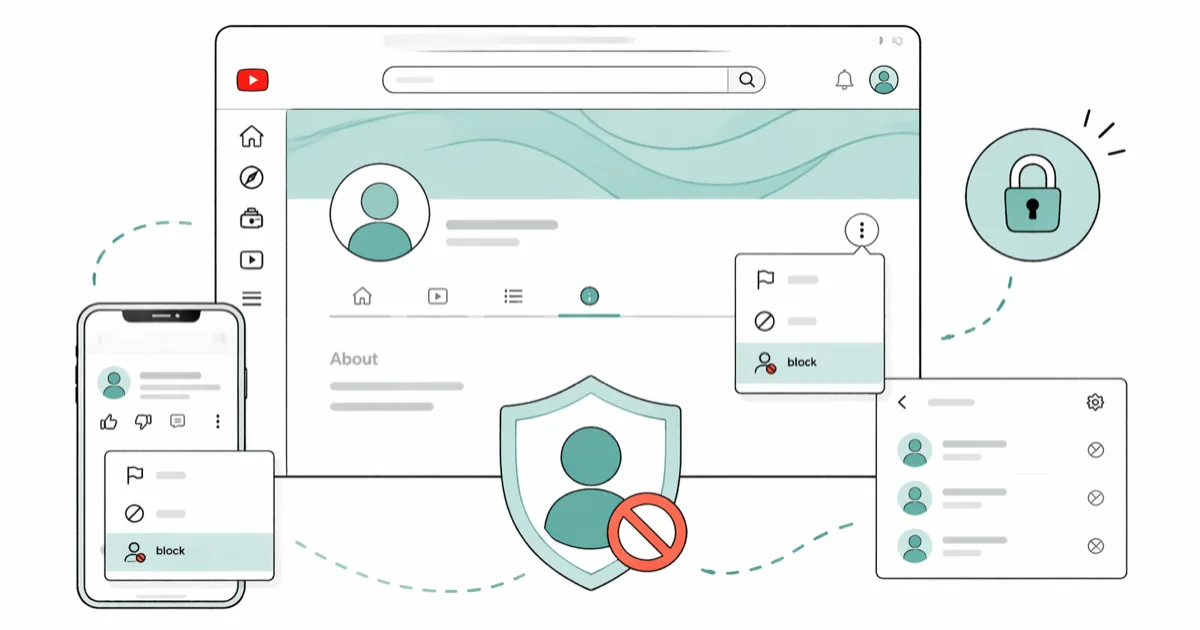
Quick AnswerOpen the user's YouTube channel or one of their comments, use the three-dot menu, and choose the block or hide option. Blocking stops comment, live chat, and mention interactions tied to that account.
Blocking someone on YouTube is quick once you find their channel, comment, or live chat message. Once blocked, that person can’t interact with you through comments, live chat messages, or mentions tied to that account. Here’s how to do it on desktop and mobile, plus how to manage your blocked users list.
- Blocking takes effect immediately. A blocked user loses comment, live chat, and mention interactions tied to the blocked account.
- Blocked users aren’t notified that you blocked them, and they’ll only notice when they try to interact with your channel and find they can’t.
- Existing comments from a blocked user remain on your videos; you’ll need to manually delete them from YouTube Studio since blocking doesn’t remove past content.
- You can review and manage blocked accounts from Google’s block list page, and unblocking restores those account-level interactions.
- Comment moderation in YouTube Studio is more efficient than blocking when dealing with widespread spam, since the blocked words list automatically holds matching comments for review channel-wide.
#How to Block Someone on YouTube Desktop
The fastest way to block someone on desktop is from their channel page:
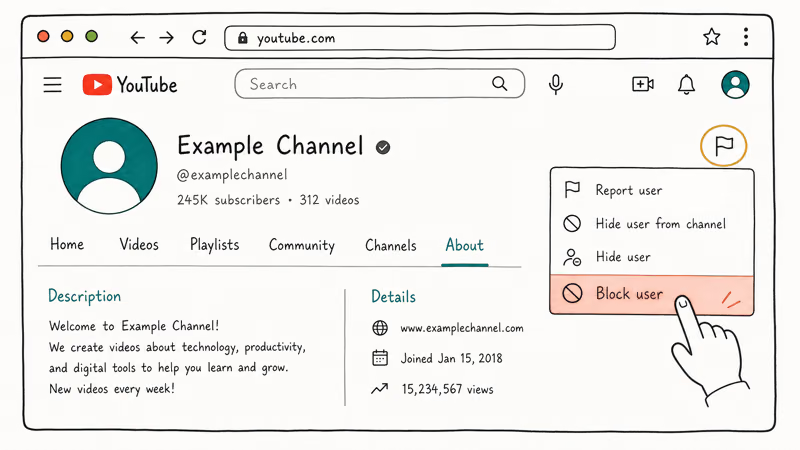
- Go to the user’s YouTube channel (click their name on any comment or video)
- Click the “About” tab on their channel
- Click the flag icon on the right side
- Select “Block user”
- Click “Submit” to confirm
According to YouTube’s Help Center, blocking a channel stops comment, live chat, and mention interactions tied to that account. The same Google Help page states that the blocked account is also blocked in other Google products.
The block takes effect at the account-interaction level. The blocked user’s existing comments may stay visible on your videos, so delete past comments separately if needed.
You can also block someone directly from a comment. Right-click their profile picture next to the comment, select “Block user,” and confirm.
#How to Block Someone on the YouTube Mobile App
The process on the YouTube app for Android and iPhone is slightly different:
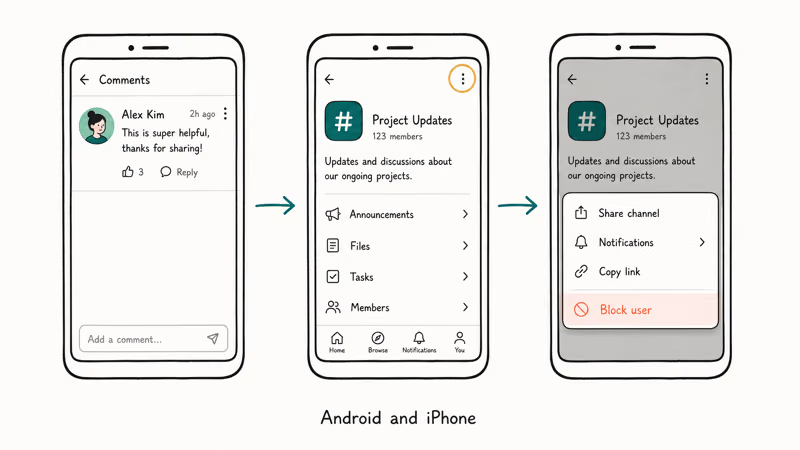
- Find a comment from the user you want to block
- Tap their profile picture to open their channel
- Tap the three-dot menu in the top right corner
- Select “Block user”
- Tap “Block” to confirm
If you can’t find a comment from the user, search for their channel name in the YouTube search bar, open their channel, and follow the same steps from there.
According to YouTube’s community guidelines, blocking is one of several tools available to manage interactions on your channel. For persistent harassment, reporting the user is a better option since YouTube’s moderation team can take action on the account.
#Where Can You See Your Blocked Users List?
To see everyone you’ve blocked:
- Go to youtube.com/account_privacy on desktop
- Scroll to the “Blocked users” section
- You’ll see a list of all blocked accounts
From this page, you can unblock anyone by clicking the “X” next to their name. Unblocking restores account-level interactions after the block list refreshes.
On mobile, go to Settings > Privacy > Blocked users to access the same list.
#What Happens When You Block Someone on YouTube?
When you block a YouTube user, several things change:
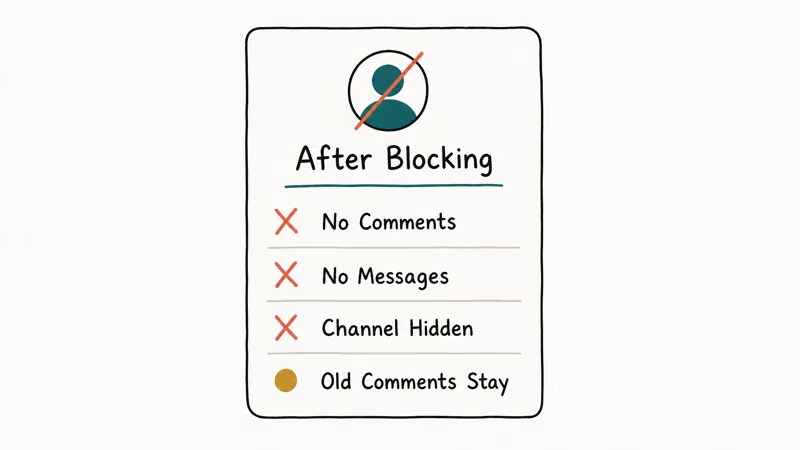
- They can’t comment on your videos or community posts
- They can’t send you direct messages
- They can’t see your channel when logged into their account
- Their existing comments remain visible (you’ll need to delete those manually)
- They don’t receive a notification about being blocked
One thing to note: blocking only works while the user is signed in to the blocked account. If they sign out or switch to a different account, they can still view your public videos. For more persistent issues, consider reporting the user to YouTube or enabling comment moderation.
#Alternatives to Blocking Individual Users
If you’re dealing with multiple problematic commenters, comment moderation is more efficient than blocking users one by one.
#How to Use Comment Moderation Instead of Blocking
To turn on comment moderation in YouTube Studio:
- Go to
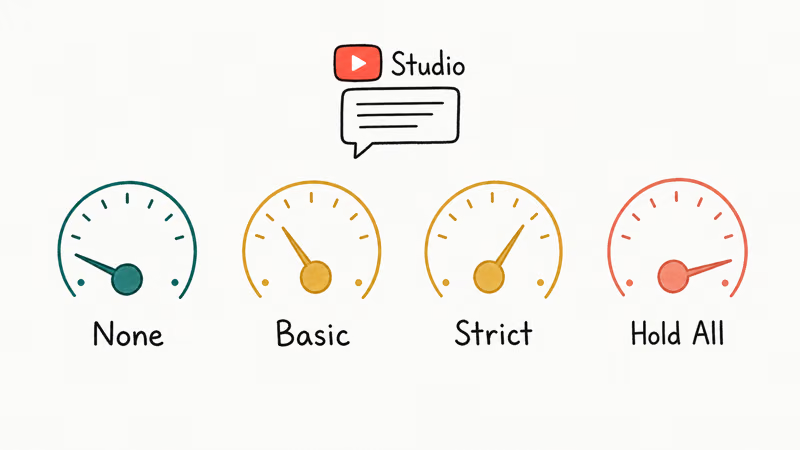
YouTube Studio>Settings>Community - Under “Defaults,” set comment visibility to “Hold potentially inappropriate comments for review” or “Hold all comments for review”
- Click Save
YouTube’s comment moderation documentation states that channel comments can use 4 moderation levels: none, basic, strict, or hold all. The same page says comments containing blocked words or links can be reviewed under the Held tab for up to 60 days, which gives you a more scalable filter than blocking one account at a time.
If you’re also having trouble with other YouTube issues, check our guides on YouTube error 503 or YouTube not working.
Playback hiccups during long viewing sessions often have separate causes, so our walkthrough on YouTube keeps pausing covers those triggers in more depth.
#Bottom Line
Block users from their channel page or from any comment they’ve left. Use comment moderation if you’re dealing with widespread spam or harassment. Both features are free and take effect immediately. For help with sharing private videos, check our other guides.
#Frequently Asked Questions
Can a blocked user still see my YouTube videos?
Blocked users can’t see your channel page or community posts when signed in to the blocked account, and they can’t comment on or message you from it either. They can still watch your public videos by signing out or switching to a different Google account, because blocking isn’t the same as a privacy restriction. To restrict viewing entirely, mark the video as Private or Unlisted in YouTube Studio instead.
Does YouTube notify someone when I block them?
No. YouTube doesn’t send a notification, so the person only finds out when they try to interact.
Can I block someone on YouTube without going to their channel?
Yes. YouTube’s Help Center confirms that creators and moderators can handle problem accounts from 3 places: YouTube Studio, a viewer’s comment, or live chat moderation. It’s often faster than navigating to the channel page.
Will blocking someone delete their existing comments?
No. Blocking stops future interactions, but past comments stay put.
Can I block someone on YouTube from my phone?
Yes. Open the YouTube app, find a comment or the channel, tap the three-dot menu, and pick “Block user.” The flow is identical on Android and iPhone, and the block syncs across every signed-in device on the same Google account, so you don’t have to repeat the action on desktop later.
How many users can I block on YouTube?
YouTube doesn’t publish an exact ceiling. Creators have reported blocking hundreds of accounts without hitting a cap, so for typical channels the practical limit isn’t something you’ll run into. If you find yourself adding dozens of blocks every week, switching to comment moderation or restricted mode in YouTube Studio is usually less work than maintaining a long list of individual blocks, and it scales better as your channel grows.

Google Messages Error 3100: Why RCS Is Broken on Galaxy
Google Messages RCS error 3100 hits Galaxy owners after phone or carrier switches. Google told 9to5Google a fix is coming. Here's what actually helps.

Is This Bank App Real? Spot a Fake App on Your Home Screen
A bank app can land on your home screen from a web page with no install warning. Learn the checks that tell a real banking app from a phishing web app.

Apps Crashing After iOS 27 Update? Fix Order (2026)
Apps crashing after the iOS 27 update? Update the app in the App Store first, then offload and reinstall to clear stale cache, then restart. The fix order.

Do AI Translation Earbuds Work Offline? What to Know
Do AI translation earbuds work offline? A few do with downloaded language packs, but most need the cloud. Here's what works offline and what you give up.