Does Google Drive Compress Video? What Actually Happens
Google Drive does not compress videos on upload. Find out why playback looks lower quality, how it differs from Google Photos, and tips for sharing videos.
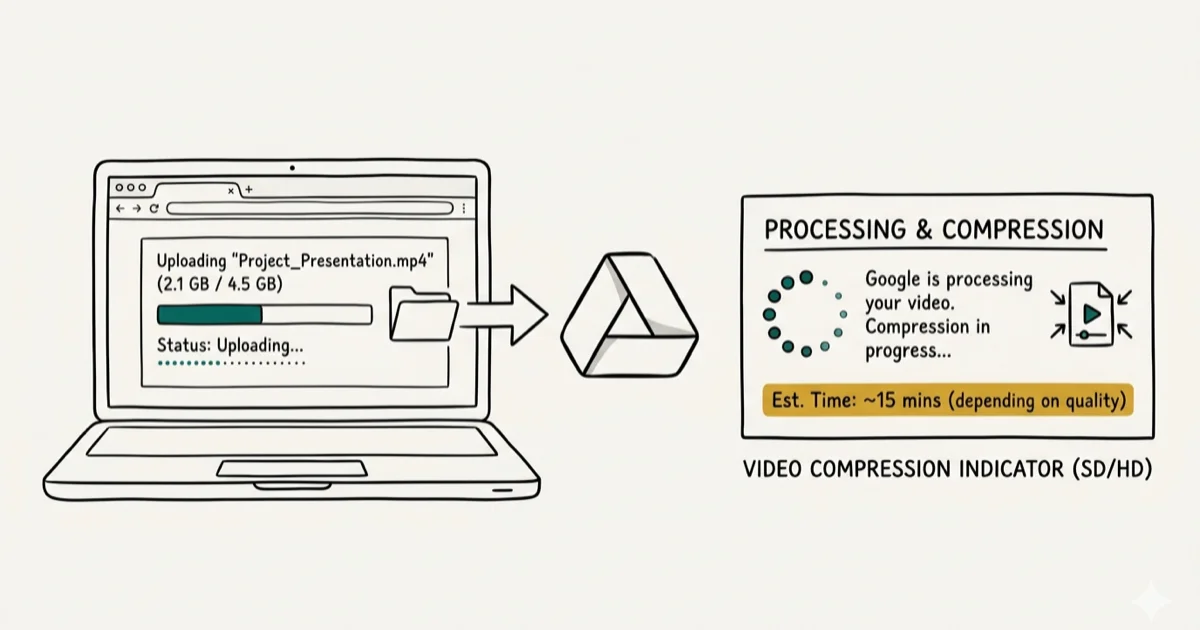
Quick AnswerNo, Google Drive does not compress video files on upload. Your original file is stored at full quality. The lower resolution you see during playback is streaming optimization, not compression -- download the file to confirm the original quality is intact.
Google Drive stores your video files in their original uploaded format — no upload-time compression or quality loss. What trips people up is the playback experience, which works differently.
Test Google Drive video behavior only with your own account, your own device, or files you are authorized to upload and share. Videos can include faces, voices, locations, or client material, so stay within legal privacy boundaries, check sharing permissions, and get consent before uploading someone else’s footage online anywhere.
- Google Drive stores videos at original quality with no compression or resolution reduction
- Streaming from Drive uses adaptive bitrate and caps at 1080p, which does not alter the stored file
- Google Photos has a “Storage Saver” mode that compresses videos to 1080p — Drive does not
- Download the file from Drive to confirm original quality is always preserved
- Drive supports MP4, MOV, AVI, WMV, FLV, and WebM at up to 5 TB per file
#Does Google Drive Compress Videos on Upload?
When you drag a video file to Google Drive, it uploads the raw bytes without any transcoding. Google confirms this in its Drive storage policies: videos are stored in original format and count against your storage quota at their actual file size.
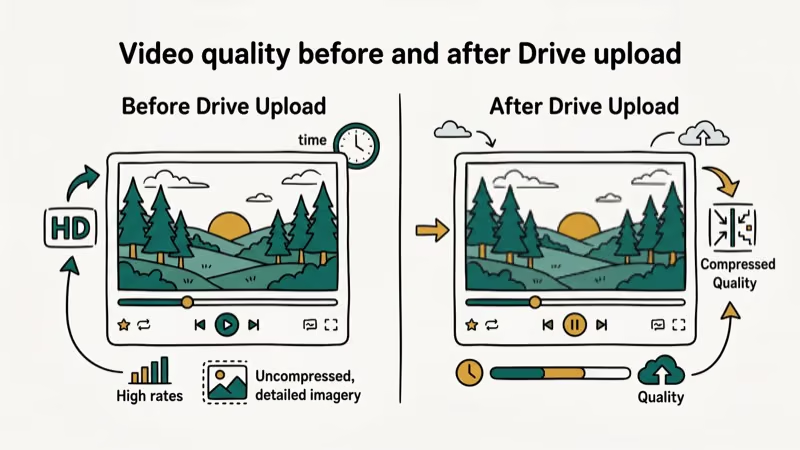
Standard Drive uploads preserve the stored video file rather than replacing it with a compressed version. The upload process preserves your video completely, including MP4, MOV, AVI, WMV, FLV, and WebM formats.
The only exception is if you specifically ask Drive to convert your file — that’s an opt-in action, not the default. Standard uploads never trigger compression.
#Why Does Playback Look Lower Quality?
This is where the confusion starts. When you stream a video in the Drive browser player or mobile app, Google serves a transcoded version optimized for your connection speed and device. The player tops out at 1080p streaming resolution even if your original file is 4K.
According to Google’s Drive Help documentation, videos are processed into streaming-compatible formats after upload. This processing creates a separate streaming copy — it does not replace or alter your original file. The streaming copy and the stored original are completely separate.
Downloading the file from Drive retrieves the stored original rather than the lower-resolution streaming preview.
#Google Drive vs Google Photos: A Critical Difference
Google Drive and Google Photos handle videos very differently, and it’s easy to confuse the two.
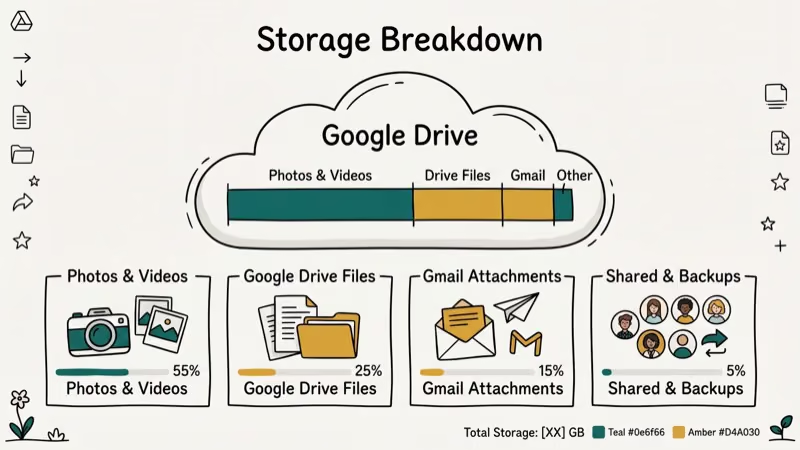
Google Drive stores videos in original quality, full stop. No compression happens unless you opt in. Files count against your storage at their actual size.
Google Photos has a “Storage Saver” mode (formerly “High Quality”) that compresses photos and videos to reduce storage use. According to Google’s Photos storage policies, Storage Saver mode compresses videos to 1080p and reduces photo resolution to 16 megapixels. This is the default setting when you set up a new device.
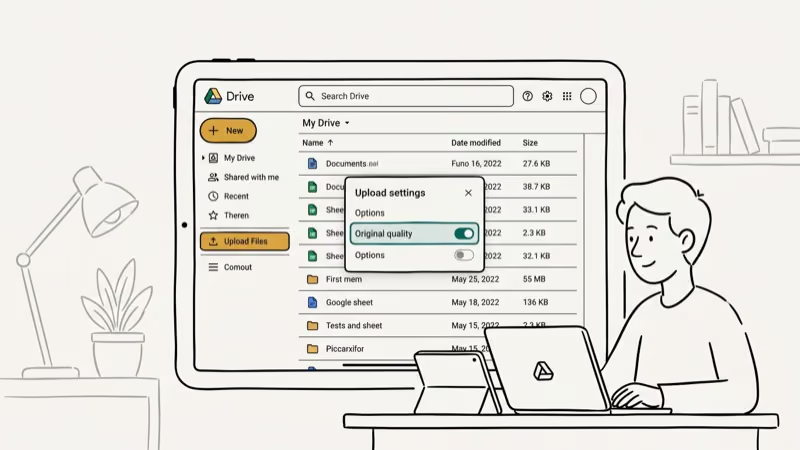
Switch to “Original Quality” before uploading if you want preservation. Once a video is in Photos at compressed quality, the original can’t be recovered.
Drive doesn’t have this problem. If you’re not sure which service is backing up your phone’s videos, check Settings in both apps. Our guide on Google Photos not backing up covers how to confirm your backup status and fix common upload failures.
#Sharing and Downloading at Full Quality
Sharing a Drive file gives the recipient your original. Downloads always deliver the stored file, not a compressed web version.
The shared streaming preview still caps at 1080p, but that’s just the player. Download links bypass the player entirely and deliver the original. This applies to view-only shares, edit-access shares, and publicly shared links.
For large video files over a few gigabytes, use the Drive desktop app for uploads rather than the browser uploader. The desktop client handles large files more reliably and can resume interrupted uploads. Google’s Drive file size limits page states that individual files up to 5 TB are supported, which handles even multi-hour 4K footage or large broadcast formats.
If you need to move videos between cloud services, see our guide on transferring files from Google Drive to Dropbox and moving files from OneDrive to Google Drive.
#Getting the Best Results With Drive Video
A few practices that keep your video workflow clean:
Download before editing. Drive works as a storage and transfer layer, not a streaming platform for editorial work. Always download footage before editing rather than working from the streamed preview.
Check your Photos backup settings. If your phone backs up to both Drive and Photos, Photos may be compressing the same videos that Drive stores at original quality. Confirm Photos is set to Original Quality if you care about preservation. You can verify this in the Google Photos app under Settings > Backup > Upload size. The setting defaults to Storage Saver on Android devices set up after 2021, so most users have never changed it.
Use direct download links for sharing. When sharing large files with collaborators, share a file link that defaults to download rather than browser preview to avoid the 1080p streaming cap.
See our guides on how to send large videos on WhatsApp and uploading high-quality video to Instagram.
#Formats and File Size Limits
Google Drive’s video support covers the most common formats without any conversion: MP4, MOV, AVI, WMV, FLV, and WebM. The playback engine handles H.264 and H.265 video with AAC or MP3 audio. Formats outside this set can be stored in Drive but won’t play in the browser viewer — they’ll only be available for download.
File sizes up to 5 TB are supported per file. In practice, this covers hours of 4K footage without hitting any limit. For uploads over a few gigabytes, the Drive desktop app is more reliable than the browser uploader and supports interrupted-upload resumption.
#Bottom Line
Google Drive doesn’t compress your videos — the original file is stored intact regardless of size or resolution. The lower quality you see during in-app playback is the 1080p streaming cap, not the stored file. Download the video to confirm this. Google Photos is the service that compresses videos by default in Storage Saver mode, and confusing the two is the most common source of this misconception.
#Frequently Asked Questions
Does Google Drive compress 4K videos?
No. Google Drive stores 4K video files at full resolution without compression. The in-browser player caps streaming at 1080p, but that doesn’t affect your stored file. Download the 4K video from Drive and it plays back at full resolution.
Why does my video look blurry in Google Drive?
The player caps at 1080p. Download the file and play it locally to confirm original quality.
Does Google Drive compress videos to save storage?
No. Google Drive doesn’t touch your video files. They count against your storage quota at their full original size. If storage space is a concern, you can expand your quota through Google One rather than accepting any compression.
What’s the maximum video file size on Google Drive?
5 TB per file. Use the desktop app for uploads over a few gigabytes.
Does Google Drive change video format on upload?
No. Drive stores your video in whatever format you uploaded — MP4, MOV, AVI, WMV, FLV, or WebM. The format isn’t changed or transcoded. Google does generate a separate streaming preview copy for playback, but your original file stays in its original format.
Is Google Drive or Google Photos better for video storage?
Google Drive is better for original quality. Google Photos compresses in Storage Saver mode by default — switch to Original Quality before uploading important videos. Drive compresses nothing. The two services coexist in your Google storage quota, and your phone may back up to both simultaneously without you realizing it, with Photos quietly compressing what Drive stores intact.
How do I download a video from Google Drive at full quality?
Right-click the file in Drive and select Download. The downloaded file is your original at full quality. Avoid saving by right-clicking within the in-browser preview player, which may save the streaming preview instead of the original stored file.

Google Messages Error 3100: Why RCS Is Broken on Galaxy
Google Messages RCS error 3100 hits Galaxy owners after phone or carrier switches. Google told 9to5Google a fix is coming. Here's what actually helps.

Is This Bank App Real? Spot a Fake App on Your Home Screen
A bank app can land on your home screen from a web page with no install warning. Learn the checks that tell a real banking app from a phishing web app.

Apps Crashing After iOS 27 Update? Fix Order (2026)
Apps crashing after the iOS 27 update? Update the app in the App Store first, then offload and reinstall to clear stale cache, then restart. The fix order.

Do AI Translation Earbuds Work Offline? What to Know
Do AI translation earbuds work offline? A few do with downloaded language packs, but most need the cloud. Here's what works offline and what you give up.