How to Set Up a Firewall on Windows 11: Full Guide
Windows 11 ships with Microsoft Defender Firewall already on. Here is how to check it, set network profiles, and allow or block an app the right way.
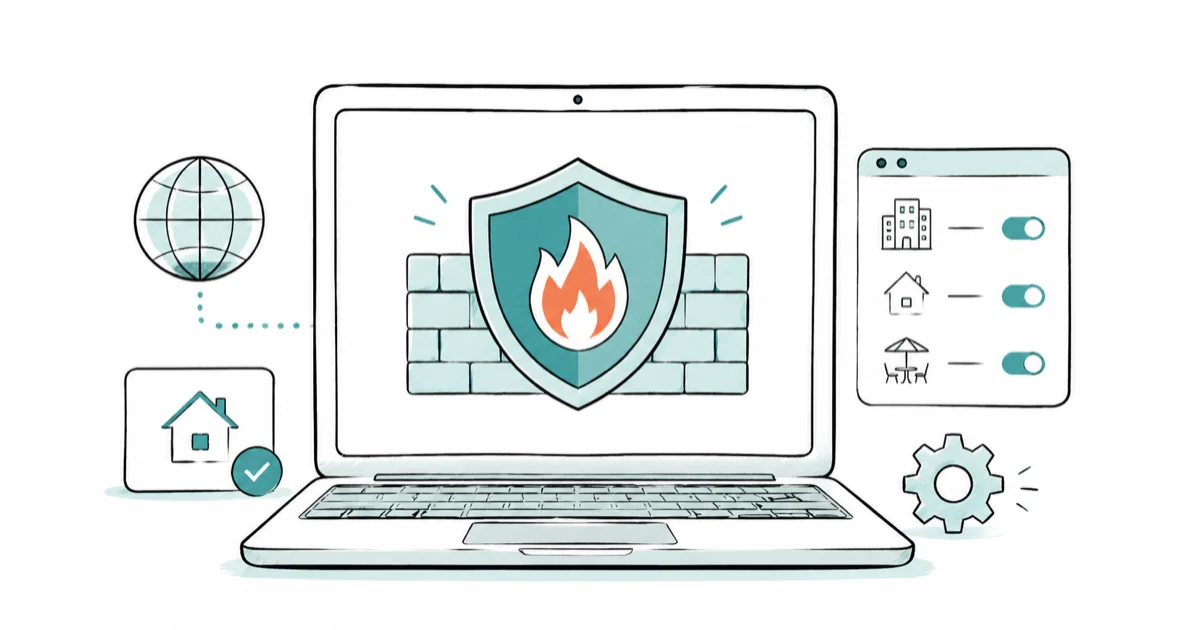
Quick AnswerWindows 11 already has Microsoft Defender Firewall on by default, so setup mostly means confirming it. Open Windows Security, go to Firewall and network protection, and check the firewall is On for your Domain, Private, and Public profiles.
Setting up a firewall on Windows 11 sounds like a project, but it’s mostly a checkup. Microsoft Defender Firewall is already running after setup, and the panel is mainly for confirming defaults, understanding network profiles, and allowing only apps that need inbound access.
- Microsoft Defender Firewall is on by default in Windows 11, so “setup” usually means verifying it, not installing anything
- You manage it in Windows Security under Firewall and network protection, with separate switches for 3 network profiles
- By default it blocks unsolicited incoming traffic and allows outgoing traffic, which is the safe baseline for most people
- Allowing an app through the firewall is safer than opening a port, because the app only opens what it needs when it needs it
- Microsoft recommends leaving the firewall on, since turning it off removes layers like network attack protection and IPsec rules
#Is the Windows 11 Firewall Already On?
Almost certainly, yes. This trips people up the most, so it’s worth saying plainly first.
Windows 11 turns the firewall on automatically. According to Microsoft’s Windows Firewall overview, Windows Firewall “is a host-based firewall that is included with the operating system and enabled by default on all Windows editions.” Nothing to download, no separate install, no license to buy.
So “setting up a firewall” on Windows 11 is really three small jobs: confirm it’s on, tune the network profiles, and decide which apps get through. The rest of this guide walks each one, and none of them take long.
#Where to Open Firewall Settings in Windows 11
The whole control surface lives inside the Windows Security app. You don’t need the old Control Panel for everyday tasks.
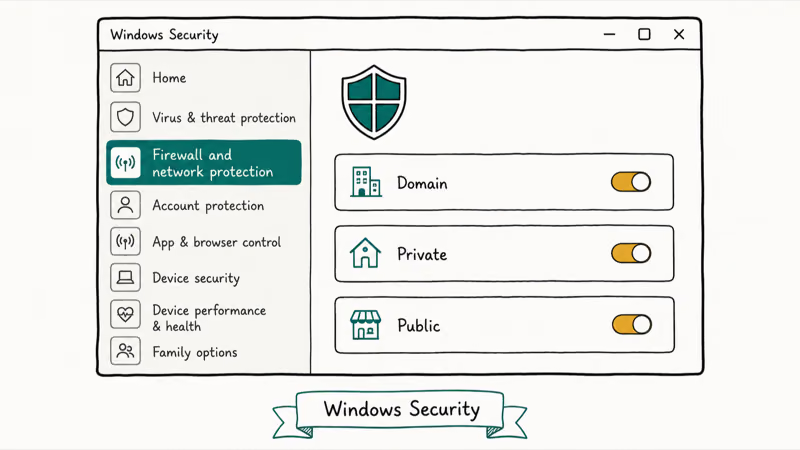
Open the Start menu, type Windows Security, and press Enter. The firewall sits under its own section called Firewall and network protection, one of the core protection areas the Windows Security app groups alongside virus protection and account safety. If you’ve ever wondered what that app actually does, our explainer on Windows Defender and whether it’s good enough covers the bigger picture.
When the section opens, you’ll see three network profiles listed, each with its own On or Off switch.
That same Security app, by the way, is where SmartScreen surfaces a fake website warning. The firewall is only one slice of what it does, but the profile separation is the part most guides skip over, and it’s where a little understanding saves you a lot of confusion later.
#Understanding the Domain, Private, and Public Profiles
Windows runs three separate firewall profiles and applies the right one based on the network you’re connected to. The same laptop can be locked down hard on hotel Wi-Fi and run more relaxed at home, switching on its own each time it sees a different network.
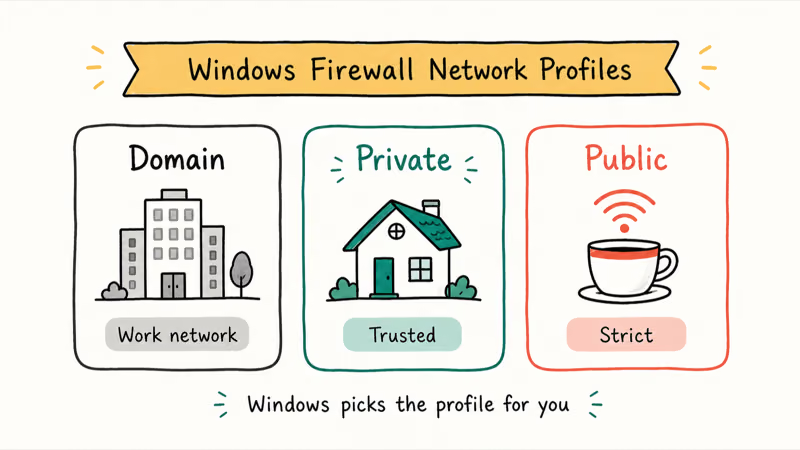
This matters more than it sounds. Microsoft confirms that Windows Firewall offers 3 network profiles, domain, private and public, used to assign rules so you “can allow a specific application to communicate on a private network, but not on a public network.” Here’s how each behaves in practice, and why the public profile is the one to watch when you travel and connect to networks you have never seen before.
Domain applies automatically when your PC is joined to a workplace Active Directory domain and finds a domain controller. You can’t set this one by hand, and home users rarely see it.
Private is for networks you trust, like your home Wi-Fi. It’s the more permissive profile, and you can set it manually as an administrator.
Public is the strict one. It’s the default for any unidentified network, and Microsoft designs it “with higher security in mind for public networks, like Wi-Fi hotspots, coffee shops, airports, hotels.” When you connect somewhere new and Windows asks whether the network is private or public, choosing Public is the safe answer anywhere unfamiliar. The same caution applies to the rest of your connection, which is why using a VPN on public Wi-Fi pairs so well with the firewall here.
#How to Turn the Firewall On or Verify It
If a profile shows Off, you want to fix that. The switch is one click away.
In Firewall and network protection, click the network profile you want to check, such as Public network. According to Microsoft’s guide on turning the firewall on or off, you then set the Microsoft Defender Firewall toggle to On, and the same page warns that “turning off Windows Firewall could make your device more vulnerable to unauthorized access.” Repeat for each of the three profiles.
On a normal Windows 11 setup, all 3 profiles should already be On out of the box, so confirming them is usually a quick check rather than a real configuration project.
A profile reading Off is the exception, not the rule. When it happens, that’s usually a sign a third-party security tool switched it.
Each profile also carries a checkbox to block all incoming connections, including those in the list of allowed apps. Microsoft notes this “increases your security but might cause some apps to stop working.” Treat it as a panic switch for sketchy networks, not an everyday default, since it overrides every exception you have carefully set up and can quietly knock out apps you actually rely on.
#How to Allow an App Through the Firewall
This is the setting most people actually come looking for, usually after a game or a chat app stops connecting. The firewall blocks unsolicited incoming traffic by default, so an app that needs to receive a connection has to be allowed first.
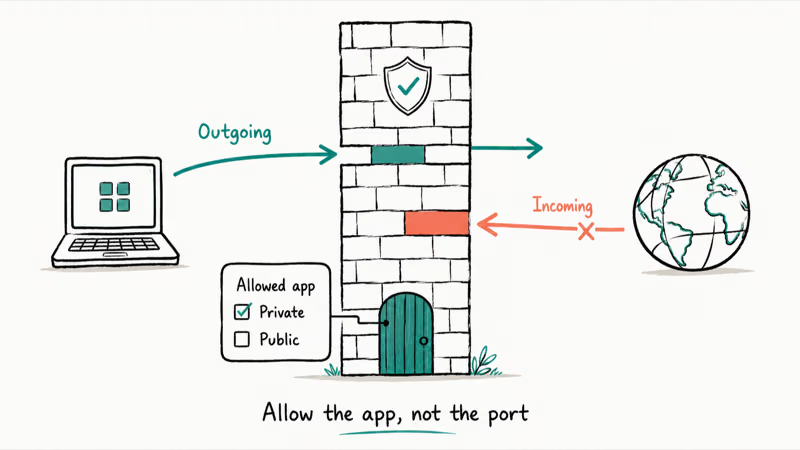
The logic is asymmetric on purpose. Microsoft’s overview describes the default behavior cleanly: Windows Firewall is built to “block all incoming traffic, unless solicited or matching a rule” while it allows outgoing traffic. That’s why your browser works instantly but a game server might not.
To add an exception, open Windows Security, go to Firewall and network protection, then Allow an app through firewall. As Microsoft’s instructions for allowing an app explain, you click Change settings, then either tick the box next to an existing app or use Allow another app to point at its path. The same page notes that allowing an app this way is “less risky” than opening a port, because “an allowed app opens the required ports only when needed.”
Be deliberate here. For a game, chat app, or local sharing tool that only needs trusted-network access, tick only Private and leave Public closed. That keeps your exception list short and your Public profile tight even as you add more apps over the months that follow.
Tick the box only for the network types an app truly needs. If an app misbehaves after a Windows update, this allowed-apps list is worth a look, much like checking startup programs in Windows 11 when something runs that shouldn’t.
#Should You Ever Turn the Firewall Off?
For almost everyone, no.
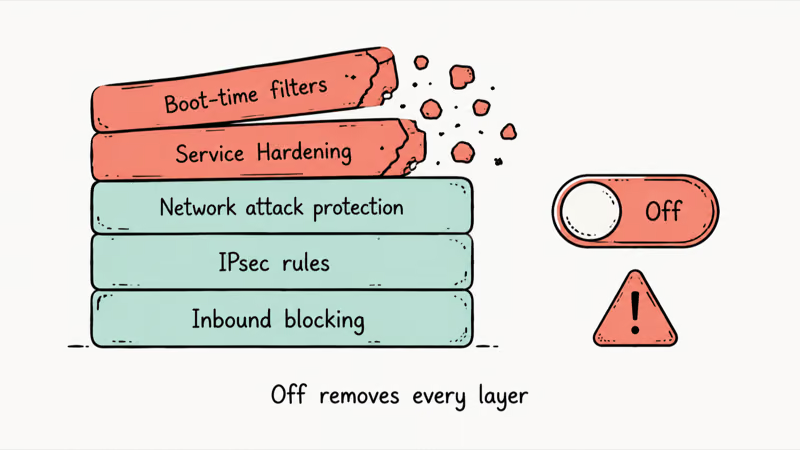
The firewall is a layer you want, and disabling it costs you more than the inbound blocking alone. Microsoft is blunt about this, and its overview recommends you “don’t disable Windows Firewall because you lose other benefits, such as the ability to use Internet Protocol security (IPsec) connection security rules, network protection from attacks that employ network fingerprinting, Windows Service Hardening, and boot time filters.” Stopping the service can even break the Start menu or block app installs.
So don’t reach for the off switch.
If you truly need a temporary exception for troubleshooting, allow the specific app instead of killing the whole firewall. And if an app still won’t connect after that, the problem is often elsewhere, like a stuck update, which our guide on Windows 11 that won’t update digs into.
#Bottom Line
Setting up a firewall on Windows 11 is less about installing protection and more about confirming the protection you already have. Open Windows Security, check that Microsoft Defender Firewall reads On for all three profiles, and you’re most of the way there.
The only ongoing maintenance is the allowed-apps list, and it stays short if you are disciplined about it. Add a trusted app when something truly needs to receive connections, keep the Public profile strict when you travel, and resist the urge to switch the whole firewall off just to fix one stubborn app. Allow the single app instead. Leave the rest of the wall standing, and the firewall keeps doing its quiet job without getting in your way.
#Frequently Asked Questions
Does Windows 11 come with a firewall built in?
Yes. Microsoft Defender Firewall ships in every edition of Windows 11 and is on by default, with nothing to install.
How do I check if my firewall is on in Windows 11?
Open the Windows Security app, then select Firewall and network protection. You’ll see Domain, Private, and Public network profiles, each with its own status. If each one reads on, you’re protected, and if any reads off, click into it and switch Microsoft Defender Firewall to On. The whole check takes under a minute.
What is the difference between the private and public network firewall profiles?
The private profile is for networks you trust, like home Wi-Fi, and it’s more permissive. The public profile is the strict default for unknown networks such as coffee shop or airport Wi-Fi. When Windows asks which type a new network is, choose public anywhere you don’t fully trust.
How do I allow a game or app through the Windows 11 firewall?
Go to Firewall and network protection, choose Allow an app through firewall, then click Change settings. Tick the box next to the app, or use Allow another app to browse to its file.
Is it safe to turn off the Windows 11 firewall?
Generally no. Microsoft recommends keeping it on because turning it off removes protections well beyond inbound blocking, including IPsec rules, network attack protection, and Windows Service Hardening, and stopping the service can even break the Start menu. If you need an exception for one app, allow that app rather than disabling the whole firewall, which keeps every other layer standing. For nearly all users, there is no good reason to switch it off.
Do I still need the Windows firewall if I have antivirus?
Yes, they do different jobs. The firewall controls network traffic in and out of your PC, while antivirus scans files and programs for malware. Microsoft Defender bundles both as separate layers, so leaving both on together is the right call.
Why is my Windows firewall suddenly off?
Usually a third-party security suite turned it off when it installed itself. Reopen Firewall and network protection and switch the firewall back on for each profile.

Best Laptop for Running LLMs in 2026: Memory Comes First
The best laptop for running LLMs is a memory purchase first. Compare MacBook unified memory against NVIDIA laptop VRAM, and see what each tier really runs.

How to Run a Local LLM on Windows: A 2026 Setup Guide
Run a local LLM on Windows with LM Studio or Ollama. Pick a model that fits your GPU memory, keep every prompt offline, and skip the monthly bill.

Bluetooth Not Working on Snapdragon X? Fixes for 2026
Bluetooth not working on your Snapdragon X Copilot+ PC? Generic audio, mice, and keyboards work, but vendor apps often lack an ARM build. Fixes inside.

Docker Desktop and WSL2 Not Working on Snapdragon X? Fix It
WSL2 runs fine on Snapdragon X, but Docker Desktop ARM is Early Access and throws WSL errors. Use WSL2 plus native ARM64 Ubuntu and Docker Engine.