Is My Router Hacked? 8 Warning Signs and Fixes (2026)
Worried your router is hacked? Learn the real warning signs, why a cluster matters more than one symptom, and how to factory reset and lock it back down.
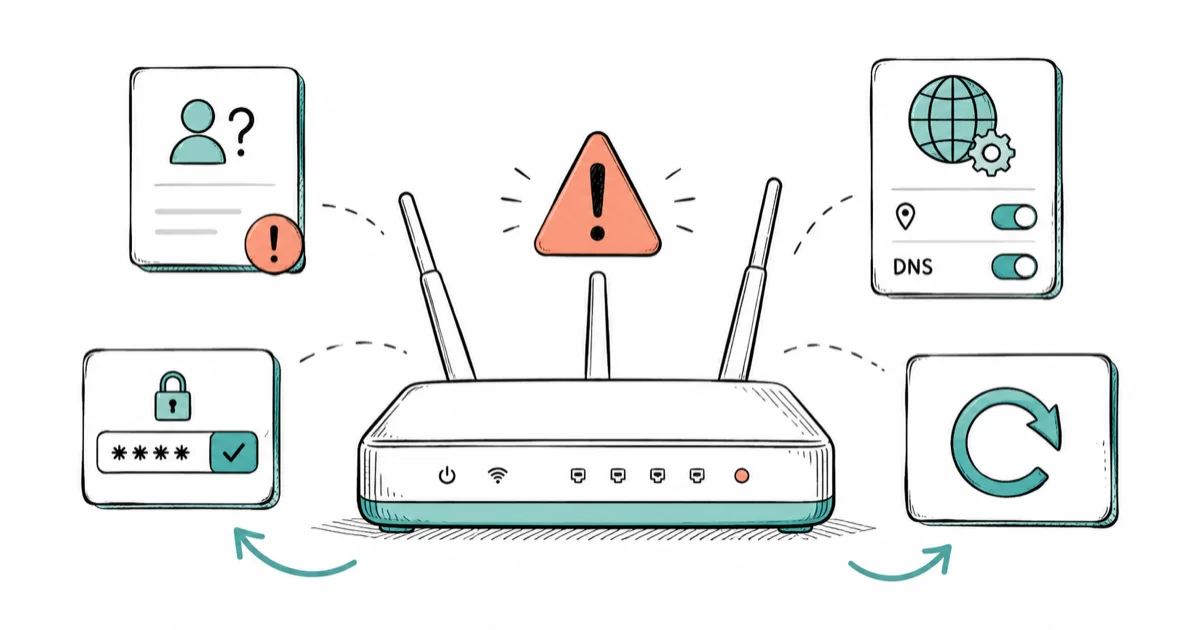
Quick AnswerA single odd symptom usually is not a hack. A real compromise shows up as a cluster: unknown devices, changed DNS or admin password, and browser redirects together. If several line up, factory reset the router.
Asking whether your router is hacked usually starts with one strange symptom: a redirect, a device you don’t recognize, or speeds that suddenly tanked. The honest answer is that a single sign is rarely proof. This guide covers the real warning signs of a router compromise, the cluster rule that prevents false alarms, and exactly how to lock your own network back down.
- One symptom alone is usually innocent, but a cluster of signs together is the real warning of a hacked router
- Being locked out of the admin panel or finding the admin password changed is one of the strongest single signs
- Unknown devices on your network, changed DNS settings, and browser redirects are the classic compromise cluster
- A factory reset wipes a hacker’s changes, but you must set a new strong admin password before reconnecting
- Disabling WPS, UPnP, and remote management closes the doors most home routers leave open by default
#What Are the Signs Your Router Is Hacked?
A hacked router shows specific symptoms, not vague slowness. The clearest is being locked out of your own admin panel.
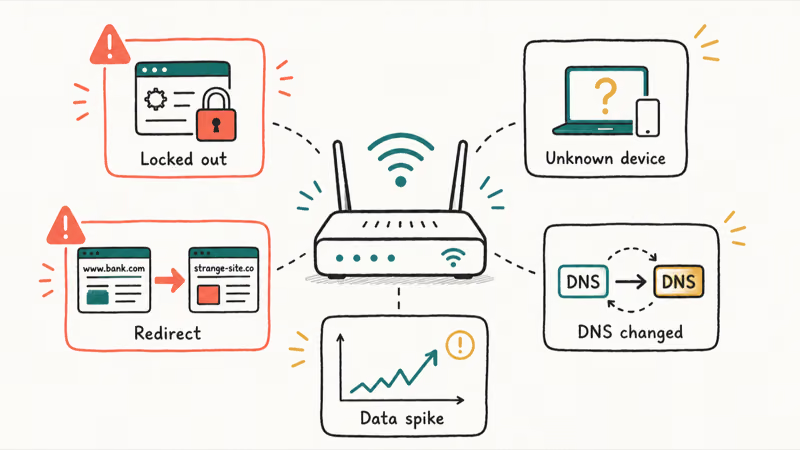
Other strong signs include unknown devices on your network, your DNS settings changed to point at unfamiliar servers, browser redirects to sites you didn’t request, and a sudden data spike your usage doesn’t explain. Fake security pop-ups and ransom messages are the most serious.
According to Norton’s hacked-router warning signs, changed router settings and unexpected software are among the most reliable indicators of a compromise. The key word is reliable. Read the next section before you panic over one symptom.
#Check for Unknown Devices and Changed Settings
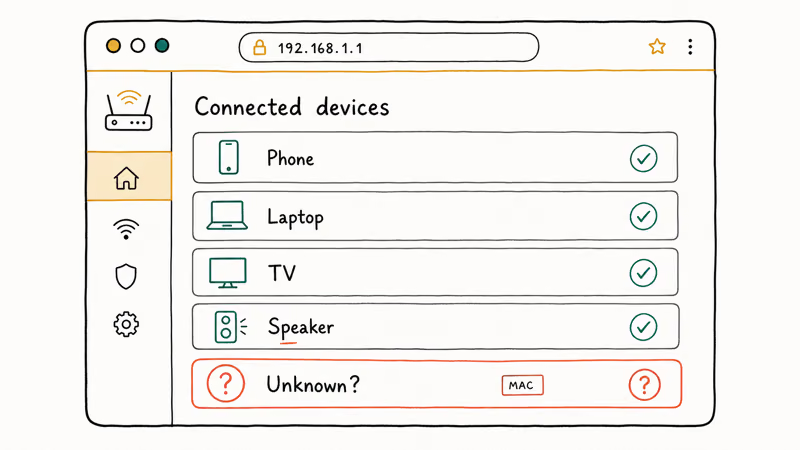
Log into your router’s admin panel, usually at an address like 192.168.1.1, and look at the connected-devices list. Match each entry to a device you own by its name or MAC address. Household device lists can look surprisingly long once phones, laptops, speakers, TVs, and smart-home gear are counted, so an unknown device after a careful count is the real flag, not an unfamiliar name at first glance.
Then check your core settings. Open the DNS configuration and confirm it points to your ISP or a service you chose, like 8.8.8.8 for Google. An unfamiliar DNS server is a classic hijack, since it lets an attacker redirect your traffic.
Look at port forwarding and the firewall, too. Rules you never created, a disabled firewall, or a changed network name all suggest someone has been inside, and any of these alongside a DNS change moves you firmly out of “probably nothing” and into “treat this as a real compromise.” Note anything strange before you reset, because that’s the evidence of what happened.
#Is Slow Internet Alone a Sign of Hacking?
No, and this is where most worry comes from. Slow internet has dozens of innocent causes: ISP congestion, an overloaded Wi-Fi channel, an aging router, or simply too many devices streaming at once.
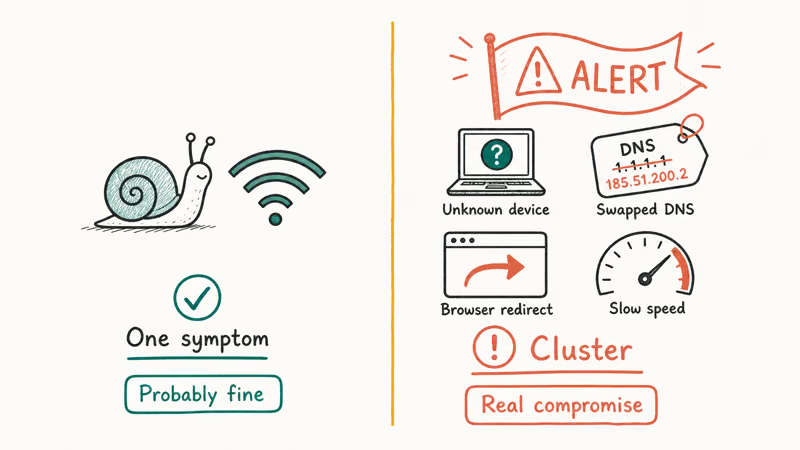
One symptom is not a hack.
This is the cluster rule, and it’s the most useful idea here. A real compromise produces several signs at once: slow speeds plus unknown devices plus a changed DNS plus redirects. That combination is meaningful in a way that any single symptom isn’t.
So before you factory reset over slow Wi-Fi, ask what else is wrong. If the honest answer is “nothing,” it’s almost certainly not a hack at all, just an ordinary slow day on your connection. But if three or four signs line up together, treat it as real and move straight to the response steps below, because a genuine compromise rarely waits for you to be sure.
#What to Do Right Now if You Suspect a Hack
These steps apply only to your own network. Accessing someone else’s router is illegal, so keep this defensive and on equipment you own.
If the signs cluster, act in order. Disconnect the router from the internet by unplugging the modem or pulling the WAN cable, which cuts the attacker off immediately while you work.
Next, scan your devices. Run a reputable malware scan on every computer and phone on the network, because malware on a device is often how a router gets compromised in the first place, and a clean router won’t stay clean on an infected network.
Change your important passwords from a device you trust. According to ESET’s check-and-fix guide, resetting the router and then re-securing credentials is the core recovery path. Don’t reconnect anything until the next step is done.
#Factory Reset and Reset Your Credentials
A factory reset is the surest way to undo a hacker’s changes, since it wipes any malicious settings, DNS edits, and port-forwarding rules. According to ESET, you reset most routers by holding the recessed button for 10 to 20 seconds until it reboots. Keep the button pressed until the router clearly starts its reset cycle, then set fresh credentials before reconnecting.
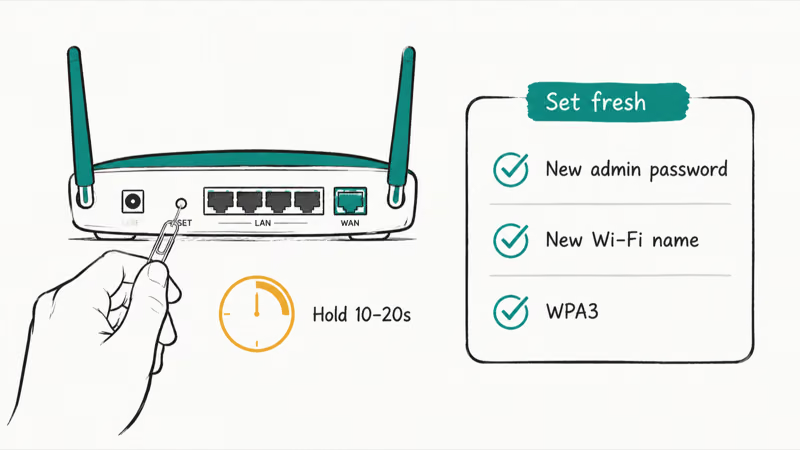
Now set everything fresh before reconnecting. Create a strong, unique admin password that’s different from your Wi-Fi password, change the Wi-Fi network name and password, and pick WPA3 encryption if your router supports it. A long passphrase beats a short complex string, which our guide on how to create a strong password explains in detail.
Update the firmware while you’re in there. An out-of-date router carries known holes, and the latest firmware closes them. Only then reconnect your devices, one at a time, watching that the symptoms are gone.
#How to Lock Your Router Down for Good
Prevention is mostly about closing default doors. Disable WPS, the one-button pairing feature with a known weakness, and turn off UPnP, which lets apps open ports without asking. Switch off remote management unless you truly need to administer the router from outside your home.
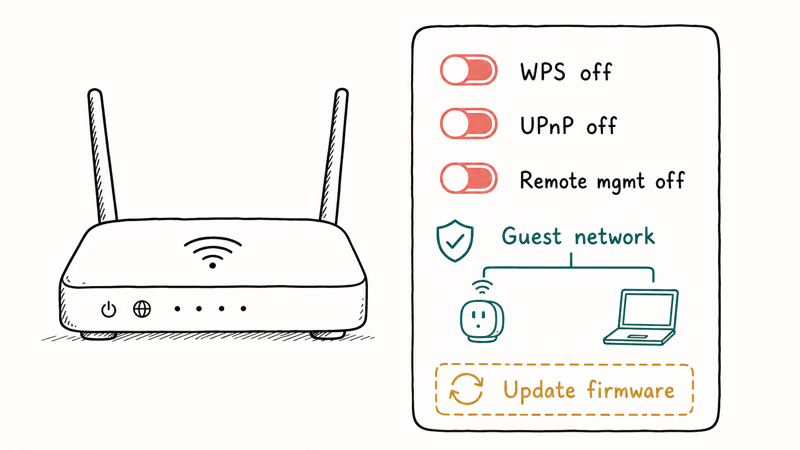
Separate your network. Put smart-home gadgets and guests on a guest network so a compromised doorbell camera can’t reach your laptop. According to CISA’s secure-your-home-network guidance, keeping firmware current and using strong unique passwords are the foundation of home network security. It also helps to review the devices signed into your accounts, which you can do through Google’s account security checkup so a stranger can’t ride along on a compromised network.
Stay alert to how attackers get in. Many router compromises start with a phishing message that harvests a password, so learning to spot a phishing email protects the network too.
A few related guides round this out. On the road, a VPN on public Wi-Fi keeps your traffic private, and our guide on telling if your phone is hacked covers the device side.
And because a hacked router can expose the accounts behind it, securing your Google account locks down what matters most.
#Bottom Line
Don’t panic over a single symptom, because slow internet or one odd pop-up usually has an innocent cause. A real compromise shows up as a cluster: unknown devices, changed DNS or admin password, and redirects together.
If several signs line up, disconnect the router, run a factory reset, then set a new strong admin password and Wi-Fi name before reconnecting, and scan your devices for malware. Lock it down afterward by updating firmware, separating a guest network, and turning off WPS, UPnP, and remote management, which are the doors most home routers leave open.
#Frequently Asked Questions
What is the clearest sign that my router is hacked?
Being locked out of your own admin panel is the strongest single sign, because it means someone changed the password. Close behind are unfamiliar devices on your network and a DNS setting that points to servers you didn’t choose. Any of these, especially together, warrants a factory reset.
Does slow Wi-Fi mean I’ve been hacked?
Almost never on its own. Slow Wi-Fi usually comes from ISP congestion, a crowded channel, an old router, or too many active devices.
How do I see what devices are on my network?
Log into your router’s admin panel, usually at 192.168.1.1, and open the connected-devices or DHCP-client list. Match each device to something you own by its name or MAC address. Many router apps show this same list right on your phone, which makes spotting a stranger far easier than squinting at a web table full of cryptic hardware names.
Will a factory reset remove a router hacker?
Yes, a factory reset wipes any malicious settings, DNS changes, and port-forwarding rules an attacker added. The catch is that you must then set a new strong admin password and update the firmware before reconnecting.
Can changing my Wi-Fi password kick a hacker off?
Changing the Wi-Fi password disconnects every device, including an intruder using your wireless. But if the attacker changed router settings or installed malicious firmware, a password change alone won’t undo any of that, which is why a full factory reset followed by fresh credentials is the only reliable fix once a real compromise is confirmed.
How do I stop my router from being hacked again?
Update the firmware, set a strong unique admin password, and turn off WPS, UPnP, and remote management. Use WPA3 encryption, put smart devices and guests on a separate network, and stay wary of phishing, since a stolen password is a common way in. These steps close the doors most routers leave open.

Is This Bank App Real? Spot a Fake App on Your Home Screen
A bank app can land on your home screen from a web page with no install warning. Learn the checks that tell a real banking app from a phishing web app.

Passkeys Not Syncing Between iPhone and Windows? Read This
Passkeys not syncing between iPhone and Windows is by design, not a bug. Here is why iCloud passkeys skip Windows Hello and the three ways to fix it.

VPN Not Working on Snapdragon X? Why It Fails, How to Fix
Your VPN won't install or connect on a Snapdragon X Copilot Plus PC because Windows on ARM can't emulate the network driver. Here are the fixes that work.

How to Check If a Link Is Safe Before You Click It
Learn how to check if a link is safe with official-first steps: read the real domain, use the app instead, and treat scanners as a second opinion only.