How to Rotate Screen on Chromebook: Shortcut + Settings
Rotate your Chromebook screen with Ctrl + Shift + Refresh or through Settings. Includes second-display setup, tablet-mode fix, and trackpad notes.
Quick AnswerPress Ctrl + Shift + Refresh to rotate a Chromebook screen 90 degrees clockwise; repeat the shortcut to keep rotating. To lock a single orientation, open Settings, then Device, then Displays, and pick an Orientation from the dropdown.
Knowing how to rotate the screen on a Chromebook helps in three real situations: you knocked the orientation sideways with a stray keyboard combo, you want a portrait layout for reading long documents, or you propped your convertible Chromebook on a stand and need the picture to follow. ChromeOS bakes the controls right into the keyboard and the Settings app, so the fix takes seconds once you know where to look.
- Ctrl + Shift + Refresh rotates the active Chromebook display 90 degrees clockwise per press.
- The Orientation dropdown in Settings, Device, Displays offers four positions: 0, 90, 180, and 270 degrees.
- On 2-in-1 Chromebooks, the Orientation dropdown grays out in tablet mode and re-enables in laptop mode.
- The trackpad axes rotate with the screen, so vertical finger movement becomes horizontal cursor travel at 90 degrees.
- Second displays follow the cursor: move the pointer onto the external screen first, then run the shortcut.
#How Do You Rotate the Screen Using a Keyboard Shortcut?
The fastest way to flip a Chromebook display is the built-in keyboard combo. According to Google’s Chromebook keyboard shortcuts reference, Ctrl + Shift + Refresh is the dedicated chord for rotating the screen on ChromeOS. The Refresh key sits above the 3 and 4 keys and looks like a circular arrow.
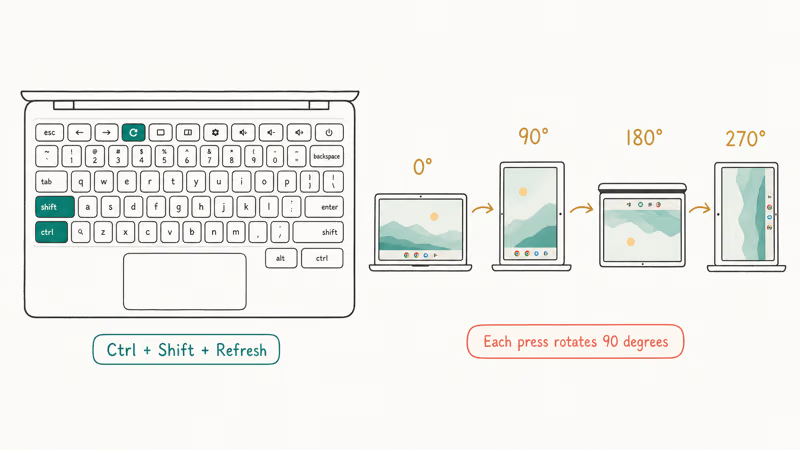
Each press cycles the screen 90 degrees clockwise: 0, then 90, then 180, then 270, then back to 0. Press it once for landscape into portrait, four times to return where you started.
The first time you trigger the shortcut, ChromeOS pops a dialog asking you to confirm the rotation. Click Continue to accept. After that initial acknowledgment, future presses rotate instantly without the prompt.
Standard ChromeOS keyboards support it. If the top row has been remapped, use Settings instead.
If pressing the combo does nothing, the Refresh key might be remapped or the keyboard hardware could be at fault. Our Chromebook keyboard not working guide walks through stuck-key diagnosis and the on-screen keyboard fallback.
#How to Rotate the Chromebook Screen From the Settings Menu
The keyboard shortcut is fine for quick flips, but Settings is where you lock an orientation that survives reboots and screen-lock cycles.
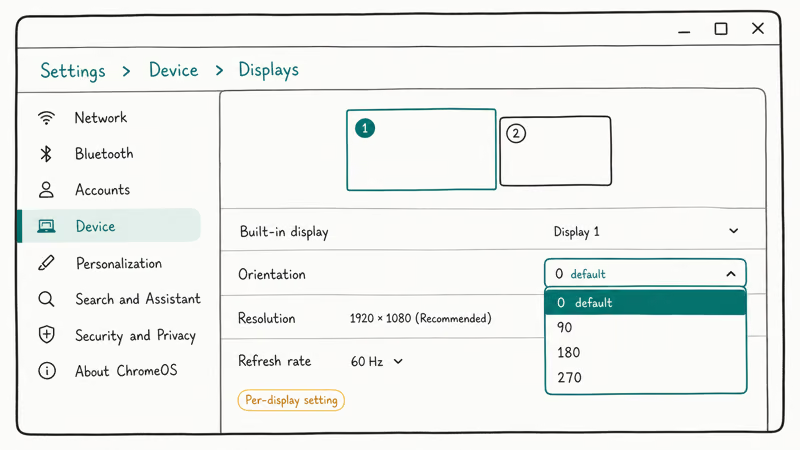
- Click the clock at the bottom-right of the shelf to open the quick settings panel.
- Tap the gear icon to launch the full Settings app.
- In the left sidebar, choose Device, then Displays.
- Find the Orientation dropdown under the active display and pick 0, 90, 180, or 270 degrees.
The change applies the moment you select it. Google’s Chromebook display help confirms that the Orientation menu exposes those four 90-degree positions, and that the choice is saved per display, so an external monitor can sit at 90 while your built-in panel stays at 0.
Settings-based rotation binds to your ChromeOS user profile, not just the device, so a second account on the same hardware can keep its own preferred orientation.
If Orientation is grayed out, switch from tablet mode back to laptop mode.
#Convertible Chromebooks and Auto-Rotate Behavior
Convertibles introduce an auto-rotate layer. When the hinge passes roughly 270 degrees and the device flips into tablet mode, ChromeOS hides the manual Orientation control and relies on the accelerometer instead.
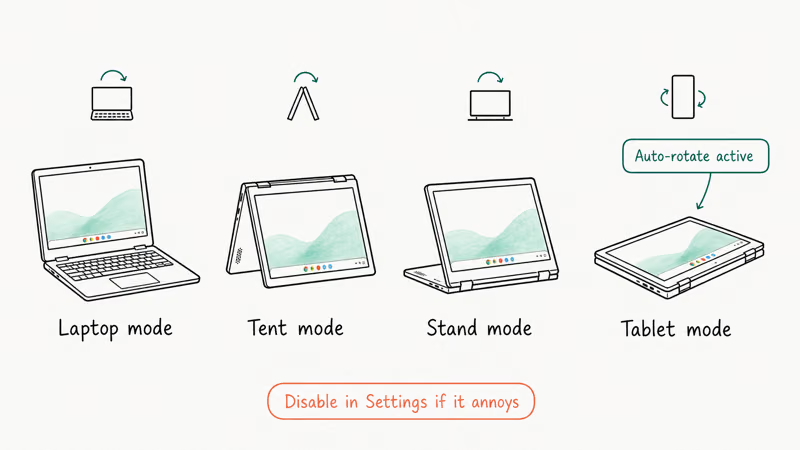
That behavior is intentional. Google’s Chromebook tablet-mode documentation states that the built-in display auto-rotates when a convertible enters tablet mode, mirroring the orientation logic on Android tablets. The system reads the gyroscope, picks one of the four 90-degree positions, and applies it without user input.
To override the auto-rotate on a 2-in-1:
- Flip the lid back into laptop mode. The Orientation dropdown re-activates.
- Pick a fixed orientation in Settings.
- Return the device to tablet mode if you need it; the manual choice does not persist when the auto-rotate logic resumes.
Laptop mode lets you pin a manual orientation, but tablet mode hands control back to the gyroscope. There is no built-in toggle that locks rotation in tablet mode the way Android offers, so you have to keep the device in laptop mode for that.
#Rotating a Second or External Display
Yes. The same shortcut and Settings path both support external monitors connected through USB-C, HDMI adapters, or DisplayLink docks.
For the keyboard shortcut: the cursor’s location decides which display rotates. Drag your pointer onto the external monitor first, then press Ctrl + Shift + Refresh. The active display flips and the built-in panel stays put.
For Settings: open Device, then Displays. Each connected display appears as its own tab at the top of the panel. Pick the tab for the screen you want to rotate, then change its Orientation dropdown. Multiple monitors can hold different orientations at once, which is useful if you stack a portrait reference monitor beside a landscape main display.
A few external-display notes:
- The Orientation choice on the external monitor saves per display, not per session. Disconnect and reconnect the same monitor and it returns to the orientation you set.
- Mirrored mode disables independent rotation. Switch the second display into extended mode if you need separate orientations.
- If the rotation only affects part of the screen (rare), unplug the cable, run a clean shutdown using our Chromebook frozen guide, and re-plug after reboot.
#How Does Rotation Affect the Trackpad and Apps?
This is the part most guides skip. When you rotate the display, ChromeOS rotates the input geometry along with it. The result feels intuitive on a touchscreen but disorienting on the trackpad.
At a 90-degree rotation:
- Swiping the trackpad up moves the cursor to the right of the screen.
- Swiping right moves the cursor down.
- Two-finger scrolling reverses direction relative to what your eyes expect.
At 90 or 270 degrees, the trackpad axes rotate with the screen. The behavior is intentional ChromeOS design, not a bug, and it can’t be disabled separately from the screen orientation. Touchscreens behave normally because the touch coordinates rotate together with the visible image.
On the app side, most ChromeOS web apps and Linux containers redraw cleanly. Some Android apps installed through Google Play, especially older games, may launch in their original aspect and letterbox themselves rather than rotating. If you want full-screen portrait Android apps, choose 90 or 270 degrees in Settings, then relaunch the app from the launcher.
Need to capture the rotated screen for a tutorial? On a standard Chromebook keyboard, press Ctrl + Show Windows. The screenshot lands in Downloads with the new orientation already baked in.
#Troubleshooting When Rotation Won’t Work
Three failure modes account for most stuck-rotation reports.
The Refresh key is non-functional. Open the on-screen keyboard from the accessibility menu and tap the equivalent F3 key. If that works, the issue is hardware, not software. Google’s Chromebook keyboard layout reference states that the top-row Refresh key maps to the F3 position, which is why external Bluetooth keyboards that send raw F3 still trigger the rotation chord while keyboards remapping that key don’t. Use the Settings path if your external keyboard misbehaves.
The Orientation dropdown is grayed out. You’re in tablet mode. Switch back to laptop mode and try again.
Rotation works but the trackpad becomes useless. That’s expected behavior at 90 or 270 degrees. If you can’t adapt, stick to 0 (default) or 180, where the cursor axes still feel natural.
For deeper troubleshooting, our Samsung screen rotation not working guide covers parallel symptoms on other devices, including accelerometer recalibration and developer-mode display flags that have ChromeOS analogues.
If none of those help, sign out and sign back in. The orientation cache can get stuck after a ChromeOS update, and a clean profile re-login can clear the bad state. As a last resort, power-wash the device (Settings, Advanced, Reset settings, Powerwash) to wipe the local profile and force ChromeOS to rebuild display preferences from scratch on the next boot.
#Useful Chromebook Keyboard Shortcuts Worth Memorizing
Rotation is one of dozens of Chromebook shortcuts. The ones that pair well with display work:
- Ctrl + Shift + L: locks the screen instantly.
- Ctrl + Shift + + / -: increases or decreases display zoom.
- Ctrl + Shift + 0: resets display zoom to 100 percent.
- Ctrl + Show Windows: full-screen screenshot.
- Ctrl + Shift + Show Windows: partial-area screenshot with cursor selection.
- Alt + Search: toggles Caps Lock on ChromeOS; see our walkthrough on how to enable Caps Lock on Chromebook.
- Ctrl + Shift + Q (twice): signs you out of the current ChromeOS session.
For private browsing while you adjust orientation, opening an Incognito window on Chromebook takes a single keystroke and avoids the standard window picking up cached display preferences from your main profile.
#Bottom Line
For day-to-day flipping, stick with Ctrl + Shift + Refresh on the built-in display. Use the Settings, Device, Displays dropdown when you connect an external monitor and want each panel locked to a specific orientation.
Don’t pin a 90 or 270-degree rotation on the built-in panel for extended trackpad sessions; the rotated input axis fights muscle memory and reduces pointer accuracy. On a 2-in-1, leave auto-rotate active in tablet mode and only override it when the device sits on a stand for a predictable portrait view.
#Frequently Asked Questions
Can I rotate the screen in tablet mode on a 2-in-1 Chromebook?
Not manually. The accelerometer takes over and auto-rotates as you tilt the device.
Will rotating the Chromebook screen affect an external monitor?
No. The keyboard shortcut only affects the screen the cursor currently sits on, so your second monitor keeps its orientation. To rotate the external display, drag your pointer onto it first and then press Ctrl + Shift + Refresh, or open Settings, Device, Displays, click the tab for the external monitor, and pick a new value in its Orientation dropdown. Each display saves its own setting independently and remembers it after you unplug and reconnect.
Are there shortcuts to rotate by less than 90 degrees?
No. ChromeOS only supports 0, 90, 180, and 270 degrees.
Why does the trackpad feel wrong after I rotate?
ChromeOS rotates the input geometry along with the screen, so cursor axes follow the new orientation. At 90 degrees, swiping up moves the cursor right; at 180 degrees, every axis inverts. This is intentional and can’t be turned off independently of the screen rotation, so touchscreens stay accurate while trackpads feel scrambled.
Will the screen rotation persist after I restart?
Yes. Settings-based rotations survive restarts, sleep, and sign-out.
Why is rotation not working on my work or school Chromebook?
Some managed ChromeOS devices have rotation disabled through Google Admin device policies, especially in classroom or kiosk deployments. According to Google’s Chrome Enterprise policy reference, the DisplayRotationDefault policy locks the orientation for managed users so they can’t change it. Ask your IT admin to relax the policy, or check chrome://policy for the active flag.
Can I rotate the login screen too?
The login screen follows the last orientation chosen on the device, not the per-user setting. To rotate it, sign in, set the orientation in Settings, sign out, and the login screen redraws at the new angle on the next boot.
Does the rotate shortcut work on a Chromebox or Chromebase?
Yes. Ctrl + Shift + Refresh works on Chromebox desktops and Chromebase all-in-ones the same way it does on laptops. The shortcut depends on the keyboard sending the Refresh keysym (F3 on a standard ChromeOS keyboard), so a generic USB keyboard without a Refresh key works if you press Ctrl + Shift + F3 instead.

Best Laptop for Running LLMs in 2026: Memory Comes First
The best laptop for running LLMs is a memory purchase first. Compare MacBook unified memory against NVIDIA laptop VRAM, and see what each tier really runs.

How to Run a Local LLM on Windows: A 2026 Setup Guide
Run a local LLM on Windows with LM Studio or Ollama. Pick a model that fits your GPU memory, keep every prompt offline, and skip the monthly bill.

Bluetooth Not Working on Snapdragon X? Fixes for 2026
Bluetooth not working on your Snapdragon X Copilot+ PC? Generic audio, mice, and keyboards work, but vendor apps often lack an ARM build. Fixes inside.

Docker Desktop and WSL2 Not Working on Snapdragon X? Fix It
WSL2 runs fine on Snapdragon X, but Docker Desktop ARM is Early Access and throws WSL errors. Use WSL2 plus native ARM64 Ubuntu and Docker Engine.