How to Go Incognito on Chromebook: 3 Quick Methods
Learn how to go incognito on a Chromebook with keyboard shortcuts and the Chrome menu. Covers what incognito protects and what it does not do.
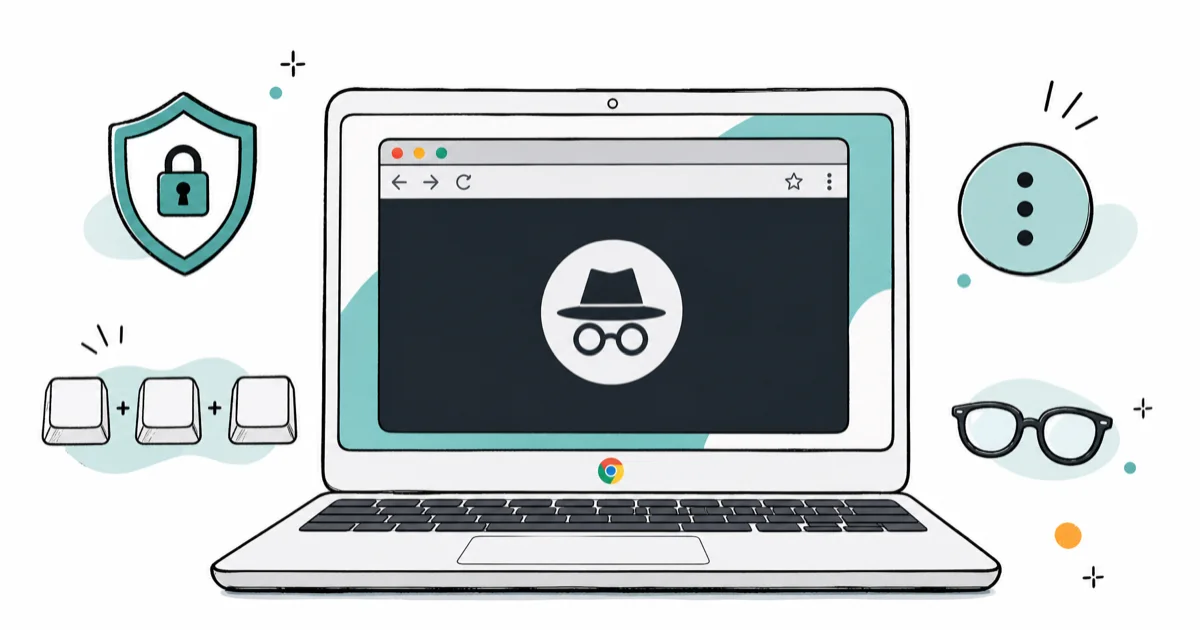
Quick AnswerTo go incognito on a Chromebook, open Chrome and press Ctrl+Shift+N, or click the three-dot menu in the top right and select New Incognito Window. A dark window with a spy icon confirms you are in incognito mode.
Incognito mode on a Chromebook lets you browse without saving history, cookies, or form data to the device. The three methods below all open the same private Chrome window.
Using these methods on devices or accounts you don’t own may violate applicable laws and platform terms.
- Press Ctrl+Shift+N anywhere in Chrome to open a new incognito window instantly without touching the menu.
- Incognito mode prevents Chrome from saving your browsing history, cookies, and form data on the local device.
- Your internet service provider, employer, and the websites you visit can still see your activity even in incognito mode.
- Extensions are disabled in incognito windows by default, but you can enable specific ones through Chrome’s extension settings.
- Closing an incognito window permanently deletes all session data, but any downloaded files remain on your device.
#What Incognito Mode Does on a Chromebook
Incognito mode is a private browsing session that doesn’t save local data after the window is closed.
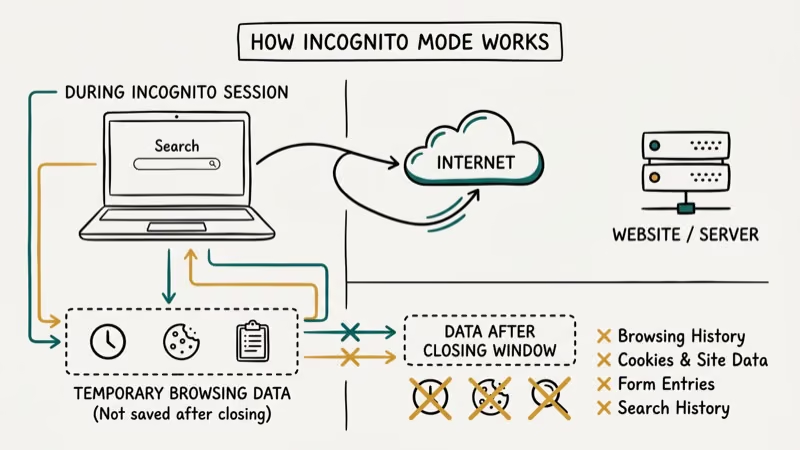 According to Google’s Chrome incognito documentation, Chrome does not retain your site data or a record of the sites you visited once you close all incognito windows. That’s the full scope of what it protects locally.
An incognito window functions like a regular Chrome window for browsing, streaming, and downloading. Chrome removes the local browsing history from that session after all incognito windows are closed.
What incognito doesn’t do: hide your activity from your internet service provider, employer, or school network. Google states this limitation on every incognito page, and it applies to all Chromebooks. A VPN is required for network-level privacy. See the what is VPN on iPhone guide for how VPNs differ from private browsing.
#How to Open an Incognito Window on Chromebook?
Three methods work on every Chromebook. All three open the same isolated private session.
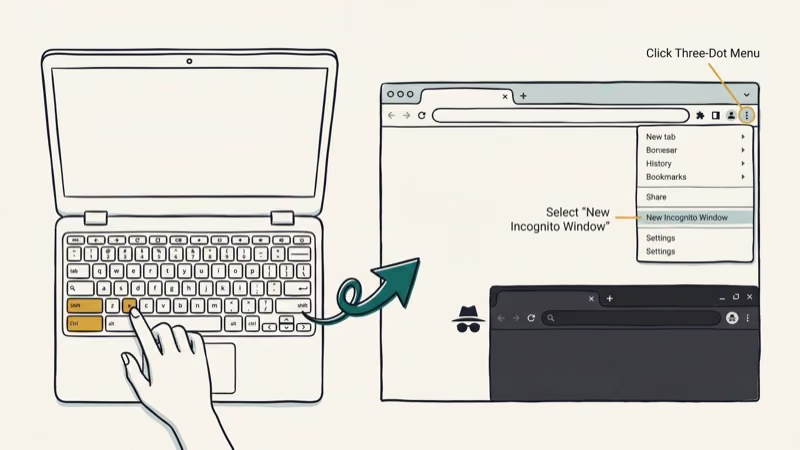
Method 1: Keyboard shortcut (fastest)
Press Ctrl + Shift + N while Chrome is open. A new incognito window opens immediately. This shortcut works regardless of which tab you’re on.
Method 2: Chrome menu
- Open Chrome on your Chromebook
- Click the three-dot menu in the top right corner
- Select New Incognito Window
A dark window with a spy icon in the top left corner confirms private mode is active.
Method 3: Right-click a link
Right-click any link and select Open link in Incognito window. This is useful for quickly checking a linked page without leaving your current window. It opens the target page in a fresh isolated session while your current window stays open.
#Reasons to Use Incognito Mode on a Chromebook
Using a shared Chromebook is the most practical reason. Incognito prevents your browsing history, saved passwords, and login sessions from persisting after your session ends.
Researching a surprise gift benefits from incognito too. If you share a Google account or device with someone, incognito keeps those searches out of Chrome’s history and prevents Google’s recommendation engine from surfacing related ads to the other person. It’s one of those small quality-of-life uses that makes a real difference around the holidays.
Multi-account sessions are the third use case. Incognito windows let you stay logged into a second Google account while your primary account stays open in a regular window. PCMag’s Chrome guide confirms that incognito windows are a common way to manage personal and work accounts in parallel without repeatedly signing in and out. It’s the fastest way to run two Google accounts simultaneously on a Chromebook without installing a secondary profile.
Bypassing cookie-based article limits also works. Many paywalled sites allow a small number of free articles tracked by cookies. Incognito can help with cookie-scoped limits, but it isn’t a full privacy boundary and doesn’t bypass account-based paywalls.
#How to Close an Incognito Window
Closing an incognito session works the same as any Chrome window. Click the X in the top right corner, or press Ctrl + W to close the current tab. When the last incognito tab in a window closes, Chrome deletes all cookies, history, and form data from that session.
Multiple incognito windows stay isolated from each other. Cookies and login states don’t carry from incognito into a regular Chrome window after the private session closes.
Downloaded files stay. They’re saved to your Downloads folder and remain on the device after the incognito window closes. The file itself is not removed. Only the Chrome download history entry disappears, which means nothing in your file manager changes.
#What Are the Limitations of Incognito Mode?
Incognito provides local privacy only.
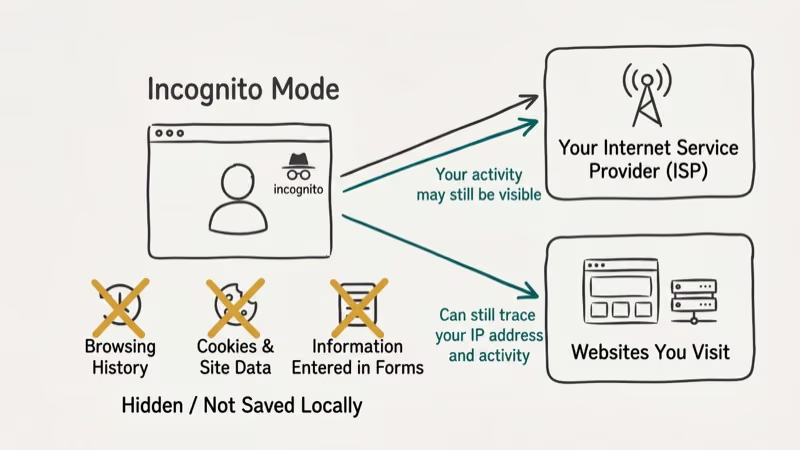 According to Google’s official incognito disclosure, websites you visit, your ISP, employer, or school network administrator may still be able to observe your activity in incognito mode.
Extensions are disabled in incognito windows by default. Ad blockers, password managers, and other tools won’t work unless you explicitly enable them for incognito. Go to Chrome’s Settings > Extensions, click Details on any extension, and toggle Allow in Incognito to enable it.
Malware risk doesn’t change. Incognito mode has no virus scanner or sandbox beyond what ChromeOS already provides. Visiting a malicious site, clicking a phishing link, or downloading an infected file carries identical risk to a regular Chrome window. If you see certificate warnings or suspicious redirects, check the how to fix an SSL error guide.
Bookmarks aren’t auto-saved. See the how to enable Caps Lock on Chromebook guide for other tips.
#Incognito Mode vs. Private Browsing on Other Browsers
Every major browser offers a private mode. Firefox calls it Private Browsing, Safari uses Private Window, and Edge uses InPrivate. All of them work identically at the local level: none save history, cookies, or form data after the session ends, and none hide your activity from your ISP or network.
The one meaningful Chrome difference is extension handling. Chrome disables all extensions in incognito by default, whereas some browsers enable them. That default-off approach reduces the risk of a poorly coded extension logging your private session without your knowledge — a real concern given that some extensions have broad data access permissions.
For other Chromebook tips, see the guides on how to rotate the screen on Chromebook and how to cast your phone to Chromebook.
#Bottom Line
Press Ctrl+Shift+N for the fastest incognito window on a Chromebook. Use it when you’re on a shared device, managing multiple accounts, or keeping research private.
Incognito won’t hide you from your ISP or network admin. For network-level privacy, combine it with a VPN. Downloaded files and any extensions you’ve manually enabled in incognito persist beyond the session, so be deliberate about both.
#Frequently Asked Questions
Can websites track me in incognito mode?
Yes. Websites can see your IP address, location, and behavior during an incognito session. Incognito only prevents Chrome from saving data locally on your device. Your ISP, the websites themselves, and your network administrator all have full visibility.
Does incognito mode hide my location on Chromebook?
No. Your IP address reveals your approximate location to every site you visit. Incognito doesn’t mask the IP. A VPN routes your traffic through a different server IP, which is the only way to hide your location from websites.
Can I use extensions in incognito mode on Chromebook?
Extensions are disabled in incognito by default. Enable them one at a time through Chrome Settings > Extensions > Details > Allow in Incognito. Only enable extensions you fully trust, since they can read your browsing activity even in private sessions.
Are downloads saved when using incognito mode?
Yes. Files you download during an incognito session are saved to your Downloads folder and remain after the window closes. Only the Chrome download history entry is removed, not the file itself.
What is the keyboard shortcut for incognito mode on Chromebook?
Press Ctrl+Shift+N while Chrome is open. A new incognito window opens immediately. It’s the fastest method and works regardless of which page or tab you’re currently on.
Does incognito mode protect against viruses on Chromebook?
No. Incognito mode doesn’t add malware protection. You can still download infected files or visit malicious sites with identical risk to a regular Chrome window. ChromeOS’s sandbox provides some protection, but incognito itself adds none.
Can I bookmark pages while in incognito mode?
Yes. Click the star icon or press Ctrl+D to bookmark a page while in incognito mode. The bookmark saves permanently and appears in your regular Chrome bookmarks, even after the incognito window is closed.

Google Messages Error 3100: Why RCS Is Broken on Galaxy
Google Messages RCS error 3100 hits Galaxy owners after phone or carrier switches. Google told 9to5Google a fix is coming. Here's what actually helps.

Is This Bank App Real? Spot a Fake App on Your Home Screen
A bank app can land on your home screen from a web page with no install warning. Learn the checks that tell a real banking app from a phishing web app.

Apps Crashing After iOS 27 Update? Fix Order (2026)
Apps crashing after the iOS 27 update? Update the app in the App Store first, then offload and reinstall to clear stale cache, then restart. The fix order.

Do AI Translation Earbuds Work Offline? What to Know
Do AI translation earbuds work offline? A few do with downloaded language packs, but most need the cloud. Here's what works offline and what you give up.