Windows 11 Taskbar Not Working? How to Fix It Fast
Windows 11 taskbar not working, frozen, or missing? Restart Explorer, install updates, clear the icon cache, and re-register the shell in a safe order.
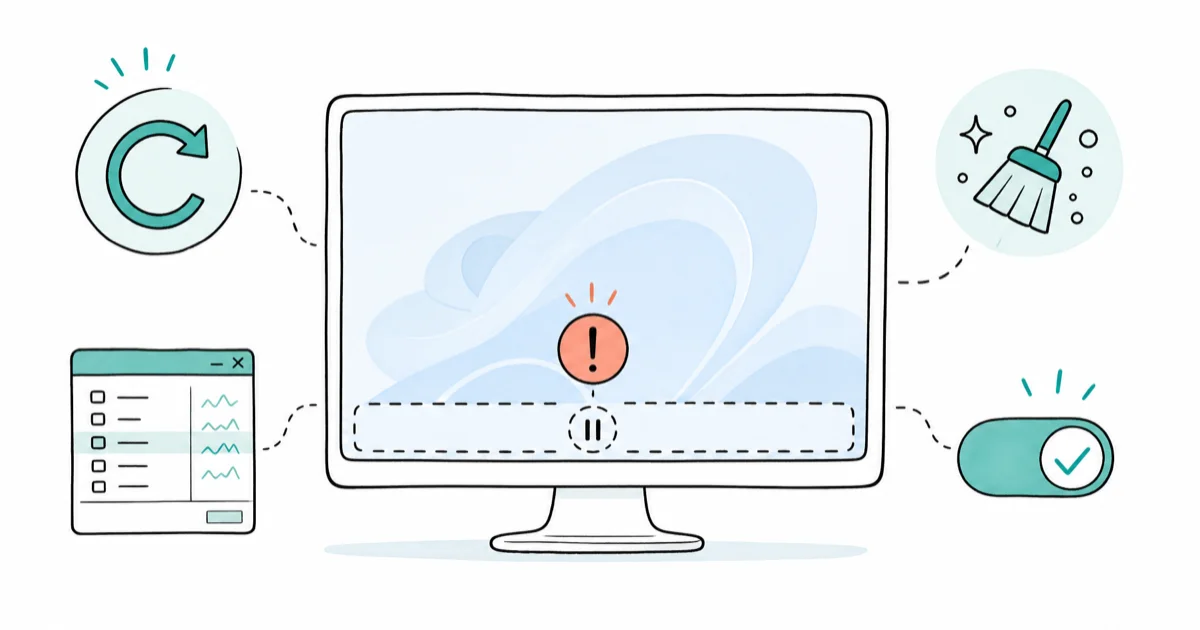
Quick AnswerA frozen or missing Windows 11 taskbar is usually fixed by restarting Windows Explorer in Task Manager. If it returns after updates, install the latest patches and clear the icon cache before deeper steps.
When the Windows 11 taskbar stops working, clicks do nothing, the icons vanish, or the whole bar disappears at the bottom of the screen. The fastest fix is restarting Windows Explorer, which reloads the shell without touching your files. This guide orders the fixes from the safest first, since most cases never need the advanced steps.
- Restarting Windows Explorer in Task Manager revives many frozen or missing taskbars without a full reboot
- Taskbar breakage spikes right after a cumulative update, so a newer patch often fixes it
- Clearing the icon cache restores missing or blank taskbar icons
- Re-registering the shell with PowerShell is an advanced step, not a first move
- A new user profile rules out a corrupt account when nothing else works
#Why Is My Windows 11 Taskbar Not Working?
A dead taskbar almost always means the Windows Explorer process that draws it has crashed or hung. The bar you click is part of explorer.exe, so when that process stalls, the taskbar freezes with it.
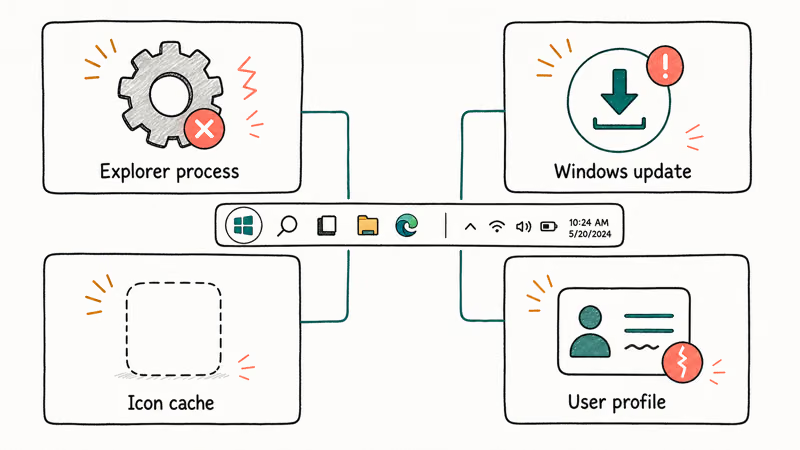
Updates are the usual trigger. A cumulative update can leave the shell half-applied, breaking the taskbar until a restart settles it.
A corrupt icon cache is the second cause. Windows stores a local index of taskbar and tray icons, and when that file gets damaged the icons go blank or disappear while the bar itself still sits there.
A broken user profile is the deepest cause. If the account’s shell settings are corrupt, the taskbar fails only for your account while a fresh account works fine, which is the signal to test a new profile rather than jump straight to reinstalling Windows from scratch.
#Did Restarting Windows Explorer Fix It?
Try this first every time, because it fixes many cases without a full reboot. Right-click the Start button and open Task Manager, or press Ctrl + Shift + Esc.
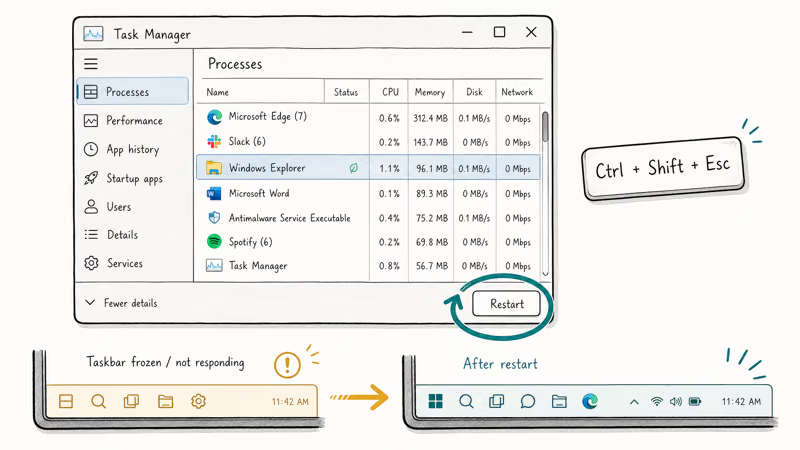
Find Windows Explorer in the Processes list, select it, and click Restart. The screen flickers as the shell reloads, and the taskbar should redraw once Explorer starts again.
If Explorer isn’t running at all, click Run new task in Task Manager, type explorer.exe, and press Enter to relaunch it. According to Microsoft’s guide to fixing taskbar and Start menu problems, restarting the process is a documented first step for an unresponsive taskbar. The bar should reappear after Explorer starts again.
Restart works, but it isn’t always permanent. If the taskbar freezes again after a reboot, the cause runs deeper, and the next sections handle it.
#Install Updates to Patch the Bug
If the taskbar broke right after an update, another update is often the cure. Microsoft ships taskbar fixes in cumulative patches, so a machine sitting one patch behind can carry a bug that’s already solved.
Go to Settings > Windows Update and click Check for updates. Install everything pending, including optional quality updates, then restart. According to Microsoft’s guidance on getting the latest Windows update, installing the newest version is a standard way to clear bugs introduced by an earlier release. Microsoft’s lifecycle policy confirms that each Windows 11 Home and Pro version gets 24 months of support, so staying current keeps those fixes flowing.
A stuck update can itself break the shell. If a download hangs at a percentage and never finishes, the steps in the guide to delete Windows Update files clear the cache so the update can reinstall cleanly.
#Clear the Icon Cache to Restore Missing Icons
Reach for this when the taskbar responds but the icons are blank or gone. The fix forces Windows to rebuild the icon database from scratch.
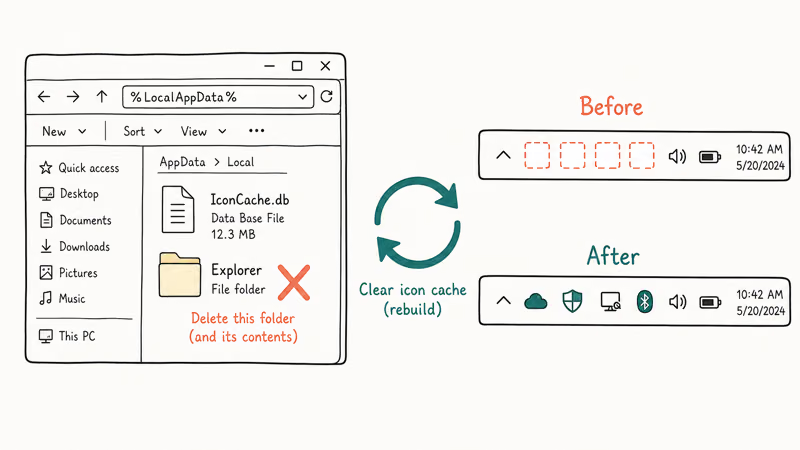
Open File Explorer, enable hidden files under View > Show > Hidden items, then go to %LocalAppData%. Delete the IconCache.db file and the icon cache files inside the Microsoft\Windows\Explorer folder. Restart Windows Explorer afterward, and Windows rebuilds the cache on the next launch.
If the icons return but performance still lags, a separate resource problem may be at play. A pegged drive that mimics a frozen interface is covered in the guide on Windows 100% disk usage.
You can confirm the rebuild worked by taking a screenshot of the tray. The walkthrough on how to screenshot on Windows covers the quickest capture methods.
#Re-Register the Taskbar Shell
Use this late, since it’s heavier than the steps above. The shell re-register reinstalls the taskbar’s underlying package.
Right-click Start, open Terminal (Admin), and run the PowerShell command that re-registers the shell experience package (Get-AppxPackage Microsoft.Windows.ShellExperienceHost | Foreach {Add-AppxPackage ...}). This is an advanced step, so save and close your open work first, because the shell can restart mid-command and you don’t want to lose anything unsaved when the desktop flickers.
#Test a New User Profile if the Shell Stays Broken
If re-registering fails, the account itself may be corrupt. Create a new local user, sign in, and check the taskbar there.
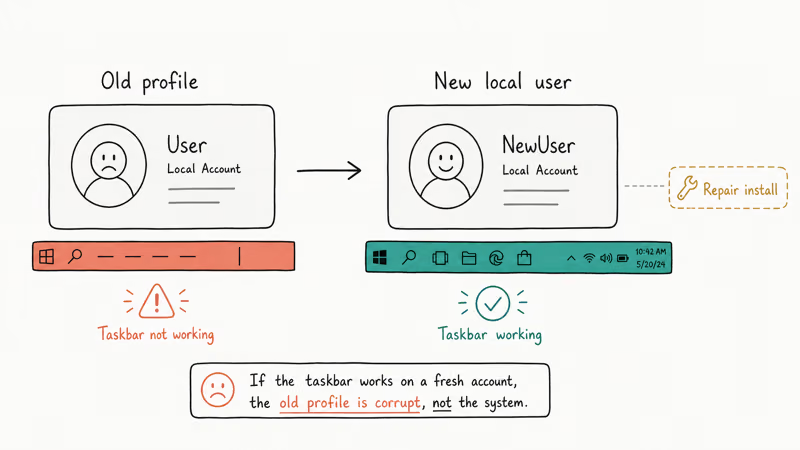
A working taskbar on the new account points to a damaged profile, not a system fault. The same profile damage can break search too, like the guide on Outlook search not working covers.
When even a fresh profile shows a broken taskbar, the cause is system-level, and a repair install or the guide to repair Windows without a CD is the next escalation. Hold the full reinstall for the very end.
#Bottom Line
Restart Windows Explorer from Task Manager first; it revives most frozen or missing taskbars instantly. If the problem returns after updates, install the newest patches and clear the icon cache to restore missing icons. Re-register the shell or test a new user profile only when those fail, and reserve a repair install for last.
#Frequently Asked Questions
Why is my Windows 11 taskbar frozen?
The Windows Explorer process that draws the taskbar has crashed or hung. Restarting Explorer in Task Manager reloads the shell and usually unfreezes the bar quickly.
How do I restart the taskbar?
Open Task Manager with Ctrl + Shift + Esc, find Windows Explorer in the Processes list, select it, and click Restart. The screen flickers briefly and the taskbar redraws. If Explorer isn’t listed, use Run new task to launch explorer.exe.
Did a Windows update break my taskbar?
Often, yes. Cumulative updates can leave the shell half-applied until a patch settles it. Check Windows Update and install the latest version.
How do I clear the icon cache?
Show hidden files, go to %LocalAppData%, and delete IconCache.db plus the icon cache files in the Microsoft\Windows\Explorer folder. Restart Windows Explorer, and Windows rebuilds the cache on the next launch, restoring blank or missing icons.
Why did my taskbar icons disappear?
The icon cache is corrupt. Clearing it forces Windows to rebuild the index, which brings the icons back.
When should I create a new user profile?
Test a new profile after restarting Explorer, updating Windows, clearing the icon cache, and re-registering the shell all fail. If the taskbar works on a fresh account, your old profile is corrupt rather than the system, and migrating to the new account fixes it.

Best Laptop for Running LLMs in 2026: Memory Comes First
The best laptop for running LLMs is a memory purchase first. Compare MacBook unified memory against NVIDIA laptop VRAM, and see what each tier really runs.

How to Run a Local LLM on Windows: A 2026 Setup Guide
Run a local LLM on Windows with LM Studio or Ollama. Pick a model that fits your GPU memory, keep every prompt offline, and skip the monthly bill.

Bluetooth Not Working on Snapdragon X? Fixes for 2026
Bluetooth not working on your Snapdragon X Copilot+ PC? Generic audio, mice, and keyboards work, but vendor apps often lack an ARM build. Fixes inside.

Docker Desktop and WSL2 Not Working on Snapdragon X? Fix It
WSL2 runs fine on Snapdragon X, but Docker Desktop ARM is Early Access and throws WSL errors. Use WSL2 plus native ARM64 Ubuntu and Docker Engine.