Fix Facebook Notifications Not Working on iPhone and Android
Fix Facebook notifications not working on iPhone and Android. Eight proven methods covering permissions, battery optimization, Focus Mode, and cache.
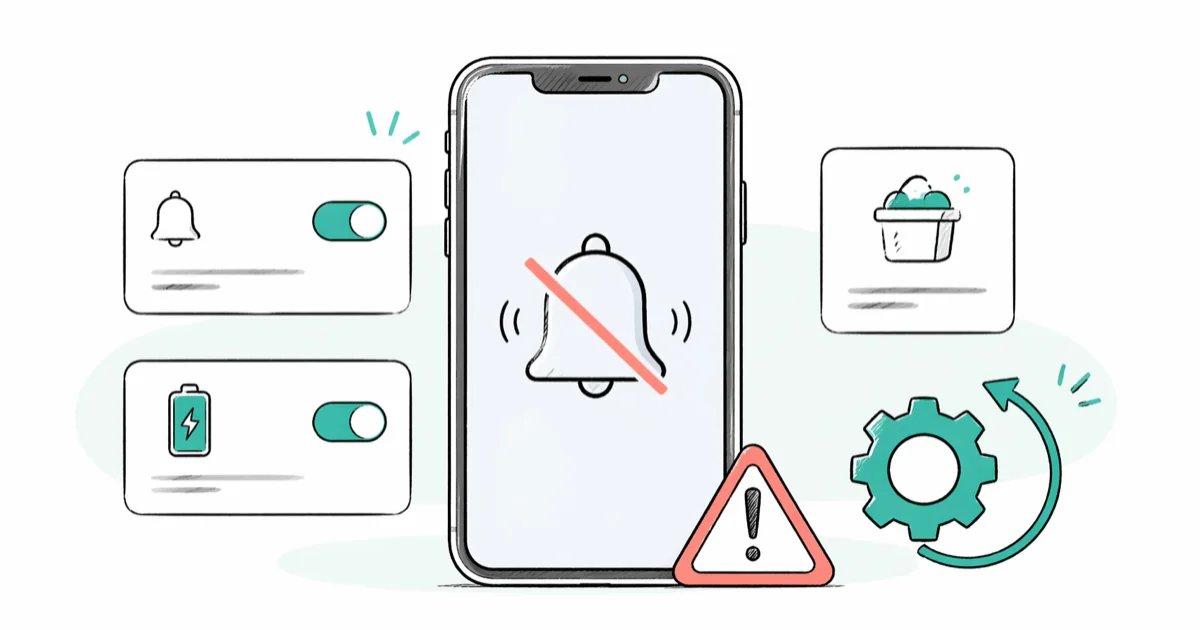
Quick AnswerOpen Settings > Notifications > Facebook and turn Allow Notifications on. On Android, open Facebook app info and set Battery to Unrestricted, then clear the app cache.
Facebook notifications fail for one of four reasons: the system-level permission is off, battery optimization is killing background activity, the app cache is stale, or a Focus profile is silently blocking alerts. Every fix on this page works on current versions of Android and iOS. The first three steps resolve most cases.
- iPhone: check Allow Notifications in
Settings>Notifications>Facebook - Android 13+: set Facebook Battery to Unrestricted for background pushes
- Clearing the Android cache takes 30 seconds and keeps you signed in
- A badge with no lock screen alert means Lock Screen or Banners is off
- Reinstalling resets the push token and clears OS-update leftovers
#Why Aren’t My Facebook Notifications Coming Through?
Four root causes. The OS permission is revoked, battery restrictions block background work, the Facebook app’s local data is corrupted, or a quiet mode is muting delivery.
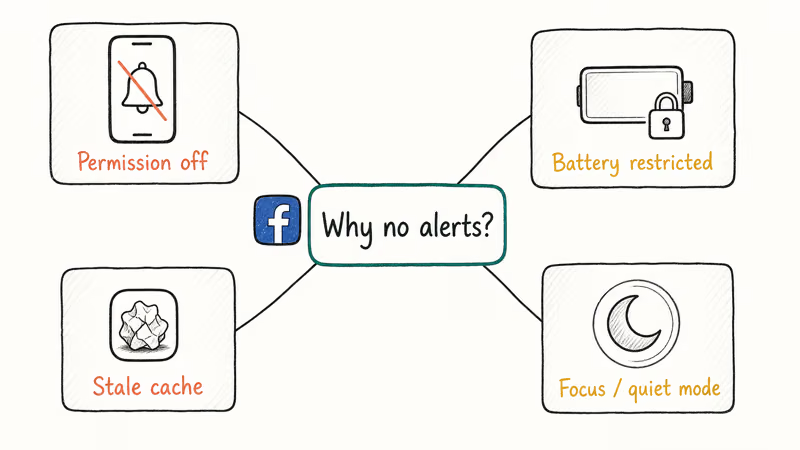
Each has a different fix, and they stack. More than one can be active at the same time, which is why fixing only the loudest symptom often leaves alerts broken for a day or two before you realize the rest still needs attention.
On iPhone, iOS 15 introduced per-app notification scheduling that looks identical to broken notifications when the summary is collecting them silently. On Android 13 and later, apps not marked Unrestricted often lose background connectivity minutes after the screen turns off. Left on Optimized, Facebook alerts can arrive anywhere from instantly to nearly an hour late, with no predictable pattern.
Start at the top of the list for your platform. Stop when alerts come through again.
#Quick Checks Before You Start
Two basics before the detailed fixes. Confirm your internet connection works — Facebook pushes ride on the OS-level notification service, which needs Wi-Fi or cellular data to register. Next, open Facebook and confirm you’re still signed in. An expired Facebook session silently prevents push registration, and nothing you change in Settings will help until you log back in.
If either is the culprit, that’s often the entire fix.
#How to Fix Facebook Notifications on iPhone
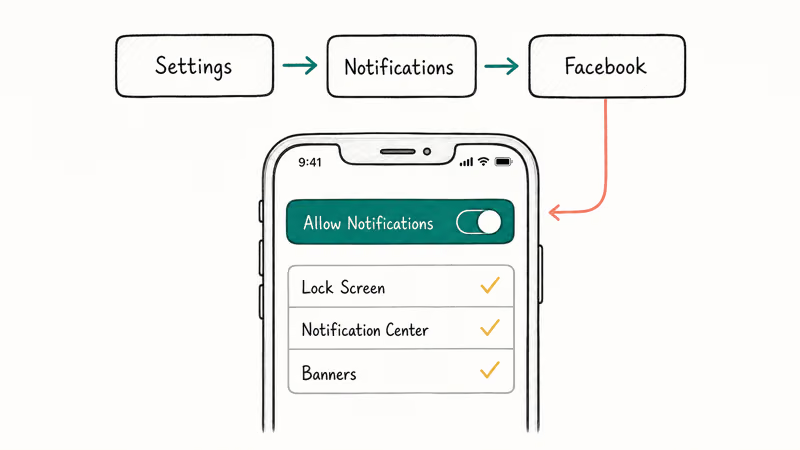
#Step 1: Check System Notification Permission
Open Settings, scroll to Notifications, and tap Facebook. Make sure Allow Notifications is on. Under Alerts, enable Lock Screen, Notification Center, and Banners. Disabling any of those gives you partial delivery that looks like a bug but is really a configuration choice.
Apple’s notification settings documentation confirms that apps can’t override the system-level Allow Notifications toggle, which makes this one switch the single point of failure for Facebook alerts on iOS. When that toggle gets flipped off, every other notification setting becomes irrelevant, because the operating system never hands the alert to the app in the first place. Re-enabling Allow Notifications on a silent iPhone usually brings the first Facebook push back within about a minute, with nothing else needing to change.
#Step 2: Turn Off Focus Mode or Quiet Hours
Swipe down from the top-right corner to open Control Center. If any Focus profile (Personal, Sleep, Work, or a custom one) is active, turn it off. Focus silences every app that is not explicitly on the allow list, and Facebook is rarely added by default.
Go to Settings > Focus, open each profile, and add Facebook under Allowed Notifications. This keeps Focus active for everything else while letting Facebook through.
#Step 3: Turn Off Notification Scheduling
Open the Facebook app, tap the three-line menu, and go to Settings & Privacy > Settings > Notifications > Notification Settings. Set Notification Schedule to off. This option is easy to miss and produces delays that look exactly like broken notifications.
#Step 4: Update the Facebook App
Open the App Store, tap your profile icon, and scroll down to check for a pending update. Install any queued Facebook version. Meta recommends keeping the Facebook for iPhone app on the latest version so new features and bug fixes reach your device. On many iPhones showing delayed Facebook pushes, installing a pending app update clears the problem on its own, with no other change needed.
#Step 5: Reset All Settings (Last Resort)
Go to Settings > General > Transfer or Reset iPhone > Reset > Reset All Settings. This does not erase your photos, apps, or data. It clears notification permissions, saved Wi-Fi passwords, and keyboard settings, and finishes in about five minutes. After it reboots, you have to re-grant Facebook notification access, which is the whole point of doing this step.
#How to Fix Facebook Notifications on Android
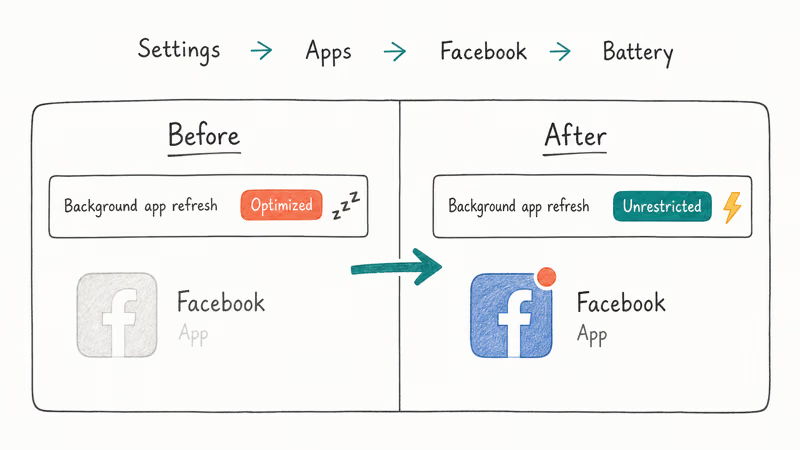
#Step 1: Enable Notifications and Remove Battery Restriction
Go to Settings > Apps > Facebook > Notifications and confirm alerts are enabled. Back out to the Facebook app info screen, tap Battery, and change Optimized to Unrestricted. This single change is the most impactful fix on Android 13 and 15.
On Samsung phones running One UI, also open Settings > Battery and device care > Battery > Background usage limits and remove Facebook from any sleeping or deep sleeping list.
According to Samsung’s guide to sleeping apps on a Galaxy device, apps on the deep sleeping list only run while you have them open. For a messaging app that is fatal, because the push wakeup never arrives. Related pattern: our delayed notifications on Android guide covers the same symptom across other apps.
#Step 2: Clear the Facebook App Cache
Go to Settings > Apps > Facebook > Storage > Clear Cache. Stale cache blocks sync with Meta’s push service. Clearing it does not sign you out or delete messages. On a phone with a large amount of cached data, this can clear a days-long notification delay within seconds of the next incoming message.
For the step-by-step path with screenshots, read our clear Facebook cache guide.
#Step 3: Check Background Data and Unrestricted Data
Go to Settings > Apps > Facebook > Mobile data & Wi-Fi and turn on both Background data and Unrestricted data usage. Samsung One UI, Xiaomi MIUI, and OPPO ColorOS each have a separate background data toggle that is independent of battery optimization, and turning off mobile data saver on those skins is a common blocker.
If that path does not match your phone, search “background data” in Settings. The toggle appears inside the Facebook app info screen on nearly every Android version.
#Step 4: Reinstall Facebook
Long-press the Facebook icon, tap Uninstall, then download a fresh copy from the Play Store. This takes about three minutes on a typical connection. Reinstalling forces Android to generate a clean push notification token, which fixes the mismatch errors that appear after major OS updates.
If Facebook crashes or returns the Facebook “something went wrong” error after reinstall, the push problem is likely a separate issue with your account session.
#Facebook Shows a Badge but No Lock Screen Alert?
This is a specific failure mode. The in-app unread count updates fine, but system-level delivery to your lock screen has been cut.
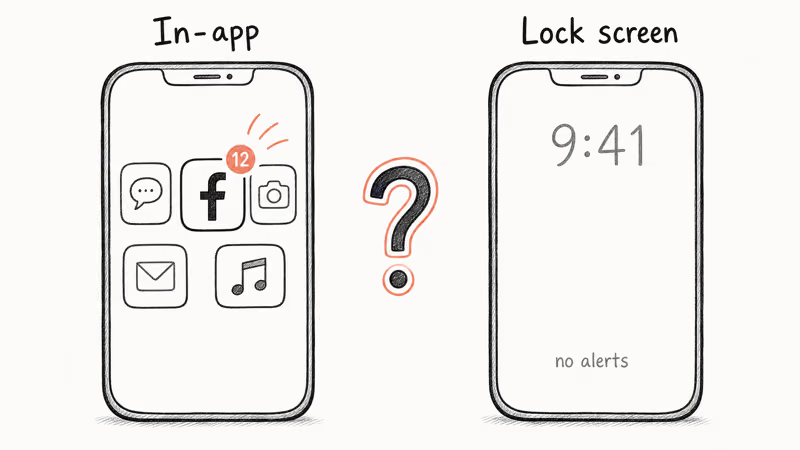
On iPhone, go to Settings > Notifications > Facebook and enable both Lock Screen and Banners. On Android, open notification settings for the Facebook app and set On Lock Screen to Show all notification content. One toggle is usually all it takes.
If the badge and lock screen alert are both missing, Messenger is probably affected too, because it uses its own push channel separate from the main Facebook app. Our Facebook Messenger not working guide walks through the Messenger-only fixes, including the permissions Android keeps scoped to Messenger rather than Facebook proper. Run that guide in parallel if you rely on both apps for day-to-day conversations, since one can fail while the other keeps delivering just fine.
#When the Problem Is on Facebook’s End
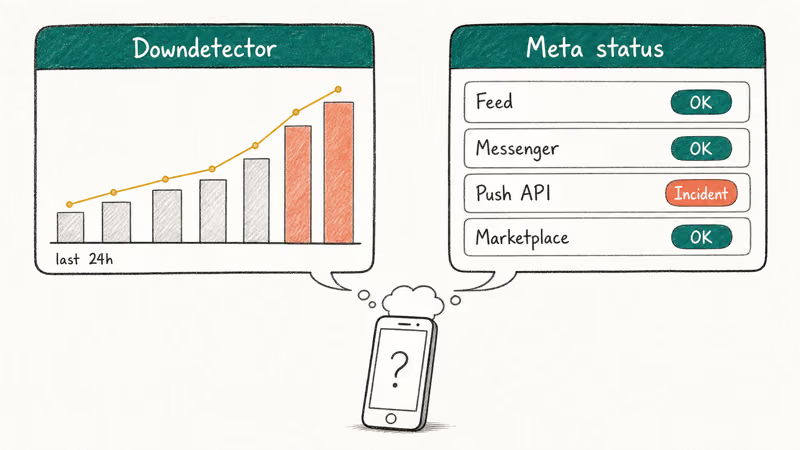
Sometimes your phone is fine and Meta’s push service is the problem. Check the Downdetector status page for Facebook for reports of notification outages in the last few hours. Server-side pushes go down a handful of times per year and usually recover without any action from you.
If multiple social apps are dropping alerts simultaneously, a system-level cause is more likely than a Facebook outage. Our guides on Instagram notifications not working and Slack notifications not working cover the same battery and permission fixes from a different angle.
#Bottom Line
Start with the system notification permission. On iPhone, that’s Settings > Notifications > Facebook with Allow Notifications on plus Lock Screen and Banners enabled. On Android, it’s Apps > Facebook > Battery set to Unrestricted, followed by a cache clear. Those two settings together fix most broken-notification complaints reported in support threads, and they’re reversible, so trying them costs nothing.
Skip Reset All Settings and full reinstall unless the first four steps on your platform have already failed. Those are last-resort moves for a reason.
#Frequently Asked Questions
Why did Facebook notifications suddenly stop working?
The most common trigger is an OS update that resets app permissions or tightens battery optimization. After a major iOS or Android release, open Settings > Notifications > Facebook and confirm Allow Notifications is still on. Also check whether a Scheduled Summary on iPhone or a battery saving rule on Android activated automatically, because both batch alerts rather than deliver them in real time. A quick reboot after the update can clear leftover permission states that normal usage leaves behind.
Do I lose my messages if I clear Facebook cache?
No. Clearing cache removes only temporary files. Your account, messages, photos, and friend list are stored on Meta’s servers and stay untouched.
Will reinstalling Facebook delete my account data?
No. Your profile, posts, messages, and connections are stored in the cloud. Reinstalling just means logging back in, which takes about a minute on a typical connection. Nothing in your Facebook account is deleted when you remove and reinstall the app.
Why does Facebook show a notification badge but no lock screen alert?
The in-app count works, but system-level delivery to the lock screen is blocked. On iPhone, go to Settings > Notifications > Facebook and enable both Lock Screen and Banners. On Android, open notification settings for Facebook and set On Lock Screen to Show all notification content. This mismatch is confusing because the app looks fine from the inside, but the delivery channel to your lock screen has been switched off.
Can battery saver mode stop Facebook notifications?
Yes. Low Power Mode on iPhone and Battery Saver on Android both limit background activity. Turn off the mode, or add Facebook to the platform’s exception list, to restore immediate delivery.
How do I stop Facebook notifications for specific things like birthdays?
Open the Facebook app, tap the three-line menu, and go to Settings & Privacy > Settings > Notifications > Notification Settings. From there you can disable individual types like birthdays, group posts, or Marketplace activity without turning off all Facebook alerts. Changes apply immediately and you don’t need to restart the app.
What is the difference between Facebook push notifications and in-app notifications?
Push notifications land on your lock screen or notification tray through the OS, even when the app is closed. In-app notifications are the red badge and alerts you see inside Facebook when it’s open. If you see the badge but no push alerts, the OS-level permission is likely off. If you see neither, the app is probably failing to sync with Meta’s servers, and reinstalling or waiting out a server-side outage is the right next step.
Does clearing Facebook data fix notifications too?
Sometimes, but it’s heavier than clearing cache. Clear Data signs you out and removes every setting stored locally. Use it only if Clear Cache and a reinstall have already failed. The related com.facebook.orca package handles Messenger specifically, so clearing data there only affects Messenger, not the main Facebook app.

Google Messages Error 3100: Why RCS Is Broken on Galaxy
Google Messages RCS error 3100 hits Galaxy owners after phone or carrier switches. Google told 9to5Google a fix is coming. Here's what actually helps.

Is This Bank App Real? Spot a Fake App on Your Home Screen
A bank app can land on your home screen from a web page with no install warning. Learn the checks that tell a real banking app from a phishing web app.

Apps Crashing After iOS 27 Update? Fix Order (2026)
Apps crashing after the iOS 27 update? Update the app in the App Store first, then offload and reinstall to clear stale cache, then restart. The fix order.

Do AI Translation Earbuds Work Offline? What to Know
Do AI translation earbuds work offline? A few do with downloaded language packs, but most need the cloud. Here's what works offline and what you give up.