Facebook Messenger Not Working? 9 Fixes That Actually Work
Fix Facebook Messenger not working with 9 practical steps. Covers messages not sending, app crashing, and notifications broken on Android and iOS.
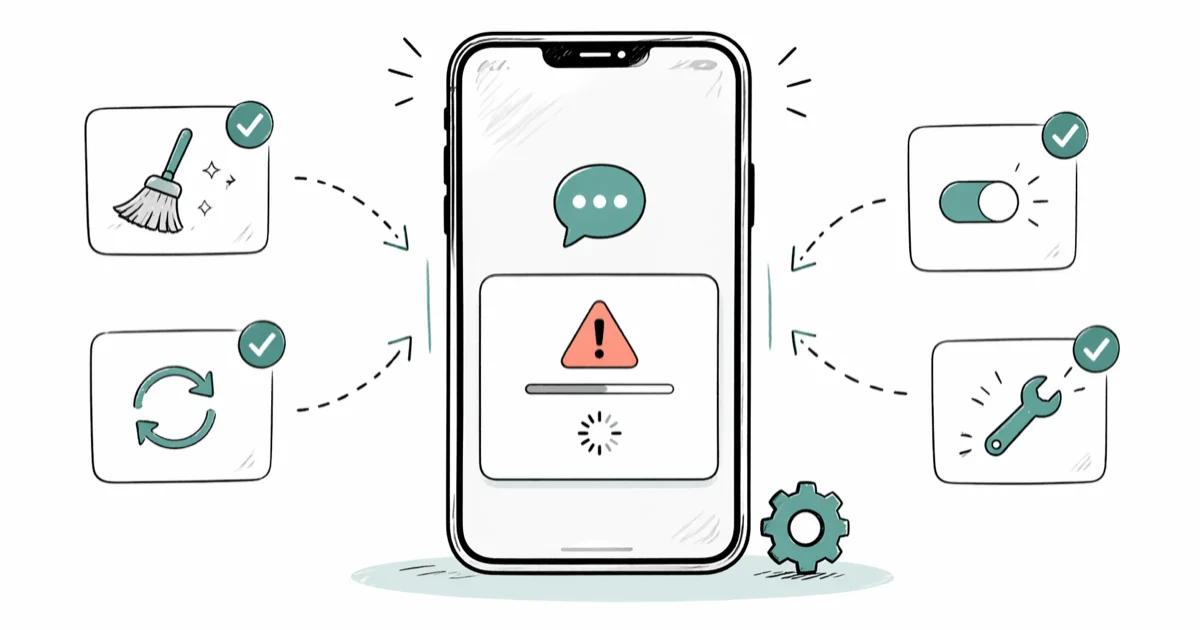
Quick AnswerForce-close Messenger, clear the app cache, and restart your phone. That resolves the issue for most people on both Android and iOS.
Facebook Messenger has stopped working, and nothing you tap seems to help. Maybe messages sit stuck on “sending,” the app crashes the moment you open it, or notifications have gone quiet for days. Start with the simplest local fixes below, then move to deeper app and network checks if the problem continues.
- Clearing the Messenger cache resolves most Android “not loading” loops in under 30 seconds
- On iOS, force-quit Messenger through the app switcher before trying deeper fixes
- Outdated app versions are a leading cause of crashes, so update Messenger before reinstalling
- Resetting network settings on iPhone erases Wi-Fi passwords but fixes stubborn connection crashes
- If nothing local works, the problem is usually a Meta server outage, not your device
Start at Step 1 and work down. Most people don’t need to get past Step 3.
#Is Messenger Actually Down Right Now?
Check server status before touching any settings. According to Meta’s status dashboard, Messenger outages affect every user at once, so there’s nothing to “fix” locally if the page shows an active incident. The dashboard states that the status banner updates in real time for each Meta product, including Messenger, Instagram, and WhatsApp.
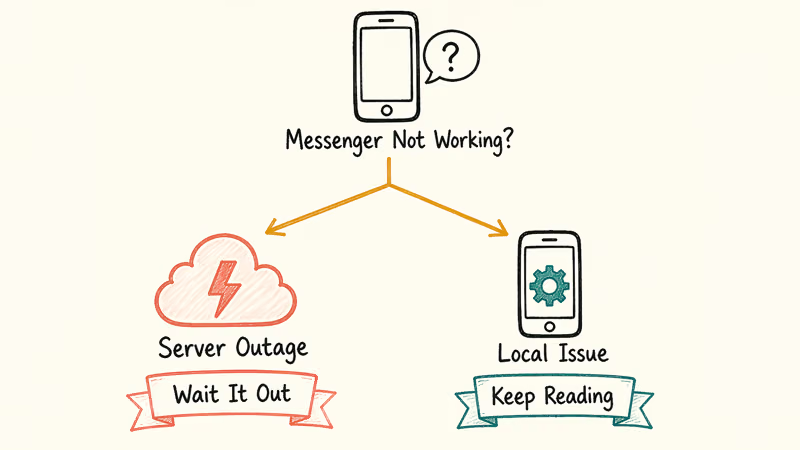
Cross-check with Downdetector’s Messenger page for live user complaints. A sharp spike that lines up with the minute your problem started almost always points to a Meta-side outage, not your phone.
Local issue? Keep reading.
#Android Fixes: Step-by-Step
#Step 1: Force-Stop and Reopen Messenger
Go to Settings > Apps > Messenger > Force Stop, then reopen the app. On Samsung Galaxy phones running One UI 6, the path is Settings > Apps > Messenger, then tap Force stop. The whole process takes under 10 seconds.
Force-stopping kills any stuck process sitting in memory without deleting anything. It’s the fastest thing to try first.
#Step 2: Clear the Messenger Cache
Go to Settings > Apps > Messenger > Storage > Clear Cache. This wipes temporary files that have become corrupted and won’t log you out or delete any messages. Reopen Messenger afterward and check whether the conversation list loads normally.
If clearing the cache alone doesn’t help, tap Clear Data next. You’ll be signed out, but your chat history syncs back from Meta’s servers the moment you log in again.
For a deeper Android-side walkthrough, our guide on clearing the Facebook cache covers the same flow with extra screenshots.
#Step 3: Check Your Internet Connection
Open a browser and try to load any page. No load at all? Your network is the problem, not Messenger.
Toggle airplane mode on and off. If you’re on mobile data, try switching to Wi-Fi. If you’re already on Wi-Fi, forget the network and reconnect. A bad handshake after walking between buildings is a surprisingly common cause of Messenger spinning endlessly.
Other chat apps failing the same way? It’s a network issue. Our guide on WhatsApp not working has the same network-diagnosis sequence if you need a second data point.
#Step 4: Update or Reinstall Messenger
Open the Google Play Store, tap your profile icon, then Manage apps & device > Updates available. Install any pending Messenger update. According to Google Play’s update support page, the Play Store downloads app updates automatically over Wi-Fi by default, so a device that has been offline for a while may be running a version with known crash fixes already patched upstream.
Still crashing after the update? Uninstall and reinstall. A clean install replaces any corrupted installation files with fresh binaries.
#Step 5: Restart Your Phone
Hold the power button and tap Restart. A full restart clears RAM, closes background processes, and resets the network stack. It’s a useful next step when clearing the cache works temporarily but the app crashes again later.
#iOS Fixes: Step-by-Step
#Step 1: Force-Quit Messenger
On iPhone X and later, swipe up from the bottom edge and pause in the middle of the screen to open the app switcher. Find the Messenger card and swipe it off the top of the screen. On older iPhones, double-tap the Home button and swipe Messenger up.
Then reopen from your home screen.
#Step 2: Update or Reinstall the App
Open the App Store, tap your profile picture, and scroll down to see pending updates. If Messenger has one waiting, tap Update. Apple’s App Store review process means compatibility patches for a new iOS release typically appear within a day or two of Messenger developers submitting them.
If the update doesn’t help, try a clean reinstall. Press and hold Messenger and tap Remove App > Delete App.
#Step 3: Restart Your iPhone
On iPhone 15 and earlier, hold the side button and a volume button together until the slider appears, drag to power off, then hold the side button again to turn it back on. On iPhone SE (2nd and 3rd gen), hold the top button until the slider appears.
Restart time is under two minutes.
#Step 4: Reset Network Settings
Go to Settings > General > Transfer or Reset iPhone > Reset > Reset Network Settings. Enter your passcode when prompted. The phone will restart on its own.
This step erases saved Wi-Fi passwords and VPN configurations but brings the network stack back to defaults. According to Apple’s support article on network settings, a network reset restores every network-related setting to factory values, including cellular preferences and previously trusted certificates. After the reset, reconnect to Wi-Fi and open Messenger again.
#Step 5: Check Notification Settings
If Messenger opens fine but you’re not getting alerts, it’s a permissions issue. Go to Settings > Notifications > Messenger and confirm Allow Notifications is on.
Also check Settings > Focus. Any active Focus profile silences Messenger by default unless you’ve explicitly allowed the app. For a full walkthrough, see our deep-dive on Facebook notifications not working.
#What to Do When Messenger Crashes After an Update
App crashes right after an iOS or Android update usually mean a version mismatch: the new OS changed something Messenger’s current build didn’t expect. Check the App Store or Play Store for a Messenger update first — Meta ships compatibility patches quickly when a major OS drops.
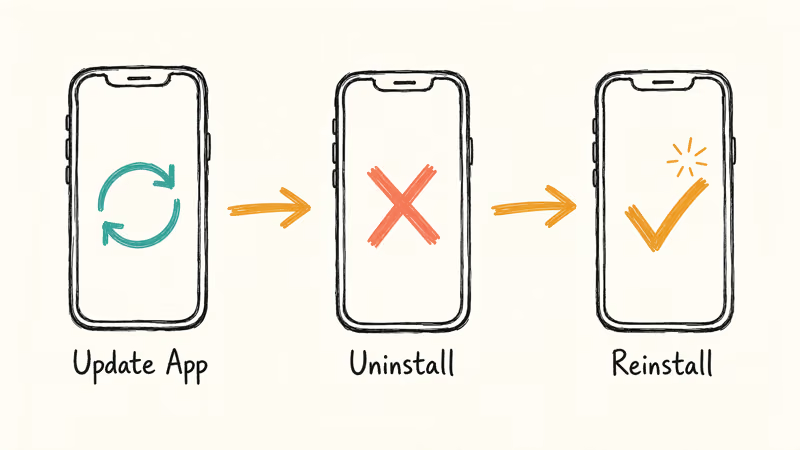
A stubborn crash that survives the update is almost always corrupted local data. Uninstall, restart, reinstall.
If crashes only happen when tapping a specific conversation, that thread may have a broken attachment. Mute the conversation and reopen the app to see if the rest works. On Android, repeated crashes often surface as the com.facebook.orca error, which usually clears once you wipe Messenger’s local data.
#Tips to Prevent Messenger Problems
Keep the app updated.
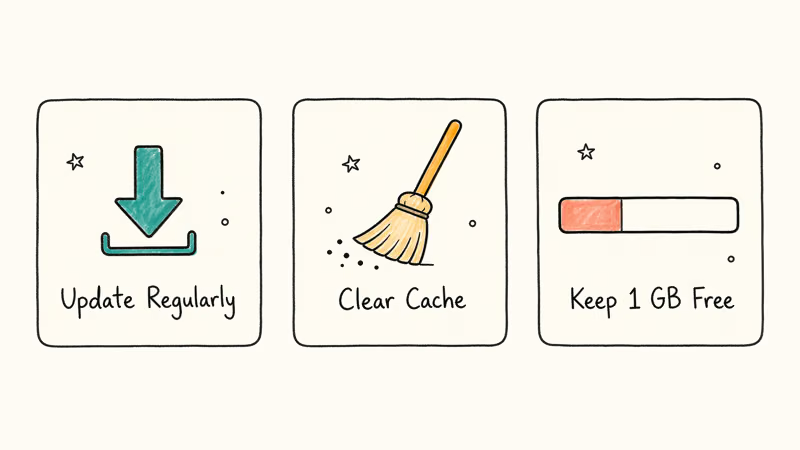
Clear the Messenger cache every couple of weeks. On Android, go to Settings > Apps > Messenger > Storage > Clear Cache. On iOS, deleting and reinstalling the app every month achieves the same result. Either way, it takes under a minute and heads off most “messages not loading” errors before they appear.
Low storage triggers the same symptoms, so keep at least 1 GB free.
#When to Contact Meta Support
Worked through every step and Messenger still won’t behave? Time to reach out. Open Messenger, tap your profile picture, scroll down, and select Report a Problem. Describe what’s happening and submit.
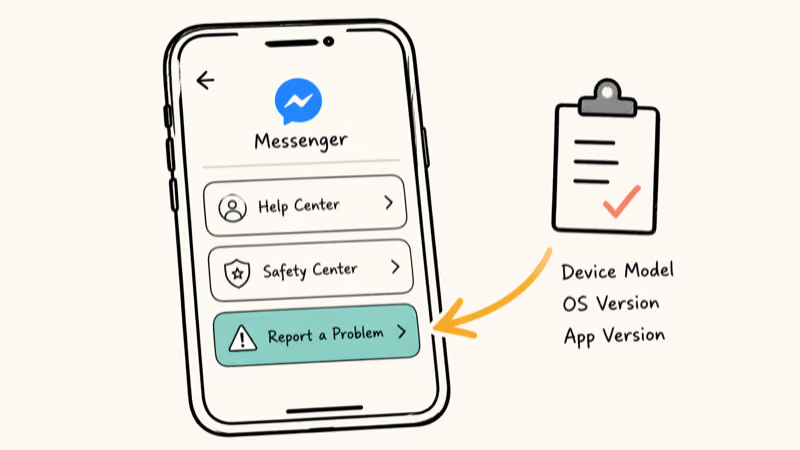
You can also reach Meta through the Facebook Help Center.
Bring your device model, the iOS or Android version, and the Messenger app version number. It cuts response time significantly.
#What About Specific Messenger Problems?
Messages sent but not delivered. This usually means the recipient’s device is offline or their Messenger is having trouble, not yours. Our guide on Facebook Messenger sent but not delivered covers the targeted steps.
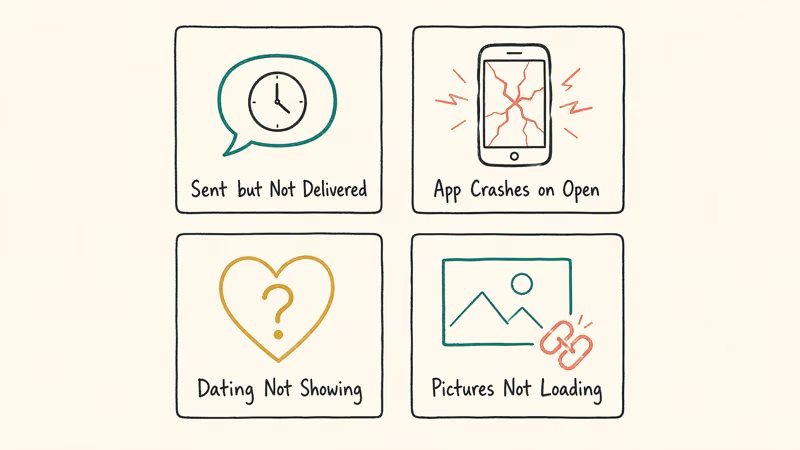
App crashes immediately on open. Almost always a corrupted installation. Clear data on Android, or delete and reinstall on iOS. If a clean install still crashes, check Meta’s status page for a known version bug.
Facebook Dating not accessible. That’s an eligibility issue, not a Messenger connection problem. See our article on Facebook Dating not showing up.
Messenger not loading pictures. When text arrives fine but images fail, the cause is usually storage or data permissions, not network. Our guide on Facebook not loading pictures has step-by-step fixes for both Android and iOS.
#Bottom Line
Force-stop Messenger and clear its cache first, because that alone resolves most problems in under a minute. If the app is still broken, check Meta’s status page for an active outage. When the issue really is on your device, a clean reinstall or an iPhone network reset clears the rest. Skip the pricey “repair” tools.
#Frequently Asked Questions
Why is Facebook Messenger not opening on my phone?
Corrupted cache, outdated app, or a stuck background process. Force-stop Messenger and clear its cache. If that doesn’t fix it, uninstall and reinstall the app.
Why are my Messenger messages not sending?
Start with your internet connection. If it’s fine, force-quit Messenger and reopen. Still stuck in the “sending” loop? Clear the Messenger cache on Android or reinstall on iOS, and also check whether the recipient has restricted you.
How do I fix Messenger notifications not working on iPhone?
Go to Settings > Notifications > Messenger and confirm Allow Notifications is on. Also check Settings > Focus to see if any profile is active and silencing Messenger. If notifications stopped right after an app update, deleting and reinstalling Messenger often resets the permission. This is the most common fix when notifications break specifically after an update rather than from a general connection issue.
Does clearing Messenger cache delete my messages?
No. Clearing the cache only removes temporary files like downloaded images and session tokens. Messages are stored on Meta’s servers and reload when you reopen the app. Clearing data signs you out but still doesn’t delete messages.
How long do Messenger outages typically last?
Most Messenger outages wrap up within a few hours. Larger infrastructure failures have stretched longer historically. Monitor live updates on Meta’s status page.
Can an iOS update break Facebook Messenger?
Yes. Major iOS upgrades sometimes break Messenger until Meta releases a patch. Check the App Store for a pending Messenger update and install it before trying anything more aggressive.
Why does Messenger keep crashing after reinstalling?
If Messenger crashes after a clean install, the problem is usually an OS-level compatibility bug rather than a corrupted file on your phone. Check Meta’s status page and the App Store reviews for a mention of your iOS or Android version. When a specific Messenger build has a widespread crash bug, store reviews fill up fast.
What is the difference between Clear Cache and Clear Data on Android?
Clear Cache removes temporary files and doesn’t affect your login or messages, while Clear Data goes deeper and wipes your saved session too. Both options live under Settings > Apps > Messenger > Storage. Use Clear Cache first, and only escalate to Clear Data if the problem sticks around after a restart.

Mac mini M6 vs M5 Pro: Which Model Should You Buy?
Mac mini M6 vs M5 Pro compared on price, memory, ports, displays, and real workloads. Find the better 2026 Mac mini for your desk and budget.

Apple Siri Settlement: Who Qualifies and How to Claim
Apple's $250 million Siri settlement covers iPhone 15 Pro and iPhone 16 models bought June 2024 to March 2025. See who qualifies and how claims work.

iOS 26.6.1 Security Update: What Apple Fixed and Who Gets It
Apple released iOS 26.6.1 on August 17 with 29 security fixes, including an IPSec interception bug. See what it patches, who gets it, and how to update.

iPhone Adaptive Power: How It Works and When to Use It
Learn how iPhone Adaptive Power works, which models support it, what it changes, and when Low Power Mode is still the better battery-saving choice.