Com.Facebook.Orca: What It Is and How to Fix the Error
Com.facebook.orca is the Android package name for Facebook Messenger. Learn what it does, why it stops working, and the fastest fixes for the error.
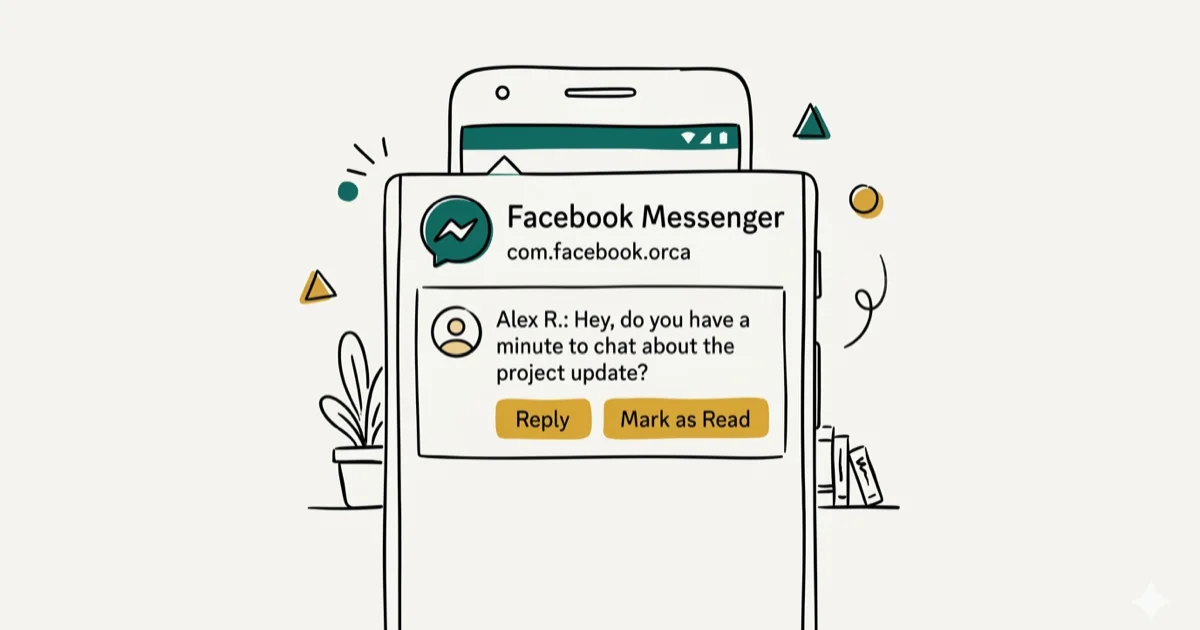
Quick AnswerCom.facebook.orca is Android's internal package name for Facebook Messenger. It stores your message data, cached media, and temporary files. It is safe, not a virus, and cannot be permanently deleted while Messenger is installed.
Com.facebook.orca is the Android package name for Facebook Messenger. You might see it in your file explorer, battery stats, or as an error message, and it often alarms people who don’t recognize it.
- Com.facebook.orca is the Android package identifier for Facebook Messenger, not a virus or spyware.
- The folder stores cached media, temporary files, and offline message data, which is why it can grow to several hundred MB over time.
- Deleting the folder is possible but temporary — Messenger recreates it automatically every time you reopen the app.
- The “com.facebook.orca has stopped” error most often occurs on low-RAM devices or after a corrupted app update.
- Clearing app data via
Settings>Apps>Messenger>Storage>Clear Datafixes many errors by forcing a fresh login.
#What Exactly Is Com.Facebook.Orca?
“Orca” is Facebook’s internal codename for Messenger, used since the app’s early development. The com.facebook.orca package stores everything Messenger needs to run offline and load quickly: cached images, video thumbnails, temporary files, and saved conversation data.
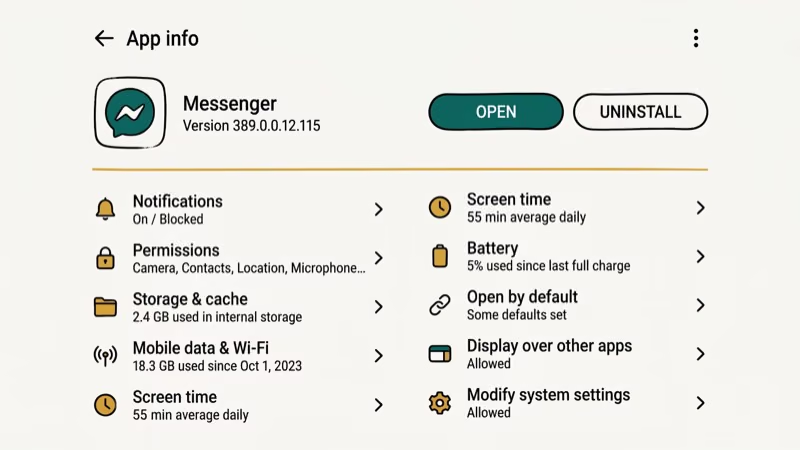
The com.facebook.orca package is designed as a standalone app separate from the main Facebook app, which uses the package com.facebook.katana. That separation is why you find two distinct storage folders on Android. According to the Android storage guide, each installed app gets its own isolated storage area.
Messenger stores cached images, audio clips, and temporary message data under that app storage area, including a subfolder called fb_temp for temporary message data.
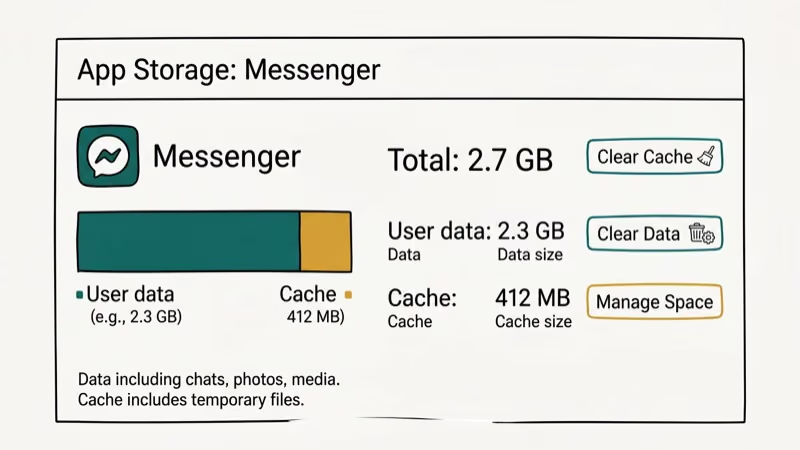
The folder grows because Messenger doesn’t aggressively clear its own cache. Go to Settings > Apps > Messenger > Storage > Clear Cache to reclaim space without losing any messages or contacts.
#Why Does the Orca Has Stopped Error Show Up?
The error appears when the Messenger process crashes unexpectedly. Common triggers include:
Insufficient RAM. Older or budget Android phones with 2-3 GB of RAM struggle when Messenger runs alongside other apps. Android kills background processes under memory pressure, and if Messenger’s process is terminated mid-operation, the stopped error shows on screen.
Corrupted app update. A failed or incomplete Messenger update leaves inconsistent app files that crash the moment you launch the app.
Outdated app version. Older Messenger builds can fail after server-side changes or account checks, especially if the Play Store update has been pending for a while.
If you’re also seeing issues with Facebook not loading pictures or Facebook videos not playing on Android, those are related to Messenger’s cache being corrupted rather than the orca process itself.
#Three Fixes for the Com.Facebook.Orca Error
#Fix 1: Clear App Data
This is the fastest fix because it removes corrupted local cache and forces a fresh login.
- Open Settings on your Android device.
- Tap Apps (or Application Manager on older Samsung devices).
- Tap All Apps and find Messenger.
- Tap Storage.
- Tap Clear Data — this removes cached files and forces a fresh login, but your messages stay on Facebook’s servers.
- Reopen Messenger and log back in.
#Fix 2: Update Messenger
Open the Google Play Store, search for Messenger, and tap Update if one is available. Updating Messenger can replace app files that Fix 1 didn’t repair.
#Fix 3: Reinstall Messenger
If clearing data doesn’t work, a full reinstall replaces all app files including any corrupted components. Go to Settings > Apps > Messenger, tap Uninstall, then reinstall from the Play Store and log in again.
#Use This Guide on Your Own Device
The steps above apply when you’re cleaning up com.facebook.orca on your own Android phone or your own Messenger account. We don’t cover ways to access someone else’s Messenger data, bypass another user’s privacy settings, recover messages from another person’s phone, or monitor someone’s conversations. Those actions are illegal under federal computer-misuse and wiretap laws like the CFAA and ECPA, and they violate Meta’s terms of service.
If you share a phone with family and need to inspect storage, get explicit consent first. If you’ve been locked out of your own account, Meta recommends using the official account recovery flow, not third-party “Messenger spy” or “message recovery” apps. Most of those tools are scams or malware, and installing one on a phone you don’t own can expose you to civil and criminal liability.
#How to Recover Deleted Messages From the Orca Folder
The fb_temp file inside the orca cache folder sometimes contains recoverable message data. This method is unreliable and only works if you haven’t cleared the cache or reinstalled the app. Facebook removed reliable local backup features in Messenger several years ago.
For deleted messages, check the Facebook Messenger inbox through a web browser. According to Meta’s support page, messages deleted only on your device may still appear in the web inbox depending on when they were removed and whether they were deleted for everyone.
If you’re looking for troubleshooting help specifically for Facebook Messenger not working across all platforms, that guide covers the server-side and account-level causes that aren’t related to the orca file.
#Com.Facebook.Orca Is Safe to Keep on Your Phone
Yes. Com.facebook.orca runs from a standard Android app directory with no elevated permissions beyond what Messenger itself needs.
To confirm you’re running the legitimate app, open the Play Store, search for Messenger, and verify it shows “Installed” with Meta as the developer. If it doesn’t match, uninstall and reinstall from the Play Store.
For related Facebook account issues, check our guide on fixing Facebook session expired errors and Facebook notifications not working.
#Bottom Line
Com.facebook.orca is simply Messenger’s storage folder on Android. The “has stopped” error means Messenger crashed, and clearing its app data fixes it in most cases. The folder is safe, expected, and will reappear anytime Messenger runs.
#Frequently Asked Questions
Can I delete the com.facebook.orca folder?
You can delete it with a file manager, but Messenger recreates the folder when you open the app again.
Will clearing app data delete my messages?
No. Your messages are stored on Facebook’s servers. Clearing app data removes local cache files and logs you out, but your conversation history is still accessible when you log back in.
Why is the com.facebook.orca folder so large?
Messenger caches images, videos, voice clips, and GIFs you’ve received so they load faster next time. On active accounts, this cache can grow past 1 GB over several months. Clear the cache (not data) periodically to reclaim storage without affecting your account.
Does com.facebook.orca drain battery?
On most phones, no. Background sync consumes some battery. If Messenger shows up in the top three apps in your battery stats, check Settings > Battery > Background app restrictions.
Is it possible to block com.facebook.orca without uninstalling Messenger?
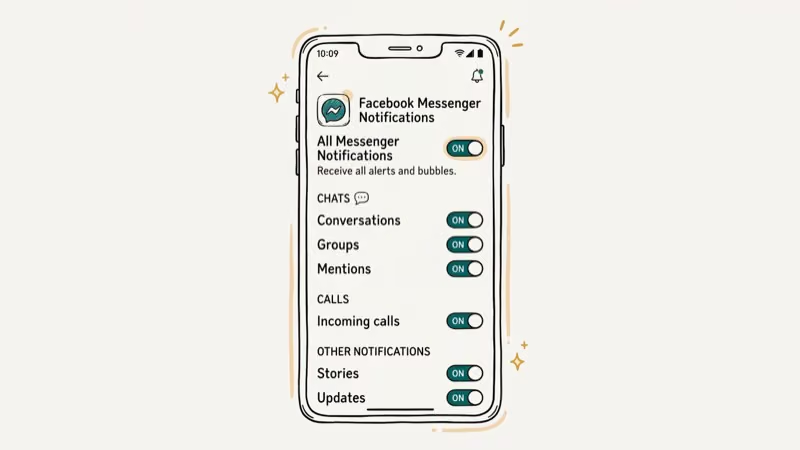
You can disable Messenger entirely through Settings > Apps > Messenger > Disable, but that stops all Messenger functions including notifications, calls, and active chats. There’s no way to keep Messenger working while blocking the orca process, since it’s the Messenger process itself.
Does the orca folder contain my passwords or personal data?
No. The folder contains media cache and temporary UI data. Your login credentials are stored in Android’s secure credential storage, not in the orca file directory.

Google Messages Error 3100: Why RCS Is Broken on Galaxy
Google Messages RCS error 3100 hits Galaxy owners after phone or carrier switches. Google told 9to5Google a fix is coming. Here's what actually helps.

Is This Bank App Real? Spot a Fake App on Your Home Screen
A bank app can land on your home screen from a web page with no install warning. Learn the checks that tell a real banking app from a phishing web app.

Apps Crashing After iOS 27 Update? Fix Order (2026)
Apps crashing after the iOS 27 update? Update the app in the App Store first, then offload and reinstall to clear stale cache, then restart. The fix order.

Do AI Translation Earbuds Work Offline? What to Know
Do AI translation earbuds work offline? A few do with downloaded language packs, but most need the cloud. Here's what works offline and what you give up.