Fix iTunes Won't Open on Windows 10: 8 Proven Methods (2026)
Fix iTunes that won't open on Windows 10 or 11 with 8 proven methods. Covers admin permissions, clean reinstalls, Safe Mode, and Bonjour resets.
Quick AnswerRun iTunes as administrator by right-clicking its shortcut and selecting Run as administrator. If that doesn't work, reinstall iTunes from Apple's website or the Microsoft Store.
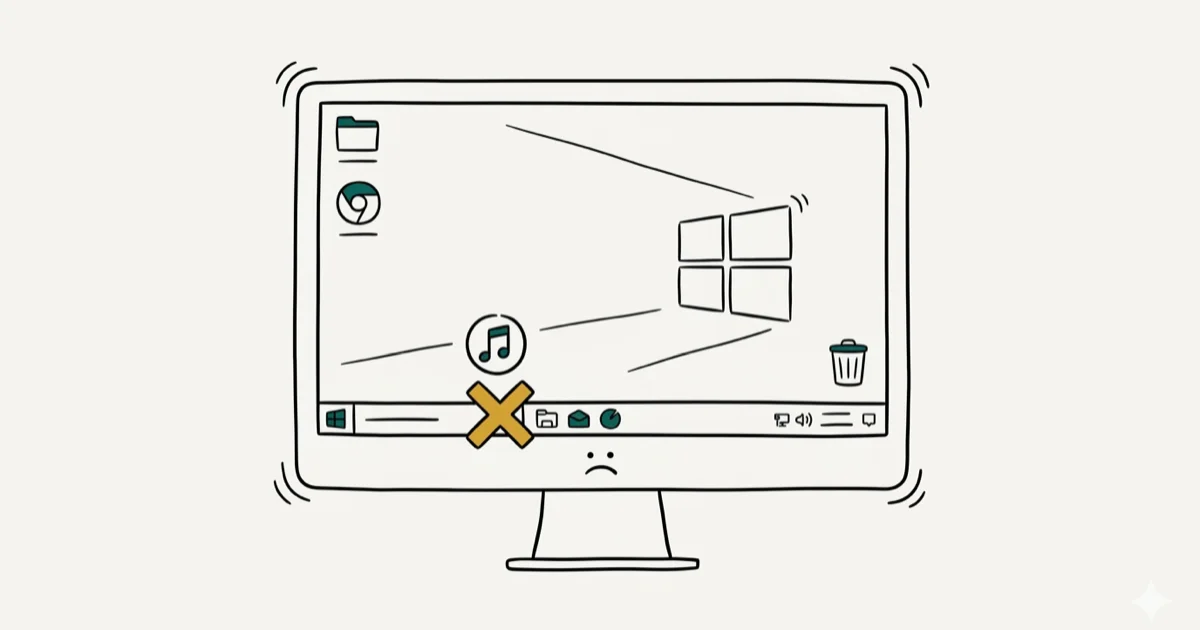
iTunes refuses to launch on your Windows 10 PC. You double-click the icon and nothing happens, or the app flashes briefly and closes. The eight fixes below work on both Windows 10 and Windows 11, and running iTunes as administrator clears the problem on most machines within seconds.
- Running iTunes as administrator bypasses permission errors that block the app from launching
- Reinstalling iTunes from Apple’s website replaces corrupted program files that prevent startup
- Antivirus software like Windows Defender occasionally blocks iTunes from running correctly
- Safe Mode isolates third-party software conflicts that stop iTunes from opening during normal boot
- The Bonjour networking service must be running for iTunes to launch and detect Apple devices
#Why Won’t iTunes Open on Windows 10?
iTunes depends on several Windows services and components to run. When any of those break, the app either refuses to launch or crashes instantly after opening.
Apple’s iTunes troubleshooting page states that corrupted program files, outdated versions, and conflicts with 3rd-party security software blocking specific DLL files are the top 3 causes of iTunes failing to open on Windows.
The causes almost always come down to one of these:
- Missing admin permissions prevent iTunes from accessing system resources
- Corrupted installation files left behind after a failed update
- Antivirus interference blocking iTunes executables or related DLLs
- Broken Bonjour service that iTunes requires for device detection
- Third-party plugin conflicts loading at startup and crashing the app
#Run iTunes as Administrator
Right-click the iTunes shortcut on your desktop or Start menu and select Run as administrator. Click Yes when User Account Control prompts you.
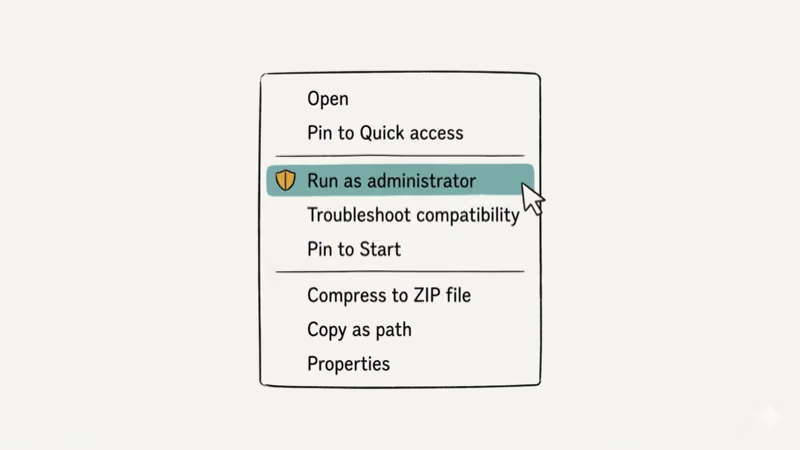
This grants iTunes the elevated permissions it needs to access system files, write to the registry, and communicate with Apple services. A Windows Update that changes permission settings is a common reason iTunes suddenly stops opening, and running it as administrator usually fixes that case immediately.
To make this permanent, right-click the iTunes shortcut, select Properties > Compatibility, check Run this program as an administrator, and click OK.
#Reinstall iTunes Completely
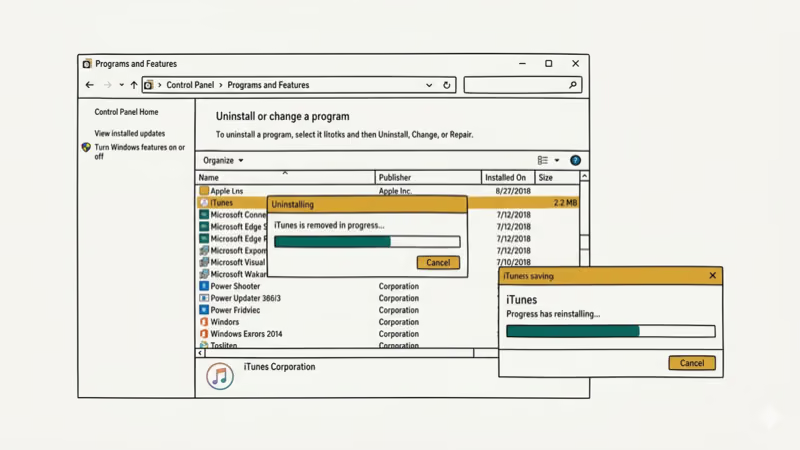
A clean reinstall replaces every corrupted file. First, uninstall iTunes and all Apple components in this order through Settings > Apps:
- iTunes
- Apple Software Update
- Apple Mobile Device Support
- Bonjour
- Apple Application Support (32-bit and 64-bit)
Restart your PC after removing everything. Then download the latest iTunes from Apple’s download page or install it through the Microsoft Store. Based on Apple’s iTunes installation guide, the Microsoft Store version updates automatically and causes fewer conflicts than the desktop version on Windows 10 and 11.
Between the two installation methods, the Microsoft Store version tends to launch cleanly on the first try, while the desktop version is more likely to need an admin fix afterward. If you need to reinstall iTunes for device syncing, the Microsoft Store version is the safer choice.
#Update Windows and iTunes
Outdated Windows versions can break compatibility with newer iTunes releases.
Go to Settings > Update & Security > Windows Update and click Check for updates. Install everything available and restart.
For iTunes, open the Microsoft Store and check for app updates. The desktop version updates through Help > Check for Updates inside iTunes itself, but that only works if iTunes can open. If it can’t, the reinstall method above handles the update simultaneously.
According to Microsoft’s Windows Update support page, keeping Windows current helps prevent application compatibility issues, including ones that can block iTunes.
#Could Antivirus Software Be Blocking iTunes?
Antivirus tools scan every executable at launch. Some aggressively block iTunes components.
To test, temporarily disable your antivirus real-time protection. On Windows Defender: Settings > Privacy & Security > Windows Security > Virus & threat protection > Manage settings > turn off Real-time protection. Try launching iTunes.
If iTunes opens with antivirus off, add iTunes to your antivirus exception list rather than leaving protection disabled. Third-party suites like Bitdefender are known to block iTunes this way, sometimes for weeks before anyone connects the two.
Re-enable antivirus immediately after testing.
#Boot Into Safe Mode to Isolate Conflicts
Safe Mode loads Windows with only essential drivers and services, eliminating third-party conflicts.
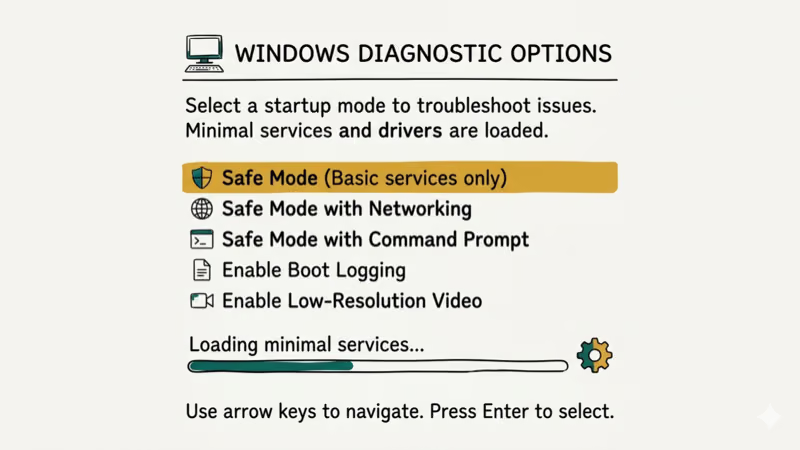
Press Windows + R, type msconfig, press Enter. Go to the Boot tab, check Safe boot with Minimal selected, click OK, and restart. Try opening iTunes in Safe Mode.
If iTunes works in Safe Mode but not in normal mode, a third-party app or service is causing the conflict. The most common culprits are VPN clients, audio drivers, and CD/DVD burning software. Disable startup programs one at a time through Task Manager > Startup to find the offender.
If you use iTunes to manage your iPhone and encounter sync errors, our guide on iTunes connection errors covers those separately.
#Reset the Bonjour Service
Bonjour handles network discovery for iTunes. If this service stops running, iTunes won’t open.
Press Windows + R, type services.msc, press Enter. Find Bonjour Service in the list, right-click it, and select Restart. If it says “Stopped,” click Start instead.
Set the service to start automatically: right-click Bonjour Service > Properties > set Startup type to Automatic > click OK.
If Bonjour doesn’t appear in the list, reinstalling iTunes (method 2) restores it. The best iPhone Explorer alternatives can manage files without Bonjour if the service stays broken.
#Remove Third-Party iTunes Plugins
Plugins installed by third-party apps can crash iTunes at launch.
Go to C:\Users[YourUsername]\AppData\Roaming\Apple Computer\iTunes\iTunes Plug-ins and move all files to a temporary folder on your desktop. Try launching iTunes.
If it opens, add plugins back one at a time to find the problematic one. An old CD-ripping plugin is a classic offender here, and removing that single file is often enough to fix the launch issue for good.
#Create a New Windows User Account
If nothing else works, a corrupted Windows user profile may be the cause.
Go to Settings > Accounts > Family & other users > Add someone else to this PC. Create a local account, log into it, and try launching iTunes.
If iTunes works on the new account, transfer your iTunes media library to the new profile. You can also transfer music from an iPod to your computer through the new account if needed. Your iTunes library is stored in C:\Users[OldUsername]\Music\iTunes and can be copied to the same location under the new account.
#Bottom Line
Run iTunes as administrator first. It’s the fastest fix and resolves permission issues caused by Windows updates. If you need iTunes specifically for transferring ringtones to your iPhone, getting the app working is your only option on Windows 10. If that fails, reinstall iTunes through the Microsoft Store for the cleanest installation. Only move to Safe Mode and Bonjour resets if the simpler fixes don’t work.
#Frequently Asked Questions
Why does iTunes flash and close immediately on Windows 10?
A third-party plugin or corrupted library file crashes the app at startup. Remove all files from the iTunes Plug-ins folder and try again. If that doesn’t fix it, reinstall iTunes completely.
Should I use the Microsoft Store version or the desktop version?
The Microsoft Store version. It updates automatically, installs cleanly, and causes fewer conflicts with Windows security features. Apple’s own support page recommends it for Windows 10 and later.
Why does iTunes say it’s running but nothing appears on screen?
Open Task Manager (Ctrl + Shift + Esc), find iTunes in the Processes tab, click End Task, then relaunch. The previous instance hung invisibly and blocked a new window from appearing.
Can I manage my iPhone without iTunes on Windows?
Yes. The Microsoft Store app “Apple Devices” handles iPhone syncing on Windows 11. For Windows 10, third-party tools like iMazing can back up and transfer files without iTunes. However, you still need iTunes for full iOS restores and firmware updates on Windows 10.
Will reinstalling iTunes delete my music library?
No. Your iTunes library files and media stay in your Music\iTunes folder. Reinstalling only replaces the program files. When you reopen iTunes after reinstalling, it finds your existing library automatically.
How do I fix iTunes error code 7 (Windows error 127)?
This means Apple Application Support is missing or corrupted. Reinstall iTunes using the complete uninstall-then-reinstall method (remove all 6 Apple components, restart, then reinstall). Error 7 specifically indicates a missing DLL file that the full reinstall restores.
Does Windows 11 still support iTunes?
Yes. iTunes runs on Windows 11 through both the desktop installer and the Microsoft Store. Apple also released the “Apple Devices” app as a lighter alternative for device management on Windows 11, though it doesn’t include the full media library features.

Mac mini M6 vs M5 Pro: Which Model Should You Buy?
Mac mini M6 vs M5 Pro compared on price, memory, ports, displays, and real workloads. Find the better 2026 Mac mini for your desk and budget.

Apple Siri Settlement: Who Qualifies and How to Claim
Apple's $250 million Siri settlement covers iPhone 15 Pro and iPhone 16 models bought June 2024 to March 2025. See who qualifies and how claims work.

iOS 26.6.1 Security Update: What Apple Fixed and Who Gets It
Apple released iOS 26.6.1 on August 17 with 29 security fixes, including an IPSec interception bug. See what it patches, who gets it, and how to update.

iPhone Adaptive Power: How It Works and When to Use It
Learn how iPhone Adaptive Power works, which models support it, what it changes, and when Low Power Mode is still the better battery-saving choice.