How to Quote Someone in Discord: The Complete Guide
Learn how to quote messages in Discord using single-line quotes, multi-line block quotes, code blocks, and the Reply feature on desktop and mobile.
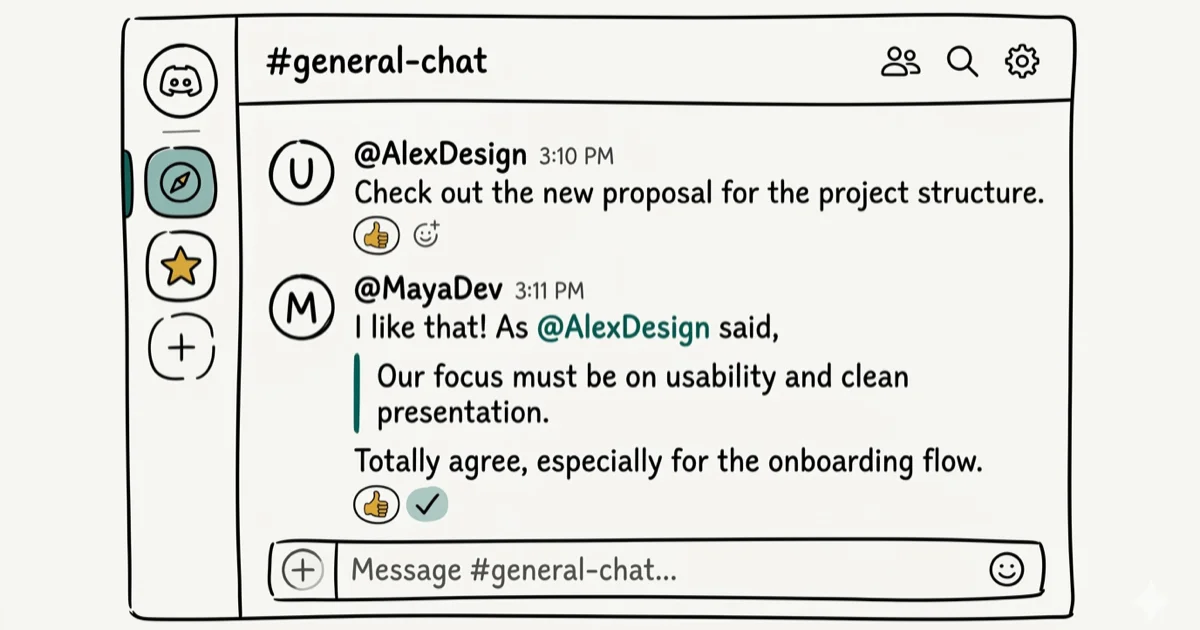
Quick AnswerTo quote someone in Discord, type > followed by a space and the text for a single-line quote. Use >>> for a multi-line block quote. Discord does not have a built-in reply-and-quote button, so these markdown symbols are the standard method.
Discord doesn’t have a dedicated “Quote” button, but it supports markdown-based quoting through two simple characters: > for single-line quotes and >>> for multi-line block quotes. Once you know these, quoting becomes second nature. This guide covers all methods, including the built-in Reply feature that most users overlook.
- Type
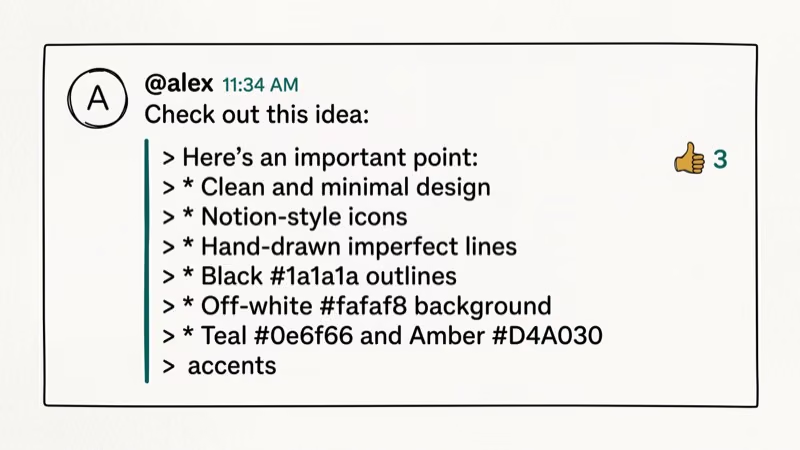
>and a space to create a single-line quote with a colored left border. - Use
>>>for multi-line block quotes that group several lines under one continuous marker. - The Reply feature links directly to the original message without copying text manually.
- Code blocks using backticks work as an alternative visual quote format for technical content
- Discord enforces a 2,000 character limit that includes your quote symbols, quoted text, and reply
#What Are Your Options for Quoting in Discord?
Before diving into methods, here’s what Discord actually supports:
| Method | Best for | Works on mobile? |
|---|---|---|
> single-line quote | Short references | Yes |
>>> multi-line quote | Long passages | Yes |
| Reply feature | Contextual replies | Yes |
| Code blocks | Technical content | Yes |
| Quote bots | Cross-channel quotes | Yes (via commands) |
Discord supports > and >>> quote syntax across desktop and mobile apps. According to Discord’s markdown formatting guide, the > character is the official blockquote syntax inherited from standard Markdown. Wikipedia’s Markdown article confirms that > blockquote notation originated with early email clients in the 1990s, long before Discord adopted it.
#How to Make a Single-Line Quote
Single-line quoting is the quickest way to highlight a specific statement.
Type > then a space, then your quoted text, then press Enter to send. The space after > is required; without it, Discord treats the symbol as a literal character rather than markdown syntax. This is the most common mistake when quoting for the first time, so double-check that gap before sending.
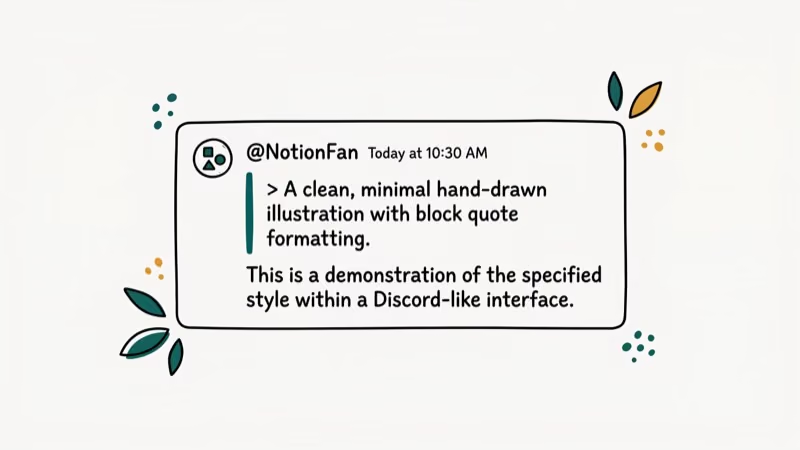
The message renders with a colored left border, visually distinguishing it from your regular text.
Example: > Discord is free to use appears as a formatted quote with a left border.
Tips for single-line quoting:
- Keep it concise; single-line quotes work best for brief statements or specific phrases
- Combine with your response on the next line for context
- Use it to highlight key points in a long conversation
#How to Create Multi-Line Block Quotes?
When you need to quote multiple lines or an entire paragraph, use the triple >>> syntax.
Type >>> then a space, then paste your full passage and press Enter to send. The entire passage displays with a single continuous left border.
Example:
>>> First line of the quote
Second line of the quote
Third line
Best practices:
- Use multi-line quotes sparingly to avoid cluttering channels
- Summarize very long messages rather than quoting everything
- Add your commentary after the quote to keep the conversation moving
#Using Discord’s Reply Feature
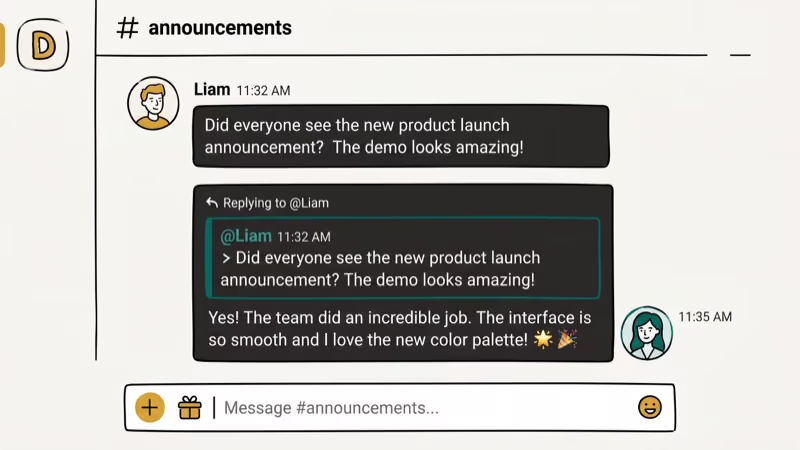
The Reply feature is often the better choice over manual quoting because it links directly to the original message. Hover over the target message, click the reply arrow on the right, type your response, and press Enter.
Your message displays with a reference to the original message above it. Clicking that reference jumps to the original message, so anyone reading the thread can see full context instantly without scrolling up. This is especially useful in busy channels where messages scroll quickly and manual quotes lose their anchor point.
The Reply feature preserves context better than manual quotes in fast-moving channels because readers can click the reference to see the full original message regardless of how far up the channel has scrolled.
#Using Code Blocks as Visual Quotes
Code blocks offer a different visual style that can work well for quoting technical content or when you want the text to stand out more distinctly. For single-line code blocks, surround the text with single backticks: `quoted text here`. For multi-line code blocks, use triple backticks before and after the text.
Code blocks display in a monospace font on a dark background, which some users prefer for quoting commands, error messages, or technical instructions. This format is particularly useful when quoting console output, terminal commands, or step-by-step instructions where exact spacing and formatting matters. Unlike > block quotes, code blocks don’t have a colored left border, but they preserve every whitespace character exactly as you typed it.
#Quoting on Mobile Devices
Mobile Discord supports the same markdown syntax. Long-press the message you want to quote, tap Copy Text, then type > or >>> in the text field, paste the copied text, and send.
The Reply feature works on mobile too: long-press a message and tap Reply to use it without copying text manually.
Mobile tip: Switch to landscape mode for easier text manipulation when composing longer quoted responses.
#Advanced Quoting with Discord Bots
For quoting messages from other channels (which standard > syntax can’t do), quote bots fill the gap. According to Discord’s bot documentation, bots use the Message API to fetch and repost content from any channel the bot has read access to, which is why cross-channel quoting requires bot permissions rather than markdown.
Popular quote bots can reference messages from any channel, include image attachments, display the original author’s name in an embed format, and archive notable messages for community records.
See the guide on how to add bots to Discord for setup instructions. Always verify a bot’s permissions before adding it to a server and check user reviews on top.gg before authorizing. Malicious bots have exploited message-read permissions in the past, so review permission requests carefully.
#Troubleshooting Common Quoting Issues
Quotes not formatting correctly: Make sure there’s a space between the > symbol and your text. Without that space, Discord treats the > as a literal character instead of markdown syntax.
Wrong number of symbols: > creates a single-line quote, >>> creates a multi-line block. Two >> symbols don’t create a valid Discord quote format — there’s no middle option.
Mobile app not showing quote option: Update your Discord app to the latest version. Android and iOS apps both receive markdown updates independently, so older versions may not recognize all quote syntax. If updating doesn’t help, try force-closing and reopening the app, or reinstall Discord entirely.
Quotes breaking in long messages: Discord has a 2,000 character limit per message, which includes your quote symbols, quoted text, and your response combined. If you’re quoting a long passage, you’ll often hit this limit before you finish writing your reply. Break very long quotes into multiple messages or quote only the most relevant sentence or two rather than an entire paragraph.
#Best Practices for Effective Quoting
- Quote with purpose: only include what’s necessary for context, not entire multi-paragraph messages
- Respect the original author: don’t alter quotes to change their meaning
- Combine quotes with your own commentary: add value rather than just repeating others
Keep these habits in mind for channel etiquette:
- Use Reply for recent messages: for messages a few lines up, the Reply feature gives better context than manual quoting
- Use
>>>sparingly in busy channels: large block quotes can push other messages off-screen for users on smaller monitors
For more on Discord formatting, see the guide on Discord text formatting. To manage your Discord presence, check out how to appear offline on Discord.
If you’re also streaming in Discord, see the Discord screen share guide. You can also use the Discord overlay to monitor chats while gaming.
#Bottom Line
Use > for quick single-line references and >>> for longer passages. For ongoing conversations, the Reply feature is usually better than manual quoting because it links directly to the original message and lets others click through to see full context even after the channel has scrolled. Manual quoting with > works best when you want to highlight a specific phrase without threading a reply. Quote bots are worth installing only if your server regularly needs cross-channel references or archived quotes.
#Frequently Asked Questions
Can I quote messages from other channels?
Not with standard markdown. The > and >>> syntax only work in the channel where you’re typing. Quote bots like Carl-bot or Quoted allow cross-channel quoting by reference.
Is there a character limit for quotes?
Discord’s overall 2,000 character limit per message applies to everything: quote symbols, quoted text, and your response combined.
Can I quote images or attachments?
Standard markdown quoting only works for text. For images or attachments, use a quote bot or right-click the message and select Copy Message Link to share a reference.
Do quotes notify the original message author?
No. The > quoting syntax doesn’t send any notification. If you want the original author to see your response, use the Reply feature or @mention them.
Can I edit a quote after sending it?
You can edit your own message by pressing the up arrow key in the text field or right-clicking your message. You can change the quote text and your commentary, but changes you make don’t affect the original author’s message.
Can I use text-to-speech with quotes?
Discord’s text-to-speech function reads everything in your message aloud, including quoted text. The > symbol itself is not read aloud, just the content after it. If your quoted passage is long, TTS will read the entire thing before reaching your reply — so keep quoted text brief when using TTS in voice channels. For more on using TTS, see the guide on text to speech on Discord.

Google Messages Error 3100: Why RCS Is Broken on Galaxy
Google Messages RCS error 3100 hits Galaxy owners after phone or carrier switches. Google told 9to5Google a fix is coming. Here's what actually helps.

Is This Bank App Real? Spot a Fake App on Your Home Screen
A bank app can land on your home screen from a web page with no install warning. Learn the checks that tell a real banking app from a phishing web app.

Apps Crashing After iOS 27 Update? Fix Order (2026)
Apps crashing after the iOS 27 update? Update the app in the App Store first, then offload and reinstall to clear stale cache, then restart. The fix order.

Do AI Translation Earbuds Work Offline? What to Know
Do AI translation earbuds work offline? A few do with downloaded language packs, but most need the cloud. Here's what works offline and what you give up.