How to Appear Offline on Discord (Desktop and Mobile)
Set Discord to Invisible to look offline while still using voice, DMs, and servers. Step-by-step for Windows, iOS, Android, and the web client.
Quick AnswerTo appear offline on Discord, click your profile icon at the bottom-left of the app, select Set Status, and choose Invisible. Your name dot turns gray for everyone else, but you can still read DMs, join voice channels, and browse servers without friends seeing you online.
Learning how to appear offline on Discord takes about three clicks once you know where Discord hides the Invisible toggle. The steps below apply only to your own Discord account on devices you control, since Discord’s status menu is a personal-account setting, not something you can change for someone else. Each path covers the current builds, so the workflow matches what you’ll see in 2026.
- Invisible is one of 4 Discord statuses, alongside Online (green), Idle (yellow), and DND (red); the Invisible dot is gray.
- The Invisible toggle lives behind your profile icon at the bottom-left on desktop and the bottom-right tab on mobile, not in User Settings.
- Status changes sync to every device where you’re signed in, so the gray dot shows up on a phone almost immediately after you toggle it on a computer.
- Game activity broadcasts on a separate channel and must be silenced in User Settings under Activity Privacy or it leaks your session.
- Invisible still lets you read direct messages, browse servers, and join voice channels, but typing publicly or speaking out loud reveals you instantly.
#What Is Invisible Status on Discord?
Invisible is Discord’s polite way of saying “I am here, please pretend I’m not.”
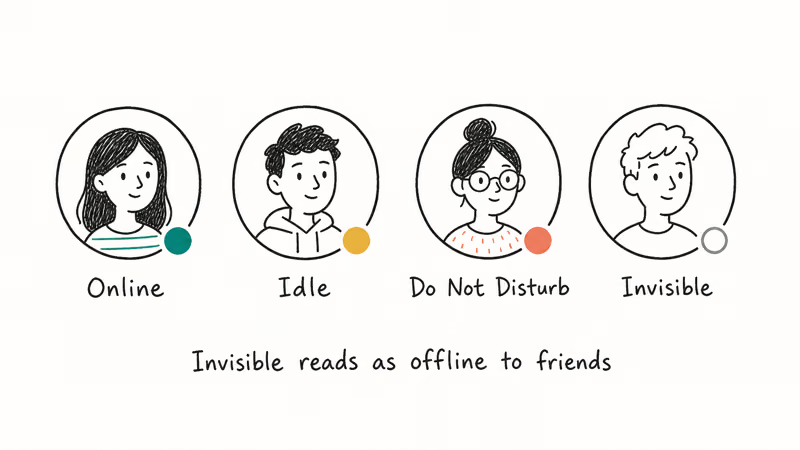
Discord’s Changing Online Status page states that setting yourself as Invisible makes you appear offline entirely while still letting you access Discord normally, including messaging friends.
According to Discord, 5 status icons appear in its colored-dot support article: Online, Idle, DND, Streaming, and Invisible/Offline.
The illusion holds up across friend lists, server member sidebars, and DM panes. Because Discord is built around voice calls, video calls, text messaging, and server communities, as summarized in the Discord Wikipedia entry, those presence cues matter in more places than a simple DM list.
There’s no public “Last online” timestamp either, because Discord doesn’t surface that field. Friends viewing your profile from their phones see a gray dot almost immediately after you flip the switch, with no indicator that the status was manually changed.
What still leaks: your participation.
Posts in text channels show up under your name with the current timestamp. Voice channel membership is plainly listed. An @everyone ping posted ten seconds after going Invisible drops into chat exactly the way it normally would, gray dot or not.
#How to Set Invisible on Discord Desktop
Discord’s desktop client on Windows, macOS, and Linux uses the same layout. The Invisible setting hides under your profile icon, not the gear menu most people associate with settings.
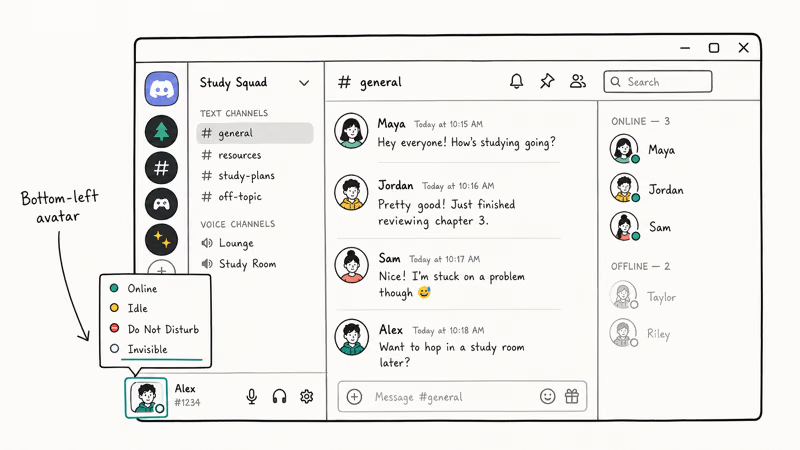
- Open the Discord desktop app and sign in.
- Click your profile picture in the bottom-left corner, next to your username.
- A small popup appears with status options. Click the colored online indicator at the top to reveal the full status menu.
- Pick Invisible from the list. The dot turns gray instantly.
- Hover the same profile picture again to confirm the menu now shows “Invisible” as your active state.
If the popup doesn’t appear, your Discord client is likely on an older build.
Discord pushes mandatory updates roughly weekly, so quitting and relaunching usually triggers a fresh download. The keyboard shortcut Ctrl+R (or Cmd+R on macOS) also forces a soft reload without restarting the whole app.
On current desktop builds, other accounts see the gray dot almost immediately after you pick Invisible. There’s no confirmation popup, no “are you sure” prompt, and no save button anywhere in the flow. The change applies the instant you click, and it carries over to your phone and any browser session signed in to the same account without a separate step.
#How to Appear Offline on Discord Mobile
The Discord mobile app for iOS and Android tucks the status switch into your profile tab rather than the main settings page. Many people miss it because they expect it under the gear icon. It isn’t there.
- Open the Discord app on your phone and sign in if needed.
- Tap your profile photo in the bottom-right of the screen.
- A profile panel slides up. Tap Set Status near the top of that panel.
- From the list of statuses, choose Invisible.
- The panel closes and your profile dot turns gray on every device.
The mobile flow takes about 4 taps total.
Both iPhone and Android follow the identical flow, and the status change propagates to a desktop client quickly, so any delay is minor in everyday use.
Discord’s mobile app also lets you build a custom status with an emoji and a short note that sits beneath your name. Custom statuses are independent of your dot color: pair “Studying for exams” with an Invisible dot, and friends will see the text but still believe you’re offline. If you also want to scrub your old direct messages before disappearing, our walkthrough on how to clear Discord chat covers the cleanup process.
#How to Go Invisible on the Web Client
The Discord web client at discord.com/app mirrors the desktop layout almost exactly. The profile picture in the bottom-left opens the same status menu, and Invisible sits at the bottom of the list. Web works well when you’re on a managed computer that blocks the native installer.
There’s one wrinkle worth knowing about.
Browser sessions sometimes show your status as Online for the first few seconds after login while the WebSocket establishes the presence channel. Discord then catches up and applies whatever status you had previously set on another device. This can happen on any browser, and the catch-up usually completes within a few seconds without any user action.
If you need a quick keyboard shortcut, Ctrl+K (or Cmd+K) opens Discord’s quick switcher, but it doesn’t change your status. The dropdown click is the only path that works.
#How to Hide Your Game Activity From Friends
Setting yourself to Invisible doesn’t hide what game you’re playing if Discord’s game detection is still running.
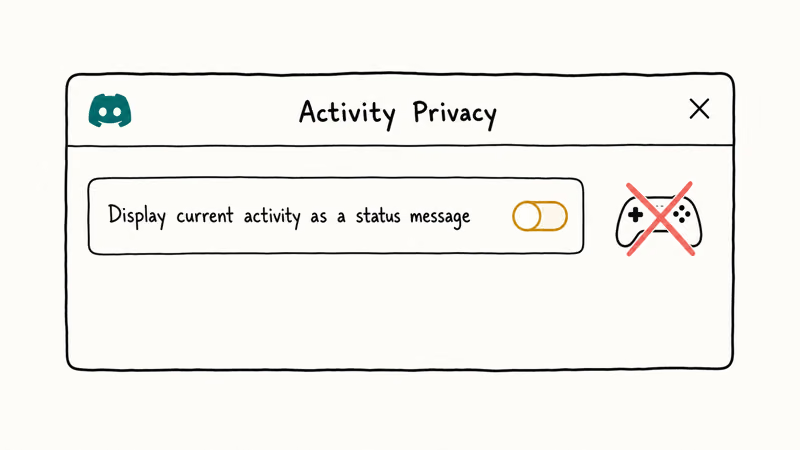
According to Discord’s Activity Sharing FAQ, global Activity Privacy settings control whether detectable games or rich-presence apps are shown to others. The gray dot says you’re offline; the game indicator can still say you’re playing League of Legends. Friends notice the contradiction instantly.
To silence game activity:
- Click the gear icon next to your username on desktop (this is the right gear icon, not the profile picture).
- In the left sidebar, scroll to Activity Privacy under Activity Settings.
- Toggle off Display current activity as a status message.
- Optionally toggle off Share your activities with platforms you’ve added to your connections as well.
The change is instant.
Game activity disappears from your name within seconds. Discord recommends keeping this toggle off whenever you don’t want a specific session showing up in friends’ sidebars. If you want to understand Discord’s notification system, our breakdown of what the red dot on the Discord icon means explains why that bubble keeps appearing while you’re invisible.
#Will Friends Notice You’re Faking Offline?
Most of the time, no. Discord doesn’t flag a status change to your friends, and the Invisible dot looks the same as a truly offline dot. There’s no notification, no audit log, and no public history of status switches.
But you can blow your cover three ways:
- Typing in a public text channel. Your message lands in the channel under your name with the current timestamp. Anyone watching live sees you posting and knows the gray dot is theater.
- Joining a voice channel. Voice channels list active members regardless of status. Your profile shows up beside the channel name, visible to everyone with access to that server.
- Showing up on Spotify or another connected platform. If you connected Spotify to Discord, your “Listening to” indicator runs on its own schedule. Friends see the song even with Invisible enabled, which is a very obvious leak.
The safer pattern is to keep Invisible on, read DMs without replying in public channels, and disable any platform integrations you don’t trust. Spotify, Xbox, PlayStation Network, and Steam connections each broadcast their own activity strings that bypass your dot color entirely, so review every linked account in User Settings before relying on Invisible alone for privacy.
If you also want to slip out of a server cleanly while invisible, the steps in our guide on leaving a Discord server without anyone knowing line up with the workflow here.
#Invisible vs DND: Picking the Right Mode
Invisible and DND (the red-dot Discord status) solve different problems even though both reduce social pressure. Invisible hides your presence; DND simply mutes notifications.
Invisible is the right call when you want to read messages without feeling obligated to reply, when you’re away from your desk but still want chat available, or when one friend pings you constantly and you need a break without explaining why.
DND fits better when you’re heads-down on a deadline, when you’re streaming and don’t want sound to leak, or when you want friends to know you’re around but not interruptible. The red dot is a polite “later” rather than a hidden retreat.
In practice, DND reads as more honest in small group settings where people can see you’re around, while Invisible is more useful in large public servers where you don’t owe anyone an explanation. The two modes are mutually exclusive, so picking one automatically cancels the other, and there is no way to layer DND on top of Invisible. The toggle behaves identically across iOS, Android, and desktop.
One more thing.
A third option worth knowing is the custom status text. Pairing “Heads down today” with a DND dot tells friends exactly why you’re quiet, which softens the social cost more than going dark.
For more privacy patterns, our Discord voice changer guide covers another way to keep your identity flexible during voice calls.
#Bottom Line
If you’re picking a single setting to use today, start with Invisible and add the Activity Privacy toggle.
Together they take about 30 seconds to enable, and they cover the two most common leak vectors at once: the colored status dot and the playing-now game banner. DND alone isn’t enough if you also want to hide your presence. Invisible alone isn’t enough if you also play games while signed in.
The combination that works best: Invisible status, Activity Privacy switched off, Spotify connection disabled if you don’t actively use it on Discord profiles, and a custom status string only when you actually want friends to read it. That stack keeps you under the radar while still letting you read and reply in DMs when you choose to.
If you want to know whether a specific person has cut you off from their side, our walkthrough on how to tell if someone blocked you on Discord explains the signals to look for.
For capturing important conversations before they scroll out of view, see our guide to recording a Discord call.
#Frequently Asked Questions
Can I still receive messages when appearing offline on Discord?
Yes. Discord’s Changing Online Status page says Invisible still lets you access all of Discord as normal, including messaging friends. You’ll see the message indicator and unread badge in the app exactly the way you would when set to Online. The sender has no way of knowing whether you’ve read it unless you reply in a text channel.
Will my friends see that I’m online if I open Discord while Invisible?
No. The gray dot stays gray for everyone except you. Opening the app, scrolling servers, or reading DMs doesn’t break your Invisible status. The only way friends find out is if you post in a public channel, join a voice channel, or leak through a connected service like Spotify.
Can I appear offline to specific people only on Discord?
Not really.
Discord doesn’t currently support per-friend visibility. Once you switch to Invisible, every friend, server, and DM contact sees the same gray dot. If you want selective privacy, your only options are to block the specific person, which they’ll likely notice, or to use a separate Discord account for the relationships you want to keep visible.
How do I switch back to online status?
Click your profile picture at the bottom-left on desktop or tap your profile tab on mobile, open the status menu, and pick Online from the list. The green dot returns immediately.
Will appearing offline stop server notifications?
No.
Server pings, DM badges, and unread counts continue to work while you’re Invisible. To silence notifications themselves, switch to DND instead, or mute specific channels and servers from their context menus.
Why does my game still show as playing when I’m Invisible?
Discord’s “playing now” indicator runs on a separate channel from your status dot. You need to open User Settings, scroll to Activity Privacy, and toggle off “Display current activity as a status message.” That stops the game banner without affecting your status dot.
Does Invisible hide me from people I’ve blocked?
You’re already hidden from blocked users in most contexts.
They can’t DM you, can’t see your messages in shared servers without expanding a “blocked message” notice, and don’t see your typing indicator. Invisible adds an extra layer by making your dot gray to everyone, but the block itself does most of the heavy lifting, so the practical privacy gain from going Invisible on top of a block is small and mostly cosmetic for users who are already blocked.
How long does Invisible status last?
Invisible status stays active until you change it manually or sign out of every device. There’s no time limit, no auto-revert after a set period, and the status persists across reboots, app updates, and client switches. If you want a time-limited version, set a custom status with a “Clear after” timer instead.

Google Messages Error 3100: Why RCS Is Broken on Galaxy
Google Messages RCS error 3100 hits Galaxy owners after phone or carrier switches. Google told 9to5Google a fix is coming. Here's what actually helps.

Is This Bank App Real? Spot a Fake App on Your Home Screen
A bank app can land on your home screen from a web page with no install warning. Learn the checks that tell a real banking app from a phishing web app.

Apps Crashing After iOS 27 Update? Fix Order (2026)
Apps crashing after the iOS 27 update? Update the app in the App Store first, then offload and reinstall to clear stale cache, then restart. The fix order.

Do AI Translation Earbuds Work Offline? What to Know
Do AI translation earbuds work offline? A few do with downloaded language packs, but most need the cloud. Here's what works offline and what you give up.