com.android.server.telecom: The Core of Android's Call
Learn what com.android.server.telecom is, its core functions in Android call management, and how to troubleshoot common telecom service errors.
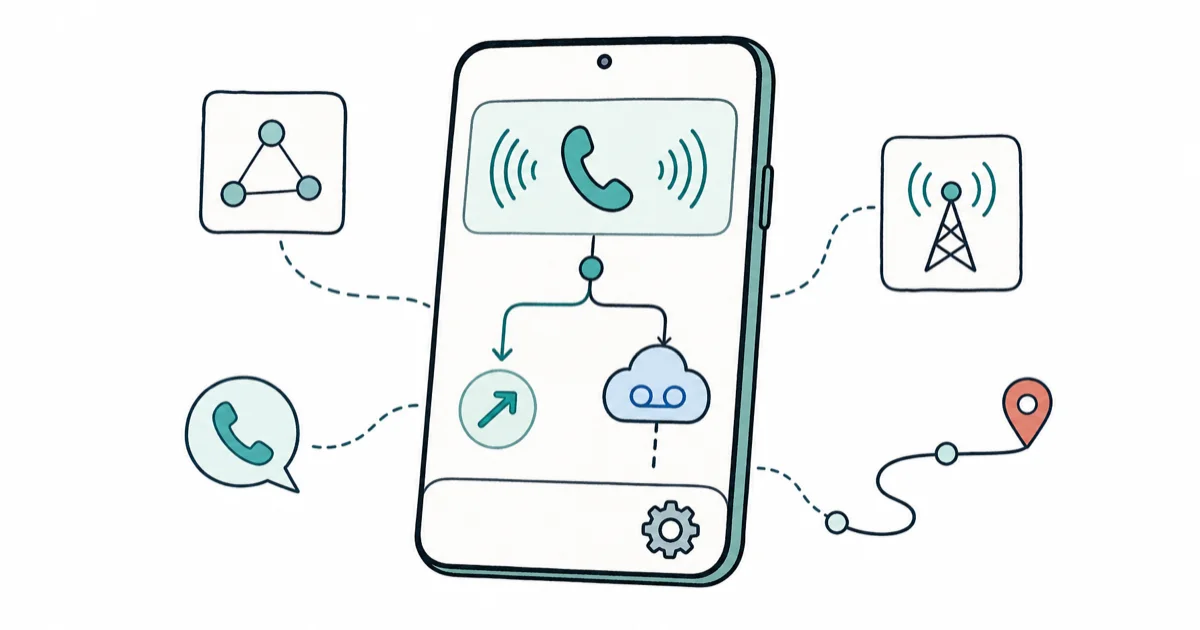
Quick AnswerCom.android.server.telecom is a core Android system service that manages all calling functions including incoming and outgoing calls, call routing, and VoIP integration. It is safe and essential — do not disable it.
If you’ve spotted com.android.server.telecom in your app settings or battery usage, it belongs there. This system service handles every call on your Android phone, from routing an incoming cellular call to integrating WhatsApp and Google Meet into the native call interface. This guide applies only to a device or account you own.
- com.android.server.telecom manages all incoming calls, outgoing calls, and VoIP routing on Android
- Disabling this service breaks phone calls entirely; never treat it as bloatware
- The ConnectionService API lets WhatsApp and other VoIP apps integrate with the native call interface
- Most call issues are fixed by restarting your device or clearing the Phone app cache
- High idle battery drain from this service means a stuck call state; restart to clear it
#Core Functions of com.android.server.telecom
Com.android.server.telecom is the central dispatcher for all phone call activity on Android. Every call passes through this service: cellular, Wi-Fi calling, and VoIP. It’s been a required system component since Android 5.0 Lollipop launched in 2014. According to XDA Developers, it manages 4 core call tasks that no third-party app can replicate or replace.
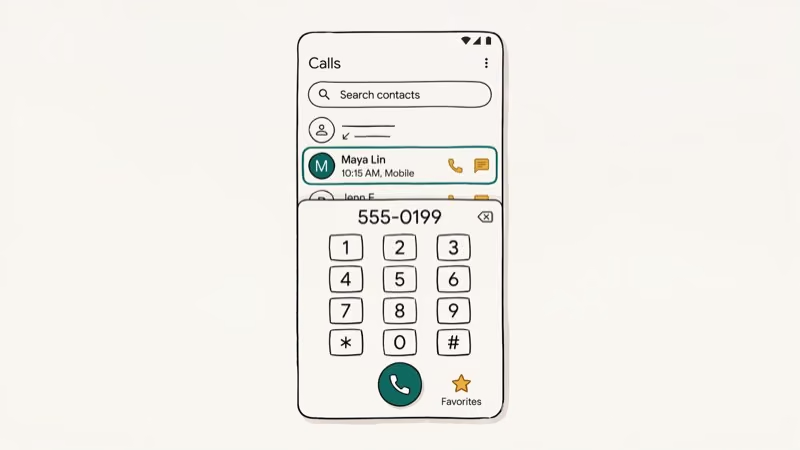
Incoming call routing detects the signal and displays caller ID. Outgoing call initiation validates the number and selects the account.
Call state tracking monitors ringing, connected, on hold, and disconnected states.
#How Does com.android.server.telecom Handle VoIP?
The service uses the ConnectionService API to let third-party calling apps integrate natively with Android. When WhatsApp, Zoom, or Google Meet makes or receives a call, com.android.server.telecom handles audio routing, call state management, and UI presentation automatically.
VoIP apps can hand calls to Android’s standard call interface instead of keeping every control inside the app UI. That’s com.android.server.telecom at work: it pulls the VoIP call into the system-level experience so you get mute, speaker, and hold buttons in a familiar place.
The service also handles audio routing for supported calling apps and implements CallScreeningService before ringing.
#Safety and Permissions
Com.android.server.telecom is completely safe. It’s a signed system package from Google that ships with every Android device and doesn’t collect data, show ads, or communicate with external servers outside of normal call functions.
It works with com.samsung.android.incallui on Samsung and com.android.mms on all Android devices.
The service needs MANAGE_OWN_CALLS and READ_PHONE_STATE permissions to function. As PCMag’s Android security guide notes, these system-level permissions operate in a privileged tier unavailable to regular apps, protecting against rogue apps impersonating the telecom service.
#Is Battery Drain from This Service Normal?
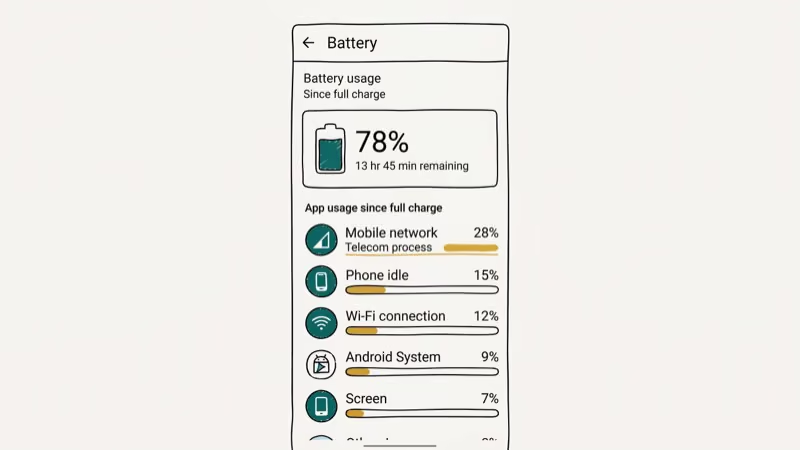
Yes, during active calls. The service processes audio, manages connections, and coordinates with the baseband chip. All of this draws power. Seeing it in battery stats during or after a call is normal.
Unusual idle drain means a stuck call state. Restart your phone to clear it in under 30 seconds.
If high idle drain persists after a restart, a third-party calling app may be holding a CallScreeningService session open. PCMag’s Android battery guide reported that stuck call states are a common cause of unexpected system battery drain. Check which apps have phone call permissions under Settings > Apps > [App Name] > Permissions and revoke access for apps you don’t use.
#Troubleshooting Call Problems
If you’re having call issues, here are the most effective fixes in order of effort.
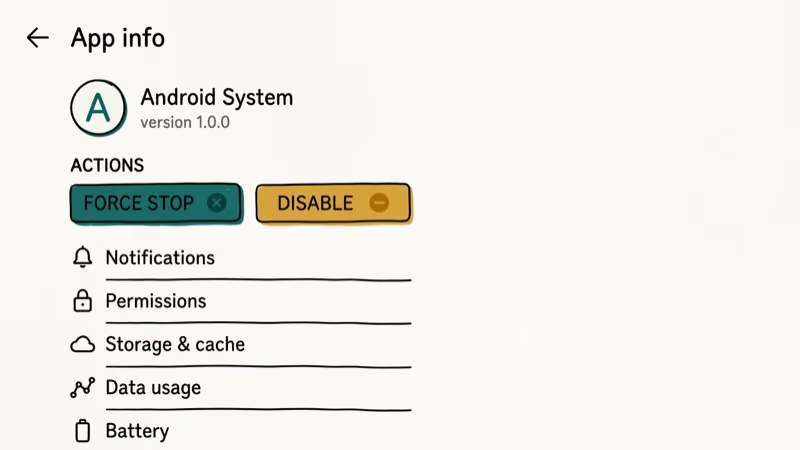
Restart your device. This resolves most temporary call issues including stuck call states, failed audio routing, and incoming call display failures. It’s always the first thing to try.
Clear Phone app cache. Go to Settings > Apps > Phone, tap Storage > Clear Cache.
Check for system updates. Go to Settings > Software Update. Android updates often include telephony stack fixes that address VoIP integration issues and call quality problems.
Reset network settings. Go to Settings > General > Reset > Reset Network Settings. This clears saved Wi-Fi passwords and VPN configs, but also resets cellular APN settings that affect call routing.
For GPS-related issues that can affect carrier services, see our iPhone GPS not working guide.
#Why You Shouldn’t Disable This Service
Disabling com.android.server.telecom breaks all phone call functionality. You won’t receive or make calls, and no VoIP app that routes through Android’s native call system will work, including WhatsApp voice calls, Google Meet, and Zoom.
Some Android cleaner apps incorrectly flag this service as a battery drain and suggest disabling it. Don’t follow that advice. According to Android’s ConnectionService API documentation, third-party calling apps integrate with the system Telecom service through this API, but they can’t replace or remove the protected system component itself.
The Verge’s Android system coverage reported that core system components handle phone functionality. Removing any of these core services breaks device features until a factory reset.
#Bottom Line
This is a critical Android system service. Not malware, not optional.
For related Android system package explanations, see our guides on android system battery drain and com.surrogate.
If you’re troubleshooting call-forwarding issues, our how to track iPhone and how to check iPhone call history guides cover related telephony topics.
#Frequently Asked Questions
Can I disable com.android.server.telecom?
Technically yes on rooted devices, but don’t. A restart fixes idle battery drain.
Why does com.android.server.telecom appear in battery stats?
It shows up during and immediately after calls because it actively processes audio. If it appears with significant battery usage when you haven’t made recent calls, a call failed to disconnect cleanly. Restart your phone to clear the stuck state.
Is com.android.server.telecom related to call recording apps?
Indirectly. Call recording apps use the telecom framework, but this service doesn’t record calls. Android 10+ restricts third-party recording in most regions.
What is the difference between com.android.server.telecom and com.android.phone?
Com.android.server.telecom manages the logical call routing layer, while com.android.phone handles the radio interface and SIM communication. Think of telecom as the dispatcher that decides where calls go, and phone as the radio operator that physically connects them through the carrier network.
Does com.android.server.telecom use the internet?
Only for VoIP calls and Wi-Fi calling. Standard cellular calls route through your carrier’s voice network without using internet data.
Can third-party apps replace com.android.server.telecom?
No. Third-party apps can integrate with it via the ConnectionService API, but can’t replace the service itself. Android’s security model prevents apps from impersonating or overriding it.

Pixel 11 vs Pixel 10: What Changed and Who Should Upgrade
Pixel 11 vs Pixel 10: same screen and camera resolution, new Tensor G6, 25W wireless, and Gemini Intelligence. Here is who should actually upgrade.

Verizon Not Receiving Texts? How to Fix It in 9 Steps
Verizon not receiving texts? Fix it in 9 steps: check Message Blocking in My Verizon, reset network settings, deregister iMessage, and call support.

Pixel Battery Drain: What Google's July Fix Really Covers
Google marked the Pixel idle battery drain bug fixed in July, but only some phones got the patch. Here is who is covered, who is not, and what to try.

iPhone Stuck on EDGE? How to Get 5G or LTE Back (2026)
iPhone stuck on EDGE with crawling data? Here's why the E icon appears, which settings force 5G or LTE back, and when the problem is your carrier.