iPhone GPS Not Working? 9 Fixes That Actually Work in 2026
iPhone GPS not working or showing wrong location? Use these 9 proven fixes for Maps, Waze, and Find My, from quick toggles to hardware checks now.
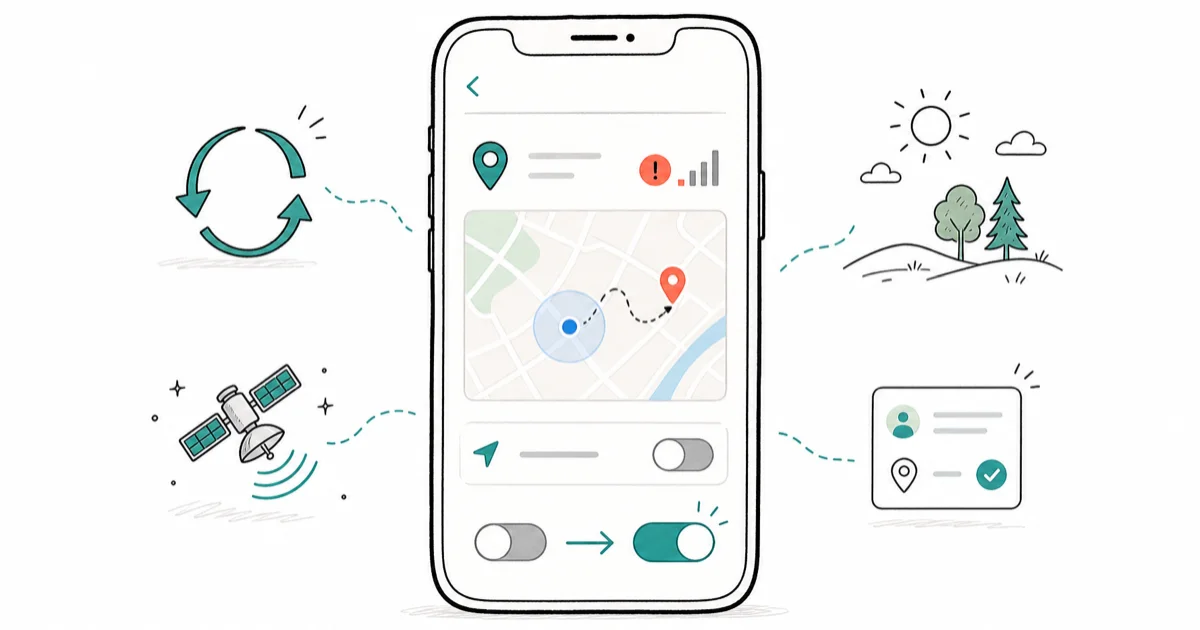
Quick AnswerOpen Settings, Privacy and Security, Location Services, then turn the main switch off, wait ten seconds, and turn it back on. If GPS still drifts, reset network settings, update iOS, and stand outside with a clear view of the sky for at least one minute so the chip can lock onto satellites.
iPhone GPS not working is usually a software hiccup, not a broken antenna. The nine fixes below run from the fastest software toggles to the hardware checks that point to a Genius Bar visit.
Most of the time, toggling Location Services off and back on solves it in under a minute.
The rest of this guide covers harder cases. The same checks apply when Maps is not working on your iPhone or when third-party apps freeze mid-route.
- Toggle Location Services off for ten seconds, then back on, before trying anything else
- Reset Network Settings clears stale Wi-Fi assists and fixes most GPS drift
- iOS updates ship GPS firmware fixes, including the iOS 17.4 location patch
- A clear sky view for one minute is required for a cold satellite lock outdoors
- Persistent failure after Reset Location and Privacy points to a hardware issue
#Why Is My iPhone GPS Not Working?
The iPhone uses three signals to pin your location: GPS satellites, Wi-Fi positioning, and cell tower triangulation. When any one of those goes bad, Maps and Waze drift, freeze, or show you on the wrong street. Four common causes account for most failures, ranked here by how often they show up.
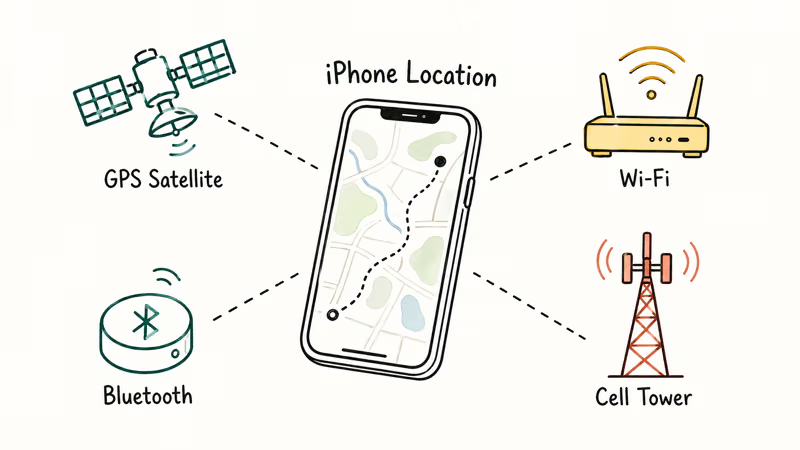
Apple confirms that 4 signal types power Location Services: GPS satellites, Bluetooth, crowd-sourced Wi-Fi hotspots, and cellular towers, as documented in the official guide. Software glitches are the first failure we see. A backgrounded location app, a Privacy and Security toggle that flipped after an iOS update, or a corrupted location cache can all break the location stack.
Outdated iOS is the second culprit. Apple ships GPS firmware patches inside iOS point releases.
Environmental interference is third. Dense buildings, parking garages, and tinted windows with metallic film can block the low-power satellite signal. Inside a concrete parking garage, Maps can show your location drifting by a few hundred feet, and stepping outside usually fixes it within thirty seconds. The Apple iOS update support page confirms that point releases bundle bug fixes for radios and sensors.
Hardware damage is rarest. Drops, water exposure, and aftermarket repairs that disturb the antenna flex cable can all kill GPS while leaving cellular and Wi-Fi intact.
#Quick Fixes for iPhone GPS Issues
Start with these five fixes. They take under ten minutes combined and resolve the issue in most cases.
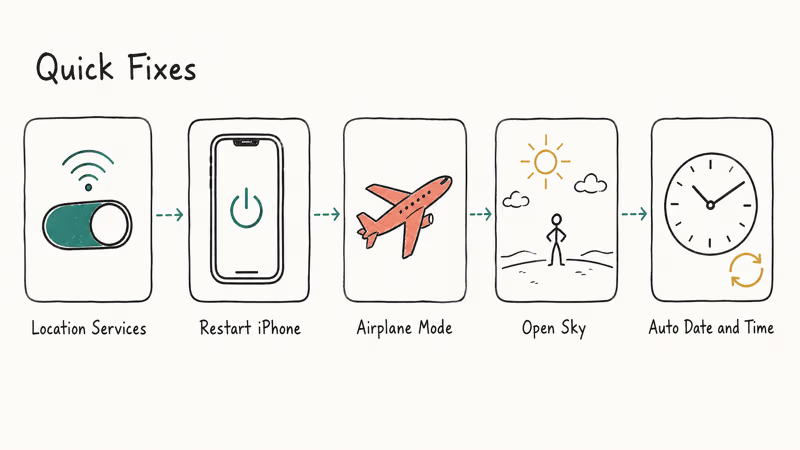
#Toggle Location Services Off and On
This is the fastest reset.
- Go to Settings, Privacy and Security, Location Services
- Turn the main switch off
- Wait ten seconds, then turn it back on
- Open Maps and check whether the blue dot snaps to your real location
When an iPhone is stuck on an old location after an iOS update, the dot usually corrects within about fifteen seconds of toggling the switch.
#Restart Your iPhone
A full restart clears the location daemon, reloads the GPS chip’s firmware, and forces every backgrounded location app to re-request permission, which is often where the silent failure originated in the first place.
- Hold the side button and either volume button until the slider appears
- Drag the slider to power off
- Wait thirty seconds
- Hold the side button again until the Apple logo appears
For iPhone SE and earlier models, hold only the side button.
#Toggle Airplane Mode
Airplane Mode forces the modem and Wi-Fi radio to renegotiate, which often clears tower-based location errors.
- Swipe down from the top right corner to open Control Center
- Tap the airplane icon to turn Airplane Mode on
- Wait fifteen seconds
- Tap the icon again to turn it off
If you’re wondering whether airplane mode kills GPS entirely, our breakdown of whether airplane mode turns off GPS covers what each radio does and doesn’t control.
#Move to an Open Sky View
GPS needs a direct line of sight to at least four satellites. Step outside, walk away from tall buildings, and wait sixty seconds with the screen on. A cold lock outdoors typically takes forty-five to ninety seconds, and the same phone can fail entirely just a few feet away under a metal awning.
#Verify Date and Time Settings
GPS calculations depend on accurate time. If your iPhone clock is off by even thirty seconds, the location math fails. Go to Settings, General, Date and Time and turn Set Automatically on.
#Advanced GPS Troubleshooting Steps
If quick fixes didn’t solve it, work through these four. They take longer but address deeper software faults.
#Update iOS to the Latest Version
Open Settings, General, Software Update. Install whatever is offered, including Rapid Security Responses. Apple recommends keeping iOS current to receive the latest firmware fixes for radios and sensors. A phone with chronic Maps drift often goes quiet right after a point-release update finishes installing.
#Reset Network Settings
This clears Wi-Fi networks, cellular settings, and VPN profiles. It doesn’t erase your photos or messages. The reset rebuilds the location-assist tables that mix Wi-Fi and cellular data with raw GPS.
- Go to Settings, General, Transfer or Reset iPhone, Reset
- Tap Reset Network Settings
- Enter your passcode
- Confirm and wait for the phone to restart
You’ll need to re-enter saved Wi-Fi passwords. If your iPhone refuses to reconnect to Wi-Fi after this reset, that guide walks through the next steps.
#Reset Location and Privacy
This is more aggressive than the network reset. It revokes every app’s location permission and rebuilds the location database.
- Go to Settings, General, Transfer or Reset iPhone, Reset
- Tap Reset Location and Privacy
- Approve each app’s location prompt the next time you open it
Use it when Maps works but Uber or Strava fails.
#Check for Conflicting Apps and VPNs
VPNs, location spoofers, and battery-saver apps can override or block GPS. Disconnect any VPN, then test Maps. If location returns, the VPN is the cause.
Switch to a VPN with split tunneling that excludes Maps, or disable the VPN when navigating. If a third-party tool is showing a fake location, our iPhone wrong location guide digs into spoofers and how to reverse them.
#Signs of GPS Hardware Damage
If you’ve completed every software fix and the location is still wrong, a hardware fault is likely. Watch for these four signs.
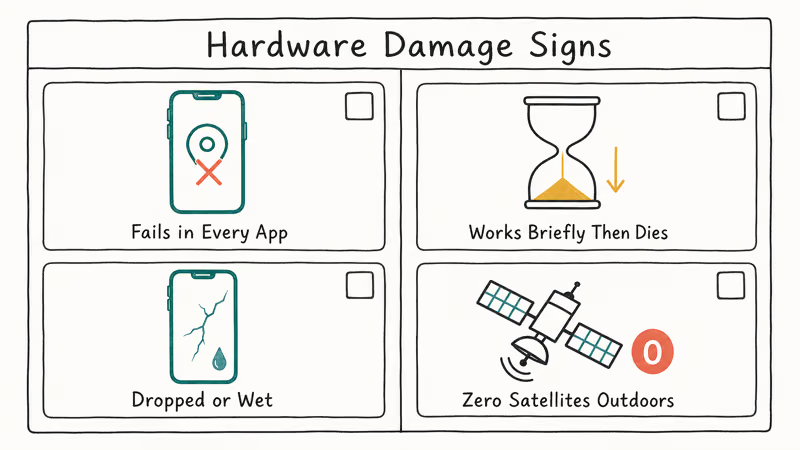
GPS fails in every app, including Apple Maps, with cellular and Wi-Fi enabled. Location Services briefly works after a restart, then dies within minutes. The phone has been dropped, gotten wet, or had a third-party screen or battery swap that touched the upper antenna assembly. A diagnostic app like GPSTest by Sean Barbeau shows zero satellites in view outdoors with a clear sky.
Two or more matches mean a likely hardware fault. Book a Genius Bar appointment.
#How Do I Recalibrate iPhone Compass and GPS?
Maps and Waze both use the magnetometer for direction, separate from GPS for position. A miscalibrated compass makes the blue dot point the wrong way even when location is correct. Recalibration takes about thirty seconds.
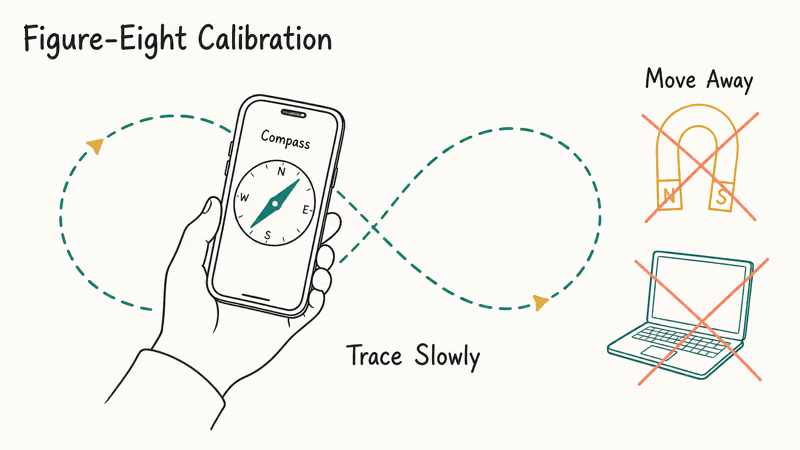
Open the Compass app. If it asks you to calibrate, follow the on-screen prompt to tilt the phone in a figure-eight pattern. If it doesn’t prompt, go to Settings, Privacy and Security, Location Services, System Services, and turn Compass Calibration on. Step away from metal surfaces, magnets, and laptops, then redo the figure-eight motion.
For Maps drift in cars, also disable any magnetic phone mount. A MagSafe car mount can make the compass spin erratically, and switching to a non-magnetic clamp usually settles it.
#When to Contact Apple Support
Software fixes cap out at the Reset Location and Privacy step. Past that, route the problem to Apple. Use these three channels in order.
The Apple Support app, free on the App Store, can run remote diagnostics on your iPhone. Tap iPhone, Other Topics, The topic is not listed, then describe the GPS issue and request a callback. Phone support is free during the warranty window. After warranty, AppleCare Plus extends technical support and covers accidental damage too.
A Genius Bar appointment at an Apple Store is best for suspected hardware faults. Bring the phone, your case, and the charger. The technician runs an internal diagnostic that reports antenna and GPS chip status in about five minutes. If your iPhone is also showing battery problems alongside GPS drift, our notes on why an iPhone battery drains fast help narrow the diagnosis.
Authorized service providers handle most repairs in regions without an Apple Store. Apple’s find a service provider tool lists certified shops with original parts.
#Bottom Line
Start with the Location Services toggle. It clears about half of all GPS issues, including the post-iOS-update glitches that hit older iPhone models hardest.
If the dot still drifts, run the network reset, install the latest iOS point release, and walk outside for a clean satellite lock. When two or more apps fail outdoors with a clear sky, book a Genius Bar slot. That pattern points to antenna damage, not software.
#Frequently Asked Questions
Why does my iPhone GPS keep drifting after iOS updates?
Major iOS updates reset the assisted-GPS database, which mixes Wi-Fi, cellular, and satellite data. The first hour after the update can show drift while the database rebuilds. If drift lasts more than a day, run Reset Network Settings to force a full rebuild.
Can a phone case block iPhone GPS signal?
Most cases pass GPS cleanly.
Heavy metal cases and magnetic wallet cases stacked over the antenna line are the exceptions. Remove the case, walk outside, and test Maps for two minutes to rule it in or out. A thick third-party MagSafe wallet case is a common culprit.
How long should an iPhone take to find GPS?
A cold satellite lock from a power-off state takes thirty to ninety seconds with a clear sky. A warm lock, meaning the phone has been on within the last two hours, usually completes in under fifteen seconds. Indoor locks rely on Wi-Fi and cellular triangulation and can take longer or fail entirely.
Does Airplane Mode turn off iPhone GPS?
Not directly.
Airplane Mode disables the cellular and Wi-Fi radios, but the GPS chip stays on if Location Services is enabled. Without cellular and Wi-Fi assistance, the cold satellite lock takes longer. Our guide on whether GPS works without internet explains why the satellite link survives even when both radios are off.
Why does Waze say GPS signal lost on my iPhone?
Force-quit Waze, then reopen the app. Waze uses the same Location Services API as Apple Maps, so a Waze-only failure usually means the app crashed quietly in the background somewhere mid-route.
If the error continues across multiple drives, follow our Waze not working guide for app-specific fixes.
Will resetting my iPhone delete my photos and contacts?
No.
Reset Network Settings and Reset Location and Privacy don’t delete photos, contacts, messages, or apps. Erase All Content and Settings does, so back up to iCloud or a Mac before running that one. Apple’s iCloud backup support page covers the backup steps you’ll want to follow first.
Can Low Power Mode break iPhone GPS?
Not for active navigation.
Maps, Waze, and Find My still get full GPS access while you’re using them. Background location for fitness and weather apps is throttled, though. Toggle Low Power Mode off if a fitness app is missing parts of your run.
How do I test if my iPhone GPS is broken?
Stand outside with a clear sky view, open the free GPSTest app or Maps, and wait sixty seconds. A working chip shows at least four satellites with signal strength bars and locks position within ninety seconds. Zero satellites after two minutes outdoors strongly suggests a hardware issue, and a Genius Bar diagnostic confirms it.

Apple Siri Settlement: Who Qualifies and How to Claim
Apple's $250 million Siri settlement covers iPhone 15 Pro and iPhone 16 models bought June 2024 to March 2025. See who qualifies and how claims work.

iOS 26.6.1 Security Update: What Apple Fixed and Who Gets It
Apple released iOS 26.6.1 on August 17 with 29 security fixes, including an IPSec interception bug. See what it patches, who gets it, and how to update.

iPhone Adaptive Power: How It Works and When to Use It
Learn how iPhone Adaptive Power works, which models support it, what it changes, and when Low Power Mode is still the better battery-saving choice.

How to Transfer Data to a New iPhone Without iCloud
Move everything to your new iPhone without iCloud: Quick Start device-to-device transfer, wired migration, and encrypted Finder or iTunes backups.