How to Transfer Data From an iPhone to Android (2026)
Move photos, contacts, and messages from iPhone to Android the right way, and deregister iMessage first so your texts keep arriving on the new phone.
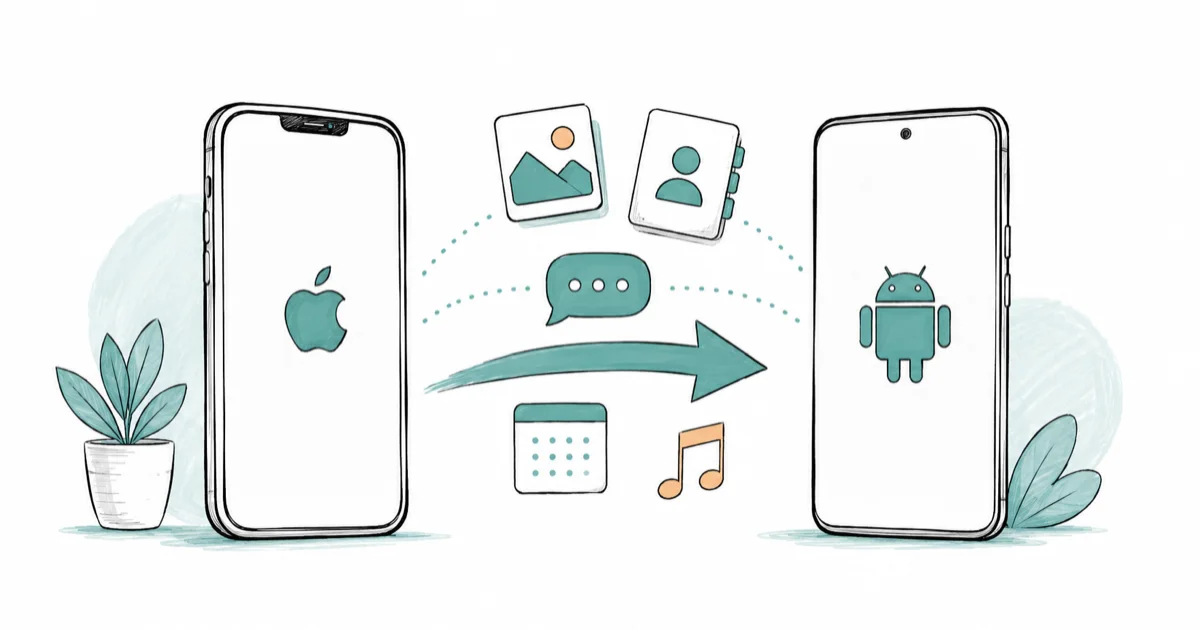
Quick AnswerTurn off iMessage on your iPhone first so your texts keep arriving. Then use your Android phone's setup wizard, like Smart Switch or the Pixel tool, to copy your data over.
Moving from an iPhone to Android is mostly smooth, but one step trips up almost everyone: iMessage. Turn it off first, then let your new phone’s setup wizard pull over photos, contacts, and messages. Skip it and texts from iPhone friends can vanish.
- Turn off iMessage and FaceTime on your iPhone before you switch, or texts may not arrive.
- The Android setup wizard, like Samsung Smart Switch or the Pixel tool, copies the bulk of your data.
- Your Google account becomes the long-term backbone for contacts, calendar, and photos.
- Old iMessage conversations don’t migrate, so screenshot anything you need to keep.
- You can still transfer most data after setup, but the wizard route is the cleanest.
#Why Must You Turn Off iMessage First?
This is the single most important step. Apple’s iMessage deregistration guide confirms that you turn off iMessage in Settings, and turn off FaceTime too, before you move to a non-Apple phone.
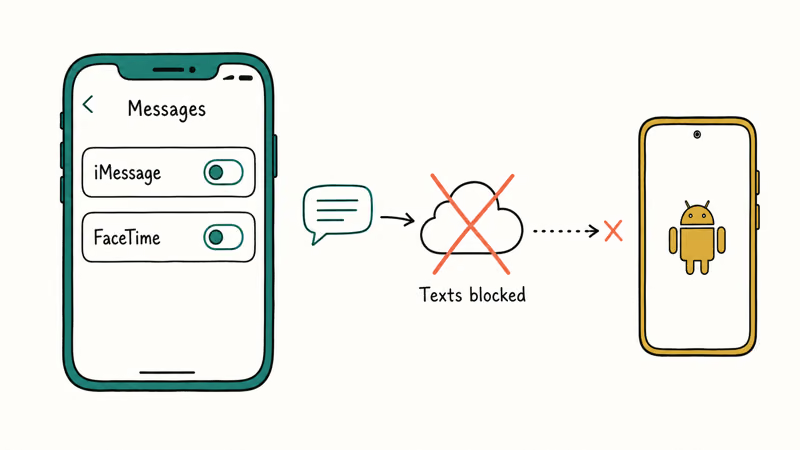
Here’s what goes wrong if you skip it.
Your phone number stays registered with iMessage, so texts from iPhone users keep routing through Apple and silently never reach your Android phone, which is exactly why switchers think friends stopped texting them. If you still have the iPhone, open Settings, tap Messages, and turn iMessage off, then do the same for FaceTime just below it.
Already sold it? Deregister online at Apple’s tool by entering your number and a confirmation code. Switching the other direction instead? Our guide to switching phones covers the reverse trip.
#Before You Start: Prepare Both Phones
A little prep saves a lot of frustration. Charge both phones, connect to Wi-Fi, and make sure your new Android device has enough free storage for everything coming over.
Sign in to your Google account on the new phone.
That account is the backbone for the rest of your digital life on Android, syncing contacts, calendar, and email automatically. It’s also worth confirming your iPhone is fully backed up first, which the guide to iPhone iCloud backup can help with. Set up the Google account before the move so the setup wizard can attach contacts, calendar, email, and app restores to the right place from the start.
#Using the Android Setup Wizard to Copy Data
The setup wizard does the heavy lifting. Google’s switch to Android guide states that connecting the two phones with a cable is the recommended way to copy data from an iPhone.
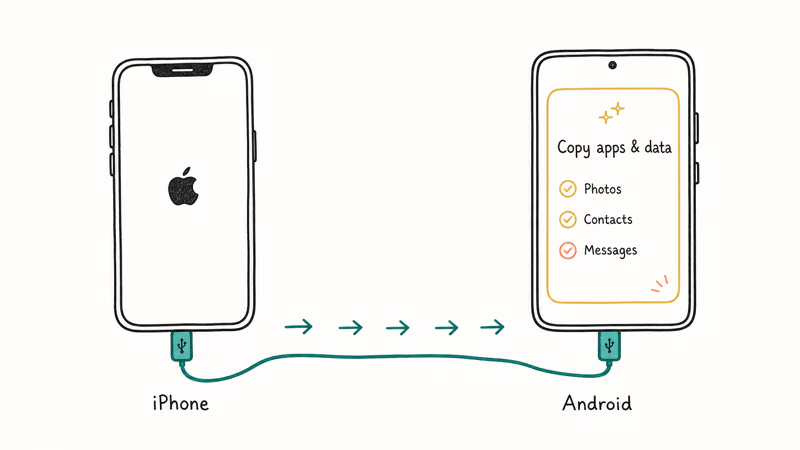
During setup, choose to copy apps and data from your old device.
Connect the iPhone with a cable when prompted, or follow the wireless option, and pick what to bring: photos, contacts, messages, and more. Samsung users get the same flow through Smart Switch. Samsung’s Smart Switch support page confirms that Smart Switch works on Galaxy phones running Android 4.3 or higher, restoring data from an old phone to the new one.
#What If You Already Set Up the Android Phone?
You don’t have to start over. If you finished setup before transferring, your Google account already handles contacts and calendar in the background.
The rest can move manually.
Signing into Google Photos on both phones can sync the camera roll without a cable, and contacts can follow through the Google account. For a full wizard-style copy after the fact, some phones let you re-run the transfer tool from Settings, while others rely on individual apps. For cross-device sharing once you’re set up, Quick Share is Android’s answer to AirDrop.
#Moving What the Wizard Skips
A few things never ride along automatically. WhatsApp chats need the app’s own cross-platform transfer, started during the move while both phones are present.
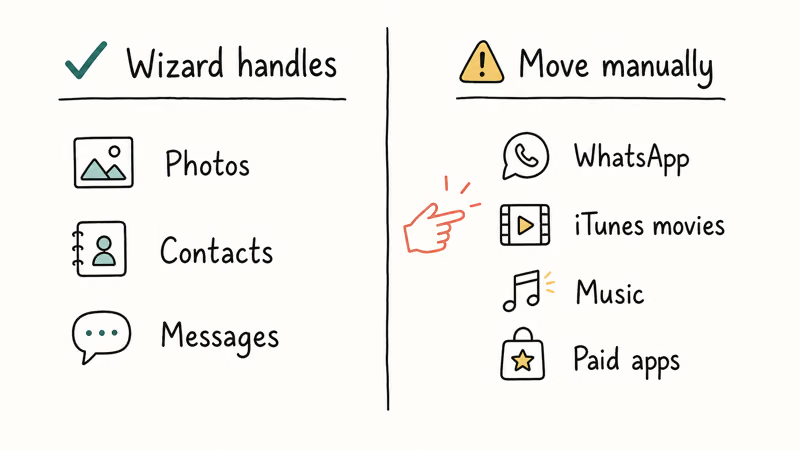
Music and DRM-protected media are the other gap.
Purchased iTunes movies and some streaming downloads won’t carry over, so plan to re-download them from their apps on Android. Photos are safest through Google Photos, which preserves quality when you let it back up at original size. If you bought a Samsung phone, our guide to Samsung DeX shows a handy desktop feature waiting once your data lands.
If the Android setup wizard and cloud sync don’t copy the iPhone files you need, AnyTrans can export selected data through a computer for a manual move.
Some links on this page are affiliate links, which means fone.tips may earn a commission at no extra cost to you.
#Reinstalling Apps and Final Cleanup
Apps don’t transfer as working installs. The wizard flags which of your iPhone apps have Android versions, and you reinstall them from the Google Play Store, then sign back in to each.
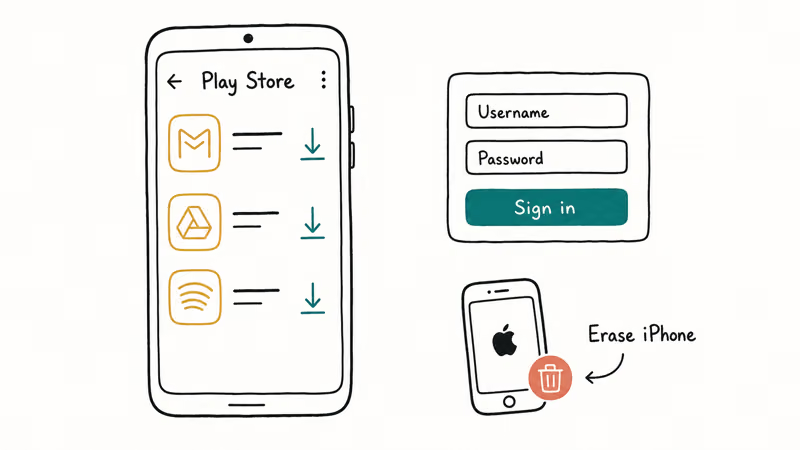
Budget a little time for logins.
Most apps just need your username and password again, though banking and two-factor apps may require re-verification. Once everything’s confirmed on the Android side, you can wipe the old iPhone. Our companion guide to transferring data from Android to iPhone covers the journey in reverse if you ever switch back.
#Bottom Line
Deregister iMessage before you do anything else, then let the Android setup wizard handle the bulk copy and use your Google account as the long-term backbone. Old blue-bubble conversations won’t migrate, so screenshot anything you need to keep, and accept that texts, not iMessages, are what carry forward. Treat WhatsApp, music, and paid apps as separate manual jobs and the switch stays painless.
#Frequently Asked Questions
Why do I need to turn off iMessage before switching?
Because your number stays tied to iMessage otherwise. Texts from iPhone users would keep routing through Apple and never reach your Android phone, leaving you wondering why certain people’s messages stopped arriving.
Does Samsung Smart Switch transfer from an iPhone?
Yes. Smart Switch can pull contacts, photos, messages, and more from an iPhone to a Galaxy phone, either over a cable or wirelessly. You start it during setup or launch the Smart Switch app afterward, then choose the iPhone as the source and pick what to bring across.
Can I move my iMessages to Android?
Not the old conversations. Your existing iMessage history stays on the iPhone, and there’s no official way to import those blue-bubble threads into an Android messaging app. Screenshot any conversations you truly need before you switch. Going forward, regular SMS and RCS texts work fine on Android once iMessage is deregistered.
How do I transfer photos without losing quality?
Use Google Photos and back up at original quality, not compressed. Sign in with the same account on both phones and your library syncs.
What happens to my apps when I switch?
Apps don’t transfer as installs. The wizard lists which of your iPhone apps have Android versions, and you reinstall those from the Google Play Store, then sign in again. Anything iPhone-only has no Android equivalent, so look for an alternative.
Can I still transfer data after setting up the Android phone?
Yes, though it takes a few more steps. Your Google account keeps syncing contacts and calendar, Google Photos handles your camera roll, and you can reinstall apps from the Play Store. Some phones also let you re-run the transfer tool from Settings to grab anything you missed.

Pixel 11 vs Pixel 10: What Changed and Who Should Upgrade
Pixel 11 vs Pixel 10: same screen and camera resolution, new Tensor G6, 25W wireless, and Gemini Intelligence. Here is who should actually upgrade.

Verizon Not Receiving Texts? How to Fix It in 9 Steps
Verizon not receiving texts? Fix it in 9 steps: check Message Blocking in My Verizon, reset network settings, deregister iMessage, and call support.

Pixel Battery Drain: What Google's July Fix Really Covers
Google marked the Pixel idle battery drain bug fixed in July, but only some phones got the patch. Here is who is covered, who is not, and what to try.

iPhone Stuck on EDGE? How to Get 5G or LTE Back (2026)
iPhone stuck on EDGE with crawling data? Here's why the E icon appears, which settings force 5G or LTE back, and when the problem is your carrier.