Android Not Getting Notifications? 9 Layered Fixes
Android not getting notifications? Fix missing alerts layer by layer: app channels, Do Not Disturb, battery, and data limits before any reinstall.
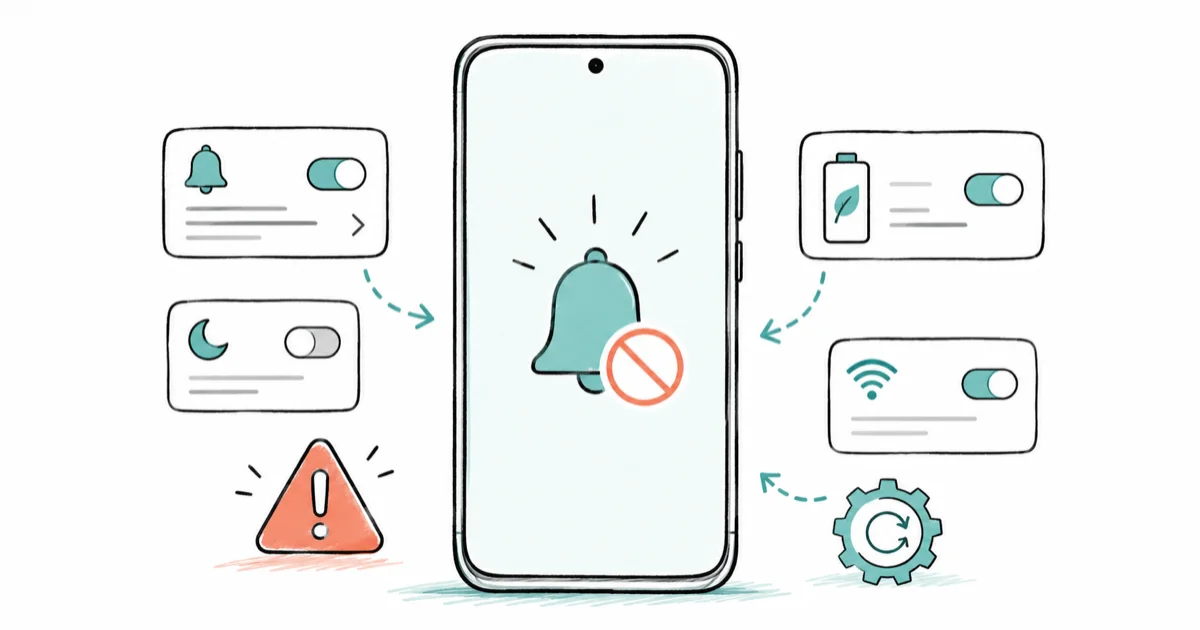
Quick AnswerAndroid usually stops delivering notifications because per-app notification channels are off, Do Not Disturb is filtering them, or battery optimization is freezing the app in the background. Check the app's notification toggle and channels first, then DND, then lift battery and data restrictions.
Android not getting notifications is rarely one broken switch. Alerts pass through several layers before they reach your screen, and any one of them can silently block delivery. This guide works through those layers in order, from the app’s own toggle down to the battery and sleep settings most people never open, so you fix the real bottleneck instead of guessing.
These steps assume the phone and accounts are your own device and your own logins, since changing notification and battery permissions affects what apps can do in the background.
- The single most telling clue is whether notifications arrive only when you open the app, which points to a background restriction
- Notification channels let an app silence one category while another still alerts, so check the specific channel, not just the master toggle
- DND and Focus modes filter notifications by schedule, and their defaults block more than people expect
- Battery optimization and Data Saver can both stop background apps from delivering alerts
- Fix the problem app by app whenever possible instead of turning off every Android battery protection at once
#Why Is Android Not Getting Notifications?
Notifications travel through a stack of gates, and your missing alert is stuck at one of them. The top gate is the app’s own permission and notification channels. Below that sit DND and lock-screen rules. Deeper still are battery optimization, background data, and the OEM sleep settings that suspend apps to save power.
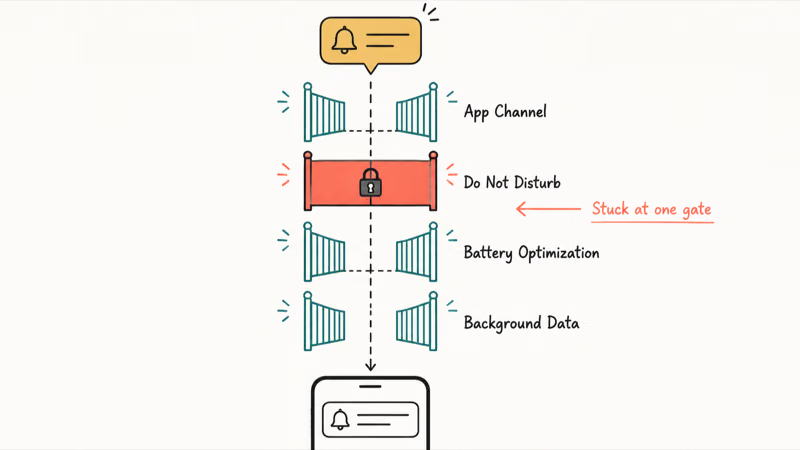
The fastest diagnostic is timing. Do notifications appear only when you open the app?
If they do, the app is being blocked in the background, which points squarely at battery or data restrictions. If they never appear even with the app open, the problem is higher up: a notification channel is off or DND is filtering them. That one question splits the whole troubleshooting tree.
#Turn On Notifications for the App and Its Channels
Start at the app’s own settings. Modern Android groups an app’s alerts into notification channels, so you might receive promotions but miss messages while one category sits muted and the rest keep working normally.
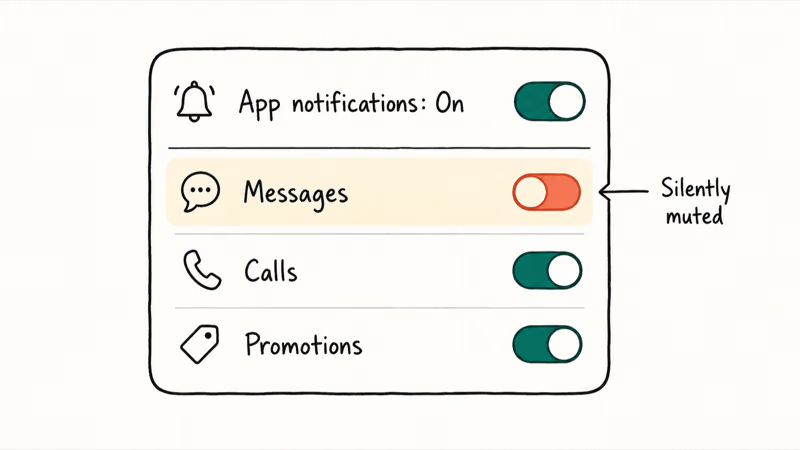
Go to Settings > Notifications > App notifications, pick the app, and open its categories. According to Google, on Android 10 and up you can turn notifications on or off per app and choose specific categories. The official notification control guide describes both the master toggle and the per-channel controls.
Confirm the master toggle is on, then check that the specific channel you care about, like “Messages” or “Calls,” is enabled too. A muted channel can silently kill one alert type even when the main app toggle is on. Re-enabling that channel restores the specific category without changing every notification setting.
#Check Do Not Disturb, Focus, and Lock-Screen Rules
If the app and its channels look right, DND may be filtering alerts. It silences notifications by schedule, and its defaults can be stricter than you assume.
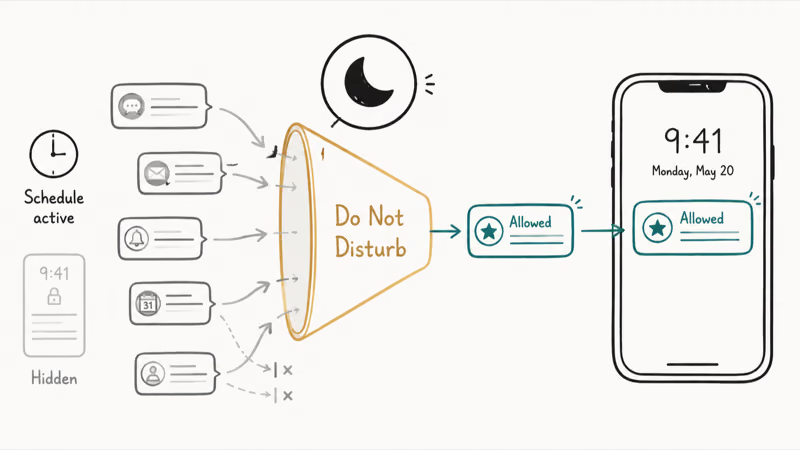
According to Google’s interruptions documentation, which covers Android 10 and newer, you choose which people and apps can break through. Open Settings, find DND, and review the exceptions, then check whether a schedule or a Bedtime routine is active when you expect alerts.
Also confirm lock-screen visibility. Go to Settings > Notifications > Notifications on lock screen and make sure alerts are set to show.
A notification can be delivered yet hidden from the lock screen, which feels identical to never arriving. This is the layer people most often overlook because the alert technically fired, it just had nowhere visible to land. The same scheduling logic governs alarms, which is why a missed Android alarm often shares an underlying DND cause.
#What If Notifications Arrive Only When You Open the App?
This symptom is the clearest signal in the whole guide. If a message only appears the moment you open the app, the system is suspending the app in the background and holding its alerts until you wake it.
The cause is almost always battery optimization. To confirm, leave the app fully closed and have someone send you a test alert; if nothing arrives until you reopen the app, you’ve found it.
The fix is to exempt that one app from aggressive power management rather than disabling every protection. Targeted fixes keep your battery healthy while restoring the alerts that matter, and they survive reboots. This same background-suspend behavior is why Android Bluetooth keeps disconnecting when the screen turns off.
#Remove Battery and Data Restrictions
Once you know the app is being throttled in the background, lift the restrictions. Set the app’s battery usage to Unrestricted: go to Settings > Apps > (app) > Battery and choose Unrestricted.
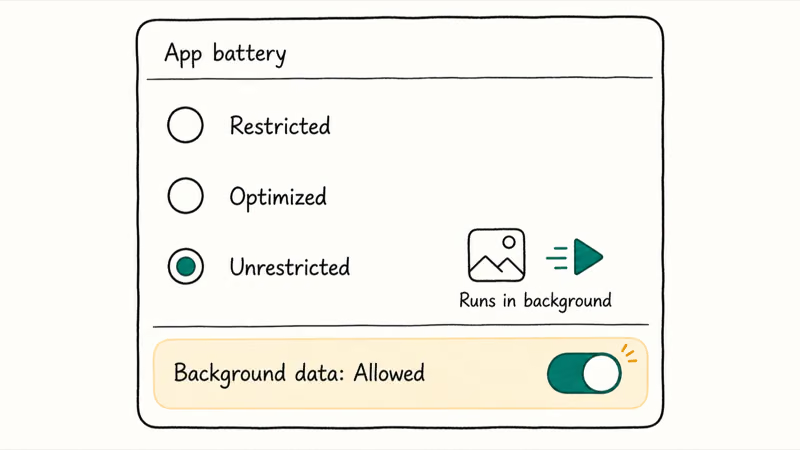
Google’s advice on app battery usage recommends restricting high-drain apps to save power, but an app you depend on for real-time alerts is exactly the one to leave running freely in the background. Apply this exemption per app rather than globally, so the rest of your phone still benefits from normal power management while the apps you care about keep delivering.
Then check background data and Data Saver. Under Settings > Apps > (app) > Mobile data & Wi-Fi, make sure background data is allowed, and confirm Data Saver isn’t blocking it.
A phone that drains fast tends to throttle harder, so our guide to Samsung battery draining fast covers the underlying drain that triggers this aggressive background suspension. Missing email alerts often trace to the very same set of restrictions, which our Gmail not sending emails guide touches on in more detail.
#Fix Samsung Sleeping Apps and Pixel Adaptive Battery
OEM power features are the deepest layer: Samsung Sleeping apps and Pixel Adaptive Battery can suspend an app even after you’ve marked it Unrestricted.
On a Galaxy, go to Settings > Battery > Background usage limits and remove the app from “Sleeping apps” and “Deep sleeping apps.” Add it to “Never sleeping apps” if you want guaranteed delivery. Any important app sitting in “Deep sleeping apps” may not alert until you remove it from that list or add it to “Never sleeping apps”.
On a Pixel, Adaptive Battery learns your habits and may throttle an app you rarely open. Setting that app to Unrestricted overrides the learning for it.
Reserve these deep changes for the handful of apps whose alerts you truly need, since switching off every protection at once will hurt battery life. Only reinstall an app after every settings layer checks out, the same disciplined order our Android system battery drain guide recommends.
#Bottom Line
If notifications appear only after you open an app, it’s being blocked in the background, so start with battery and data restrictions for that one app. Otherwise, work top down: confirm the app’s notification channels are on, then check DND and lock-screen visibility. Keep the fix app-specific instead of disabling every Android battery feature, and only reinstall once every layer is clear.
#Frequently Asked Questions
Why am I not getting notifications on Android?
Usually a notification channel is off, DND is filtering alerts, or battery optimization is freezing the app. If alerts appear only when you open the app, it’s a background restriction.
What should I check first?
Check the app’s own notification settings, including the specific channel for the alerts you want. A master toggle can be on while one category stays muted.
Can a software update cause notifications to stop?
Yes. A major Android update can reset notification channels, re-enable DND schedules, or turn battery optimization back on for apps you’d exempted. After any big update, recheck the app’s channels and confirm it’s still set to Unrestricted battery if you rely on its alerts.
Will resetting settings delete my data?
Clearing an app’s cache won’t delete your data, since cache is only temporary. Resetting app preferences through Settings restores default notification and permission states without touching personal files, but you’ll have to re-grant some permissions afterward. A full system reset keeps your photos and documents but wipes settings and installed apps, so back up first and use it only as a last resort.
When should I contact official support?
Reach out to Google or Samsung if notifications still fail after you’ve enabled channels, cleared DND exceptions, lifted battery and data limits, and removed the app from sleeping lists. Failure across many apps after all that can signal a deeper system issue.
How do I prevent this from happening again?
Set must-have apps to Unrestricted battery, add them to “Never sleeping apps” on Samsung, and recheck notification channels after major updates. Keeping the fix targeted to a few key apps preserves battery life while guaranteeing the alerts you care about arrive.

Pixel 11 vs Pixel 10: What Changed and Who Should Upgrade
Pixel 11 vs Pixel 10: same screen and camera resolution, new Tensor G6, 25W wireless, and Gemini Intelligence. Here is who should actually upgrade.

Verizon Not Receiving Texts? How to Fix It in 9 Steps
Verizon not receiving texts? Fix it in 9 steps: check Message Blocking in My Verizon, reset network settings, deregister iMessage, and call support.

Pixel Battery Drain: What Google's July Fix Really Covers
Google marked the Pixel idle battery drain bug fixed in July, but only some phones got the patch. Here is who is covered, who is not, and what to try.

iPhone Stuck on EDGE? How to Get 5G or LTE Back (2026)
iPhone stuck on EDGE with crawling data? Here's why the E icon appears, which settings force 5G or LTE back, and when the problem is your carrier.