How to Use Battery Saver Mode on Android (2026 Guide)
Use Battery Saver on Android the smart way. Schedule it, understand Adaptive Battery and Extreme power saving, and learn the habits that extend battery.
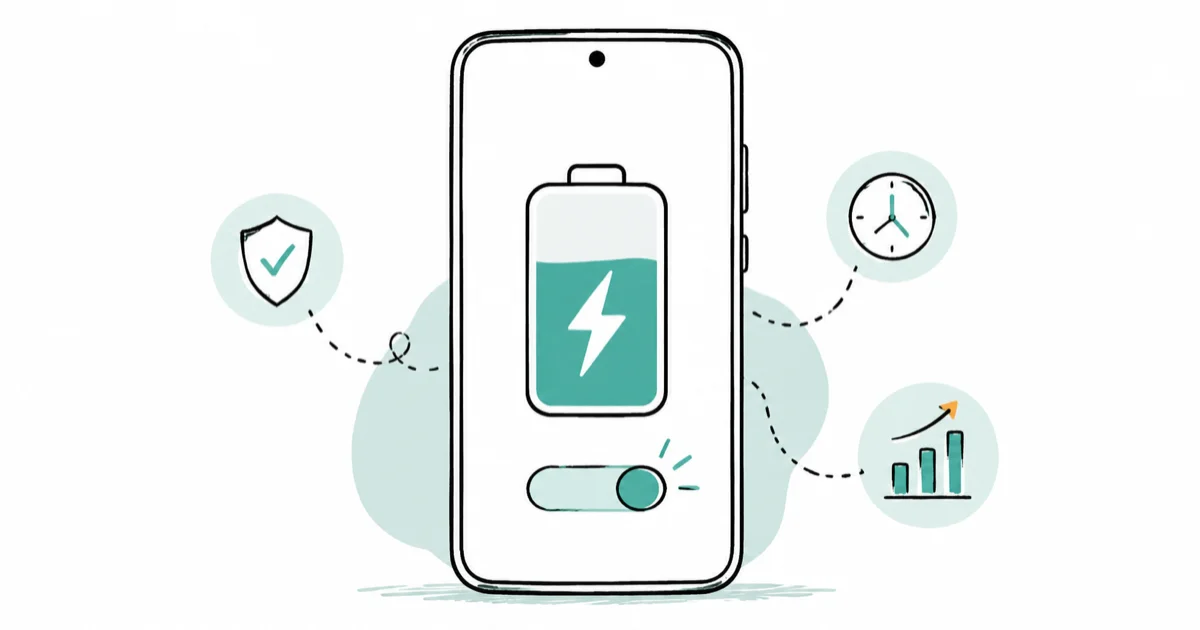
Quick AnswerOpen Settings, go to Battery, and turn on Battery Saver to cut background activity and dim the screen, or schedule it to start at a chosen percentage. Adaptive Battery limits apps you rarely use, while Extreme power saving strips the phone down to essentials.
Android’s Battery Saver mode buys you hours by cutting the background work your phone does when you aren’t looking. There are actually three overlapping tools here, Battery Saver, Adaptive Battery, and Extreme power saving, and knowing which to reach for is the difference between a small bump and stretching a dying phone through the evening.
- Battery Saver lives under Settings, Battery, and turns on Dark theme while limiting background activity
- You can schedule it to switch on automatically at a battery percentage you choose, so you never have to remember
- Adaptive Battery is the always-on helper that learns which apps you rarely use and runs them less
- Extreme power saving pauses most apps and can drop your screen timeout to 30 seconds for the biggest gain
- The trade-off is real: emails, news, and notifications can arrive late while any saver mode is active
#What Battery Saver Mode Actually Does
Battery Saver is the on-demand switch that throttles your phone the moment you need it to last. According to Google’s Android battery guide, turning it on “turns on Dark theme and limits or turns off background activity, so some visual effects, certain features, network connections, and apps may experience delays in this mode.”
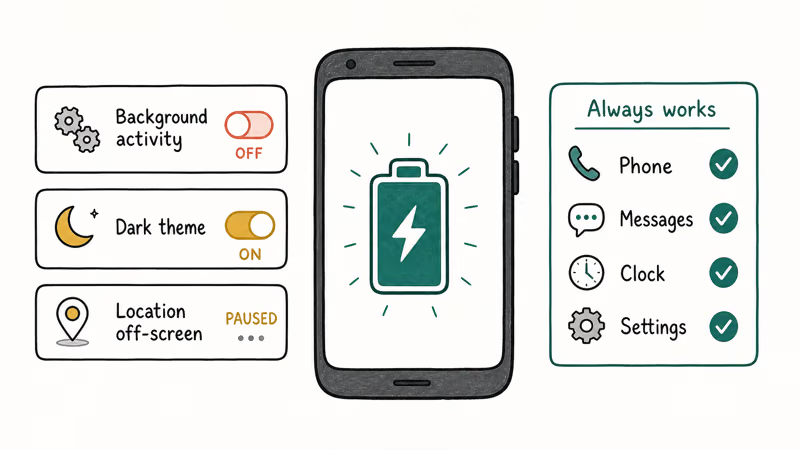
That delay is the whole bargain. Apps stop refreshing in the background, location services pause when the screen is off, and the darker screen draws less power on OLED panels, while your email and news quietly wait until you open them. In exchange for those small frictions, the phone sips power instead of gulping it, which on a tired battery can mean the difference between making it home and going dark on the train.
It never touches the essentials. Google confirms the savers “never turn off essential system apps like Phone, Messages, Clock, and Settings,” so you’ll still get calls and texts no matter how aggressive the mode. That makes it safe to leave running through a long day.
#How Do You Turn On and Schedule Battery Saver?
The manual switch is two taps. Open Settings, tap Battery, then tap Battery Saver and turn it on. The same toggle usually sits in the swipe-down quick settings too.
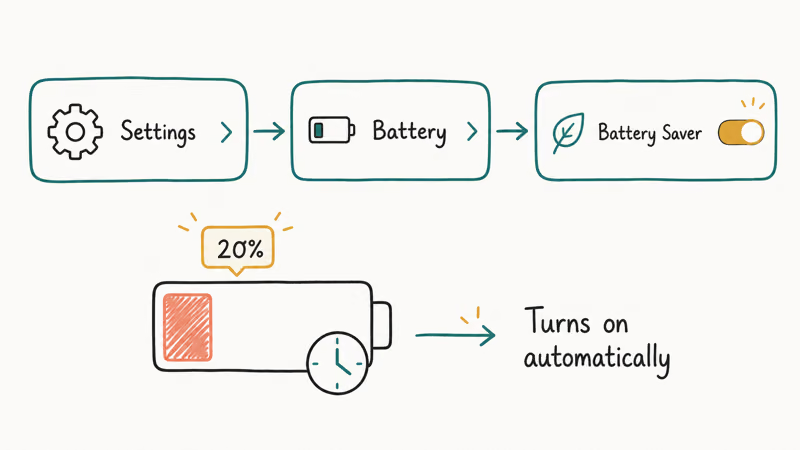
Scheduling is the smarter move. In the Battery Saver settings you can set it to turn on automatically when the battery drops to a percentage you choose, so the phone protects itself without you thinking about it. Set it to kick in around 20 percent and you’ll rarely watch the last sliver of charge vanish during a commute.
A scheduled trigger is useful because it turns on automatically before the battery gets critical. If your battery is dying far faster than any saver mode can fix, even at full charge, that points to a deeper fault, and our guide to Android system battery drain covers how to track down the rogue process responsible.
One more for Pixel owners: our Pixel battery drain after the update guide lists which models got the July patch.
#Adaptive Battery vs Battery Saver
These two get confused constantly, so here’s the clean split. Battery Saver is a mode you turn on; Adaptive Battery is always running. One is a temporary throttle for low charge, the other quietly manages app behavior in the background every day.
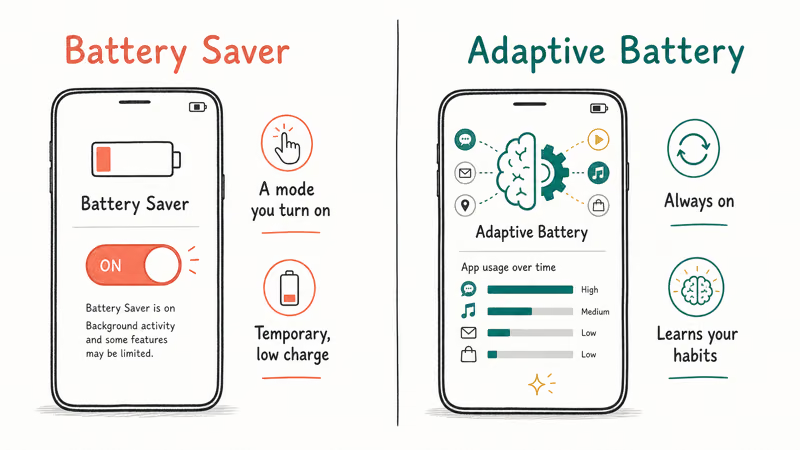
Google’s Adaptive Battery guide states that with it on, “apps that you use less often will run less while you’re not using them.” The phone learns your habits over time. It’s already on for most people, and you want it that way.
The catch is the same as Battery Saver’s. Google’s guide also states that Adaptive Battery “may reduce performance and delay notifications,” which is why a messaging app you rarely open can be slow to ping you. If notifications are arriving late even off Battery Saver, our guide to delayed Android notifications walks through the fix, which usually means exempting that one app from optimization.
#When Should You Use Extreme Power Saving?
Reach for Extreme power saving only when you truly need to stretch a near-dead phone to the next charger. It’s the nuclear option, available on Pixel 3 and later plus many Samsung models under a similar name, and it goes far beyond what regular Battery Saver does by actively pausing apps rather than just slowing them down, which is why you save it for genuine low-battery emergencies rather than turning it on out of habit.
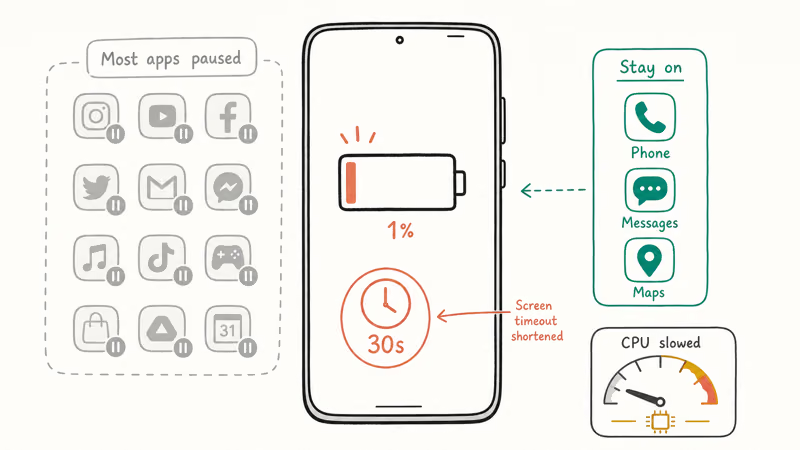
Google’s Extreme Battery Saver guide states that screen timeout drops to 30 seconds under this mode, most apps pause and stop sending notifications, and the CPU slows down. You pick a short list of essential apps that stay alive through it.
This is for emergencies, not daily use. With most apps paused you’ll miss notifications from anything you didn’t whitelist. Choose only the few you truly need, like Phone, Messages, and maps.
#Habits That Help More Than Any Mode
The modes buy time, but a few habits beat all of them. Drop your screen brightness and shorten the screen timeout, since the display is usually the single biggest drain on a phone. For many people, dimming the screen and shortening timeout matter more than toggling another saver mode.
Then prune the always-on offenders. Turn off background location for apps that don’t need it, disable always-on display if your phone has it, and uninstall apps you never use rather than letting them run helpers in the background. A Samsung battery that drains fast often has one rogue app behind it, and a phone that keeps restarting can mask a fault no saver mode fixes.
#Protecting Long-Term Battery Health
One more habit pays off over years rather than hours. Keeping your phone between roughly 20 and 80 percent, rather than constantly topping it to 100, is gentler on the cell, and most modern Androids include an adaptive charging option that does this for you overnight.
Heat is the other quiet killer. Charging in a hot car or gaming while plugged in cooks the battery, so keep the phone cool, and if alerts still feel slow after all this, missing Android notifications is usually a per-app permission rather than a battery issue.
#Bottom Line
Leave Adaptive Battery on all the time and let it quietly trim the apps you ignore. Schedule Battery Saver to engage around 20 percent so the phone protects its last hours on its own. Save Extreme power saving for the real emergencies when you need to nurse a near-dead phone to a charger. And remember the unglamorous truth: dimming the screen does more than any mode you can toggle.
#Frequently Asked Questions
Does Battery Saver mode harm my phone?
No. Battery Saver only limits background activity and dims the display. It can’t damage the battery, and you can toggle it freely. The single downside is delayed notifications while it’s active.
What’s the difference between Battery Saver and Adaptive Battery?
Battery Saver is a mode you turn on when charge runs low, throttling the whole phone temporarily. Adaptive Battery is an always-on helper that learns which apps you rarely use and quietly runs them less, all the time. You generally leave Adaptive Battery on permanently and reach for Battery Saver only when needed.
Will Battery Saver delay my notifications?
It can. Google’s documentation is explicit that limiting background activity may delay certain apps and notifications. If an app’s alerts matter, exempt it from battery optimization.
How much battery does Extreme power saving actually save?
A lot, because it pauses most apps, slows the processor, and cuts the screen timeout to 30 seconds. The exact gain depends on your device, but it’s built to squeeze hours from the last few percent. Use it only in emergencies, since it mutes almost everything you didn’t mark as essential, and turn it off once you reach a charger.
Should I leave Adaptive Battery on all the time?
Yes, for most people. It works in the background to reduce drain from apps you don’t use often, with little downside beyond the occasional delayed notification from a rarely-opened app. If one important app is being throttled, turn off battery optimization for just that app rather than disabling Adaptive Battery entirely.
Does Battery Saver turn off mobile data?
No. Battery Saver limits background data, but mobile data and Wi-Fi still work while you’re using the phone, and calls and texts arrive normally.

Pixel 11 vs Pixel 10: What Changed and Who Should Upgrade
Pixel 11 vs Pixel 10: same screen and camera resolution, new Tensor G6, 25W wireless, and Gemini Intelligence. Here is who should actually upgrade.

Verizon Not Receiving Texts? How to Fix It in 9 Steps
Verizon not receiving texts? Fix it in 9 steps: check Message Blocking in My Verizon, reset network settings, deregister iMessage, and call support.

Pixel Battery Drain: What Google's July Fix Really Covers
Google marked the Pixel idle battery drain bug fixed in July, but only some phones got the patch. Here is who is covered, who is not, and what to try.

iPhone Stuck on EDGE? How to Get 5G or LTE Back (2026)
iPhone stuck on EDGE with crawling data? Here's why the E icon appears, which settings force 5G or LTE back, and when the problem is your carrier.