View iPhone Call History: Recents, iCloud, and Backups
View your iPhone call history: read the Recents tab, sync calls to iPad and Mac, and restore deleted entries from an iCloud or Finder backup.
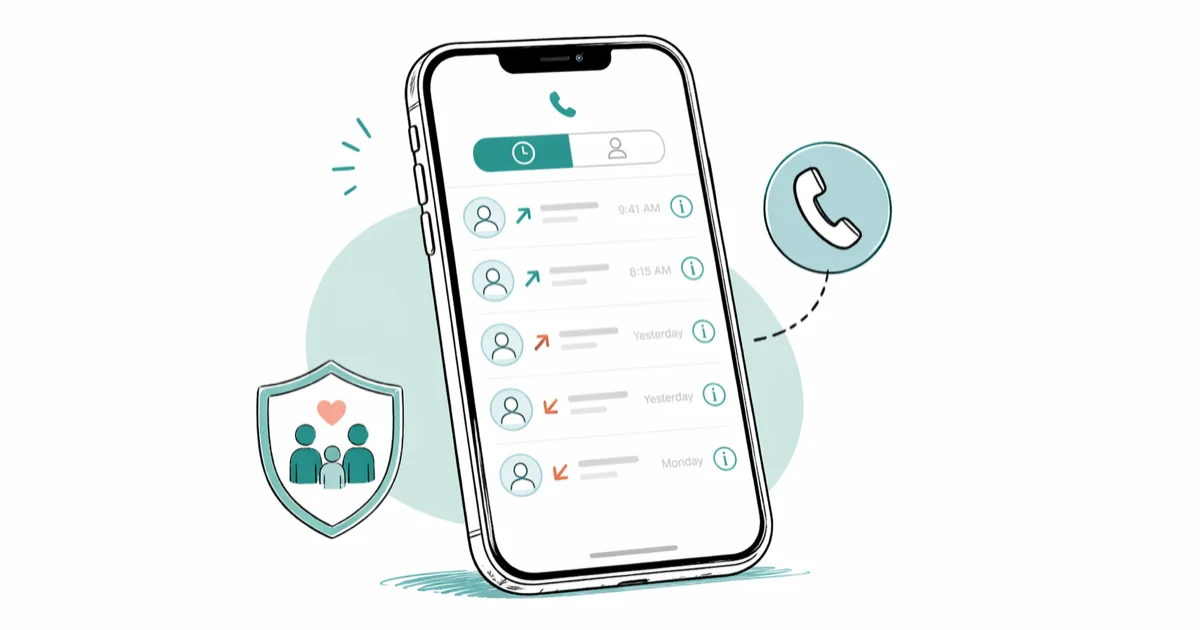
Quick AnswerOpen the Phone app and tap Recents to see every incoming, outgoing, and missed call on your iPhone, then tap the small i icon next to a number for date, time, and duration. To see entries beyond the most recent 100, restore from an iCloud or Finder backup or use a desktop recovery tool.
Knowing how to view iPhone call history matters when you need to confirm a missed call, dispute a charge, or pull up the exact time you spoke with someone. The on-device list only holds the last 100 calls. Older entries live inside iCloud or computer backups, and your wireless carrier holds the longest record.
- The Phone app’s Recents tab on iPhone shows the last 100 calls; tap the small i icon for date, duration, and contact details.
- iPhone call logs sync to your iPad and Mac through FaceTime when both devices share the same Apple ID and Wi-Fi network.
- Restoring an iCloud or Finder backup is the only built-in way to bring back deleted call records.
- Third-party desktop tools like Tenorshare UltData scan an iTunes or Finder backup for deleted call entries without resetting the phone.
- Family Sharing does not expose another person’s call log; viewing someone else’s history requires their consent and physical access to their device.
#Where Your Call History Lives on iPhone
Your iPhone keeps recent calls in the Phone app’s Recents tab, backed by a local SQLite database called CallHistory.storedata. That file lives in a protected system folder, so you can’t open it from the Files app, but every standard iCloud or Finder backup includes it. According to Apple’s iPhone User Guide, Recents shows missed, answered, and outgoing calls in chronological order with contact names when available, and falls back to the raw phone number for unknown callers.
The on-device list keeps the most recent 100 entries before older calls roll off. The underlying database holds more rows, but iOS doesn’t surface them in the UI. That cap is why long call logs feel like they vanish overnight if you make or receive a lot of calls.
Calls older than the 100th entry stop appearing in Recents, even though older records can still exist inside backups. Heavy callers should expect the visible window to shrink fast.
#How to View the Call Log on iPhone Directly
The fastest way to read your call history is from the Phone app itself. The steps work on every iPhone running iOS 14 or later, including iPhone SE through iPhone 16 Pro.
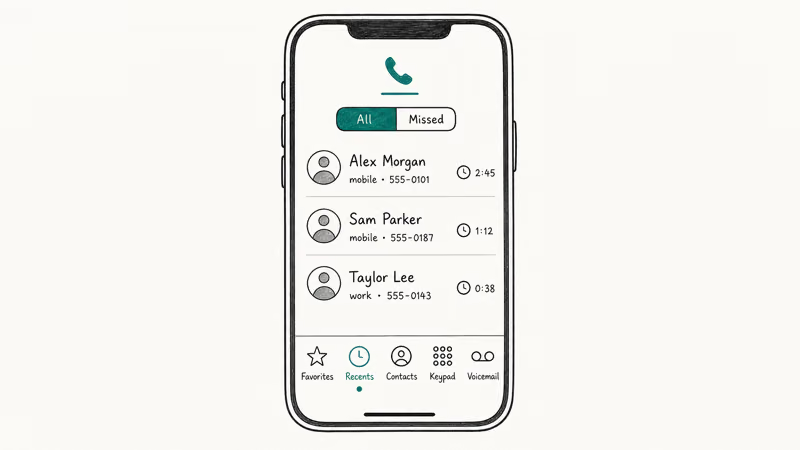
- From the Home Screen, tap the green Phone icon.
- At the bottom of the screen, tap Recents.
- Scroll through the list to see incoming, outgoing, and missed calls in date order. Missed calls show in red.
- Tap the small i icon to the right of any entry for the call’s date, time, duration, and contact card if the number is saved.
- Tap All at the top to see every call, or Missed to filter for unanswered ones.
If a number isn’t in your Contacts, the entry shows the raw digits along with the country flag and any caller ID supplied by your carrier. From the same detail view you can call back, send a message, or save the number as a new contact.
Failed calls show up too, tagged “Cancelled” or “Failed”. Our guide on why iPhone calls fail covers the causes.
#View Calls on iPad and Mac With Continuity
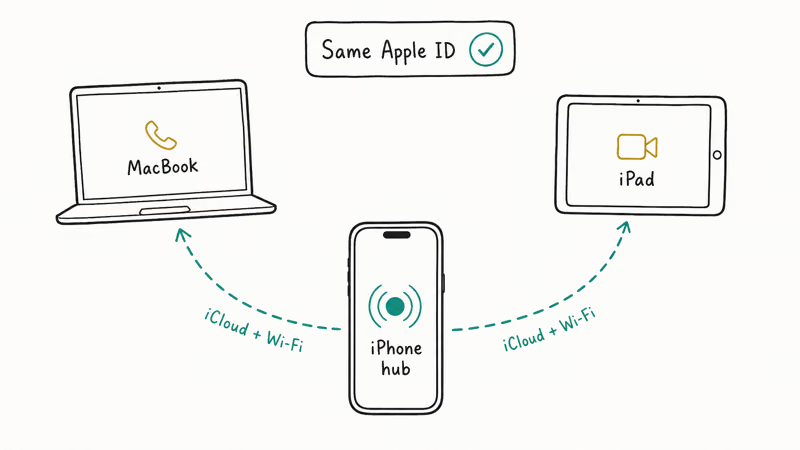
Apple’s Continuity feature mirrors call history across every device signed in to the same Apple ID, as long as they share a Wi-Fi network. Handy when you want to check a call from your laptop without picking up the phone.
#Turn on FaceTime call relay
On the iPhone, open Settings, tap Phone, then Calls on Other Devices, and toggle the switch on. Pick the iPad and Mac you want to receive call history on. Apple’s Continuity support page confirms that this setting is what publishes your iPhone call log to other devices on the same Apple ID. Without it, your iPad and Mac only show their own FaceTime audio history.
#Read the log on iPad
On the iPad, open FaceTime and tap the green call icon at the top, or open Phone if your iPadOS version exposes it. The list mirrors what you see on the iPhone.
If your iPad shows nothing after enabling the toggle, sign out and back in to FaceTime under Settings, then make a test call from the iPhone to confirm the relay is alive.
#Read the log on Mac
On a Mac, open FaceTime, click Audio in the sidebar, and you’ll see every call relayed from your iPhone. Hover over an entry and click the i button for date, time, and duration. The Mac log also lists FaceTime audio and video calls placed directly from the Mac, so the combined view is usually longer than what you see on the iPhone alone.
If FaceTime is acting up on your Mac and the relay is dropping calls, our FaceTime troubleshooting guide covers the same Continuity stack.
#Recover Deleted Calls From an iCloud Backup
Once you swipe a call out of Recents, iOS marks it as deleted. There’s no Trash folder. The entry vanishes from the on-device UI immediately, and the only built-in path to bring it back is restoring from a backup that was taken before the deletion happened.
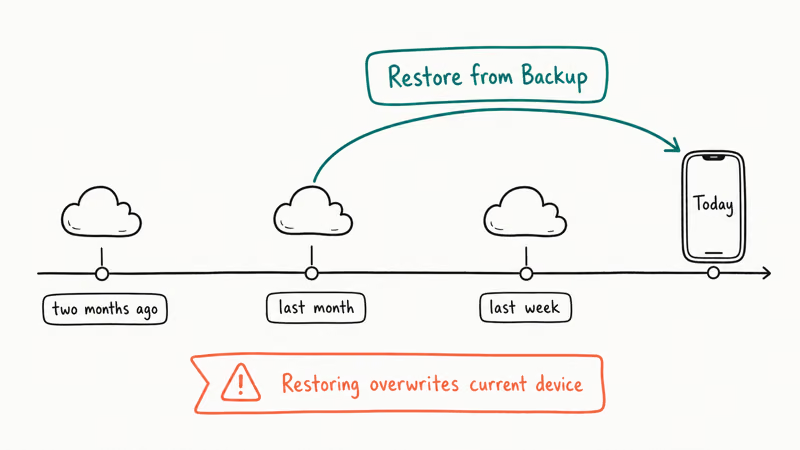
This option overwrites the current state of your iPhone, so back up your existing data first. Then walk through these steps:
- On the iPhone, open Settings, tap your name, then iCloud, then iCloud Backup, and confirm a recent backup exists from before you deleted the call.
- Open Settings, General, Transfer or Reset iPhone, and tap Erase All Content and Settings.
- Set the iPhone up again and choose Restore from iCloud Backup at the Apps & Data screen.
- Sign in to iCloud and pick the backup that predates the deletion.
- Wait for the restore to finish, then open Phone and tap Recents.
Apple’s iCloud backup support article states that restored data includes call history, voicemail, and messages. Restore time depends on backup size, Wi-Fi speed, and Apple’s server load, so large backups can take a while before the call log reappears.
If your restore stalls at the progress bar, our walkthrough on iPhone attempting data recovery explains how to break the loop without losing the backup.
#Restore Calls From a Finder or iTunes Backup
If you back up to a Mac running macOS Catalina or later, use Finder. On Windows or older macOS, use iTunes. Local backups restore faster than iCloud and don’t depend on internet speed, but they only exist if you remembered to plug in.
- Connect the iPhone to your computer with a Lightning or USB-C cable.
- Open Finder (or iTunes) and select the iPhone in the sidebar.
- Click Restore Backup, choose the backup taken before the deletion, and start the process.
- Once the iPhone reboots, open Phone and check Recents.
Local restore time depends on backup size, cable speed, and the host computer. The call log should repopulate after the device finishes its post-restore reboot and signs back into iMessage. If your backup won’t restore at all, the issue is almost always the trust prompt or low disk space on the host computer, and our guide on iPhone backup failed errors walks through both causes step by step.
#Pull just the calls with Tenorshare UltData
Restoring a full backup is heavy if you only want a handful of deleted calls. A desktop tool like Tenorshare UltData reads an existing iTunes or Finder backup, extracts call history rows, and lets you export them to CSV without overwriting the iPhone.
Some links on this page are affiliate links, which means fone.tips may earn a commission at no extra cost to you.
The flow: launch UltData, pick Recover from iTunes Backup, select Call History, scan, and toggle Show Deleted Data to see entries marked for removal. This is your own device and your own backup, so the recovery sits entirely on your computer.
Backup scans usually finish faster than a full device restore because the tool reads the local backup instead of rewriting the phone.
Apple doesn’t officially endorse third-party recovery utilities, but reading from a local backup file is fine because the backup belongs to you.
#How Far Back Does iPhone Call History Go?
Recents on the iPhone caps at 100 entries. Once you cross that threshold, the oldest call drops off the visible list, even though it can still live in a backup. There is no setting in iOS to raise the cap.
If you place dozens of calls a day, your visible history might cover only a few weeks. Light callers stretch the same 100 entries across half a year.
For longer windows, your wireless carrier is the authoritative source. T-Mobile’s account help center confirms that billing customers can pull 18 months of usage from the My T-Mobile portal. AT&T’s billing and account support pages describe a similar window for postpaid customers.
Carrier records show the date, duration, and direction of each call. They don’t include the caller ID names or contact details that your iPhone displays. If you need a record older than what the iPhone or your backup holds, the carrier portal is usually the answer.
#Can You View Someone Else’s Call History on Their iPhone?
The honest answer: not without their consent and access to their device. Apple doesn’t expose one user’s call log to another user’s iCloud account. Family Sharing covers App Store purchases, location sharing, and Screen Time reports for child accounts, but it doesn’t surface call history. Even for a child account, Apple’s Family Sharing setup page states that Screen Time reporting summarizes app usage time, not the actual call entries.
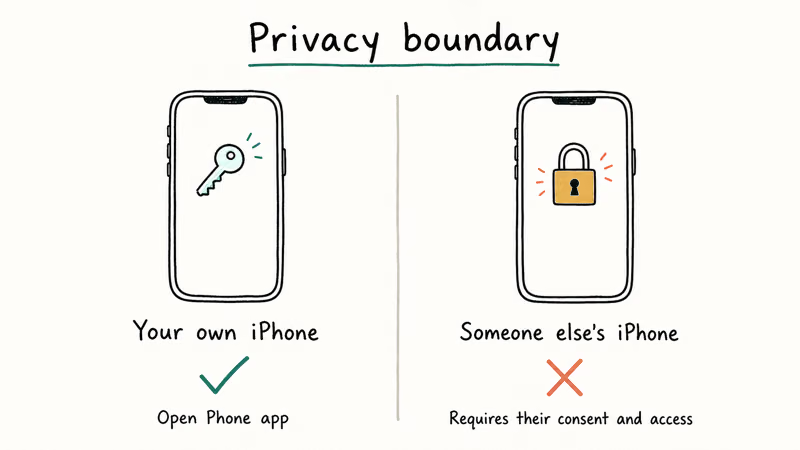
Looking at someone else’s call log without their permission is a privacy issue and, depending on where you live, a legal one. The legitimate options are short:
- Ask to see the device. Open Phone, tap Recents, and review the list together.
- Use Apple Family Sharing for a managed child account with the child’s knowledge. Screen Time will show how much time the Phone app was used, not who was called.
- Pull the carrier bill if you are the account holder and the carrier policy permits it.
If you suspect an unwanted account has been added to your own iPhone, our walkthrough on Screen Time and parental control settings shows how to confirm what is enabled on your device. Anything beyond your own line, your own backup, or your own family plan crosses into territory this site won’t help with.
#Bottom Line
For day-to-day call lookups on your own iPhone, the Recents tab is enough. Tap the i icon for the timestamp and duration. Turn on Calls on Other Devices under Settings if you want the same log to appear on your iPad and Mac.
For anything older than the 100-entry cap, or a call you swiped away by mistake, restore from your most recent iCloud or Finder backup. If you only want the call entries and not a full restore, Tenorshare UltData reads the backup file in place. For records that go back months or years, your wireless carrier’s online portal is the only source that still holds them.
#Frequently Asked Questions
Can you see deleted call history on iPhone without a backup?
No. Once a call is removed from Recents, iOS purges it from the active database, and there’s no on-device Trash folder. The only practical paths are restoring an iCloud or Finder backup made before the deletion, or scanning an existing local backup with a desktop recovery tool. Without a backup, the call is gone from the phone, and you would need to ask your carrier for the billing record.
How many calls does iPhone Recents store?
The Phone app’s Recents tab shows the last 100 calls. The underlying database may hold more rows, but iOS doesn’t surface them in the UI. There is no setting to extend the cap.
Why are my iPhone calls not showing on my iPad or Mac?
Calls on Other Devices is probably off. Check Settings, Phone, Calls on Other Devices on the iPhone, and confirm both devices share the same Apple ID and Wi-Fi network.
Does iCloud sync call history across all my Apple devices?
Yes, when iCloud and FaceTime are signed in with the same Apple ID and Calls on Other Devices is enabled. The sync runs in near real time over Wi-Fi. Calls placed directly on the Mac via FaceTime audio also appear in the iPhone’s Recents.
Can I export iPhone call history to a spreadsheet?
iOS has no built-in export for the Phone app log. The workaround is to extract the call database from an iTunes or Finder backup using a tool like Tenorshare UltData, which can save a CSV containing date, number, direction, and duration. For longer or audited records, your carrier’s online portal lets you download a billing statement that lists every call.
How do I view the call history of a specific contact on iPhone?
Open Phone, tap Contacts, pick the person, and scroll down to the History section under their card.
Can my carrier show calls older than what is on my iPhone?
Yes, and they often hold the only complete record once the iPhone’s 100-call window has rolled over. Most US carriers retain at least 12 to 18 months of usage records that the account holder can download as a billing statement from the online portal. The carrier log shows date, time, and duration but not the caller ID name your iPhone might display.

Mac mini M6 vs M5 Pro: Which Model Should You Buy?
Mac mini M6 vs M5 Pro compared on price, memory, ports, displays, and real workloads. Find the better 2026 Mac mini for your desk and budget.

Apple Siri Settlement: Who Qualifies and How to Claim
Apple's $250 million Siri settlement covers iPhone 15 Pro and iPhone 16 models bought June 2024 to March 2025. See who qualifies and how claims work.

iOS 26.6.1 Security Update: What Apple Fixed and Who Gets It
Apple released iOS 26.6.1 on August 17 with 29 security fixes, including an IPSec interception bug. See what it patches, who gets it, and how to update.

iPhone Adaptive Power: How It Works and When to Use It
Learn how iPhone Adaptive Power works, which models support it, what it changes, and when Low Power Mode is still the better battery-saving choice.