Android Phone Not Showing on PC? 9 Fixes for Windows
Android phone not showing on PC? Unlock it, switch USB mode to file transfer, and rule out a charge-only cable before reinstalling MTP drivers in Windows.
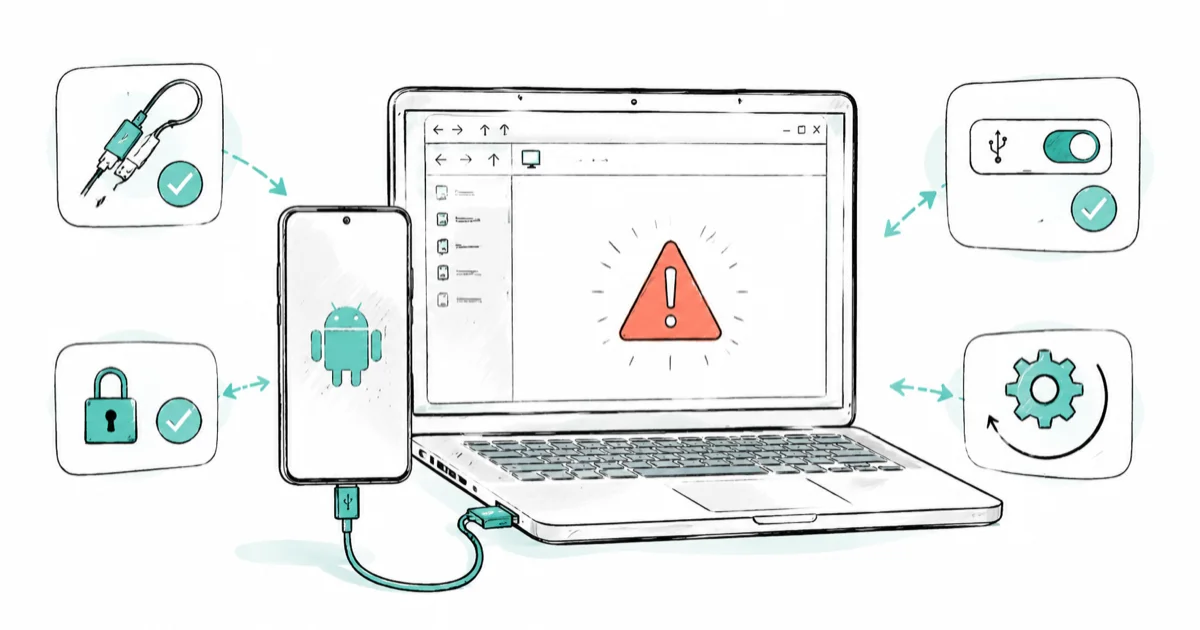
Quick AnswerAn Android phone usually fails to appear on a PC because the cable is charge-only, the phone is locked, or the USB mode is still set to charging instead of file transfer. Unlock the phone, switch USB mode to File transfer, and swap to a data-capable cable before reinstalling any drivers.
Android phone not showing on PC is usually one of three simple causes, not a driver disaster. The cable only carries power, the phone is locked, or USB mode never switched from charging to file transfer. This guide runs the quick cable-unlock-USB checks first, then moves to Windows drivers only if the easy fixes fail, so you don’t reinstall anything you don’t need to.
This guide assumes the phone and PC are your own. For any phone you don’t own, the owner’s consent is required before you access their files, since their privacy rights still apply.
- The most common cause is a charge-only cable, since many bundled cables carry power but no data
- Your phone must be unlocked and you must tap “Allow” or “File transfer” on its USB prompt for Windows to see it
- Switching USB mode to File transfer is the single setting that fixes most invisible phones
- If Windows hears the connect chime but File Explorer is empty, the cause is usually USB mode or a portable-device driver
- Trying a different cable, port, and PC quickly separates a phone-side fault from a Windows-side one
#Why Is Your Android Phone Not Showing on PC?
Three causes account for almost every invisible phone. The first is the cable: many charging cables, especially the freebies in chargers, carry power but no data lines, so the phone charges but never appears. The second is a locked phone, since Android blocks data access until you unlock and approve the connection. The third is USB mode, which defaults to charging only.
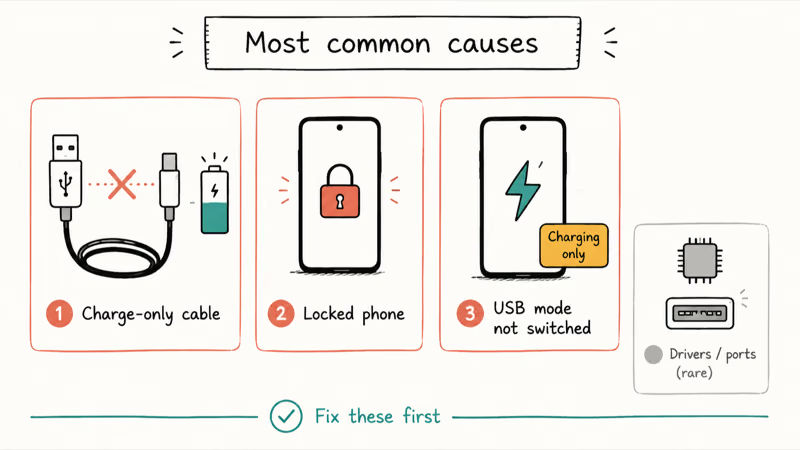
Work those three first. They cost nothing and resolve the large majority of cases.
Drivers and ports come into play only after the basics are confirmed. A missing or corrupt portable-device driver, a dead USB port, or a Windows USB glitch can all hide a phone, but they’re the rarer causes that waste time when you chase them first.
#Use a Data Cable and Unlock the Phone
Start with the cable, the most common culprit and the easiest to test. A charge-only cable powers your phone forever yet never shows it on the PC.
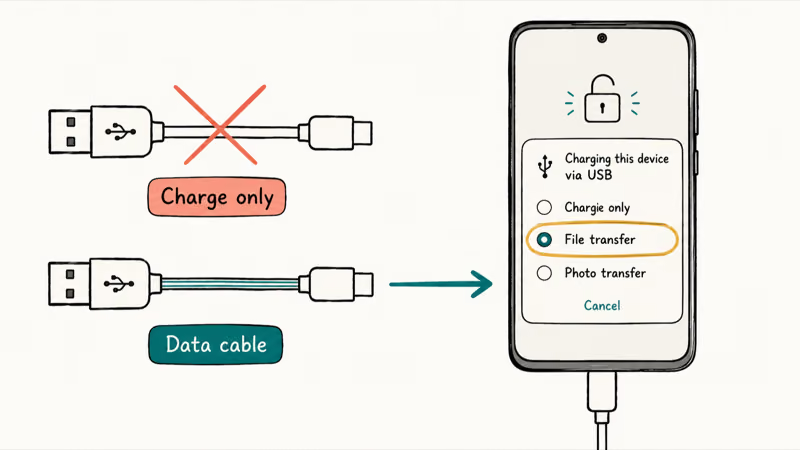
Many cables sold purely for charging, including the freebies bundled with wall adapters and power banks, physically omit the data lines, so no software fix on either side will make them work for transfer. If you’re using a cable from a charger box, swap it for one you know carries data, ideally the phone’s original cable.
Then unlock the phone and keep the screen on. According to Google, transferring files over USB requires you to unlock your device first, then tap the USB notification. The official USB file transfer guide lists the exact order: unlock, connect, tap the “Charging this device via USB” notification, and choose File transfer.
A charge-only cable can power the phone without exposing any files to Windows, while a data-capable cable lets the File transfer prompt work after you unlock and approve it.
A phone that also struggles with power, covered in our Android won’t charge guide, can point to a cable or port problem that affects data too. Galaxy owners seeing a related symptom can check our Samsung Galaxy not charging guide, since a failing USB-C port breaks both charging and data transfer.
#Change USB Mode From Charging to File Transfer
If the cable and unlock are fine but the phone still won’t show, the USB mode is the issue. By default, Android connects in charge-only mode and waits for you to choose file transfer.
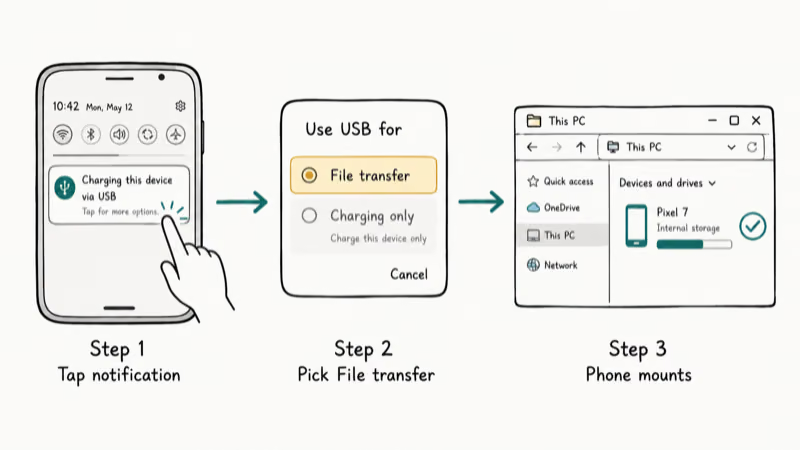
When you plug in, a notification appears, often “Charging this device via USB” or “USB controlled by.” Tap it. Google’s transfer guide states that under “Use USB for,” you select File transfer, sometimes labeled MTP or Transferring files.
Once you pick File transfer, Windows should mount the phone as a portable device within a few seconds, and a file window may pop open. If the menu doesn’t appear, swipe down the notification shade and look for the USB option there, or open Settings and search for “USB” to find USB Preferences directly. This single mode switch is the fix for most phones that charge but stay invisible.
#What If Windows Sees the Phone but File Explorer Does Not?
Sometimes Windows clearly detects something. You hear the connect chime, or a device pops into the system tray, but the phone never appears in File Explorer. That pattern points to USB mode or a driver, not a dead connection.
First, recheck the USB mode, since a chime with no File Explorer entry almost always means the phone is still in charge-only mode. Re-select File transfer.
If the mode is right and it’s still missing, open Device Manager on Windows and look under “Portable Devices.” Your phone should appear there when connected in file-transfer mode. If the phone chimes but stays hidden, check Device Manager for a warning triangle under Portable Devices before reinstalling the driver. A connect chime with an empty File Explorer is the classic signature of the MTP path, not a hardware failure.
#Reinstall MTP or Portable Device Drivers
When the phone shows in Device Manager with an error, the portable-device or MTP driver is the problem. This is the point where a driver reinstall makes sense, after the basics are confirmed.
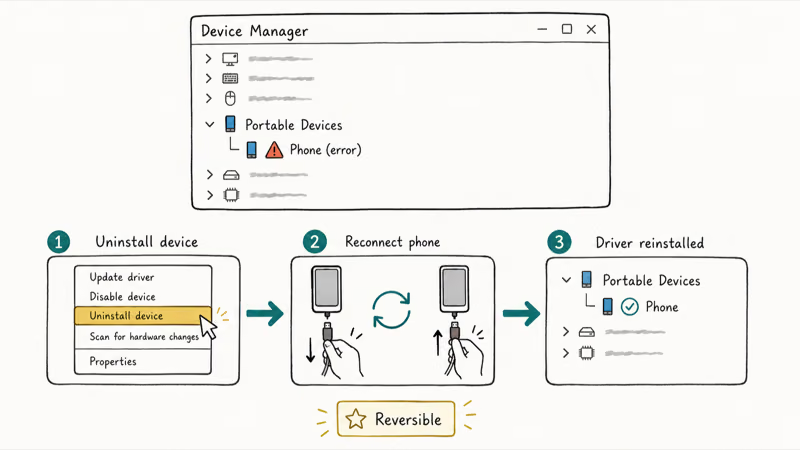
Open Device Manager, find the phone under “Portable Devices” or “Other devices,” right-click it, and choose Uninstall device. Then unplug the phone, reconnect it, and Windows reinstalls the driver automatically. If that fails, right-click and pick “Update driver,” then “Browse my computer,” and select “MTP USB Device” from the list of available drivers.
Microsoft’s Windows support hub is the place to confirm Device Manager steps for your exact Windows version if the menus differ. A reinstall clears most corrupt-driver cases, and it’s reversible since Windows keeps the generic MTP driver available. If you only need to see your screen rather than move files, our mirror Samsung phone to PC guide covers a wireless alternative.
#Try Nearby Share or Cloud Transfer as a Fallback
If the hardware path keeps failing, you don’t have to keep fighting the cable. Wireless transfer skips USB entirely and gets your files moved while you troubleshoot the port at your own pace.
Quick Share, formerly Nearby Share, sends files between an Android phone and a Windows PC over Wi-Fi once you install the Quick Share app for Windows. Google Drive and Google Photos work too: upload from the phone, then download on the PC through any browser, no cable involved at any point in the process.
According to Google, syncing to your account makes files available on any of the 2 or more devices you sign in to, per the official backup and restore guide.
To separate a port issue from a Windows issue, plug into a different USB port and try a different PC, and clean a dirty port gently rather than forcing anything. Mac users hitting the same wall can check our Android File Transfer not working to Mac guide, while our Android File Transfer not working guide covers the cross-platform basics.
#Bottom Line
Most Android phones missing from Windows aren’t driver problems. The cable is charge-only, the phone is locked, or USB mode is still set to charging, so fix those three first. Only then reinstall the MTP or portable-device driver, or try another PC to separate a Windows issue from a phone port fault. When the hardware path resists, Quick Share or a cloud upload moves your files without the cable.
#Frequently Asked Questions
Why is my Android phone not showing on my PC?
Usually a charge-only cable, a locked phone, or USB mode still set to charging. Swap to a data cable, unlock the phone, and choose File transfer.
What should I check first?
Check the cable and the USB mode. Unlock the phone, then tap the USB notification and select File transfer. If nothing changes, try the cable that came with the phone, since many charging cables carry power but no data.
Can a Windows update cause my phone to stop showing?
Yes. A Windows update can replace or reset the USB and portable-device drivers, which can drop a phone that worked before. After a major update, reconnect in file-transfer mode and, if needed, uninstall and reconnect the device in Device Manager so Windows reinstalls a clean driver.
Will any of these fixes delete files on my phone?
No. Connecting, switching USB mode, and reinstalling drivers don’t touch the files on your phone, since they only change how the PC talks to it. Even a driver uninstall in Device Manager removes the Windows-side driver, not your data. The only way to risk files is by deleting or moving them yourself during a transfer, so copy rather than cut until you confirm the move worked.
When should I contact official support?
Contact your phone maker or Microsoft support if the phone stays invisible after you’ve tried a known data cable, multiple ports, file-transfer mode, and a driver reinstall. Testing on a second PC first tells support whether the fault is the phone or the original computer.
How do I prevent this from happening again?
Keep a known data cable for transfers, and remember to unlock the phone and pick File transfer each time you connect. If USB stays unreliable, set up Quick Share or cloud sync so moving files never depends on a finicky port again.

Pixel 11 vs Pixel 10: What Changed and Who Should Upgrade
Pixel 11 vs Pixel 10: same screen and camera resolution, new Tensor G6, 25W wireless, and Gemini Intelligence. Here is who should actually upgrade.

Verizon Not Receiving Texts? How to Fix It in 9 Steps
Verizon not receiving texts? Fix it in 9 steps: check Message Blocking in My Verizon, reset network settings, deregister iMessage, and call support.

Pixel Battery Drain: What Google's July Fix Really Covers
Google marked the Pixel idle battery drain bug fixed in July, but only some phones got the patch. Here is who is covered, who is not, and what to try.

iPhone Stuck on EDGE? How to Get 5G or LTE Back (2026)
iPhone stuck on EDGE with crawling data? Here's why the E icon appears, which settings force 5G or LTE back, and when the problem is your carrier.