Android Phone Keeps Restarting? 8 Fixes to Try in 2026
Is your Android phone restarting on its own or stuck in a reboot loop? Work through software, app, storage, and hardware fixes in order before a reset.
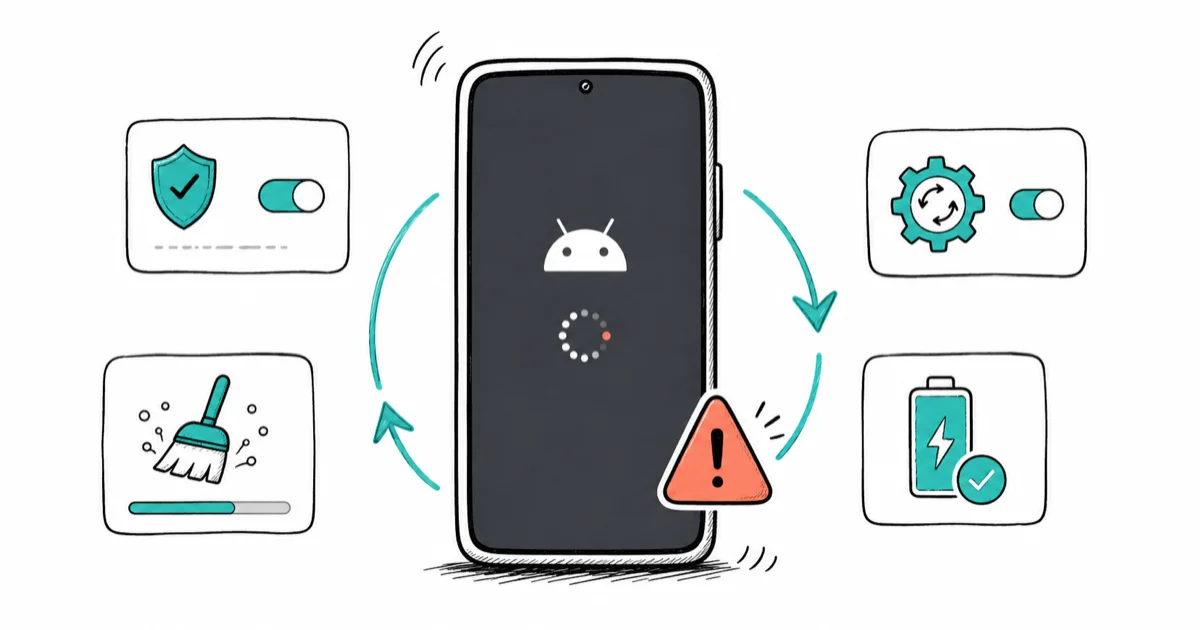
Quick AnswerRandom Android restarts usually come from a buggy app, low storage, a failing battery, or a half-finished update. Boot into Safe Mode to test for a bad app, clear the cache partition, and update the software before any factory reset.
Your Android phone keeps restarting on its own, sometimes mid-task and sometimes in a loop that never reaches the home screen. The cause is almost always software: a misbehaving app, low storage, a half-installed update, or an overheating battery. A recently sideloaded app is a common trigger, especially when restarts start right after an install.
These steps apply to your own phone, and they run software-first so you don’t wipe data unless you truly have to.
- Safe Mode loads your phone with downloaded apps disabled, so if the restarts stop there, a third-party app is the cause
- Clearing the cache partition from Recovery Mode is non-destructive and often fixes a post-update reboot loop
- A factory reset wipes the device, so it belongs near the end of the list and only after a backup
- A phone that still loops after a clean reset is pointing at the battery or hardware, not software
- Removing a case or accessory matters, because a stuck button or covered sensor can force constant restarts
#Why Does Your Android Phone Keep Restarting?
A self-restart means the system hit a fault it couldn’t recover from and rebooted to clear it. Most of the time that fault is a rogue app crashing into a background process, a storage partition that ran out of room, or an update that didn’t finish cleanly.
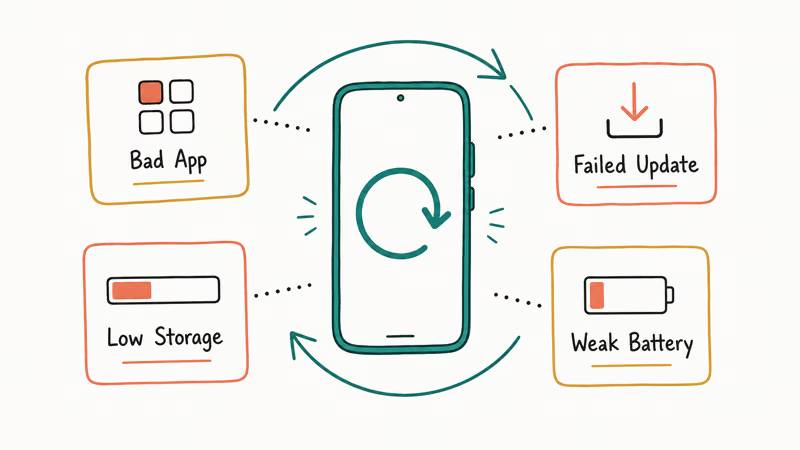
Battery and heat cause the most stubborn cases. A swollen or degraded battery that can’t deliver steady current will cut power under load. According to Google’s Pixel restart troubleshooting guide, even an external battery pack or accessory can be the trigger, so it recommends removing any case or add-on while you diagnose and making sure nothing covers the sensors or presses a button.
The brand matters less than you’d think. Pixel, Samsung, OnePlus, and Xiaomi share the same Android fundamentals here. If you have a Galaxy, our guide to Samsung-specific reboot fixes adds a few One UI steps. Otherwise, the steps below work everywhere.
#Start With a Clean Reboot
Before anything deeper, hold the power button to force a clean reboot, then remove the case and any accessory and watch the phone for a few minutes. A stuck power button, a covered sensor, or a flaky charging cable can each force a restart, and pulling them off is a 30-second test that rules out the silliest causes first.
If the phone is plugged in when it loops, unplug it. A failing charger or a damaged port can brown out the phone repeatedly, which looks identical to a software loop.
#Is a Bad App Causing It?
Safe Mode answers the most common question fast: is an app doing this? It loads Android with every downloaded app disabled, so only the system and pre-installed apps run.
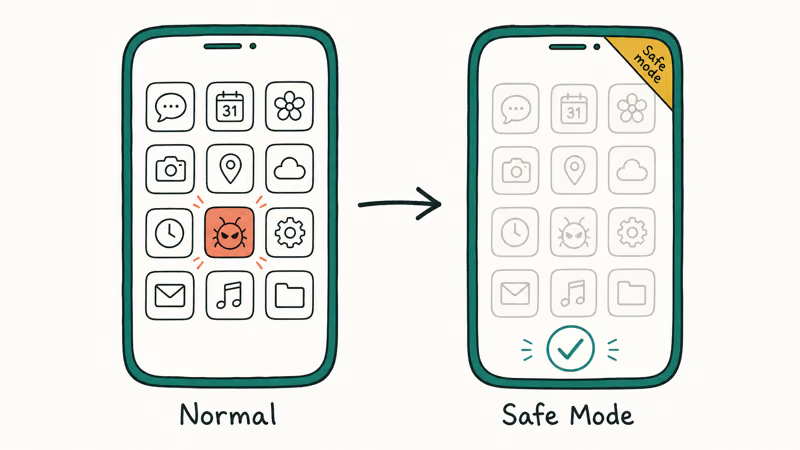
Google’s Android freeze and restart help states that holding the power button for about 30 seconds force-restarts a frozen phone, and that Safe Mode temporarily turns off all downloaded apps. That second part is what makes Safe Mode a clean test. If the phone stays stable in it, a third-party app is your culprit.
The key combo varies by brand. On a Pixel 6 or later, Google’s Safe Mode instructions say to press and hold Power and Volume up, then tap Restart. On most Samsung phones, hold Power, then touch and hold the Power off icon until the Safe Mode prompt appears.
Look for the “Safe mode” label in the bottom corner to confirm you made it in.
Once you’re stable in Safe Mode, restart normally and remove your most recently installed apps one at a time, checking after each. Google’s guide recommends this exact one-by-one removal so you find the single bad app without uninstalling everything. It works because the last app you added before the trouble started is the prime suspect.
#Storage, Updates, and Cache Fixes
If Safe Mode didn’t help, the problem is likely storage or a bad update. A phone with almost no free space can fail to write the files it needs to boot.
Start by freeing space: delete large videos, offload unused apps, and clear app caches. Our guide to clearing the cache and history on Android walks through this per app. Then open Settings, check for a pending system update, and install it. A reboot loop that began right after an update is often an install that lost Wi-Fi or power partway through.
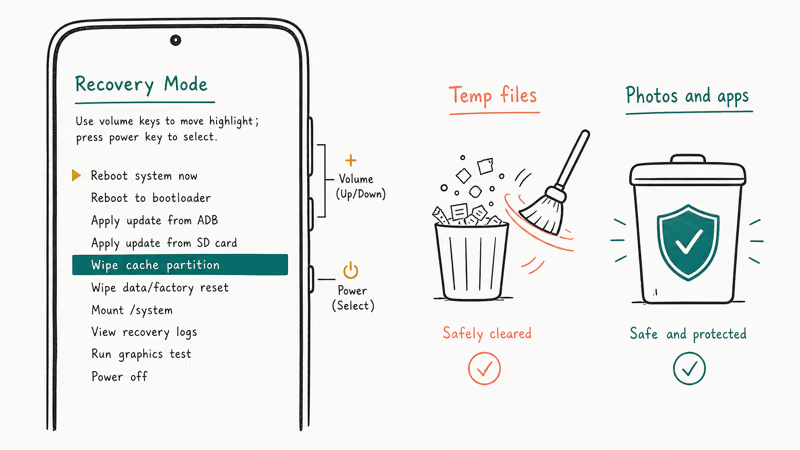
When an update leaves the system in a bad state, the cache partition is the non-destructive fix. Wiping the cache partition from Recovery Mode can stop a post-update reboot loop without touching any photos. To reach it, power off, hold the recovery combo, highlight Wipe cache partition with the volume keys, and confirm with Power. This clears temporary system files only.
#Battery, Overheating, and Hardware Causes
When software checks out, look at the battery and heat. A degraded battery can’t hold steady voltage, so the phone browns out and reboots, especially when you open something demanding like the camera.
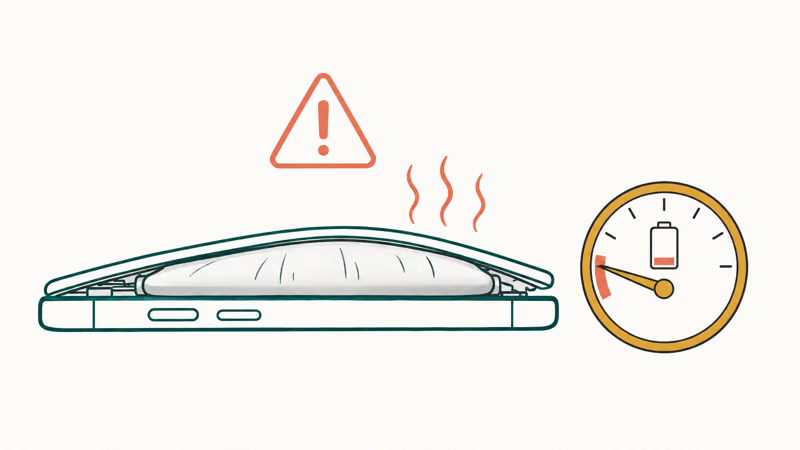
Check your battery health in Settings, and watch for physical swelling that pushes the screen or back panel outward. A swollen battery is a safety issue, so stop using the phone and get it serviced. If it also drains fast and runs warm, our guide to Android system battery drain helps you isolate the cause. For overheating, give the phone a break from charging and direct sun, then remove the case and watch as it cools.
Liquid exposure and a recent drop are the other suspects. Water can short the board over days, not just minutes, and a knock can loosen a connector. These aren’t home fixes, but ruling out software first means you walk into a repair shop knowing the issue is physical rather than a setting you missed.
#Wiping Cache and the Factory Reset
The order matters. Wipe the cache partition first, since it’s non-destructive and fixes a real share of update-related loops. Only if that fails do you move to a factory reset, which erases everything and resolves nearly every software-caused restart.
Back up before you reset. Photos sync to Google Photos, and Settings has a backup option for app data, contacts, and settings.
Unsure how to start clean afterward? Our note on the Android factory reset code covers both the dialer shortcut and the Recovery Mode route.
What if the phone won’t boot at all and just sticks on the logo? Recovery Mode is your only way in. Our guide to an Android stuck on the boot screen walks through reaching it on each major brand, and once you’re there you wipe the cache partition first and run a factory reset second, all without ever needing the home screen.
#Bottom Line
Boot into Safe Mode first. If the restarts stop there, the cause is a third-party app, which you uninstall one at a time starting with the most recent. If Safe Mode doesn’t help, clear the cache partition and install any pending update, since both are non-destructive, then keep the factory reset for last and only after a backup. A phone that still loops after a clean reset is pointing at hardware, and that needs a technician.
#Frequently Asked Questions
Why does my Android phone restart by itself?
Random restarts usually come from a crashing app, low storage, a half-finished system update, or a failing battery. Safe Mode tells you whether an app is the cause.
How do I boot my Android into Safe Mode?
On a Pixel 6 or later, hold Power and Volume up, then tap Restart. On most Samsung phones, hold Power, then touch and hold the Power off icon until the Safe Mode prompt appears, and confirm.
Will clearing the cache partition delete my data?
No. Wiping the cache partition removes only temporary system files. Your photos, messages, apps, and settings all stay intact, which is exactly why it sits early in the order: it carries no risk, takes a couple of minutes from Recovery Mode, and resolves a real share of the loops that start right after a system update fails to finish cleanly.
Can a bad battery cause random restarts?
Yes, and it’s one of the most common stubborn causes. A degraded or swollen battery can’t deliver steady current, so the phone loses power and reboots under load, often the moment you launch the camera or a game that draws a sudden spike. If the restarts cluster around demanding tasks and the phone is more than a couple of years old, the battery is the prime suspect. Visible swelling is a safety issue and needs service right away.
How do I fix an Android stuck in a reboot loop?
Boot into Recovery Mode using your brand’s key combo, then wipe the cache partition first. If the loop continues, run a factory reset from the same menu. Recovery Mode is the only way in when the phone never reaches the home screen.
Does a factory reset always fix restart problems?
A reset resolves nearly every software-caused restart, but not hardware faults. If the phone still loops after a clean reset, the cause is the battery, the logic board, or water damage, and it needs professional repair.

Pixel 11 vs Pixel 10: What Changed and Who Should Upgrade
Pixel 11 vs Pixel 10: same screen and camera resolution, new Tensor G6, 25W wireless, and Gemini Intelligence. Here is who should actually upgrade.

Verizon Not Receiving Texts? How to Fix It in 9 Steps
Verizon not receiving texts? Fix it in 9 steps: check Message Blocking in My Verizon, reset network settings, deregister iMessage, and call support.

Pixel Battery Drain: What Google's July Fix Really Covers
Google marked the Pixel idle battery drain bug fixed in July, but only some phones got the patch. Here is who is covered, who is not, and what to try.

iPhone Stuck on EDGE? How to Get 5G or LTE Back (2026)
iPhone stuck on EDGE with crawling data? Here's why the E icon appears, which settings force 5G or LTE back, and when the problem is your carrier.