Android Messages Not Syncing? Fix Phone, Web, and RCS
Android messages not syncing across phone, web, and tablet? Re-pair Messages for web, fix stuck RCS, and lift battery limits before clearing any data.
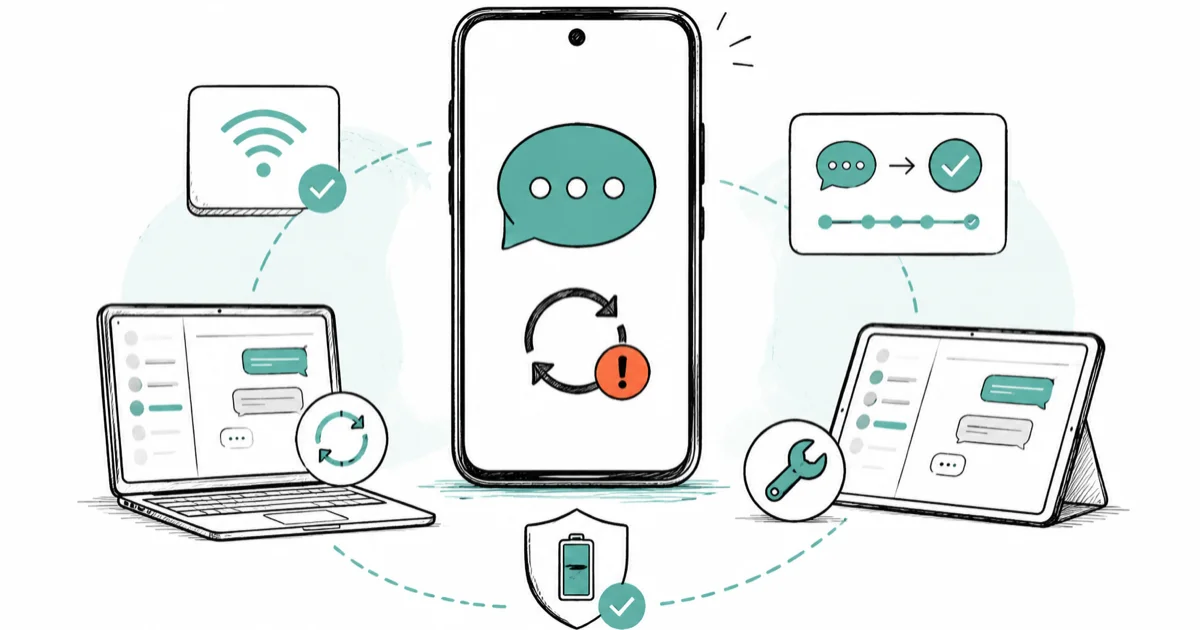
Quick AnswerAndroid messages usually stop syncing because the Messages for web pairing went stale, RCS is stuck verifying, or a battery restriction is freezing the Messages app. Treat your phone as the source of truth, then re-pair the web connection and check RCS status before clearing any data.
Android messages not syncing usually means your phone has the texts but the browser, tablet, or a second device doesn’t. The fix depends on which layer broke: the Messages for web pairing, the RCS chat connection, or a battery setting that froze the app in the background. This guide checks them in order so you don’t wipe local message history chasing a sync problem.
The phone, account, and devices here are assumed to be your own.
- Your phone is the source of truth, so confirm it has the messages before fixing web or tablet sync
- A stale Messages for web pairing is the top cause of browser messages falling out of sync
- RCS chats stuck on “Connecting” or “Verify your number” block rich features and read receipts from syncing
- A battery restriction on the Messages app can freeze background syncing without any error
- Clearing storage is a last resort, since it can delete local message history that isn’t backed up
#Why Are Android Messages Not Syncing?
Sync problems split into three layers, and naming yours saves a lot of guessing. The first layer is the phone itself: does it actually have the messages you’re missing? The second is the link to other devices, mainly Messages for web and device pairing. The third is RCS, the upgraded chat protocol that carries typing indicators and read receipts.
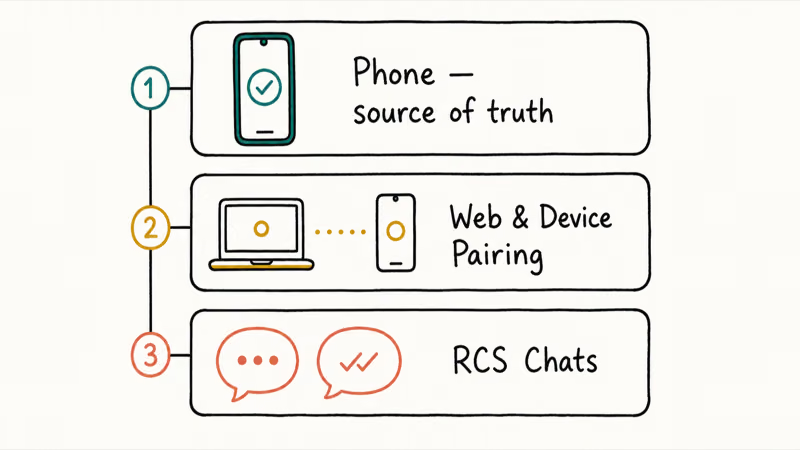
Start by checking the phone. If a text arrived on the phone but not the browser, it’s a pairing problem, not a lost message.
That distinction matters because the fixes are opposite. A pairing issue needs a refresh of the web connection. A truly missing message points to RCS status, the default SMS app, or a battery restriction choking the app in the background. Identify the layer before you touch any data.
#Check Whether the Phone Has the Missing Messages
Before fixing sync, confirm what the phone actually holds. Open Google Messages on the phone and scroll the conversation in question. If the messages are there on the phone but absent in the browser or on a tablet, you have a sync problem, not a delivery problem.
This single check changes your whole approach. People often clear app data the moment messages look wrong, which can erase local history that was never backed up. Don’t do that yet.
Also verify Google Messages is set as your default SMS app. Go to Settings > Apps > Default apps > SMS app and confirm Messages is selected. If a different app holds your texts, the sync features in Messages have nothing to mirror. A related delivery issue, where texts never arrive at all, is covered in our guide to Android not receiving texts.
#Refresh Messages for Web and Device Pairing
If the phone has the messages but a browser doesn’t, the web pairing is stale. According to Google, the standard setup links your phone and computer in 5 steps that start with the “Device Pairing” menu. The official Messages for web guide walks through tapping Device Pairing on the phone, opening messages.google.com/web on the computer, and matching the emoji shown on screen.
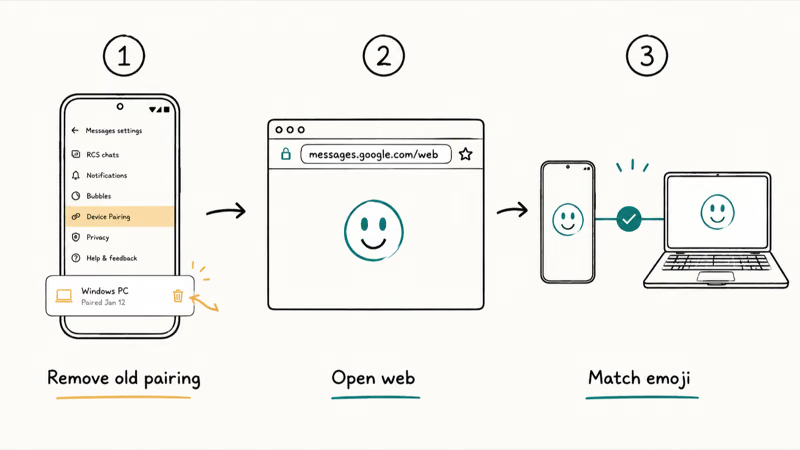
The reliable fix is to unpair and re-pair. On the phone, open Google Messages, tap your profile or the menu, find Device Pairing, and remove the existing computer. Then visit messages.google.com/web again and pair fresh, matching the on-screen emoji to complete the new link.
Re-scanning creates a fresh browser link and is the safer fix before touching message data.
#What If RCS Chats Are Stuck Verifying?
When rich features like read receipts and typing indicators won’t sync, RCS is usually the cause. RCS is the modern protocol that upgrades plain SMS, and it has its own connection state separate from your texts.
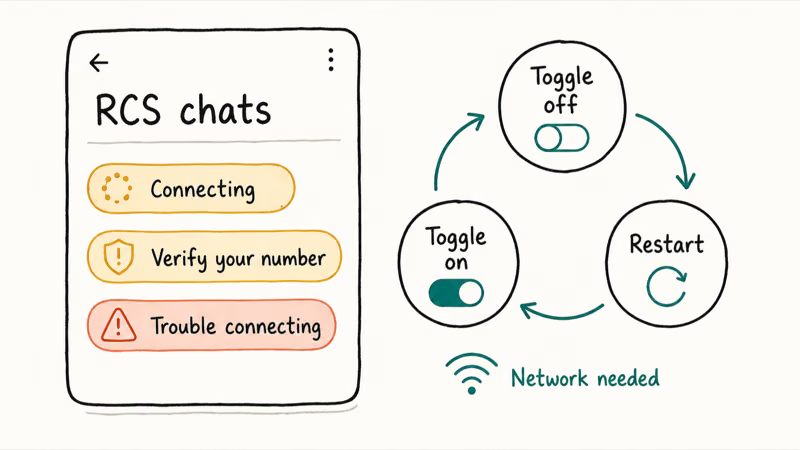
Check its status under Messages settings > RCS chats. According to Google, that screen shows states like “Connecting,” “Verify your number,” or “Trouble connecting.” The official RCS chats documentation lists what each status means.
If RCS is stuck, toggle it off, restart the phone, then toggle it back on so the number re-verifies. If RCS sits on “Connecting” for a long time, toggling it off, restarting, and letting it re-verify on Wi-Fi is the safer reset before clearing message data. Confirm you have a working data or Wi-Fi connection, since RCS verification needs the network.
A number that won’t verify after several tries may need carrier support, especially after a SIM swap or a new phone. If broader messaging apps are also failing to send, our guide to WhatsApp not sending messages covers a similar connectivity diagnosis, and a phone burning through battery may be killing the sync service, as our Android system battery drain guide explains.
#Remove Battery Restrictions From Messages
If messages sync only when you open the app, the system is freezing it in the background. Recent Android versions suspend background apps to save power, and that can stop Messages from syncing until you tap it open.
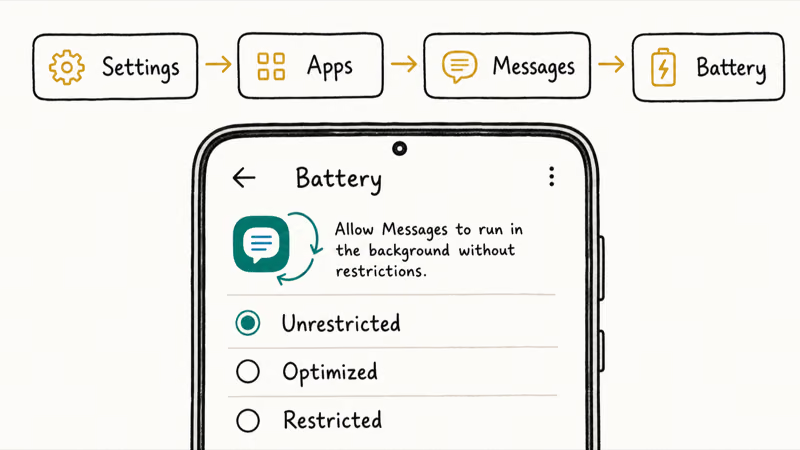
Set it to Unrestricted. Go to Settings > Apps > Messages > Battery and choose Unrestricted so the app keeps syncing in the background.
Google’s guidance on app battery usage recommends restricting high-drain apps, but a messaging app you rely on for real-time sync is one to leave alone. This same background-freezing behavior causes delayed notifications across many apps, and our guide to Samsung battery draining fast covers the Galaxy-specific sleeping-apps settings that interact with it. Battery drain and aggressive power saving feed each other, so it’s worth fixing the underlying drain too.
#Clear Cache Carefully and Re-Pair Devices
When pairing, RCS, and battery all check out, the Messages app may need a cache clear. Clearing cache is safe: go to Settings > Apps > Messages > Storage and tap Clear cache. This rebuilds temporary data without deleting conversations.
Don’t clear storage or data unless you’ve backed up. Clearing data resets the app and can remove local message history that isn’t in a cloud or Google account backup.
If a cache clear doesn’t help, re-pair every connected device fresh: remove the web pairing, sign out of any tablet, and reconnect them one at a time. A clean re-pair after a cache clear resolves the stubborn cases without the risk of wiping your texts. For email sync problems on the same phone, our guide to Gmail not sending emails follows a similar account-and-connection logic.
#Bottom Line
Use the phone as the source of truth. If the phone has the messages but a browser doesn’t, refresh or remove the Messages for web pairing and reconnect. If RCS is stuck verifying, toggle it off and on to re-verify your number, and confirm the network is up. Lift any battery restriction on Messages so it syncs in the background, and treat clearing storage as the genuine last resort because it can delete local history.
#Frequently Asked Questions
Why are my Android messages not syncing?
Usually a stale Messages for web pairing, RCS stuck verifying, or a battery restriction freezing the app. Check the phone first to confirm it actually has the messages.
What should I check first?
Confirm the phone itself holds the messages you’re missing. If it does and a browser or tablet doesn’t, you have a sync issue, not a lost-message issue, and the fix is to re-pair the device rather than clear any data.
Can a software update cause sync to break?
Yes. A phone or browser update can silently drop the Messages for web pairing or reset RCS status to verifying. After any major update, re-pair your web connection and recheck RCS status under Messages settings before assuming anything is broken.
Will clearing data delete my text messages?
Clearing the cache won’t, since cache is only temporary data. Clearing storage or data is different and can delete local message history that isn’t backed up to your Google account or a cloud service. Because of that risk, treat data clearing as a true last resort, and export or back up any conversations you can’t afford to lose before you do it.
When should I contact official support?
Reach out to Google or your carrier if RCS won’t verify after toggling and restarting, or if messages still fail to sync after re-pairing and lifting battery limits. A number that refuses to verify often needs carrier-side help, especially following a SIM swap.
How do I prevent this from happening again?
Keep Messages on Unrestricted battery, re-pair web devices after major updates, and verify your number when RCS prompts you. Backing up your messages periodically means a future glitch can never cost you history you wanted to keep.

Pixel 11 vs Pixel 10: What Changed and Who Should Upgrade
Pixel 11 vs Pixel 10: same screen and camera resolution, new Tensor G6, 25W wireless, and Gemini Intelligence. Here is who should actually upgrade.

Verizon Not Receiving Texts? How to Fix It in 9 Steps
Verizon not receiving texts? Fix it in 9 steps: check Message Blocking in My Verizon, reset network settings, deregister iMessage, and call support.

Pixel Battery Drain: What Google's July Fix Really Covers
Google marked the Pixel idle battery drain bug fixed in July, but only some phones got the patch. Here is who is covered, who is not, and what to try.

iPhone Stuck on EDGE? How to Get 5G or LTE Back (2026)
iPhone stuck on EDGE with crawling data? Here's why the E icon appears, which settings force 5G or LTE back, and when the problem is your carrier.