Audacity VST Enabler: What It Was and What to Use Now
Audacity VST Enabler is obsolete. Learn how modern Audacity handles VST plugins natively, plus step-by-step install and troubleshooting tips.
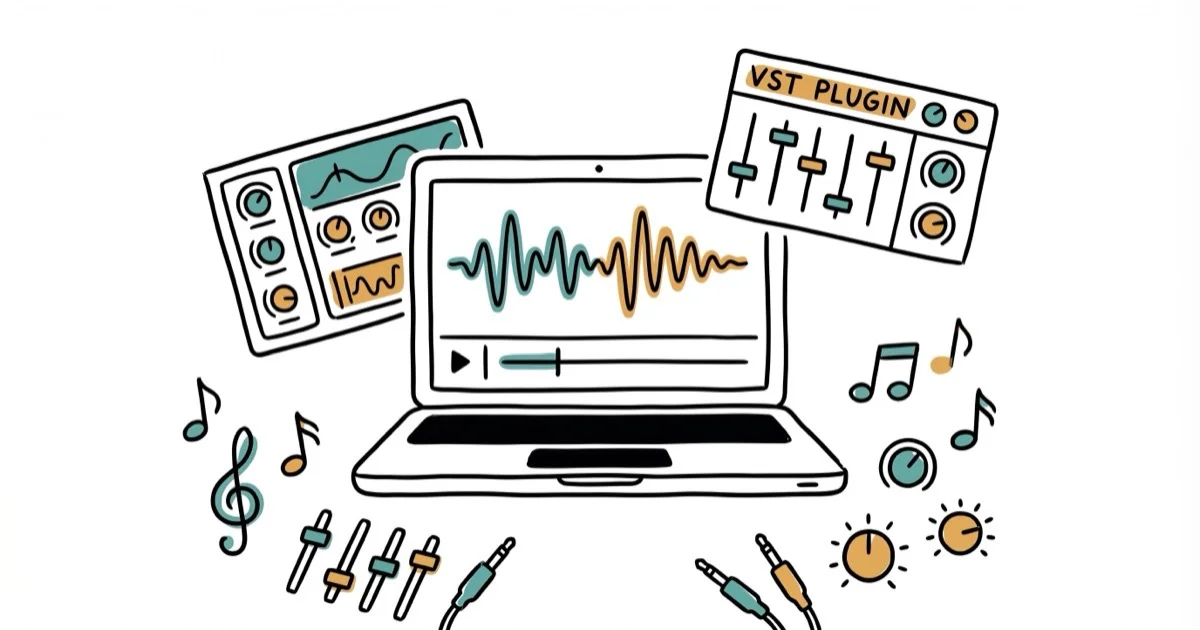
Quick AnswerThe Audacity VST Enabler was a plugin required for Audacity 1.x to load VST effects. Modern Audacity (3.x) has built-in VST2 and VST3 support, so the Enabler is no longer needed.
The Audacity VST Enabler is a legacy plugin from the Audacity 1.x era. You don’t need it anymore. Modern Audacity 3.x loads VST2 and VST3 plugins natively on Windows, macOS, and Linux without any extra enabler.
- The VST Enabler was only required for Audacity 1.x and has been removed from the official site
- Audacity 3.2+ natively supports VST2, VST3, LV2, AU (macOS), and Nyquist
- VST instruments (synths, virtual guitars) still don’t work in any Audacity version
- 64-bit Audacity can’t load 32-bit plugins, which is the most common reason a plugin won’t appear
Use Tools>Plugin Managerto enable newly installed VST effects after placing them in the correct folder
#What Was the Audacity VST Enabler?
Back in the Audacity 1.x days (roughly 2000-2010), the software couldn’t load VST effect plugins on its own. You had to download a separate file called the VST Enabler, drop it into the Plug-Ins folder, and only then would Audacity recognize your VST effects. According to the Audacity Support documentation, this plugin acted as a bridge between Audacity’s internal audio engine and the VST format developed by Steinberg.
The Enabler was a small DLL file on Windows that you copied into C:\Program Files\Audacity\Plug-Ins. On macOS, it went into the Applications/Audacity folder. You’d restart Audacity after copying the file, and your VST effects would finally show up under the Effect menu.
The Audacity team removed the VST Enabler download from their official website years ago. It’s no longer necessary.
#Does Modern Audacity Still Need the VST Enabler?
No. Audacity has included native VST support since version 2.x. The Audacity manual on VST effects confirms that the software loads VST effects on all operating systems without any additional enabler plugin.
Here’s what each major version supports:
| Audacity Version | VST2 | VST3 | Enabler? |
|---|---|---|---|
| 1.x | Enabler only | No | Yes |
| 2.x | Built-in | No | No |
| 3.0-3.1 | Built-in | No | No |
| 3.2+ | Built-in | Built-in | No |
If you’re still on Audacity 1.x, update now. It’s free and takes about 3 minutes.
#Installing VST Plugins in Audacity 3.x
The process changed significantly from the old Enabler days. Here’s how it works in current Audacity 3.x builds.
#Step 1: Download the Plugin
Get your VST plugin from a trusted source. The official Audacity Plugins page lists verified options. Third-party sites like KVR Audio and Plugin Boutique also host thousands of free VST effects.
Make sure you grab the 64-bit version. According to the Audacity FAQ, Audacity 3.x is 64-bit only and silently ignores 32-bit plugins. No error, no warning. They just won’t appear.
#Step 2: Place Files in the Right Folder
Where you put the files depends on your OS.
Windows:
- VST2 (.dll):
C:\Program Files\Audacity\Plug-InsorC:\Program Files\Common Files\VST2 - VST3 (.vst3):
C:\Program Files\Common Files\VST3
macOS:
- VST (.vst):
/Library/Audio/Plug-Ins/VST - VST3 (.vst3):
/Library/Audio/Plug-Ins/VST3
Linux:
- VST2:
~/.vstor/usr/local/lib/vst
Don’t mix formats. Putting a .vst3 file in a VST2 folder won’t work because Audacity scans each folder for its specific format only.
#Step 3: Enable the Plugin in Audacity
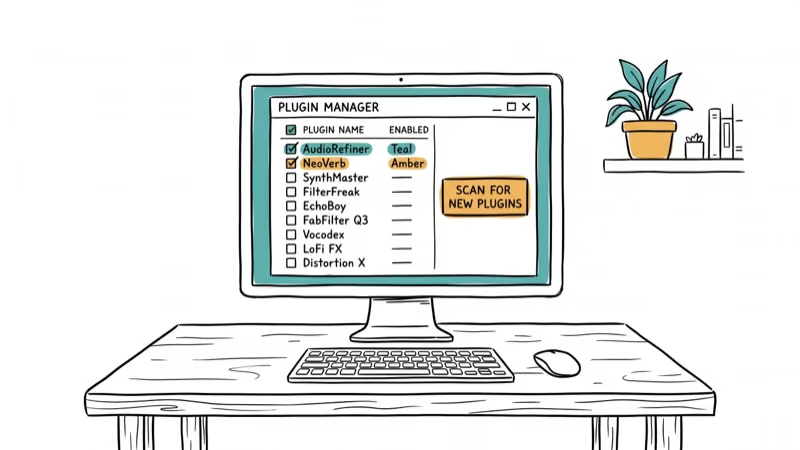
Open Audacity and go to Tools > Plugin Manager. Click Rescan at the bottom. Your new plugin should appear with a “New” status. Select it, click Enable, then hit OK.
On some older 3.x builds, the path is Effect > Plugin Manager instead. Both routes lead to the same dialog.
#Step 4: Apply Effects to Your Audio
Import or record an audio track, then select the portion you want to process. Go to Effect and scroll down to find your newly installed plugin. Adjust the parameters and click Apply.
Audacity 3.1 and later can run many plugins as realtime effects, so you can preview changes during playback. For project context, see Audacity background.
#Supported Plugin Formats in Audacity 3.2+
Audacity handles more than VST. Based on the Audacity plugin installation guide, here’s the full breakdown:
| Format | Platform | Notes |
|---|---|---|
| VST2 | All | Legacy, still widely used |
| VST3 | All | Modern standard, better CPU |
| AU | macOS only | Native Apple format |
| LV2 | All | Open-source LADSPA successor |
| LADSPA | All | Older Linux format |
| Nyquist | All | Audacity’s own scripting format |
The gap that still exists is VST instruments. Audacity won’t load synths, samplers, or anything that generates sound from MIDI input. If you need virtual instruments, a full DAW like GarageBand or Reaper is the way to go.
#Troubleshooting VST Plugins in Audacity
#Plugin Doesn’t Show Up After Install
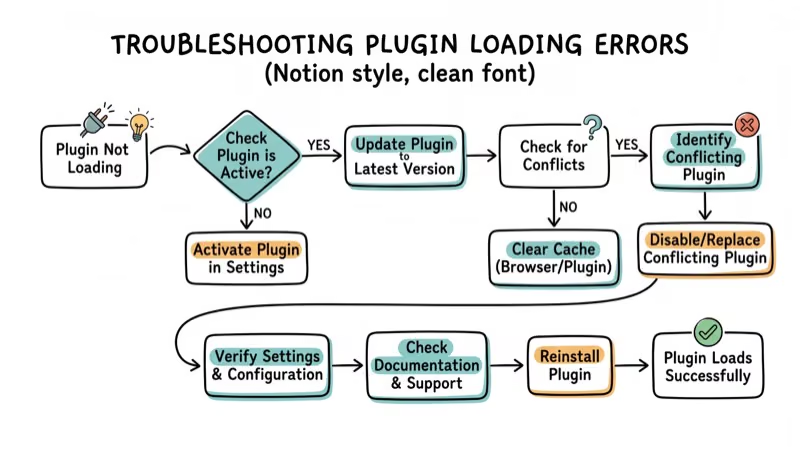
This is the most common problem. It almost always comes down to one of three causes:
- Wrong folder - Double-check the exact path for your OS listed above
- 32-bit plugin on 64-bit Audacity - Download the x64 version
- Not enabled -
Open Tools>Plugin Manager andmanually enable it
Still stuck? Delete the pluginregistry.cfg file in Audacity’s settings folder (%AppData%\audacity\ on Windows, ~/Library/Application Support/audacity/ on macOS) and restart the application.
#Effects Are Greyed Out
You can’t apply effects during playback. Hit Stop first, then select your audio region. This catches a lot of first-time users off guard.
#Plugin Interface Looks Wrong
Some VST plugins have graphical interfaces that don’t render correctly in Audacity. Open the plugin from the Effect menu and look for an Options button. Uncheck Enable Graphical Interface to switch to plain text controls. This reliably works for audio compressor plugins whose custom interfaces fail to display.
#Audio Sounds Distorted After Effects
You probably stacked too many effects or cranked parameters too high. Undo with Ctrl+Z (Cmd+Z on Mac) and try lower values. If you’re adjusting equalizer settings, start with 3-6 dB changes instead of maxing out sliders.
#Best Free VST Plugins for Audacity
You don’t need to spend anything to get professional-quality effects.
Noise reduction - Audacity has a built-in noise reduction tool, but ReaPlugs from Cockos gives you finer control over frequency-specific gating and compression. Particularly helpful if you’re dealing with speaker buzzing or persistent background hum in your recordings.
Compression and EQ - TDR Nova (free, VST3) combines dynamic EQ and multiband compression in one plugin. Solid choice.
Reverb and voice effects - OrilRiver is a free VST reverb with surprisingly good quality for the price. If you’re into voice changing for Discord or streaming, pairing reverb with a pitch shift plugin creates convincing character voices without paid software.
The official Audacity plugins directory catalogs even more free options sorted by effect type.
#Audacity vs. Full DAW Software
Audacity handles recording, editing, and mixing with effects well enough for most common tasks. For podcasts, voiceovers, and basic music editing, it does the job. It pairs with a USB audio interface to record multi-track sessions without problems.
Where it falls short is MIDI support and virtual instruments. If you need those features, Reaper ($60, unlimited free trial), GarageBand (free on Mac), or LMMS (free, cross-platform) will serve you better. Many podcasters record in a DAW and export to Audacity for editing and mastering, which gives you the best of both worlds.
For simpler audio tasks like fixing no-sound issues in games or troubleshooting Discord stream audio, Audacity’s built-in tools handle everything without any plugins.
#Bottom Line
The Audacity VST Enabler is a relic from the 1.x era. Any Audacity version from the past decade already has native VST support. Update to 3.2 or later for VST3 compatibility, drop your plugin files in the correct OS-specific folder, enable them through Plugin Manager, and you’re done. Takes under 5 minutes.
#Frequently Asked Questions
Do I need the Audacity VST Enabler in 2026?
No. The VST Enabler was only for Audacity 1.x, which is over 15 years old. Every version from 2.x onward has built-in VST support, and 3.2+ adds VST3. Update Audacity and install plugins directly.
Why won’t my VST plugin show up in Audacity?
Three common causes: wrong folder location, 32-bit plugin on 64-bit Audacity, or the plugin isn’t enabled. Verify the folder path for your OS, confirm you have the 64-bit version, and check Tools > Plugin Manager.
Can Audacity load VST instruments like synths?
No. Audacity loads effect plugins only, so synths, samplers, and other VST instruments that generate sound from MIDI won’t work. You’ll need a full DAW for that. Reaper, GarageBand, and FL Studio all support VST instruments, and Reaper’s unlimited free trial makes it the easiest to test.
What’s the difference between VST2 and VST3 in Audacity?
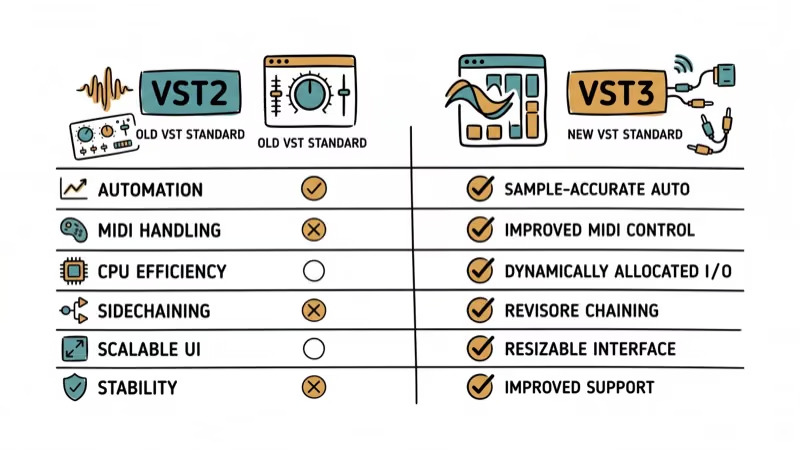
VST3. It’s the newer format with better CPU efficiency. Audacity 3.2+ supports both VST2 and VST3, but VST3 plugins also give you resizable interfaces.
Where do I find free VST plugins for Audacity?
Start at plugins.audacityteam.org for verified options. KVR Audio has over 4,000 free plugins you can filter by format, platform, and effect type. Plugin Boutique and GitHub are also worth checking.
Is it safe to download VST plugins from third-party websites?
Stick to KVR Audio, Plugin Boutique, or the developer’s own website. Random download sites often bundle plugins with adware or modified installers that can compromise your system. On Windows, always scan .dll files with your antivirus before placing them in the plugins folder, and on macOS, only install plugins from developers that provide notarized packages.
Can I use VST plugins on Audacity for Mac?
Yes. Audacity for macOS supports VST2, VST3, and Audio Units. Place .vst files in /Library/Audio/Plug-Ins/VST, .vst3 files in /Library/Audio/Plug-Ins/VST3, and .component files in /Library/Audio/Plug-Ins/Components.
How many VST plugins can Audacity handle at once?
There’s no set limit. Performance depends on your CPU and RAM. A mid-range laptop with 16 GB RAM can run several VST effects on a single track without lag, but stacking too many introduces noticeable playback delays.

Google Messages Error 3100: Why RCS Is Broken on Galaxy
Google Messages RCS error 3100 hits Galaxy owners after phone or carrier switches. Google told 9to5Google a fix is coming. Here's what actually helps.

Is This Bank App Real? Spot a Fake App on Your Home Screen
A bank app can land on your home screen from a web page with no install warning. Learn the checks that tell a real banking app from a phishing web app.

Apps Crashing After iOS 27 Update? Fix Order (2026)
Apps crashing after the iOS 27 update? Update the app in the App Store first, then offload and reinstall to clear stale cache, then restart. The fix order.

Do AI Translation Earbuds Work Offline? What to Know
Do AI translation earbuds work offline? A few do with downloaded language packs, but most need the cloud. Here's what works offline and what you give up.