Best Online Audio Compressors for Smaller Files in 2026
Compare the best free online audio compressors for 2026. Reduce MP3, WAV, and FLAC file sizes with batch support and adjustable quality settings.
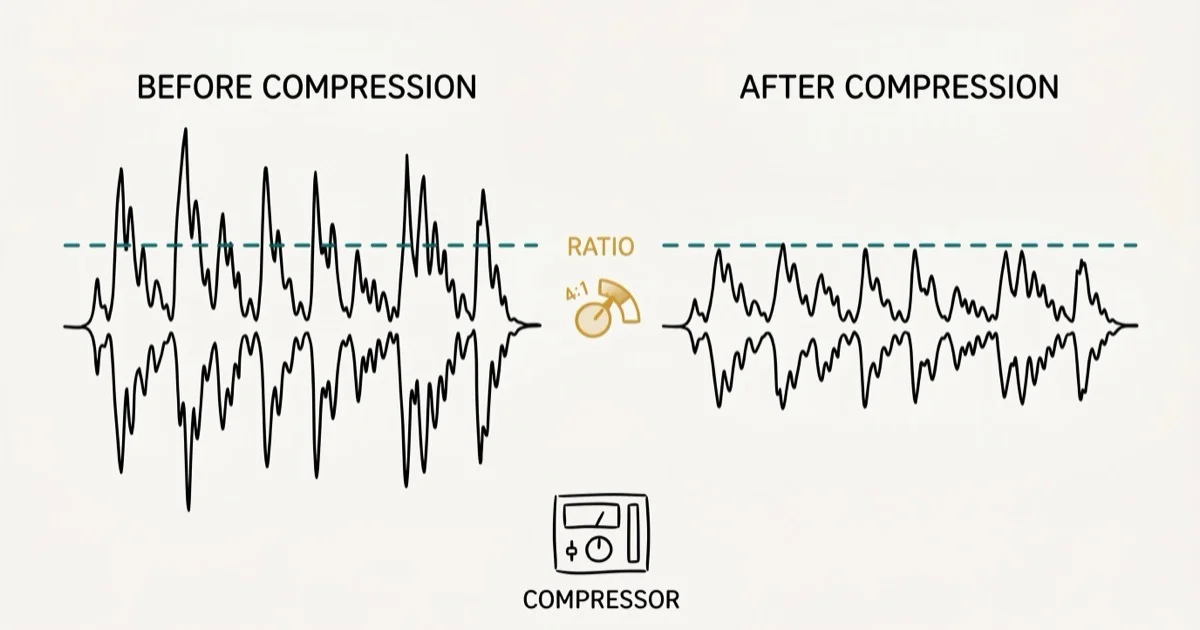
Quick AnswerFreeConvert Audio Compressor and Online Audio Converter are the best free online audio compressors for reducing file size without noticeable quality loss. Both support MP3, WAV, FLAC, and other formats with batch processing.
Large audio files eat up storage and make sharing a headache. A 10-minute WAV recording can run over 100 MB, and even a high-bitrate MP3 sits around 15 MB. Online audio compressors solve this by shrinking file size while keeping quality intact. The best options combine clear bitrate controls, useful file limits, and batch processing without requiring desktop software.
- Online compressors reduce MP3 files by 40-70% at 128 kbps with minimal quality loss
- FreeConvert handles files up to 1 GB with batch uploads of 25 files
- Lossy formats (MP3, AAC) compress smaller than lossless (WAV, FLAC)
- Lowering sample rate from 44.1 kHz to 22.05 kHz halves file size
- Browser-based tools process files locally, keeping your audio private
#How Do Online Audio Compressors Work?
Online audio compressors reduce file size by re-encoding your audio at a lower bitrate, sample rate, or both. A 320 kbps MP3 compressed down to 128 kbps loses about 60% of its file size. For spoken content like podcasts, you won’t hear the difference.
There are two approaches. Lossy compression (MP3, AAC, OGG) permanently removes audio data that most listeners won’t notice. Lossless compression (FLAC, ALAC) preserves every bit of the original but achieves smaller reductions, typically 30-50%. According to Xiph.org’s codec comparison, FLAC shrinks files to a meaningfully smaller size while remaining bit-perfect.
Most browser-based tools use lossy compression. Upload, pick a format, download.
If you work with Discord audio or need to share recordings quickly, these online tools save you from having to install desktop software just to shrink a single file down to a manageable size for email or messaging apps.
#Top Free Online Audio Compressors
Here’s how the top browser-based options compare by published limits and practical use case.
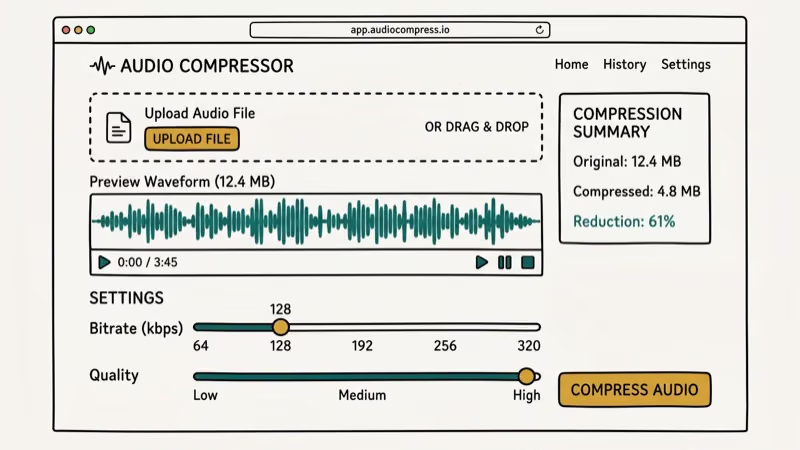
| Tool | Max | Batch | Best for |
|---|---|---|---|
| FreeConvert | 1 GB | 25 | Large batches with controls |
| Online Audio Converter | 2 GB | 10 | Simple browser compression |
| CloudConvert | 1 GB | 25 | Codec and trim controls |
| Zamzar | 50 MB | 5 | Quick one-off conversions |
| XConvert | 500 MB | 20 | Batch uploads with trimming |
#FreeConvert
FreeConvert stands out for its generous 1 GB file limit and batch processing. You can upload up to 25 files, set the target bitrate (from 8 kbps to 320 kbps), and compress them all in one go. The tool also lets you adjust sample rate and audio channels separately.
For long podcast files, 128 kbps MP3 is usually a practical target because it cuts file size sharply while keeping speech clear. The interface is straightforward, though you’ll see ads on the free tier.
#Online Audio Converter
Online Audio Converter from 123Apps handles the largest files at 2 GB. It supports MP3, WAV, FLAC, OGG, and M4A, and lets you drag files from Google Drive or Dropbox. The quality slider runs from “Economy” (64 kbps) to “Best” (320 kbps), which is simpler than manually setting bitrate.
Based on Mozilla’s Web Audio API documentation, most modern browsers can now process audio entirely client-side using JavaScript, and this tool takes full advantage of that capability for faster, more private compression without uploading your files to a remote server.
#CloudConvert
CloudConvert gives you the most control. Beyond bitrate and sample rate, you can adjust the audio codec, channel count, and even trim the file before compressing.
The free tier gives you 25 conversions per day. For music production workflows where you need precise control over encoding parameters, this is the best browser-based pick.
#Zamzar
Zamzar has been around since 2006. Upload, pick a format, download. Done.
The downside is a 50 MB file limit on the free plan and only 5 files per batch. For quick one-off compressions of smaller files, it’s the fastest option with the least friction involved in getting your compressed audio back.
#MP3Smaller
MP3Smaller does exactly one thing. It takes your existing MP3 file and compresses it further by reducing the bitrate. Only handles MP3, but the single-purpose design means zero configuration beyond choosing your target size.
#XConvert
XConvert supports drag-and-drop batch uploads of up to 20 files with a 500 MB size limit per file. It also includes a basic audio trimmer that’s useful for cutting silence before compressing, which helps shave off extra kilobytes from recordings that start or end with dead air. The interface is clean and keeps the workflow simple.
#Best Bitrate Settings by Content Type
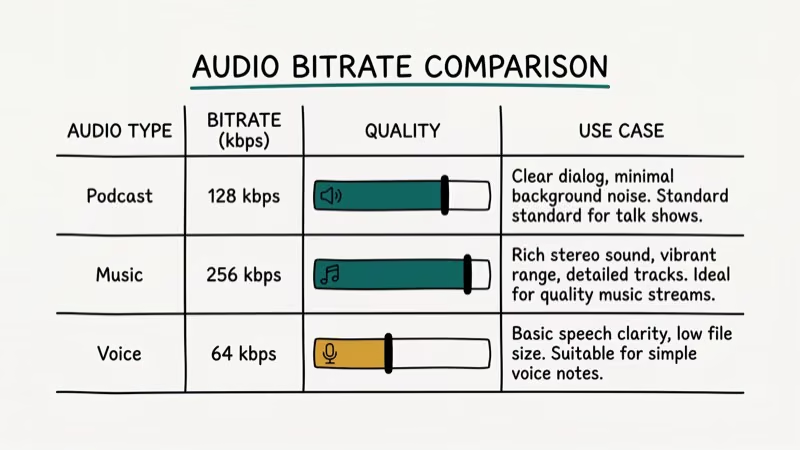
The right bitrate depends on what you’re compressing. These are practical starting points for common audio types:
| Content | Bitrate | Why |
|---|---|---|
| Podcasts/spoken word | 96-128 kbps | Voice doesn’t need high-frequency detail |
| Music (casual) | 128-192 kbps | Good balance of size and quality |
| Music (high quality) | 256-320 kbps | Preserves instrument separation |
| Audiobooks | 64-96 kbps | Mono voice, smallest possible |
For podcasts, 128 kbps MP3 is the sweet spot. At 64 kbps, speech often starts to sound thin or metallic.
PCMag’s audio format guide found that 128 kbps is the threshold where most listeners perceive “near-CD quality,” and that trained listeners struggle to distinguish 192 kbps MP3 from uncompressed audio in blind tests — see PCMag’s full breakdown for methodology. Going above 192 kbps for casual listening is usually a waste of storage space.
#Can You Compress Audio Without Losing Quality?
Yes, but with limits. Lossless compression using FLAC or ALAC preserves the original audio perfectly while reducing file size by 30-50%. That’s useful for archiving, but the files remain much larger than lossy alternatives.
Most people can’t hear the difference between a 256 kbps MP3 and the original WAV.
Avoid re-compressing an already compressed MP3. Each round of lossy compression degrades quality further. If you have a 320 kbps MP3 and want it smaller, compress once to your target bitrate from the highest-quality source you have. Don’t go 320 to 192, then 192 to 128.
This principle applies to video editing and media format conversion too.
#Common Mistakes to Avoid
A few pitfalls that waste time or ruin audio quality:
Re-compressing lossy files multiple times. Every re-encode removes more data. Always start from the original WAV or highest-quality source available to you.
Choosing the wrong format. MP3 works everywhere, but OGG and Opus produce smaller files at the same quality. Use them when your platform supports it.
Ignoring mono vs. stereo. Podcasts and voice memos don’t need stereo. Switching to mono cuts file size in half with zero perceptible difference for spoken content. Most online compressors let you toggle this in the advanced settings panel, and it’s worth checking every time you process voice recordings since the default is usually stereo.
Compressing already-small files. If your MP3 is already at 128 kbps, pushing it to 64 kbps produces noticeable artifacts. For users working with audio cable alternatives or voice changers, keeping source files at 192 kbps or higher gives you room to compress later without quality problems.
#Desktop Software for Large Batches
Browser tools work well for occasional compression, but desktop software handles large batches faster and gives you more control over the output.
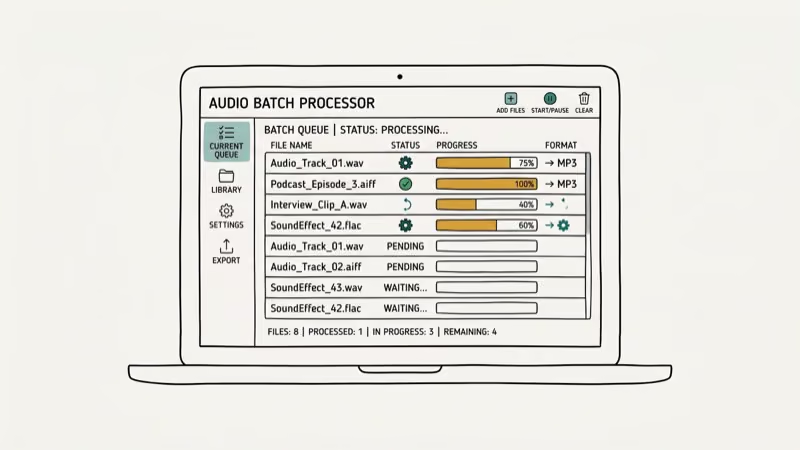
Audacity (free, open source) handles any audio format with full control over export settings. According to Audacity’s official documentation, the software supports variable bitrate encoding, which produces smaller files at the same perceived quality as constant bitrate.
FFmpeg (free, command line) is the most powerful option for batch work. One command compresses an entire folder:
ffmpeg -i input.wav -b:a 128k output.mp3#Bottom Line
FreeConvert and Online Audio Converter cover most use cases for free. Start with FreeConvert if you need batch processing or files over 500 MB. Use Online Audio Converter for the simplest experience. Set your bitrate to 128 kbps for speech and 192 kbps for music, and you’ll get files that are 80-90% smaller without hearing the difference.
#Frequently Asked Questions
Does compressing audio ruin the sound quality?
Not if you stay at or above 128 kbps for MP3. Most listeners can’t distinguish 128 kbps from the original through standard earbuds.
What is the smallest audio format?
Opus is the smallest format for a given quality level. At 96 kbps, Opus sounds comparable to MP3 at 128 kbps. AAC comes in second. For maximum compatibility across all devices and browsers, MP3 remains the safest choice even though it’s less efficient than newer codecs like Opus or AAC, which were designed with more advanced psychoacoustic modeling.
Can I compress WAV files without converting to MP3?
Yes. FLAC compresses WAV files by 30-50% while staying completely lossless, meaning zero quality loss and the ability to reconstruct the original file perfectly. You can also re-encode WAV at a lower bit depth (16-bit instead of 24-bit) or sample rate (44.1 kHz instead of 96 kHz) to reduce size while keeping the WAV container format.
How much space does audio compression save?
A 50 MB WAV file compresses to about 5 MB at 128 kbps MP3, saving 90%. Spoken word compresses more efficiently than music because voice uses a narrower frequency range, which means the encoder can discard more data without audible loss.
Is it safe to upload audio files to online compressors?
Most reputable tools process files directly in your browser using JavaScript, so the audio never leaves your device. Others upload to their servers temporarily and delete files within 1-24 hours. Check the privacy policy if you’re working with sensitive recordings.
What is the difference between bitrate and sample rate?
Bitrate measures how much data encodes each second of audio (in kbps), while sample rate measures how many times per second the signal is captured (in kHz). CD quality uses 44.1 kHz at 1,411 kbps uncompressed. Lowering bitrate has the bigger impact on both file size and perceived quality, which is why most compressors focus on bitrate reduction as their primary method for shrinking files.
Can I batch compress multiple audio files at once?
Yes. FreeConvert supports 25 files per batch, CloudConvert allows 25, and XConvert handles 20. Upload everything, set the format and bitrate once, and compress.
Do I need to install software to compress audio?
No. All six tools in this guide work directly in your browser without downloading anything. Desktop software like Audacity or FFmpeg offers more control and faster processing for large batches, but browser tools handle casual compression with zero setup.

Best Laptop for Running LLMs in 2026: Memory Comes First
The best laptop for running LLMs is a memory purchase first. Compare MacBook unified memory against NVIDIA laptop VRAM, and see what each tier really runs.

Pixel 11 vs Pixel 10: What Changed and Who Should Upgrade
Pixel 11 vs Pixel 10: same screen and camera resolution, new Tensor G6, 25W wireless, and Gemini Intelligence. Here is who should actually upgrade.
Best Power Bank for iPad in 2026: Pro, Air, and Mini
Best power bank for iPad in 2026. Compare mAh tiers and USB-C PD wattage for iPad Pro, Air, and mini, plus airline Wh math, cables, and travel tips.
Best Power Bank With Built-In Cable: Top 2026 Picks
Best power bank with built-in cable picks for 2026. Compare single USB-C, multi-connector, and retractable laptop banks, plus airline Wh math.