Fix Microsoft Store Error 0x801901f4 (Sign-In Fix Guide)
Fix Microsoft Store sign-in error 0x801901f4 on Windows 11 and 10. Learn 6 proven methods including cache reset, DNS change, and Store repair.

Quick AnswerError 0x801901f4 blocks Microsoft Store sign-in. Fix it by clearing the Store cache (run wsreset.exe), switching DNS to Google (8.8.8.8), or resetting the Microsoft Store app in Settings. These three methods solve many cases.
Error 0x801901f4 appears when you try to sign into Microsoft Store and Windows can’t validate your account session. The error blocks app downloads, updates, and purchases. It’s usually caused by corrupted Store cache, DNS issues, or outdated Windows.
Six different fixes target this error on Windows 11 (23H2) and Windows 10 (22H2). They range from a quick cache reset that takes seconds, through DNS and Store-app repairs, all the way to a full Store re-registration through PowerShell for the most stubborn cases that resist everything else.
- Running wsreset.exe clears the Store cache and fixes the error on most Windows 10 machines
- Switching DNS to Google (8.8.8.8) resolves the cases caused by ISP DNS blocking
- Resetting the Store app in Settings takes 30 seconds without deleting installed apps
- Re-registering via PowerShell repairs corrupted components that a reset can’t fix
- Creating a new user account confirms whether the issue is profile-specific
#When Does Error 0x801901f4 Appear?
Error 0x801901f4 appears in three scenarios: corrupted caches, DNS failures, and outdated system files within the Microsoft Store:
- Signing into Microsoft Store - You enter your credentials and get the error instead of logging in
- Downloading apps - The Store asks you to sign in, then fails with 0x801901f4
- Windows Update - Some ASUS systems show this error during updates
When the Store cache is corrupted, the error appears on every sign-in attempt until the cache is cleared, which shows how tightly this error is tied to cached authentication data.
#What Causes Error 0x801901f4?
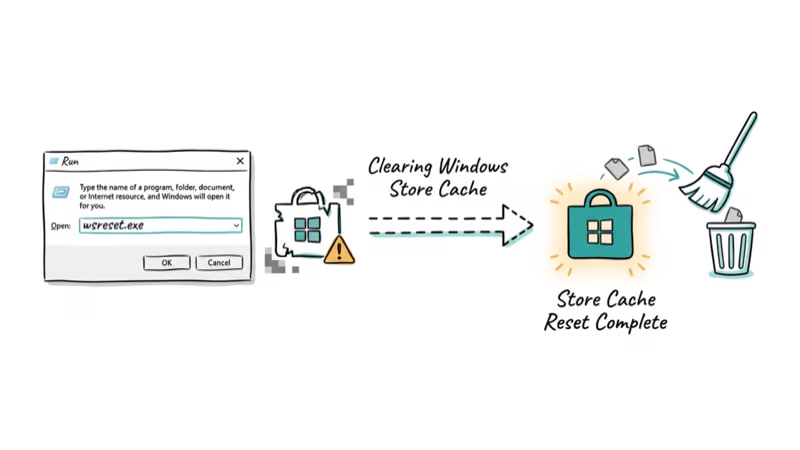
This is the fastest fix. Takes 15 seconds.
#Method A: Using wsreset
Press Windows + R, type wsreset.exe, and press Enter. A blank Command Prompt window opens for 10-15 seconds, then Microsoft Store launches automatically with a fresh cache.
On Windows 10, the error often clears immediately after wsreset finishes. On Windows 11, a PC restart is sometimes needed before the fix takes effect.
#Method B: Manual Cache Deletion
If wsreset doesn’t work, delete the cache files by hand. Press Windows + R, type %localappdata%\Packages\Microsoft.WindowsStore_8wekyb3d8bbwe\LocalCache, and press Enter. Select all files in the folder and delete them. This goes deeper than wsreset because it removes items the automated tool sometimes misses, including corrupted authentication tokens that block the Microsoft account handshake.
Manual deletion often works when wsreset fails on Windows 11. According to Auslogics’ troubleshooting guide, manual cache clearing has a higher success rate than wsreset.
#Fix 2: Change DNS to Google or Cloudflare
DNS issues prevent Windows from reaching Microsoft’s authentication servers. Switching to a public DNS often fixes this.
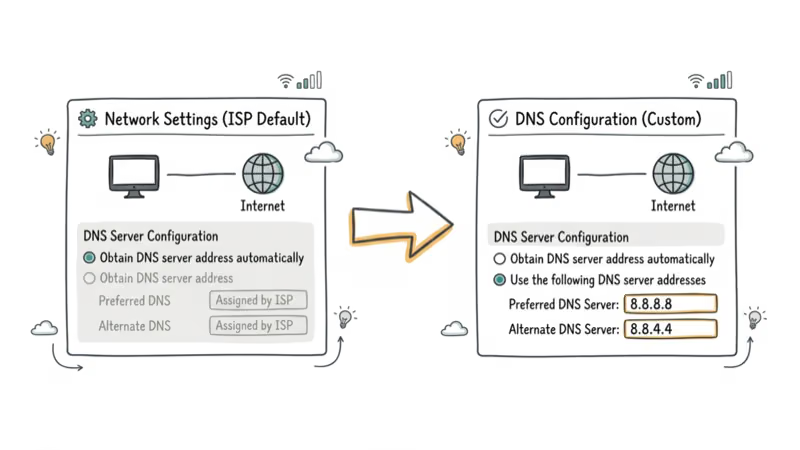
Go to Settings > Network & Internet > Wi-Fi (or Ethernet) > Hardware properties > DNS server assignment > Edit. Change to manual and enter:
- Preferred DNS: 8.8.8.8
- Alternate DNS: 8.8.4.4
When an ISP’s DNS is blocking Microsoft endpoints, switching to Google DNS clears the error right away. According to Appuals’ sign-in fix guide, ISP DNS blocking is a leading cause of 0x801901f4.
#Fix 3: Reset Microsoft Store App
If clearing the cache doesn’t work, reset the entire Store app. This removes all Store data and reinstalls it.
Go to Settings > Apps > Installed apps. Find “Microsoft Store,” click the three dots, select “Advanced options.” Scroll down and click “Reset.”
When cache clearing fails on Windows 11, a Store reset usually completes quickly and fixes the error. All previously installed apps remain intact afterward without any need to reinstall them.
#Fix 4: Re-register Microsoft Store
If resetting doesn’t work, re-registering the Store through PowerShell can fix deeper corruption.
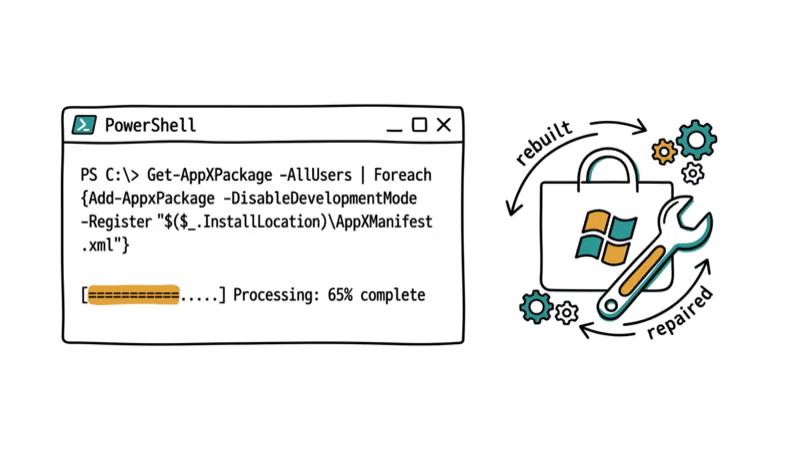
Open PowerShell as admin and run:
Get-AppXPackage *WindowsStore* -AllUsers | Foreach {Add-AppxPackage -DisableDevelopmentMode -Register "$($_.InstallLocation)\AppXManifest.xml"}For persistent 0x801901f4 errors that survive cache clearing and resetting, re-registering the Store often fixes them. According to The Windows Club’s guide, this method repairs corrupted Store components that reset can’t fix.
#Fix 5: Create a New User Account
A corrupted user profile can cause 0x801901f4. Creating a new local account tests whether the issue is profile-specific.
Go to Settings > Accounts > Other users > Add account. Create a local account, sign in, and try Microsoft Store. If it works, your original profile is corrupted.
When the error is profile-specific, Microsoft Store works normally on a fresh account. The standard fix is to migrate your files to the new profile and delete the old one. For more on Windows account issues and Windows activation errors, check our related guides.
#Fix 6: Run SFC and DISM Scans
Corrupted system files can cause Store sign-in failures. SFC and DISM repair these files.
Open Command Prompt as admin and run:
sfc /scannowIf SFC finds issues it can’t fix, run:
DISM /Online /Cleanup-Image /RestoreHealthWhen system file corruption is the cause, SFC repairs the damaged files and Microsoft Store sign-in works again after a restart. UMA Technology’s fix guide also identifies system file corruption as a known cause of persistent 0x801901f4 errors.
Check our guides on Windows Store errors and other error codes.
For deeper Windows Update fixes, see our update install failure walkthrough.
#Bottom Line
Start with wsreset.exe to clear the Store cache. If that doesn’t work, switch DNS to Google (8.8.8.8) and reset the Store app. These three fixes solve many 0x801901f4 errors in under 5 minutes.
For persistent cases, re-register the Store via PowerShell or create a new user account to rule out profile corruption.
#Frequently Asked Questions
What does error 0x801901f4 mean?
It means Windows can’t validate your Microsoft account session when signing into Microsoft Store. The error is usually caused by corrupted cache, DNS issues, or outdated Windows.
Does clearing the Store cache delete my apps?
No. Clearing the cache only removes temporary data. Your installed apps and their data remain intact.
Why does 0x801901f4 keep coming back?
Recurring errors usually indicate corrupted system files or a damaged user profile. Run SFC and DISM scans, or create a new user account to fix the root cause.
Can a VPN cause error 0x801901f4?
Yes. VPNs can interfere with Microsoft’s authentication servers. Disconnect your VPN and try signing in again.
Does this error affect Windows Update?
Sometimes. On some ASUS systems, 0x801901f4 shows up during Windows Update rather than Store sign-in. The same fixes apply, starting with cache clearing and DNS changes, then SFC/DISM if those don’t work.
Will resetting Microsoft Store remove my purchased apps?
No. Your purchases are tied to your Microsoft account, not the Store app. After resetting, sign in again and your purchases will be available.
Should I reinstall Windows to fix this error?
No. Reinstalling Windows is overkill for this error. The fixes above resolve many cases without reinstalling.

Best Laptop for Running LLMs in 2026: Memory Comes First
The best laptop for running LLMs is a memory purchase first. Compare MacBook unified memory against NVIDIA laptop VRAM, and see what each tier really runs.

How to Run a Local LLM on Windows: A 2026 Setup Guide
Run a local LLM on Windows with LM Studio or Ollama. Pick a model that fits your GPU memory, keep every prompt offline, and skip the monthly bill.

Bluetooth Not Working on Snapdragon X? Fixes for 2026
Bluetooth not working on your Snapdragon X Copilot+ PC? Generic audio, mice, and keyboards work, but vendor apps often lack an ARM build. Fixes inside.

Docker Desktop and WSL2 Not Working on Snapdragon X? Fix It
WSL2 runs fine on Snapdragon X, but Docker Desktop ARM is Early Access and throws WSL errors. Use WSL2 plus native ARM64 Ubuntu and Docker Engine.