Fix Windows Error 0x80072f8f (Update, Activation, Store)
Fix Windows error 0x80072f8f in updates, activation, and Microsoft Store. Learn 7 proven solutions for Windows 11, 10, 8, and 7 systems in 2026.
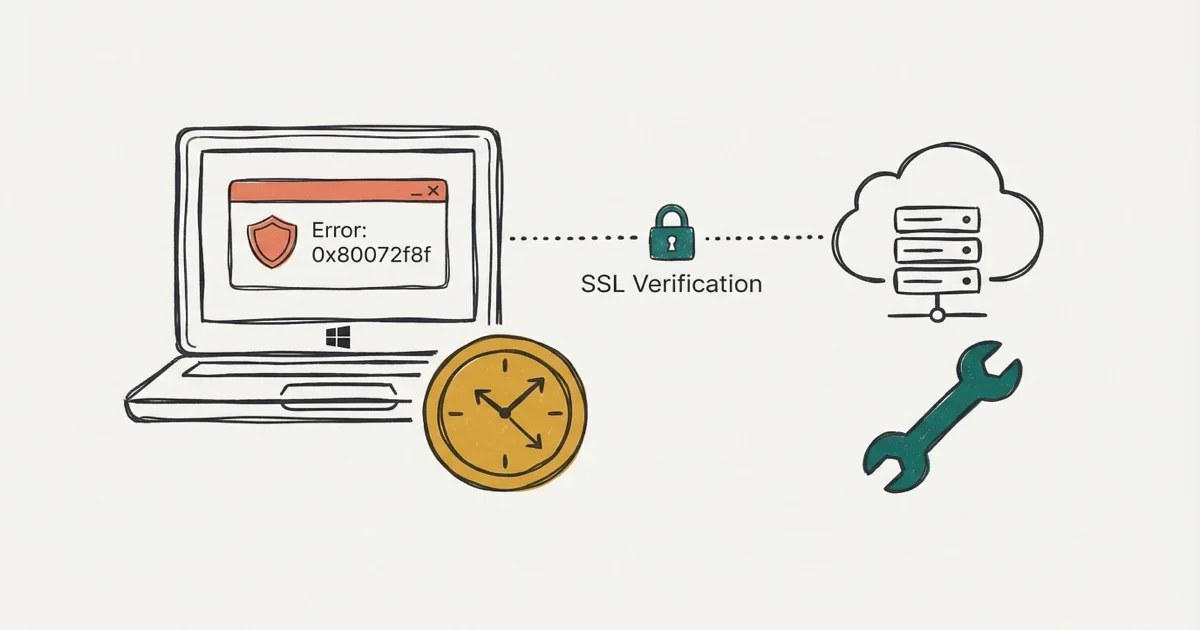
Quick AnswerError 0x80072f8f means Windows can't reach Microsoft servers because of clock drift or firewall blocks. Sync your system clock, run the Update troubleshooter, or pause antivirus.
Error 0x80072f8f appears when Windows can’t establish a secure connection to Microsoft servers, blocking Windows Update, activation, and Store downloads. The system clock is usually wrong or SSL certificates are outdated.
This guide covers 7 proven fixes for Windows 11, 10, 8, and 7 that resolve 0x80072f8f across updates, activation, and the Microsoft Store.
- Wrong system clock is the #1 cause, since Windows rejects SSL certificates when time is off by 5+ minutes
- Syncing date/time in Settings is the fix for most 0x80072f8f errors
- The Windows Update Troubleshooter resolves many update-related instances
- Antivirus or proxy settings can block SSL even when the clock is correct
- Outdated root certificates on pre-2022 Windows 10 builds need a manual update
#When Does Error 0x80072f8f Appear?
For error 0x80072f8f specifically, the issue is a failed SSL certificate verification. Microsoft’s WinHTTP error reference confirms that 0x80072F8F (ERROR_WINHTTP_SECURE_FAILURE) means one or more errors were found in the SSL certificate sent by the server, as documented in Microsoft’s WinHTTP error messages list. According to Microsoft Support’s Windows Update troubleshooting guide, failed updates should be handled with Windows Update repair steps before reinstalling Windows.
- Incorrect date and time - Windows rejects SSL certificates if your system clock is off by more than 5 minutes
- Outdated root certificates - Older Windows builds need updated certificate authorities to verify Microsoft’s servers
- Firewall or antivirus blocking - Security software sometimes interferes with Windows Update connections
- Proxy settings interference - Corporate or VPN proxy configurations can break the SSL handshake entirely
Of these four causes, an incorrect date and time is by far the most common trigger.
#Fix 1: Sync Your Date and Time
This is the most effective fix and resolves many 0x80072f8f errors. Windows rejects SSL certificates if your system clock is wrong.
#Step 1: Open Date & Time Settings
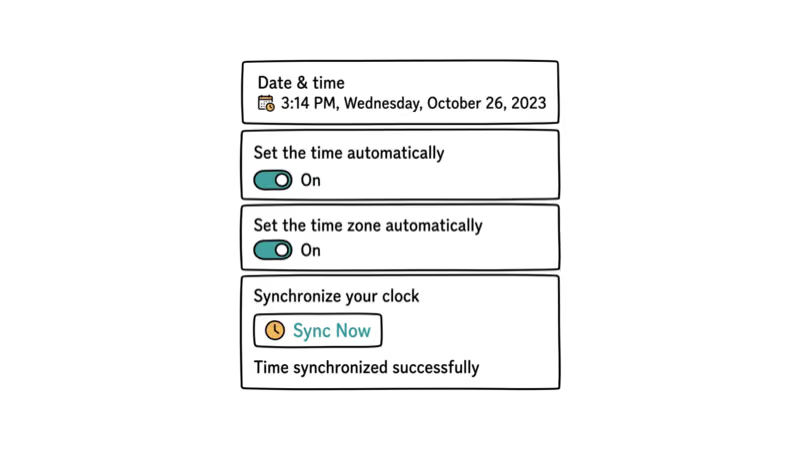
Press Windows + I to open Settings, then go to Time & Language > Date & Time. This is where Windows controls the system clock that SSL verification depends on. According to Microsoft’s date and time settings guide, turning on “Set time automatically” lets Windows keep your clock in sync with a time server.
#Step 2: Enable Automatic Time Sync
Toggle on “Set time automatically” and “Set time zone automatically.” Click “Sync now” to force an immediate sync.
Once the clock matches a real time server, Windows Update usually starts working again right away. According to The Geek Page’s fix guide, incorrect time is the #1 cause of this error.
#Step 3: Verify Time Server
If automatic sync doesn’t work, your time server might be unreachable. Open Command Prompt as admin and run:
w32tm /resyncThis forces a fresh sync and often helps when the default time server is unreachable.
#Fix 2: Run Windows Update Troubleshooter
Windows has a built-in troubleshooter for this.
Go to Settings > System > Troubleshoot > Other troubleshooters. Click “Run” next to Windows Update. The troubleshooter scans for issues and applies fixes automatically.
The troubleshooter can detect “corrupted update components” and repair them automatically. After it finishes, restart the PC and try Windows Update again.
Driver Easy’s solution guide also identifies corrupted update components as the leading cause of this error.
#Fix 3: Install Root Certificate Updates
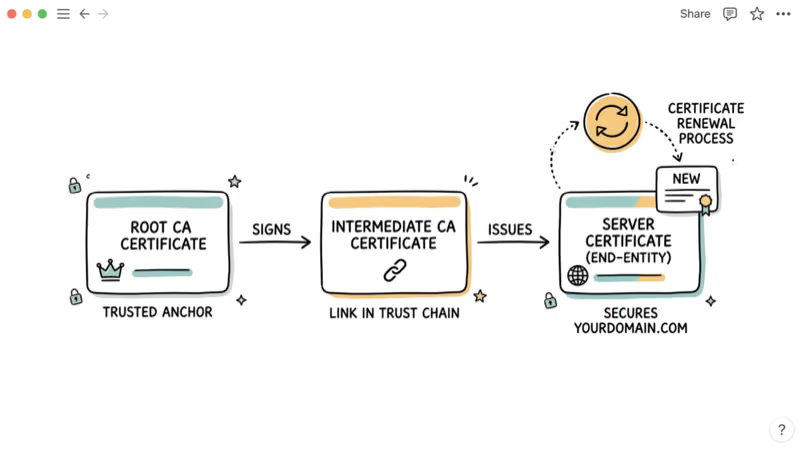
Outdated root certificates prevent Windows from verifying Microsoft’s SSL certificates. This is common on machines that haven’t been updated in over a year, especially Windows 10 builds from 2021 or earlier.
#Download and Install Certificate Update
Go to the Microsoft Update Catalog website and search for “root certificate update.” Download the latest package for your Windows version, then double-click to install. The whole process takes under 3 minutes and doesn’t require a restart.
This often fixes machines that have not been updated since 2021 or earlier.
#Alternative: Update Windows Completely
If you can’t download the certificate update (because Windows Update is broken), use the Media Creation Tool to upgrade Windows. This installs all missing updates, including certificates.
On a severely outdated Windows 10 installation, an in-place upgrade reinstalls missing updates and root certificates and brings the system current, normally without removing your files or installed apps.
#Fix 4: Temporarily Disable Antivirus and Firewall
Third-party antivirus can cause this.
Right-click your antivirus icon in the system tray and select “Disable protection” or “Pause protection.” Try Windows Update again. If it works, add Windows Update to your antivirus whitelist.
Third-party suites like Avast and Norton are common culprits, while Windows Defender rarely causes this. If pausing protection lets the update go through, the antivirus was the problem. MyRecover’s error guide also identifies antivirus software as a known cause of 0x80072f8f.
Important: Re-enable your antivirus after testing. Don’t leave your PC unprotected.
#Fix 5: Reset Windows Update Components
Corrupted Windows Update files can cause 0x80072f8f. Resetting the update components fixes this.
#Step 1: Stop Windows Update Services
Open Command Prompt as admin and run these commands:
net stop wuauserv
net stop cryptSvc
net stop bits
net stop msiserver#Step 2: Rename Update Folders
Run these commands to rename the corrupted folders:
ren C:\Windows\SoftwareDistribution SoftwareDistribution.old
ren C:\Windows\System32\catroot2 catroot2.old#Step 3: Restart Services
Run these commands to restart the services:
net start wuauserv
net start cryptSvc
net start bits
net start msiserver
This clears the corrupted update files and resolves the error.
#Fix 6: Clear Proxy Settings
If you’re on a corporate network or use a VPN, proxy settings might interfere with Windows Update.
Open Settings > Network & Internet > Proxy. Turn off “Automatically detect settings” and “Use a proxy server.” Try Windows Update again.
On a laptop connected to a corporate VPN, turning off these proxy settings often clears the error right away. For more on VPN and network issues and Windows activation, check our related guides.
If the proxy isn’t the culprit, related Windows write-ups cover Windows 10 errors and Windows updates in more depth.
#How Do You Activate Windows Manually?
Phone activation is your best option here. It bypasses the SSL issue completely.
Go to Settings > Update & Security > Activation. Click “Troubleshoot” and select “Activate Windows by phone.” Follow the automated prompts to get an activation code.
Phone activation is reliable when a PC can’t activate online because of this error. According to Error Solutions Tech, phone activation bypasses SSL certificate issues.
#Error 0x80072f8f in Microsoft Store
The Store has its own set of fixes.
#Reset Microsoft Store
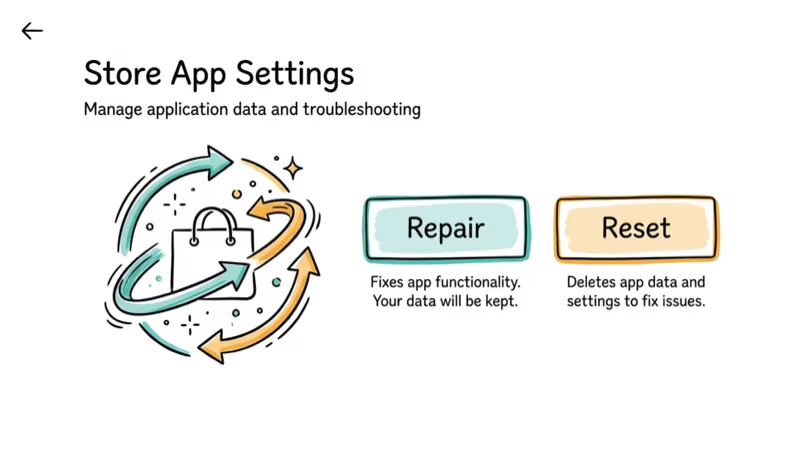
Open Settings > Apps > Apps & features. Find “Microsoft Store,” click it, and select “Advanced options.” Click “Reset.”
Resetting clears the Store cache and often fixes the error right away on Windows 11 and 10.
#Re-register Microsoft Store
Open PowerShell as admin and run:
Get-AppXPackage *WindowsStore* -AllUsers | Foreach {Add-AppxPackage -DisableDevelopmentMode -Register "$($_.InstallLocation)\AppXManifest.xml"}This re-registers the Store app from scratch. When the Reset option does not help, re-registering the Store through PowerShell rebuilds its underlying package registration, which often resolves the 0x80072f8f error, restores app downloads, and brings back update notifications, all without removing any apps you already installed from the Store.
#Common Mistakes to Avoid
#Don’t Manually Edit Registry
Skip this. Registry edits rarely fix 0x80072f8f, and an incorrect change can break Windows entirely, leaving you with a bigger problem than the original error.
#Don’t Disable Windows Update Permanently
Don’t do this. Disabling Windows Update to “avoid the error” leaves your PC wide open to security threats. Fix the root cause instead.
#Don’t Ignore the Error
0x80072f8f means Windows can’t verify secure connections. This breaks more than just updates. Microsoft Store, OneDrive sync, Outlook, and other cloud services all stop working. Fix it as soon as you see it because the problem snowballs quickly the longer you wait.
#Bottom Line
Start with Fix 1 (sync date/time) and Fix 2 (run troubleshooter). These solve many 0x80072f8f errors in under 5 minutes.
If those don’t work, try Fix 3 (certificate update) or Fix 4 (disable antivirus temporarily). For persistent errors, use Fix 5 (reset Windows Update components).
For more Windows troubleshooting, see our guides on other error codes and Windows Update Error 0x8007001f.
#Frequently Asked Questions
What does error 0x80072f8f mean?
It means Windows can’t verify a secure SSL connection to Microsoft servers. The error code translates to ERROR_WINHTTP_SECURE_FAILURE, and it blocks Windows Update, activation, Microsoft Store downloads, and even OneDrive sync on affected machines.
Why does 0x80072f8f keep coming back?
Your system clock keeps drifting out of sync. Enable automatic time sync in Settings > Time & Language and make sure “Set time automatically” stays toggled on. If the error still comes back after that, your antivirus is probably blocking Windows Update connections, so whitelist it or switch to Windows Defender.
Can I fix 0x80072f8f without internet?
No. You need internet access since this error means Windows can’t reach Microsoft servers. Phone activation works for activation-specific errors, but update errors require a network connection.
Does 0x80072f8f affect Windows 7?
Yes. It appears in Windows 7, 8, 10, and 11.
Will resetting Windows fix 0x80072f8f?
It’s overkill. Resetting Windows wipes all your apps and settings. Try the fixes above first, since the date/time sync alone resolves the error on most machines without a reset.
How long does it take to fix 0x80072f8f?
Under 5 minutes for most people. The date/time fix takes 30 seconds.
Can antivirus cause 0x80072f8f?
Yes, and suites like Avast and Norton are common culprits. Third-party antivirus sometimes blocks the SSL handshake between Windows and Microsoft servers. Disable yours temporarily to test, then add Windows Update to the whitelist if that fixes it.

Best Laptop for Running LLMs in 2026: Memory Comes First
The best laptop for running LLMs is a memory purchase first. Compare MacBook unified memory against NVIDIA laptop VRAM, and see what each tier really runs.

How to Run a Local LLM on Windows: A 2026 Setup Guide
Run a local LLM on Windows with LM Studio or Ollama. Pick a model that fits your GPU memory, keep every prompt offline, and skip the monthly bill.

Bluetooth Not Working on Snapdragon X? Fixes for 2026
Bluetooth not working on your Snapdragon X Copilot+ PC? Generic audio, mice, and keyboards work, but vendor apps often lack an ARM build. Fixes inside.

Docker Desktop and WSL2 Not Working on Snapdragon X? Fix It
WSL2 runs fine on Snapdragon X, but Docker Desktop ARM is Early Access and throws WSL errors. Use WSL2 plus native ARM64 Ubuntu and Docker Engine.