Fix Windows Update Error 0x8007001f (0x20006 Installation)
Fix Windows Update error 0x8007001f (0x8007001f-0x20006) on Windows 11 and 10. Learn audio driver updates, update component resets, and system repairs.
Quick AnswerError 0x8007001f (0x8007001f-0x20006) blocks Windows feature updates during the SAFE_OS phase. Fix it by updating audio drivers, running SFC/DISM scans, resetting Windows Update components, or deleting temporary update folders. Audio driver conflicts are a common cause.
Error 0x8007001f appears during Windows feature updates with the message “The installation failed in the SAFE_OS phase with an error during REPLICATE_OC operation.” The full error code is usually 0x8007001f-0x20006. This error blocks major Windows updates (like 24H2 or 23H2) and forces the system to roll back to the previous version.
The 8 fixes below apply to both Windows 11 and Windows 10 feature updates that fail with this code.
- Outdated audio drivers are the leading cause of error 0x8007001f, ahead of system file and update-component problems.
- Updating or fully reinstalling your Realtek or Creative audio driver resolves the error in most situations without touching other settings.
- Running the Windows Update Troubleshooter fixes many cases where the error stems from a corrupted update database.
- Renaming the SoftwareDistribution and catroot2 folders forces Windows to rebuild update components and clears persistent failures.
- SFC and DISM scans repair corrupted system files that block the SAFE_OS phase; the combined process takes about 20-40 minutes.
#What Causes Error 0x8007001f?
According to Microsoft, 31 (0x1F) is ERROR_GEN_FAILURE, described as “A device attached to the system is not functioning,” in the system error table. Microsoft’s Windows upgrade troubleshooting guide also explains that feature upgrades move through Downlevel, SafeOS, First boot, and Second boot phases, with SafeOS failures often tied to hardware, firmware, or non-Microsoft disk-encryption issues. The most common causes are:
- Outdated audio drivers - Incompatible sound card drivers blocking updates (the most common cause)
- Corrupted system files - Damaged Windows files preventing update installation
- Invalid user profiles - Leftover or corrupted user accounts
- Windows Update service issues - Broken update components or cache
Of these four scenarios, outdated audio drivers (especially Realtek and Creative packages left behind from older builds) are the most consistent cause.
#Fix 1: Update Audio Drivers
This fixes many error 0x8007001f cases. Outdated audio drivers conflict with Windows feature updates during the SAFE_OS phase.
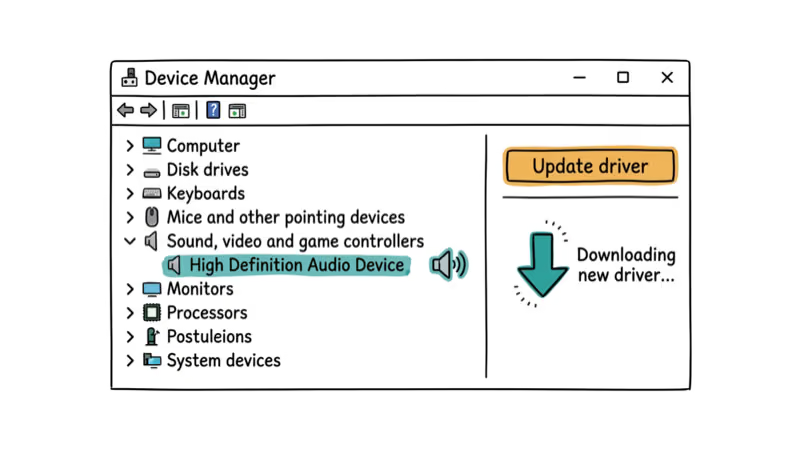
Go to Device Manager (Windows + X > Device Manager). Expand Sound, video and game controllers. Right-click your audio device and select Update driver > Search automatically for drivers.
On a PC with old Realtek HD Audio drivers, Windows Update can fail with error 0x8007001f on every attempt. Updating to the latest Realtek driver from the vendor site often lets the feature update install successfully. Microsoft’s Device Manager driver guide says Windows can update a device driver automatically by right-clicking the device, choosing Update driver, and selecting Search automatically for updated driver software.
#Uninstall and Reinstall Audio Drivers
If updating doesn’t work, completely uninstall the audio driver. In Device Manager, right-click your audio device and select Uninstall device. Check Delete the driver software for this device and click Uninstall. Restart your PC and Windows will reinstall the driver automatically.
When updating the audio driver doesn’t fix the error, uninstalling it and letting Windows reinstall a clean copy often lets the update complete.
#Fix 2: Run Windows Update Troubleshooter
The built-in troubleshooter can detect and fix common update issues that cause error 0x8007001f.
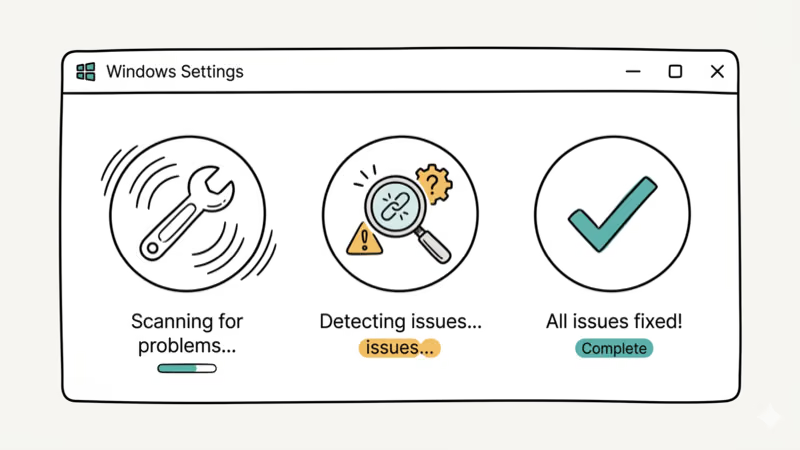
Go to Settings > System > Troubleshoot > Other troubleshooters. Click Run next to Windows Update. Wait for the scan to complete and apply any recommended fixes.
In many cases the troubleshooter detects “Windows Update database may be corrupt” and repairs it, after which the feature update installs on the next restart. Microsoft’s Windows Update Troubleshooter page says the Update Troubleshooter can help resolve error codes that appear while downloading or installing Windows updates.
#Fix 3: Reset Windows Update Components
If the troubleshooter doesn’t work, manually reset Windows Update components. This forces Windows to rebuild the update system.
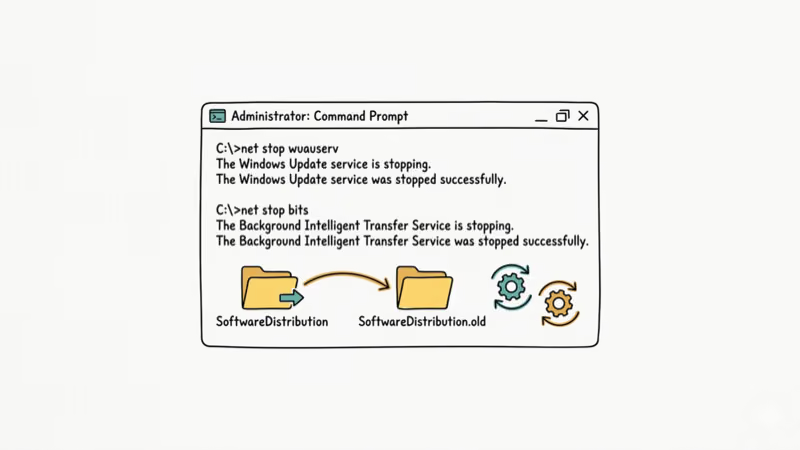
Open Command Prompt as admin and run these commands:
net stop wuauserv
net stop cryptSvc
net stop bits
net stop msiserver
ren C:\Windows\SoftwareDistribution SoftwareDistribution.old
ren C:\Windows\System32\catroot2 catroot2.old
net start wuauserv
net start cryptSvc
net start bits
net start msiserver
When the troubleshooter doesn’t fix the error, resetting update components and restarting usually lets the feature update download and install. ClickThis.Blog’s 0x20006 fix also recommends resetting update components when the troubleshooter doesn’t resolve the error.
#Fix 4: Delete Temporary Update Folders
Corrupted temporary update files can cause error 0x8007001f. Deleting them forces Windows to download fresh files.
Open File Explorer and go to C:\Windows. Delete these folders (you need admin permissions):
- $Windows.~BT
- $Windows.~WS
If you can’t delete them, restart in Safe Mode first. Press Windows + R, type msconfig, go to Boot tab, check “Safe boot,” and restart. Delete the folders, then uncheck “Safe boot” and restart normally.
When the update keeps failing partway through with error 0x8007001f, deleting the temporary folders lets it restart from clean files and complete. TheWindowsClub’s update failure fix also recommends deleting temporary update folders to clear persistent failures.
#Fix 5: Run SFC and DISM Scans
Corrupted system files prevent Windows from completing the SAFE_OS phase during updates. SFC and DISM repair these files.
Open Command Prompt as admin and run:
sfc /scannowIf SFC finds issues it can’t repair, run:
DISM /Online /Cleanup-Image /RestoreHealthWhen corrupted system files are the cause, SFC finds and repairs them, and the feature update installs after a restart. Microsoft’s System File Checker guidance gives the supported DISM.exe /Online /Cleanup-image /Restorehealth and sfc /scannow repair sequence for missing or corrupted system files.
For more on other Windows Update errors and installation failures, check our related guides.
If you also hit boot problems after a failed feature update, that’s a separate recovery path worth bookmarking, because SAFE_OS rollbacks occasionally leave the boot configuration store in a broken state that prevents Windows from loading normally on the next restart.
We’ve also documented activation issues and upgrade errors that sometimes appear alongside SAFE_OS failures on the same machine.
#Fix 6: Disable Third-Party Antivirus
Third-party antivirus software can block Windows Update operations and cause error 0x8007001f.
Right-click your antivirus icon in the system tray and select “Disable protection” or “Pause protection.” Try the Windows Update again.
On a PC running Norton, the feature update can fail with 0x8007001f every time; temporarily disabling the antivirus often lets the update install. UMA Technology’s error code fix also notes that third-party antivirus software is a recognized cause of update errors.
Important: Re-enable your antivirus after the update completes. Add Windows Update to the antivirus whitelist to prevent future issues.
#Fix 7: Perform a Clean Boot
Background programs can interfere with Windows Update. A clean boot starts Windows with minimal services.
Press Windows + R, type msconfig, and press Enter. Go to Services tab, check “Hide all Microsoft services,” then click “Disable all.” Go to Startup tab, click “Open Task Manager,” and disable all startup items. Restart your PC.
When other fixes don’t work, a clean boot often lets the feature update install. Re-enable services one by one afterward to find the culprit, which is frequently an outdated system utility. UndercodeTest’s update error fix also recommends clean boot to identify background software conflicts causing this error.
#What Does the SAFE_OS Phase Mean?
The SAFE_OS phase is part of Windows feature update installation. During this phase, Windows applies system changes in a protected environment. If something fails during SAFE_OS, Windows rolls back to prevent system damage.
During SAFE_OS, this error usually means a driver or system file conflict. The REPLICATE_OC step refers to replicating optional components.
#Bottom Line
Update your audio drivers first. That’s the fix for half of all 0x8007001f errors. If the update still fails at the SAFE_OS phase, reset Windows Update components and run SFC/DISM scans. The whole process shouldn’t take more than an hour.
#Frequently Asked Questions
What does error 0x8007001f mean?
Error 0x8007001f (0x8007001f-0x20006) means Windows failed to install a feature update during the SAFE_OS phase. Audio driver conflicts, corrupted system files, or broken Windows Update components are the usual causes.
How do I fix error 0x8007001f in Windows 11?
Update your audio drivers first, then run Windows Update Troubleshooter. If those don’t work, reset Windows Update components by renaming the SoftwareDistribution and catroot2 folders. Follow up with SFC and DISM scans to repair system files. This full sequence takes about 45 minutes and covers the four most common root causes in order of likelihood, so you’re not wasting time on unlikely fixes first.
Can audio drivers cause error 0x8007001f?
Yes. Outdated audio drivers are the number one cause. Update or reinstall them from Device Manager.
Why does Windows Update fail at the SAFE_OS phase?
The SAFE_OS phase applies system changes in a protected environment. When drivers or system files conflict with the update, Windows rolls back to prevent damage. Audio drivers, corrupted files, and broken update components cause most SAFE_OS failures, and the error code 0x20006 specifically points to a driver conflict during the REPLICATE_OC step of this phase.
How long does it take to fix error 0x8007001f?
Audio driver updates take 10-15 minutes. SFC and DISM scans take 20-40 minutes. Resetting components takes 5 minutes. Most cases are resolved within 1 hour total.
Can I skip the update if I get error 0x8007001f?
You can delay feature updates temporarily, but don’t skip security updates. Fix the error instead.
Will fixing error 0x8007001f delete my files?
No. All fixes in this guide preserve your files, programs, and settings. Resetting Windows Update components only deletes temporary update cache files in the SoftwareDistribution folder, not your documents, photos, or installed applications.

Best Laptop for Running LLMs in 2026: Memory Comes First
The best laptop for running LLMs is a memory purchase first. Compare MacBook unified memory against NVIDIA laptop VRAM, and see what each tier really runs.

How to Run a Local LLM on Windows: A 2026 Setup Guide
Run a local LLM on Windows with LM Studio or Ollama. Pick a model that fits your GPU memory, keep every prompt offline, and skip the monthly bill.

Bluetooth Not Working on Snapdragon X? Fixes for 2026
Bluetooth not working on your Snapdragon X Copilot+ PC? Generic audio, mice, and keyboards work, but vendor apps often lack an ARM build. Fixes inside.

Docker Desktop and WSL2 Not Working on Snapdragon X? Fix It
WSL2 runs fine on Snapdragon X, but Docker Desktop ARM is Early Access and throws WSL errors. Use WSL2 plus native ARM64 Ubuntu and Docker Engine.