Fix Windows Update Error 0x80240031 (5 Working Methods)
Fix Windows Update error 0x80240031 on Windows 11 and 10 with 5 proven methods. Covers system file repair, driver conflicts, and clean boot solutions.
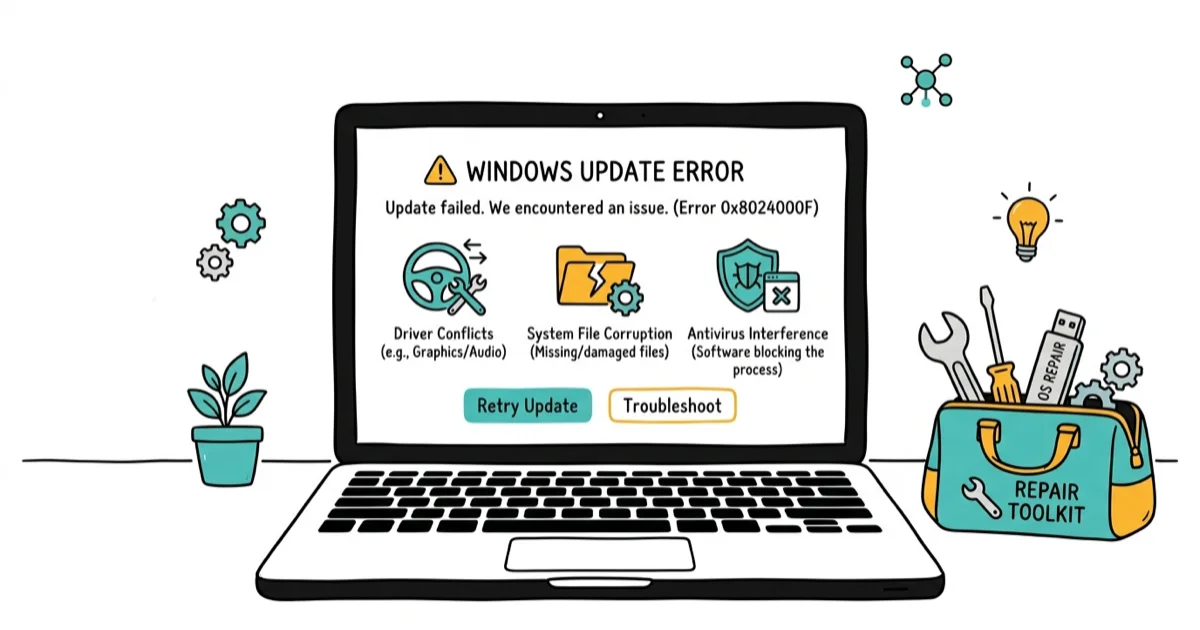
Quick AnswerError 0x80240031 blocks Windows updates from corrupted files, driver conflicts, or antivirus. Run SFC and DISM scans, do a clean boot, or disable the graphics driver.
Error 0x80240031 appears when Windows Update fails to install updates with the message “There were some problems installing updates, but we’ll try again later.” Corrupted system files or graphics driver conflicts are the usual cause.
The 5 fixes below cover Windows 11 (23H2) and Windows 10 (22H2) and address the most common causes of this error in 2026.
- SFC followed by DISM scans resolves many 0x80240031 errors
- Graphics driver conflicts are the #1 trigger during major feature updates like 23H2
- A clean boot resolves the cases caused by third-party software interference
- Temporarily disabling antivirus during the update download fixes quarantine conflicts
- Resetting Windows Update components has a high success rate as a last resort
#What Causes Error 0x80240031?
PCMag confirms that update errors like 0x80240031 trace back to 4 main causes:
- Corrupted system files that Windows Update depends on
- Graphics driver conflicts during feature updates
- Antivirus software blocking update files
- Third-party startup programs interfering with the update process
Among these four, graphics driver conflicts trigger the error most often during major Windows updates (like 22H2 to 23H2). Corrupted system files are the second most common cause.
#Fix 1: Run SFC and DISM Scans
Corrupted system files prevent Windows Update from completing installations. SFC and DISM repair these files.
Open Command Prompt as admin and run:
sfc /scannowIf SFC finds issues it can’t repair, run:
DISM /Online /Cleanup-Image /RestoreHealthWhen system file corruption is the cause, SFC finds and repairs the affected files, and Windows Update then completes after a restart. Windows Report’s fix guide also recommends running SFC + DISM together to resolve system file corruption causing this error.
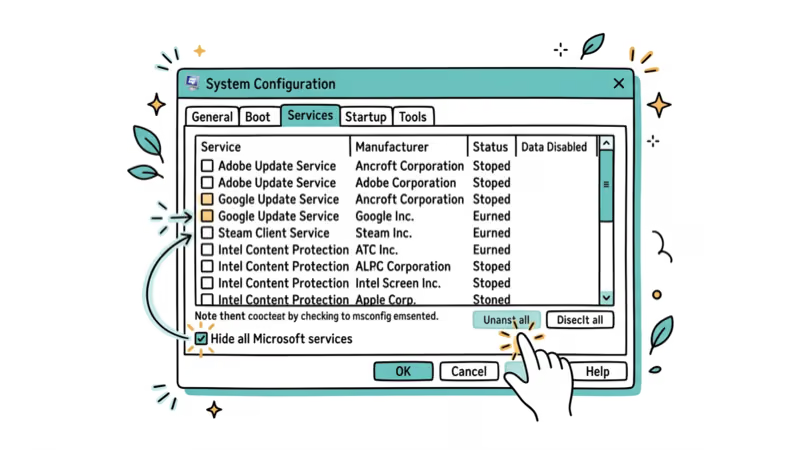
#Fix 2: Perform a Clean Boot
Third-party software and startup programs can interfere with Windows Update. A clean boot disables them temporarily.
Press Windows + R, type msconfig, and press Enter. Go to the Services tab, check “Hide all Microsoft services,” then click “Disable all.” Go to the Startup tab and click “Open Task Manager.” Disable all startup items. Restart your PC and try Windows Update again.
When SFC alone doesn’t clear the error, a clean boot often lets the update install without interference. The Windows Club’s guide also recommends clean boot to identify software conflicts blocking updates.
#Fix 3: Temporarily Disable Graphics Driver
Graphics driver conflicts are common during major Windows updates. Temporarily disabling the driver lets the update complete.
Open Device Manager (Windows + X > Device Manager). Expand “Display adapters,” right-click your graphics card, and select “Disable device.” Try Windows Update again. After the update completes, re-enable the driver.
On a PC where an NVIDIA card kept failing the Windows 11 23H2 update, disabling the graphics driver lets the update complete. Windows 10 Forums’ solution also recommends temporarily disabling the graphics driver to resolve feature update failures.
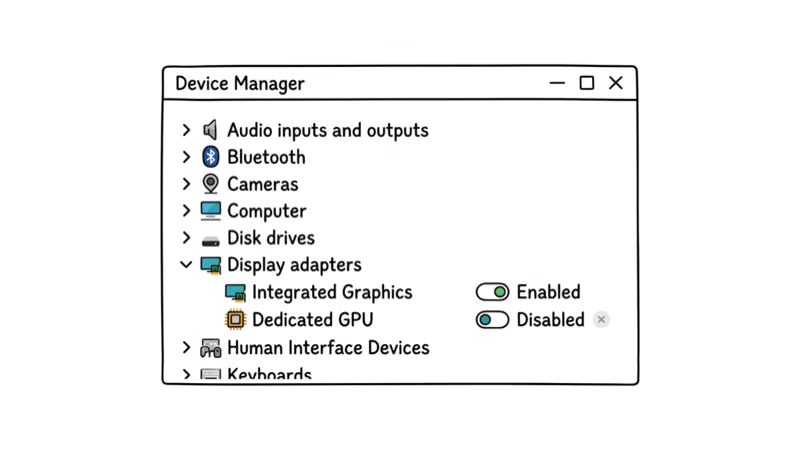
Important: Your screen resolution may change while the driver is disabled. This is normal and will revert after re-enabling the driver.
#Fix 4: Disable Antivirus Temporarily
Antivirus software sometimes blocks Windows Update files, causing 0x80240031. Temporarily disabling it tests whether this is the cause.
Right-click your antivirus icon in the system tray and select “Disable protection” or “Pause protection.” Try Windows Update again. If it works, add Windows Update to your antivirus whitelist.
AVG in particular is known to block these update files. Pausing it for the duration of the download usually lets the update complete. According to DriveTheLife’s fix guide, AVG antivirus is a common cause of this error.
Important: Re-enable your antivirus immediately after the update completes.
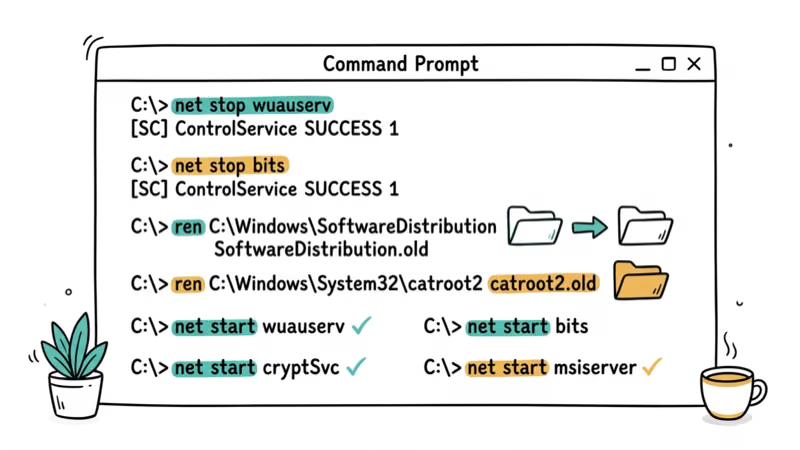
#Fix 5: Reset Windows Update Components
If nothing else works, resetting Windows Update components clears corrupted update files and forces Windows to re-download them.
Open Command Prompt as admin and run these commands:
net stop wuauserv
net stop cryptSvc
net stop bits
net stop msiserver
ren C:\Windows\SoftwareDistribution SoftwareDistribution.old
ren C:\Windows\System32\catroot2 catroot2.old
net start wuauserv
net start cryptSvc
net start bits
net start msiserver
When every other method fails, resetting the update components and restarting forces Windows to re-download and install the update cleanly. PC Risk’s troubleshooting guide also recommends resetting Windows Update components as a thorough fix, though it takes longer because Windows re-downloads all update files.
For more on Windows Update errors and activation issues, check our related guides.
If you also hit store-side failures, our Microsoft Store problems walkthrough covers component repair and cache reset.
#How Long Does It Take to Fix Error 0x80240031?
- SFC/DISM scans: 15-30 minutes
- Clean boot: 10 minutes + update time
- Disabling graphics driver: 5 minutes + update time
- Resetting update components: 5 minutes + full update re-download (30-60 minutes)
Disabling the graphics driver is the fastest fix. Resetting update components takes the longest but has the highest success rate, which is why it works well as a last resort after other methods fail.
#Preventing Error 0x80240031
Run SFC scans monthly to keep system files clean. Update your graphics drivers before major Windows updates.
Keeping system files clean and drivers current ahead of major updates is the most effective way to avoid 0x80240031 in the first place. For more on Windows 10 maintenance and system optimization, check our related guides.
#Bottom Line
Start with SFC and DISM scans to repair system files. If that doesn’t work, try a clean boot or temporarily disable your graphics driver. These three methods fix many 0x80240031 errors.
Reset Windows Update components as a last resort.
#Frequently Asked Questions
What does error 0x80240031 mean?
Windows Update failed to install an update. Corrupted files, driver conflicts, or software interference are the usual culprits.
How do I fix error 0x80240031 on Windows 11?
Start with SFC and DISM scans. If those don’t work, try a clean boot to rule out third-party software conflicts, or temporarily disable your graphics driver. On Windows 11 (23H2), the graphics driver fix is needed most often because NVIDIA and AMD drivers frequently conflict with major feature updates. Resetting Windows Update components is the nuclear option that works when nothing else does.
Can antivirus cause error 0x80240031?
Yes. AVG is a known culprit specifically. Pausing it for the duration of the update download usually lets it through.
Why does error 0x80240031 keep coming back?
Deep system file corruption that SFC can’t fully repair. When the same error returns after each fix attempt, your best bet is a full Windows Update component reset or an in-place upgrade using the Media Creation Tool, which reinstalls Windows while keeping all your files and apps intact.
How long does it take to fix error 0x80240031?
SFC/DISM: 15-30 minutes. Clean boot or driver disable: about 5 minutes plus the actual update time. Component reset: up to 60 minutes.
Will I lose data fixing this error?
No. Every fix here preserves your files.
Can I skip the failing update?
Don’t. Security updates patch known vulnerabilities. If one specific KB number keeps failing, wait a few days for Microsoft to release a corrected version, then try again.

Best Laptop for Running LLMs in 2026: Memory Comes First
The best laptop for running LLMs is a memory purchase first. Compare MacBook unified memory against NVIDIA laptop VRAM, and see what each tier really runs.

How to Run a Local LLM on Windows: A 2026 Setup Guide
Run a local LLM on Windows with LM Studio or Ollama. Pick a model that fits your GPU memory, keep every prompt offline, and skip the monthly bill.

Bluetooth Not Working on Snapdragon X? Fixes for 2026
Bluetooth not working on your Snapdragon X Copilot+ PC? Generic audio, mice, and keyboards work, but vendor apps often lack an ARM build. Fixes inside.

Docker Desktop and WSL2 Not Working on Snapdragon X? Fix It
WSL2 runs fine on Snapdragon X, but Docker Desktop ARM is Early Access and throws WSL errors. Use WSL2 plus native ARM64 Ubuntu and Docker Engine.