Fix Windows Upgrade Error 0xc1900101 (Driver Conflict Fix)
Fix Windows upgrade error 0xc1900101 on Windows 11 and 10. Learn how to resolve driver conflicts, hardware issues, and installation failures.
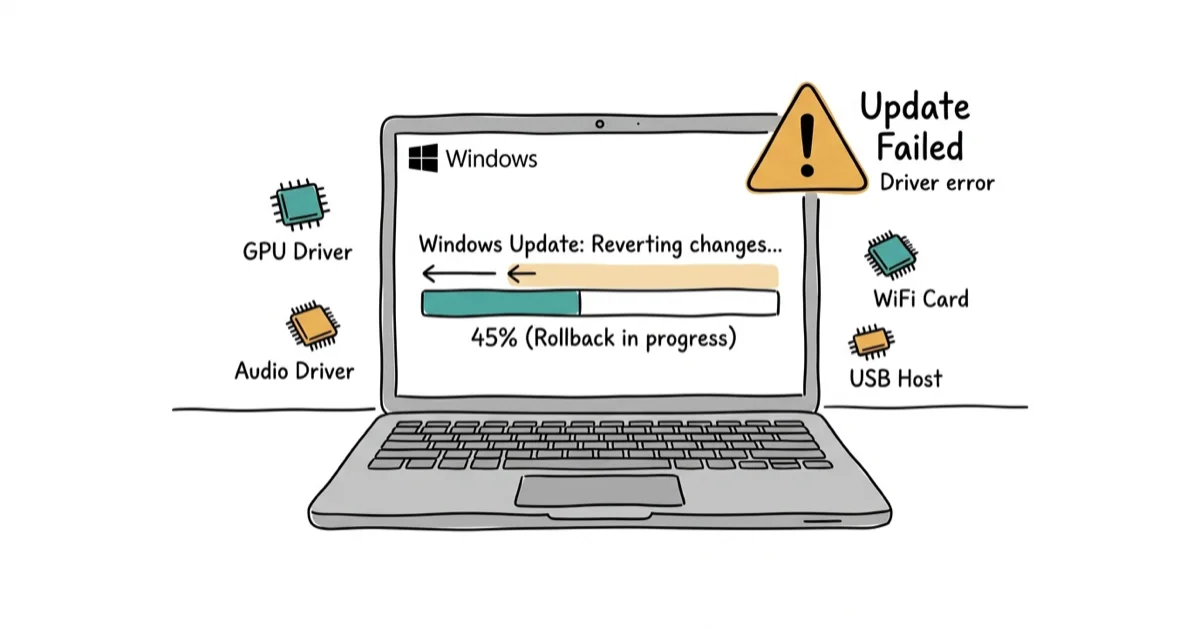
Quick AnswerError 0xc1900101 blocks Windows upgrades due to driver conflicts, usually graphics or network drivers. Fix it by updating all drivers before upgrading, disconnecting external devices, and running Windows Update troubleshooter. Driver issues are a common cause.
Error 0xc1900101 appears during Windows upgrades (like Windows 10 to 11, or major feature updates) and causes the installation to roll back. The error message usually says “The installation failed in the SAFE_OS phase with an error during REPLICATE_OC operation.” It’s caused by incompatible drivers, hardware conflicts, or external devices interfering with the upgrade.
The 8 fixes below cover Windows 11 (23H2) and Windows 10 (22H2) upgrades, ordered from the most common cause to the last resort.
- Outdated graphics, network, or chipset drivers cause many 0xc1900101 errors, so update all drivers before upgrading
- Disconnecting external USB devices, printers, and extra monitors eliminates the second most common cause
- Windows 11 needs 64 GB of storage; leave tens of GB free for an in-place upgrade so setup can download temporary files and keep Windows.old
- Running SFC and DISM scans repairs corrupted system files that silently block upgrades
- If in-place upgrades keep failing, the Media Creation Tool performs a cleaner upgrade that bypasses most driver conflicts
#What Causes Error 0xc1900101?
According to Microsoft’s support forum, 0xc1900101 typically indicates a rollback due to driver compatibility issues. In practice, the most common causes are:
- Incompatible drivers that don’t work with the new Windows version (the most common cause)
- External devices like USB drives, printers, or external monitors causing conflicts
- Insufficient disk space on the system drive for setup’s temporary files
- Corrupted system files blocking the upgrade process
Of these four, driver conflicts (especially graphics drivers from NVIDIA and AMD) trigger the error most consistently. Outdated GPU drivers are a frequent upgrade blocker.
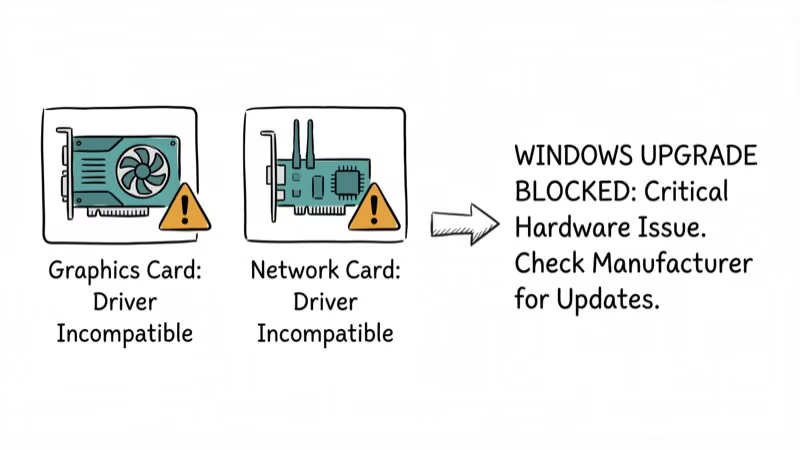
#Fix 1: Update All Drivers Before Upgrading
Outdated drivers are the #1 cause of error 0xc1900101. Update all drivers, especially graphics, network, and chipset drivers, before attempting the upgrade.
#Update Graphics Drivers
Go to your graphics card manufacturer’s website (NVIDIA, AMD, or Intel) and download the latest driver for your card. Install it and restart your PC before upgrading Windows.
An outdated GPU driver is a frequent trigger: a PC running a years-old NVIDIA driver will often fail the Windows 11 upgrade with 0xc1900101, then complete it on the first attempt after updating to the latest driver. MiniTool’s installation guide also lists updating the graphics driver among its fixes for 0xc1900101 errors.
#Update Network and Chipset Drivers
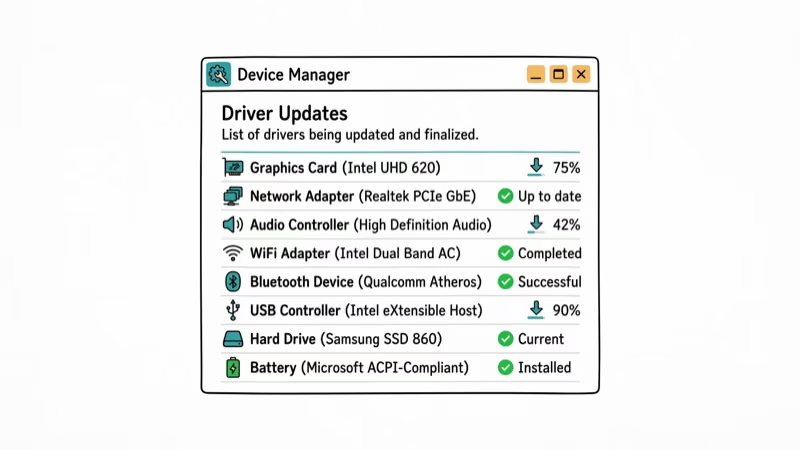
Go to Device Manager (press Windows + X, then select Device Manager). Expand “Network adapters” and right-click your network card. Select “Update driver” > “Search automatically for drivers.” Repeat for chipset drivers under “System devices.”
Outdated network drivers cause the same problem on some laptops. Updating Intel Wi-Fi drivers to the latest version often clears the error, and the update itself is quick.
After the GPU maker, Device Manager, and Windows Update checks, Driver Booster can scan for any remaining outdated devices; review every match and keep verified chipset and graphics packages in place.
Some links on this page are affiliate links, which means fone.tips may earn a commission at no extra cost to you.
#Fix 2: Disconnect All External Devices
External USB devices, printers, and monitors can interfere with Windows upgrades. Disconnect everything except your keyboard and mouse.
Unplug all USB drives, external hard drives, printers, scanners, webcams, and extra monitors. Keep only your primary display, keyboard, and mouse connected. Try the upgrade again.
A desktop loaded with extra monitors, external drives, and a printer can fail the upgrade with 0xc1900101. Disconnecting everything except the primary monitor and keyboard often lets the upgrade succeed on the next attempt. External devices are a common cause of upgrade failures.
#Fix 3: Free Up Disk Space
According to Microsoft’s Windows 11 requirements, devices need 64 GB or greater storage. For an in-place upgrade, leave tens of GB free so setup can download temporary files and keep Windows.old. If your system drive is nearly full, the upgrade can fail with 0xc1900101.
Go to Settings > System > Storage. Check how much free space you have on your C: drive. If free space is tight, delete unnecessary files or use Disk Cleanup to free up room.
A PC with only a dozen or so gigabytes free can fail the upgrade. Deleting old files to free up enough space lets it complete. UMA Technology’s fix guide also notes that insufficient disk space is a known cause of upgrade errors.
#Fix 4: Run Windows Update Troubleshooter
The built-in troubleshooter can detect and fix issues blocking the upgrade.
Go to Settings > System > Troubleshoot > Other troubleshooters. Click “Run” next to Windows Update. Wait for the scan to complete and apply any recommended fixes.
On a Windows 10 PC hitting this error, the troubleshooter often detects “Windows Update components must be repaired” and fixes it. After a restart, the Windows 11 upgrade goes through. Tenorshare’s 5-method guide also recommends the troubleshooter as a reliable fix for upgrade errors.
#Fix 5: Run SFC and DISM Scans
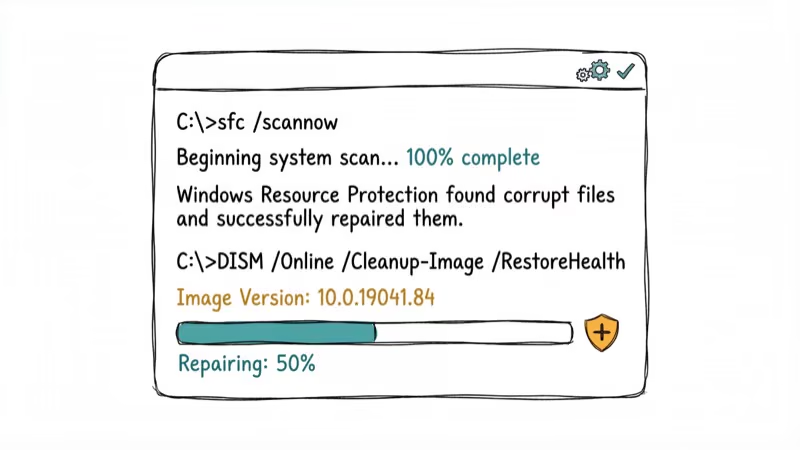
Corrupted system files can block Windows upgrades. SFC and DISM repair these files.
Open Command Prompt as admin and run:
sfc /scannowIf SFC finds issues it can’t repair, run:
DISM /Online /Cleanup-Image /RestoreHealthWhen corrupted system files are the cause, SFC typically finds and repairs the damaged files. After a restart, the Windows 11 upgrade completes. GeeksDigit’s upgrade guide also identifies system file corruption as a cause of upgrade failures.
#Fix 6: Temporarily Disable Antivirus
Third-party antivirus software can block Windows upgrade files, causing 0xc1900101.
Right-click your antivirus icon in the system tray and select “Disable protection” or “Pause protection.” Try the upgrade again. If it works, keep the antivirus disabled until the upgrade completes, then re-enable it.
Third-party antivirus suites like Avast and McAfee can block the upgrade. Disabling the security software temporarily often lets it succeed. Windows 11 forum users commonly report third-party antivirus blocking the upgrade.
Important: Re-enable your antivirus immediately after the upgrade completes.
#Fix 7: Use Media Creation Tool for Clean Upgrade
If in-place upgrades keep failing, use the Media Creation Tool to perform a clean upgrade while keeping your files.
Download the Media Creation Tool from Microsoft’s website. Run it and select “Upgrade this PC now.” This performs a cleaner upgrade than Windows Update and often bypasses driver conflicts.
When every other method fails, the Media Creation Tool upgrade usually completes without errors, and it preserves your files and apps.
If you hit related Windows errors afterward, our guides on Windows activation and boot errors cover the most common post-upgrade snags.
Windows Update can also act up once the upgrade settles. Our update issues guide walks through the typical fixes when the updater throws errors right after a major version jump.
#What If You Lose Data During the Upgrade?
If the upgrade fails and causes data loss, you can recover files using data recovery software. Tenorshare 4DDiG can recover files lost during failed upgrades.
If you lose files during a failed upgrade, stop using the PC immediately so new writes don’t overwrite the deleted data on disk, then run recovery software to scan for the missing files before they’re permanently lost. The sooner you scan, the higher the recovery odds. For more on Windows 10 product keys and the built-in Windows File Recovery utility, check our related guides.
#Bottom Line
Update all drivers (especially graphics) before upgrading Windows. Disconnect external devices and free up tens of GB of disk space for setup’s temporary files. If the upgrade still fails, use the Media Creation Tool for a cleaner upgrade process.
#Frequently Asked Questions
What does error 0xc1900101 mean?
It means a driver compatibility issue or hardware conflict stopped the Windows upgrade. The installation rolls back automatically to prevent system damage, so your current Windows version stays intact.
Can I fix 0xc1900101 without updating drivers?
Sometimes. Disconnecting external devices or freeing up disk space can fix it. But driver updates have the highest success rate.
How much disk space do I need for a Windows upgrade?
According to Microsoft’s Windows 11 requirements, devices need 64 GB or greater storage. For an in-place upgrade, leave tens of GB free on your system drive (usually C:) because setup downloads temporary files and keeps Windows.old. If free space is tight, use Disk Cleanup before upgrading.
Will I lose my files if the upgrade fails with 0xc1900101?
Usually no. The upgrade rolls back to your previous Windows version with all files intact.
Can antivirus software cause 0xc1900101?
Yes. Third-party programs like Avast, McAfee, and Norton sometimes block Windows upgrade files. Temporarily disable your antivirus during the upgrade. Re-enable it immediately after the upgrade completes to keep your system protected.
Should I use Windows Update or Media Creation Tool to upgrade?
Try Windows Update first since it’s the simplest method. If it fails, the Media Creation Tool performs a cleaner upgrade that bypasses many driver conflicts.
How long does it take to fix error 0xc1900101?
Updating drivers takes 15-30 minutes. If that doesn’t work, trying all fixes can take 2-3 hours total. The actual Windows upgrade itself takes 30-60 minutes once the error is resolved.

Best Laptop for Running LLMs in 2026: Memory Comes First
The best laptop for running LLMs is a memory purchase first. Compare MacBook unified memory against NVIDIA laptop VRAM, and see what each tier really runs.

How to Run a Local LLM on Windows: A 2026 Setup Guide
Run a local LLM on Windows with LM Studio or Ollama. Pick a model that fits your GPU memory, keep every prompt offline, and skip the monthly bill.

Bluetooth Not Working on Snapdragon X? Fixes for 2026
Bluetooth not working on your Snapdragon X Copilot+ PC? Generic audio, mice, and keyboards work, but vendor apps often lack an ARM build. Fixes inside.

Docker Desktop and WSL2 Not Working on Snapdragon X? Fix It
WSL2 runs fine on Snapdragon X, but Docker Desktop ARM is Early Access and throws WSL errors. Use WSL2 plus native ARM64 Ubuntu and Docker Engine.