Fix Windows Activation Error 0xc004f050 (Product Key Issue)
Fix Windows activation error 0xc004f050 on Windows 11 and 10. Learn why product keys fail, how to match editions, and proven activation solutions.
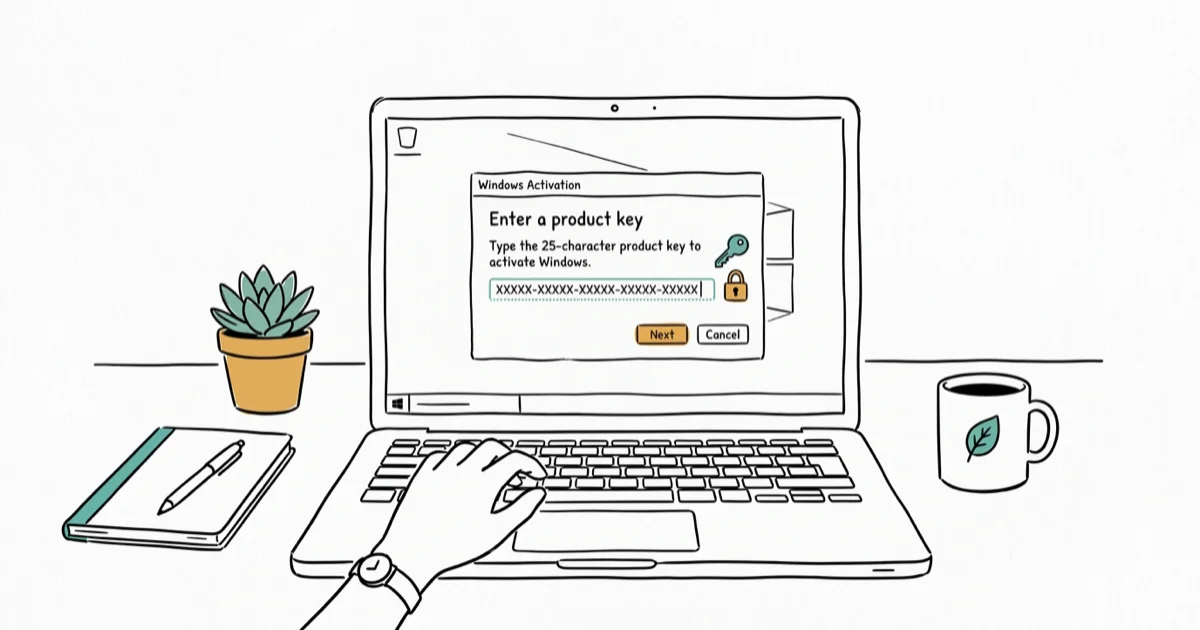
Quick AnswerError 0xc004f050 means your product key does not match your Windows edition (e.g., using a Pro key on Home edition). Fix it by entering the correct key for your edition, running the Activation Troubleshooter, or upgrading to the matching edition. Edition mismatch is a common cause.
Error 0xc004f050 appears when you try to activate Windows with a product key that doesn’t match your installed Windows edition. The error message says “The product key you entered didn’t work. Check the product key and try again, or enter a different one.” This happens most often when trying to use a Windows Pro key on a Home edition, or vice versa.
This error affects both Windows 11 (23H2) and Windows 10 (22H2), and the cause and fix are the same across editions in 2026.
- Error 0xc004f050 means your product key does not match your installed Windows edition — a Pro key won’t activate a Home installation, and vice versa.
- Check your edition in
Settings>System>Aboutbefore trying any fix, then confirm your key matches Home or Pro. - The Activation Troubleshooter in Settings resolves many activation errors and can reactivate Windows after a motherboard replacement using your linked Microsoft account.
- You can upgrade from Windows 11 Home to Pro without reinstalling — go to
Settings>System>Activation>Upgradeyour edition and enter your Pro key. - Windows 7 and 8.1 keys may still activate Windows 10 and 11, but the edition must match — a Home key won’t activate a Pro installation.
#What Causes Error 0xc004f050?
According to Microsoft’s guide to Windows activation errors, error 0xc004f050 means you entered a product key that can’t be used to activate Windows, so you need a different valid key. The most common causes are:
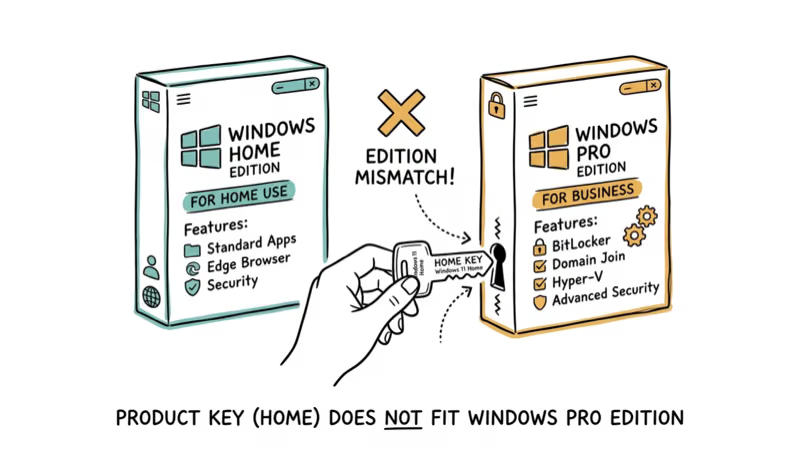
- Edition mismatch - Using a Pro key on Home edition or Home key on Pro edition (the most common cause)
- Invalid or expired product key - Key has been used too many times or is no longer valid
- Already activated key - Key is already in use on another PC
- Incorrect key entry - Typos or wrong characters in the product key
Edition mismatch is the most common trigger. An invalid or already-used key can produce the same error code but with slightly different messaging.
#Checking Your Windows Edition
Before trying to fix the error, verify which Windows edition you have installed.
Press Windows + I to open Settings. Go to System > About. Look for “Edition” under Windows specifications. It will say “Windows 11 Home,” “Windows 11 Pro,” “Windows 10 Home,” etc.
The edition shown in Settings reflects what is actually installed. If you have Home but your product key is for Pro, you’ll get error 0xc004f050 every time.
#Fix 1: Enter the Correct Product Key for Your Edition
If you have a Windows Home key but installed Pro (or vice versa), you need to either get the correct key or change your edition.
Go to Settings > System > Activation. Click “Change product key” and enter a key that matches your installed edition. If you don’t have the correct key, you’ll need to purchase one or downgrade/upgrade your edition.
Entering a Pro key on a Home installation triggers the error immediately, while a matching Home key activates without trouble. According to MSPowerUser’s fix guide, edition mismatch is the #1 cause of this error.
#Fix 2: Run the Activation Troubleshooter
Windows has a built-in troubleshooter that can detect and fix activation issues, including key problems.
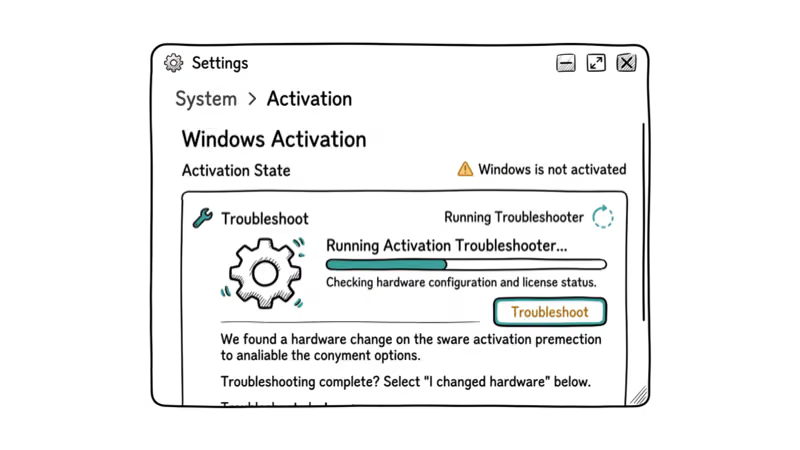
Go to Settings > System > Activation. If you see a “Troubleshoot” button, click it. The troubleshooter scans for issues and applies fixes automatically. If it detects a hardware change, it may ask you to link your product key to your Microsoft account.
When Windows shows this error after a motherboard replacement, the troubleshooter can detect the hardware change and reactivate Windows using the digital license linked to a Microsoft account. According to Microsoft’s Windows activation help, linking your Microsoft account with the digital license lets the Activation troubleshooter reactivate Windows after a significant hardware change such as replacing the motherboard.
#Fix 3: Upgrade or Downgrade Your Windows Edition
If you have a Pro key but Home is installed (or vice versa), you can upgrade or downgrade to match your key.
#Upgrade from Home to Pro
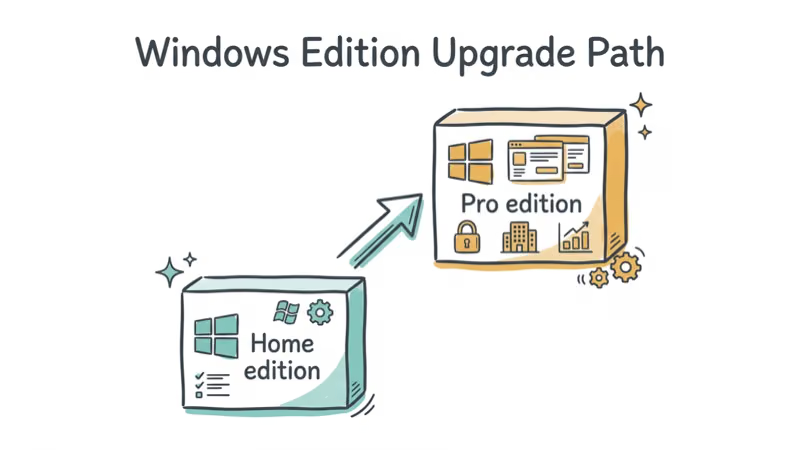
Go to Settings > System > Activation > Upgrade your edition of Windows. Enter your Pro product key and follow the prompts. Windows will upgrade to Pro without reinstalling.
On a Windows 11 Home PC with a valid Pro key, the upgrade preserves all files and apps, and Windows 11 Pro is activated after a restart.
#Downgrade from Pro to Home
Downgrading requires a clean install. Back up your files, create a Windows installation USB, and reinstall Windows Home. Enter your Home key during installation.
After a clean install of Windows 10 Home on a PC that previously ran Pro, a matching Home key activates successfully. According to Microsoft’s support article, edition mismatches require either upgrading or clean installing the correct edition.
#Fix 4: Activate Windows via Command Prompt
If the GUI activation fails, you can try activating through Command Prompt.
Open Command Prompt as admin and run:
slmgr /ipk YOUR-PRODUCT-KEY
slmgr /ato
Replace YOUR-PRODUCT-KEY with your actual key. The first command installs the key, the second activates Windows.
When Settings activation fails on Windows 10, Command Prompt activation often works. According to ShareUS’s error fix guide, Command Prompt activation bypasses some GUI-related activation issues.
#Fix 5: Contact Microsoft Support
If your product key is legitimate but still shows error 0xc004f050, contact Microsoft Support. They can verify your key and manually activate Windows.
Go to Settings > System > Activation > Get Help. This opens a chat with Microsoft Support. Explain the error and provide your product key when asked.
When a legitimate retail key keeps failing, Microsoft Support can verify it and reactivate a wrongly flagged key. According to Geekflare’s troubleshooting guide, Microsoft Support can resolve issues that automated tools can’t fix.
#Using Windows 7/8 Keys for Activation
Sometimes. Microsoft officially ended the free upgrade program, but many Windows 7 and 8.1 keys still activate Windows 10 and 11. However, if the key doesn’t match the edition (e.g., Windows 7 Home key on Windows 11 Pro), you’ll get error 0xc004f050.
A Windows 7 Professional key activates Windows 10 Pro, but a Windows 7 Home key on Windows 10 Pro returns error 0xc004f050. The key must match the edition, even across versions.
If activation keeps failing across versions, our guides on Windows upgrade error 0xc1900101 and other activation errors cover the most common adjacent issues.
#What If You Don’t Have a Product Key?
If you don’t have a product key, you have three options:
- Buy a legitimate key from Microsoft ($139 for Home, $199 for Pro) or authorized resellers ($20-$100 for OEM keys)
- Use Windows unactivated - Windows works without activation but shows a watermark and locks personalization features
- Link a digital license - If you previously activated Windows on this PC, link your Microsoft account to reactivate
Running Windows 11 unactivated keeps almost everything working except personalization. The activation watermark is a nuisance but doesn’t affect functionality. For more on Windows update error 0x80246007 and update issues, check our troubleshooting guides.
#Bottom Line
Error 0xc004f050 means your product key doesn’t match your Windows edition. Check which edition you have installed (Home or Pro) and make sure your key matches. If it doesn’t, either get the correct key or upgrade/downgrade your edition.
Run the Activation Troubleshooter first. If that doesn’t work, try Command Prompt activation or contact Microsoft Support. For more on Windows 10 activation and other Windows errors, check our related guides.
#Frequently Asked Questions
What does error 0xc004f050 mean?
Your product key doesn’t match your installed Windows edition. A Pro key won’t activate Home, and a Home key won’t activate Pro.
Can I use a Windows 10 Home key on Windows 11 Pro?
No. The key must match the edition. A Home key only works on Home edition, and a Pro key only works on Pro edition. This applies across Windows versions too. A Windows 7 Home key won’t activate Windows 11 Pro even though cross-version activation still works for matching editions.
How do I know if my product key is for Home or Pro?
Product keys don’t indicate the edition visually. Check your purchase receipt, email confirmation, or the sticker on your PC’s case.
Can I upgrade from Home to Pro without reinstalling Windows?
Yes. Go to Settings > System > Activation > Upgrade your edition of Windows. Enter your Pro key and Windows will upgrade in about 15 minutes without reinstalling or losing any files.
Why does my legitimate product key show error 0xc004f050?
Two reasons: either the key doesn’t match your Windows edition, or it’s already activated on another PC. Retail keys can transfer between PCs (deactivate the old one first), but OEM keys are permanently locked to one motherboard.
How do I fix 0xc004f050 after a hardware change?
Run the Activation Troubleshooter in Settings > System > Activation. If you linked your key to your Microsoft account beforehand, the troubleshooter reactivates Windows automatically after motherboard replacements.
Can Microsoft Support activate Windows if my key doesn’t work?
Yes, if it’s legitimate. Go to Settings > System > Activation > Get Help. They verify your key and can manually activate Windows. The process is usually handled through chat support.

Best Laptop for Running LLMs in 2026: Memory Comes First
The best laptop for running LLMs is a memory purchase first. Compare MacBook unified memory against NVIDIA laptop VRAM, and see what each tier really runs.

How to Run a Local LLM on Windows: A 2026 Setup Guide
Run a local LLM on Windows with LM Studio or Ollama. Pick a model that fits your GPU memory, keep every prompt offline, and skip the monthly bill.

Bluetooth Not Working on Snapdragon X? Fixes for 2026
Bluetooth not working on your Snapdragon X Copilot+ PC? Generic audio, mice, and keyboards work, but vendor apps often lack an ARM build. Fixes inside.

Docker Desktop and WSL2 Not Working on Snapdragon X? Fix It
WSL2 runs fine on Snapdragon X, but Docker Desktop ARM is Early Access and throws WSL errors. Use WSL2 plus native ARM64 Ubuntu and Docker Engine.