Fix Windows Error 0x8000ffff (Catastrophic Failure Fix)
Fix Windows error 0x8000ffff (Catastrophic Failure) on Windows 11 and 10. Covers Windows Update fixes, System Restore repairs, and Store solutions.
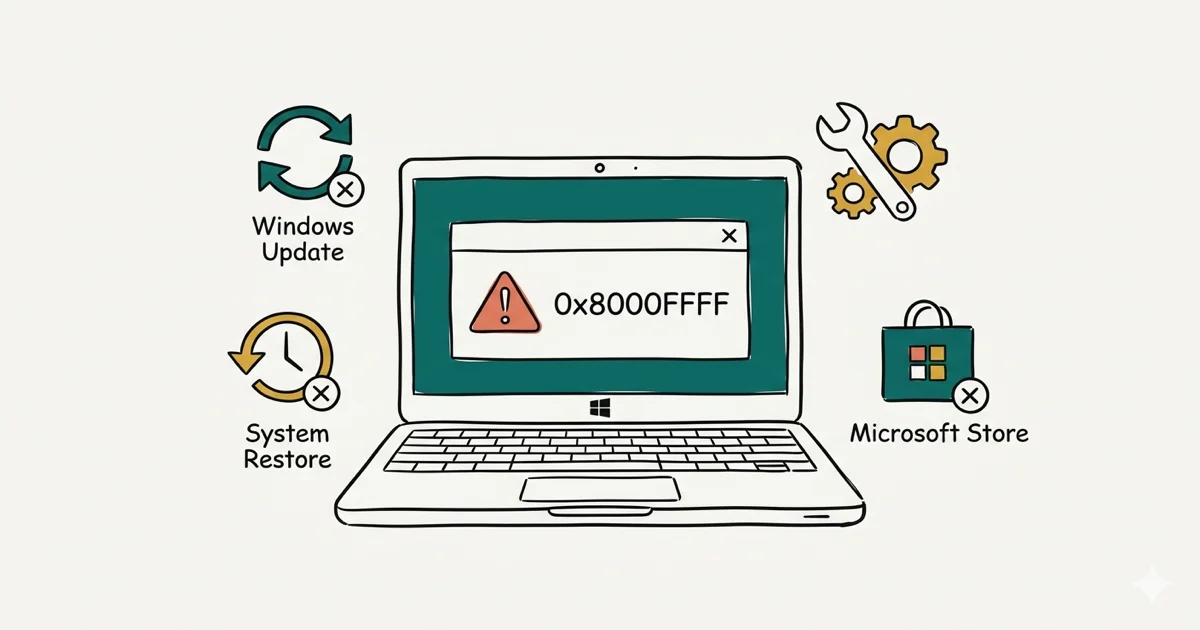
Quick AnswerError 0x8000ffff (Catastrophic Failure) blocks Windows Update, System Restore, and Microsoft Store. Fix it by running SFC/DISM scans, resetting Windows Update components, or disabling third-party antivirus. Corrupted system files are a common cause.
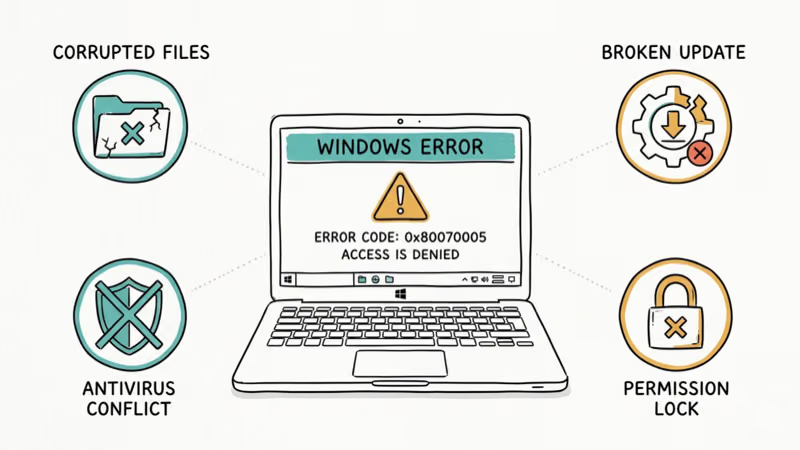
Error 0x8000ffff, labeled “Catastrophic Failure,” appears when Windows can’t complete a protected operation. Despite the dramatic name, it’s usually caused by corrupted system files, broken Windows Update components, or third-party antivirus interference. The error blocks Windows Update, System Restore, and Microsoft Store operations.
This guide walks through 8 fixes for Windows 11 (23H2) and Windows 10 (22H2), ordered from the most likely to resolve the error to last-resort options.
- Corrupted system files are the most common trigger for 0x8000ffff, and running SFC + DISM is the best first fix
- Third-party antivirus (especially Kaspersky and Norton) can block Windows Update and trigger this error
- Resetting Windows Update components by renaming SoftwareDistribution resolves most update-specific failures
- The error blocks Windows Update, System Restore, and Microsoft Store, but all three share the same fix path
- Running System Restore in Safe Mode bypasses software conflicts that block it in normal mode
#What Causes Error 0x8000ffff?
According to Microsoft, 0x8000FFFF maps to E_UNEXPECTED, or “Catastrophic failure,” in the COM error table. For Windows Update specifically, Microsoft’s 0x8000FFFF troubleshooting page says the error is usually related to the CryptCATAdminAddCatalog function and can indicate corruption in C:\Windows\System32\catroot2 or other system files and folders. The most common causes are:
- Corrupted system files - Damaged Windows files from failed updates or malware (the most common cause)
- Broken Windows Update components - Corrupted update cache or services
- Third-party antivirus interference - Security software blocking Windows operations
- Permission issues - User account lacking rights to perform the operation
Of these, corrupted system files trigger the error most consistently, especially after failed updates or abrupt shutdowns.
#Fix 1: Run SFC and DISM Scans
This fixes many 0x8000ffff errors. Corrupted system files prevent Windows from completing critical operations.
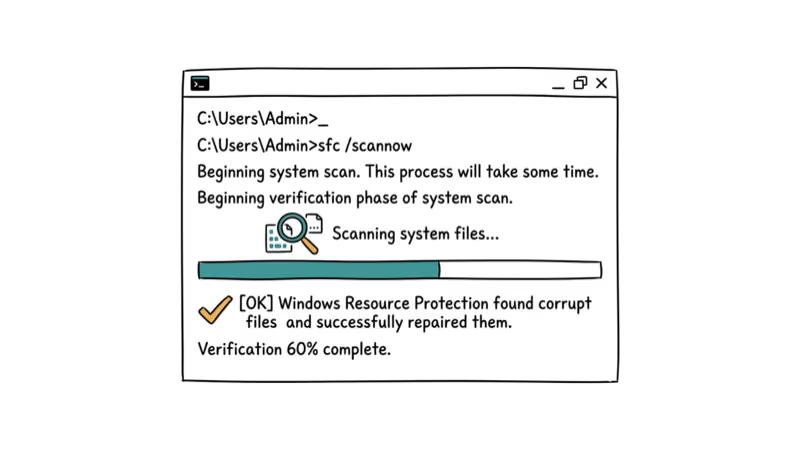
Open Command Prompt as admin and run:
sfc /scannowWait for the scan to complete (10-30 minutes). If SFC finds issues it can’t repair, run:
DISM /Online /Cleanup-Image /RestoreHealthWhen error 0x8000ffff blocks updates because of corrupted files, SFC typically finds and repairs them, and Windows Update works normally after a restart. Microsoft’s System File Checker guidance tells Windows users to run DISM.exe /Online /Cleanup-image /Restorehealth and then sfc /scannow when repairing missing or corrupted system files.
#Fix 2: Reset Windows Update Components
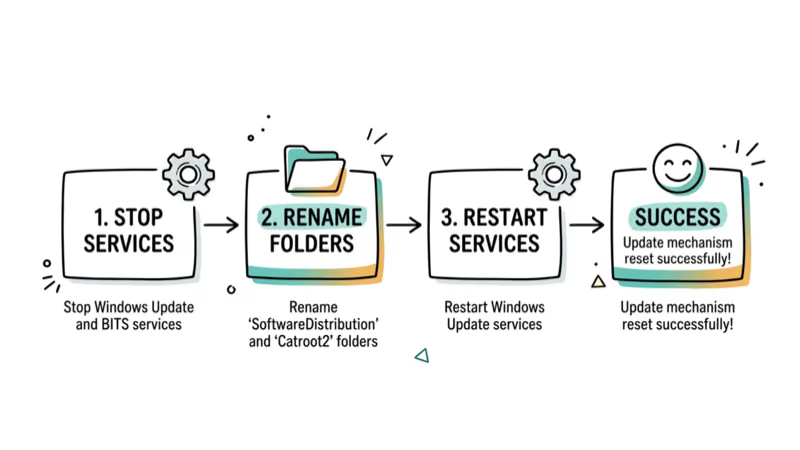
If SFC doesn’t fix the error, Windows Update components might be corrupted. Resetting them forces Windows to rebuild the update system.
Open Command Prompt as admin and run these commands:
net stop wuauserv
net stop cryptSvc
net stop bits
net stop msiserver
ren C:\Windows\SoftwareDistribution SoftwareDistribution.old
ren C:\Windows\System32\catroot2 catroot2.old
net start wuauserv
net start cryptSvc
net start bits
net start msiserver
When SFC doesn’t fix the error, resetting the update components and restarting usually lets Windows Update download and install updates successfully. According to GeekChamp’s Windows 11 guide, resetting update components is the recommended next step when SFC doesn’t resolve the error.
#Fix 3: Disable Third-Party Antivirus
Third-party antivirus software (especially older versions) can block Windows operations and cause error 0x8000ffff.
Right-click your antivirus icon in the system tray and select “Disable protection” or “Pause protection.” Try the operation that was failing (Windows Update, System Restore, etc.) again.
Security suites like McAfee can make Windows Update fail with 0x8000ffff every time, and temporarily disabling the antivirus often lets updates install successfully. IONOS’s unexpected error guide also identifies third-party antivirus software as a common cause when system files aren’t corrupted.
Important: Re-enable your antivirus after the operation completes. Add Windows Update to the antivirus whitelist to prevent future issues.
#Fix 4: Run Windows Update Troubleshooter
The built-in troubleshooter can detect and fix common update issues that cause error 0x8000ffff.
Go to Settings > System > Troubleshoot > Other troubleshooters. Click “Run” next to Windows Update. Wait for the scan to complete and apply any recommended fixes.
The troubleshooter often detects “Windows Update database may be corrupt” and repairs it, so updates install without errors after a restart. Microsoft’s Windows Update Troubleshooter page says the Update Troubleshooter can help when an error code appears while downloading or installing Windows updates.
#Fix 5: Restart Windows Update Services
If update services aren’t running properly, they can cause error 0x8000ffff. Restarting them often fixes the issue.
Open Command Prompt as admin and run:
net stop wuauserv
net stop cryptSvc
net stop bits
net stop msiserver
net start wuauserv
net start cryptSvc
net start bits
net start msiserver
When the error appears after a forced shutdown during updates, restarting the services often fixes it immediately. TheFilibusterBlog’s System Restore fix also recommends restarting Windows Update services to resolve this error.
#Fix 6: Check Date and Time Settings
Incorrect date and time can cause Windows Update and Store operations to fail with error 0x8000ffff.
Press Windows + I to open Settings. Go to Time & Language > Date & Time. Enable “Set time automatically” and “Set time zone automatically.” Click “Sync now.”
A clock that is hours out of sync can make Windows Update fail with 0x8000ffff, and syncing the time often restores normal updates. PCNMobile’s Windows 11 fix also notes that incorrect date and time settings can cause this error.
#What If Error 0x8000ffff Appears in System Restore?
System Restore can fail with error 0x8000ffff if restore points are corrupted or system files are damaged.
#Try a Different Restore Point
Open System Restore (search “Create a restore point” in Start menu > System Protection > System Restore). Select a different restore point from an earlier date.
When the most recent restore point fails with this error, an older restore point from a week or two earlier often completes successfully.
#Disable Antivirus During Restore
Third-party antivirus can block System Restore. Disable it before starting the restore process.
Suites like Norton can make System Restore fail with 0x8000ffff until the antivirus is switched off, after which the restore completes successfully.
For more on Windows Update errors and activation issues, check our related guides — they cover overlapping symptoms when 0x8000ffff appears alongside update or licensing failures on the same machine.
We also have dedicated walkthroughs for boot problems and blue screen errors that sometimes trigger this code.
See our upgrade failures guide for install-time variants.
#Fix 7: Perform an In-Place Upgrade
If nothing else works, an in-place upgrade reinstalls Windows while keeping your files and apps.
Download the Media Creation Tool from Microsoft’s website. Run it and select “Upgrade this PC now.” Follow the prompts to reinstall Windows.
As a last resort for persistent 0x8000ffff errors, an in-place upgrade clears the error while keeping your files and apps. Microsoft’s 0x8000FFFF troubleshooting page recommends an in-place upgrade as the resolution for Windows-based computers when this update failure points to system file or catroot2 corruption.
#Bottom Line
Don’t let the “Catastrophic Failure” name scare you. Run SFC and DISM scans first, then reset Windows Update components if updates still fail. If you’re running third-party antivirus, disable it temporarily before retrying the operation.
#Frequently Asked Questions
What does error 0x8000ffff mean?
Error 0x8000ffff (Catastrophic Failure) means Windows could not complete a protected system operation. It usually indicates corrupted system files, broken Windows Update components, or antivirus interference.
How do I fix error 0x8000ffff in Windows Update?
Run SFC and DISM scans first. If that doesn’t work, reset Windows Update components by renaming the SoftwareDistribution and catroot2 folders. Disable third-party antivirus during updates.
Can antivirus cause error 0x8000ffff?
Yes. McAfee, Norton, and Avast are the most common culprits, blocking Windows Update connections and triggering 0x8000ffff even when your internet works fine. Disable your antivirus temporarily to test. If that fixes it, add Windows Update to the antivirus whitelist so you don’t have to disable it every time.
Why does System Restore fail with error 0x8000ffff?
Corrupted restore points or antivirus interference. Try an older restore point first, then disable antivirus if that doesn’t work.
How long does it take to fix error 0x8000ffff?
SFC and DISM scans take 20-40 minutes. Resetting Windows Update components takes about 5 minutes. Most people fix this within 1 hour. In-place upgrades are the longest option at 45-60 minutes, but they fix many persistent errors that nothing else resolves.
Is error 0x8000ffff dangerous?
Not directly. The error just blocks certain operations. But the root cause (corrupted files, outdated security definitions, or malware) can absolutely lead to system instability if you leave it unfixed for weeks.
Can I prevent error 0x8000ffff?
Keep Windows updated and avoid force-shutting down during updates. Run SFC scans once a month. Consider switching from third-party antivirus to the built-in Windows Defender, which doesn’t conflict with Windows Update operations.

Best Laptop for Running LLMs in 2026: Memory Comes First
The best laptop for running LLMs is a memory purchase first. Compare MacBook unified memory against NVIDIA laptop VRAM, and see what each tier really runs.

How to Run a Local LLM on Windows: A 2026 Setup Guide
Run a local LLM on Windows with LM Studio or Ollama. Pick a model that fits your GPU memory, keep every prompt offline, and skip the monthly bill.

Bluetooth Not Working on Snapdragon X? Fixes for 2026
Bluetooth not working on your Snapdragon X Copilot+ PC? Generic audio, mice, and keyboards work, but vendor apps often lack an ARM build. Fixes inside.

Docker Desktop and WSL2 Not Working on Snapdragon X? Fix It
WSL2 runs fine on Snapdragon X, but Docker Desktop ARM is Early Access and throws WSL errors. Use WSL2 plus native ARM64 Ubuntu and Docker Engine.