How to Fix ERR_CERT_DATE_INVALID in Chrome (7 Methods)
Fix ERR_CERT_DATE_INVALID in Chrome by correcting your system clock, clearing SSL state, or disabling conflicting extensions. 7 methods with instructions.
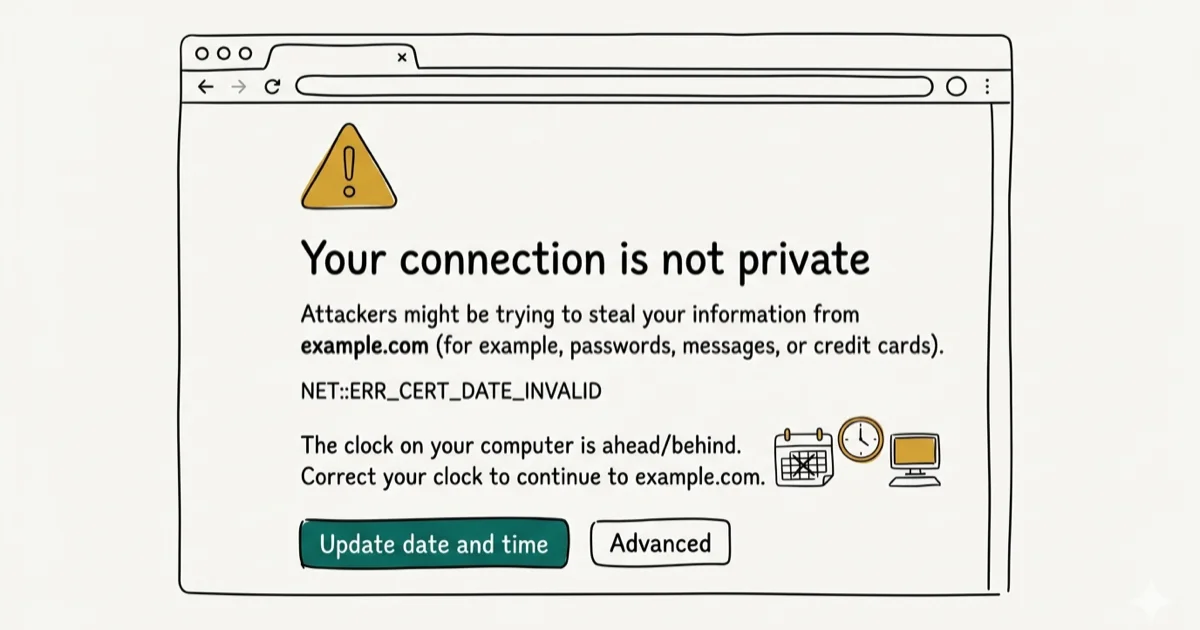
Quick AnswerERR_CERT_DATE_INVALID means the SSL certificate on the site you are visiting has expired, or your computer clock is set to the wrong date. Fix it by correcting your system date and time in Settings, then clear Chrome browser cache. If the date is correct, the site owner needs to renew their certificate.
The ERR_CERT_DATE_INVALID error in Chrome means the browser can’t validate the SSL certificate on the website you’re trying to visit. Either the certificate has actually expired, or something on your device, usually an incorrect system clock, is making a valid certificate appear invalid. This guide applies only to a device or account you own.
- ERR_CERT_DATE_INVALID triggers when Chrome detects a mismatch between SSL cert dates and your system clock
- Wrong date/time on your device is the top cause, so check the clock before other fixes
- Clearing Chrome’s SSL state removes stale certificate validation data
- VPN and ad blocker extensions can break SSL handshakes and trigger false certificate errors
- If the cert has expired on the site, only the website owner can fix it
#What Is ERR_CERT_DATE_INVALID?
Chrome shows this error when a website’s SSL certificate fails the browser’s validity check. SSL certificates contain two dates: “Valid From” and “Expires On.” Chrome compares both against your device’s system clock on every HTTPS connection.
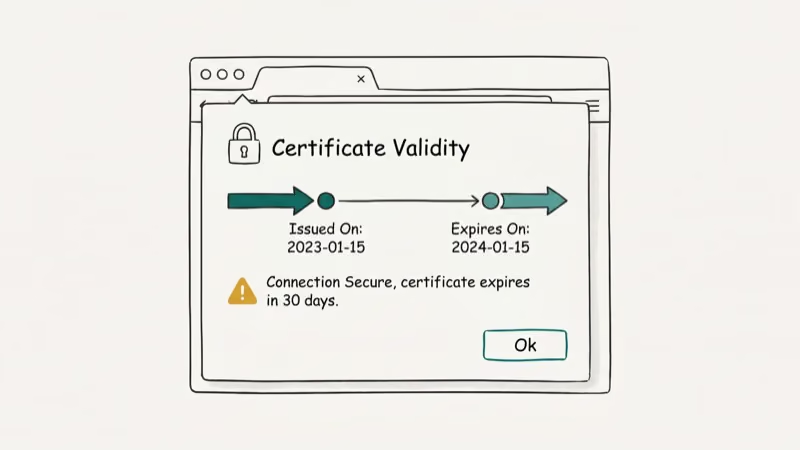
Wrong system time can make Chrome treat valid certificates as expired. It’s the first thing to check.
According to Google’s safe browsing documentation, Chrome checks 3 conditions during every SSL handshake: the certificate hasn’t expired, it’s issued by a trusted certificate authority, and the hostname in the certificate matches the site you’re visiting. Failure on any one of those 3 conditions triggers this error.
To identify the root cause, click the ERR_CERT_DATE_INVALID text on Chrome’s error page. The expanded view shows “Valid From,” “Expires On,” and “Current Date” fields. Compare the “Current Date” value against today’s actual date. If Chrome’s displayed current date is significantly different from today, you’re looking at a system clock problem rather than an expired certificate, and fixing the clock is all you need to do.
- If “Expires On” is in the past, the site’s certificate has expired. Contact the website owner.
- If “Current Date” is wrong, your system clock needs fixing. That’s your fix.
#Fix 1: Correct Your System Date and Time
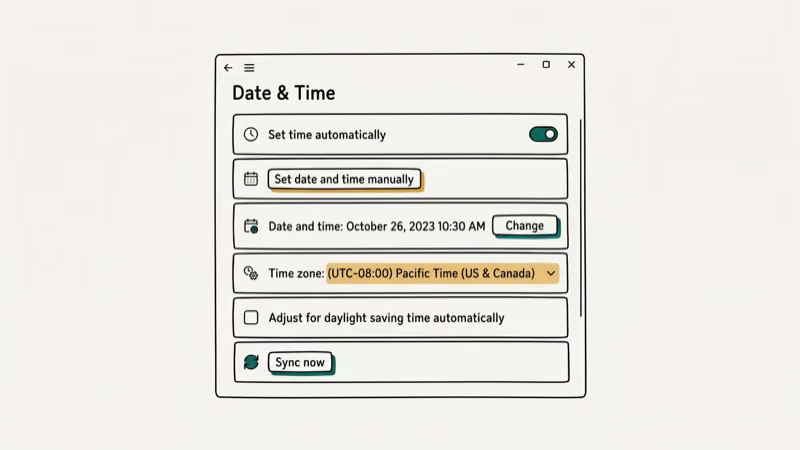
An incorrect system clock is the single most common cause of this error. It can happen after laptop battery drain, when the CMOS battery dies and the clock resets to a default date, after a manual clock change that wasn’t corrected, or after a Windows time sync failure where the W32Time service stopped running. The fix takes under 30 seconds once you know where to look.
On Windows: Right-click the clock in the taskbar, select Adjust date/time, turn on Set time automatically and Set time zone automatically, then click Sync now under “Synchronize your clock.”
On Mac: Go to System Settings > General > Date & Time, enable Set time and date automatically, and select your time zone if it shows the wrong region.
After correcting the clock, reload Chrome and try the site again. Microsoft’s Windows Time service documentation confirms that Windows syncs the clock automatically via NTP every 7 days using the built-in W32Time service. If automatic sync keeps failing, your Windows Time service may need restarting.
#Fix 2: Clear Chrome’s Browser Cache and SSL State
Stale certificate data cached in Chrome can trigger false errors even after the underlying issue is resolved.
Clear browser cache: Press Ctrl + Shift + Delete (Windows) or Cmd + Shift + Delete (Mac). Set the time range to All time, check Cached images and files and Cookies and other site data, click Clear data, and restart Chrome.
Clear SSL State on Windows: Type inetcpl.cpl in the Windows search bar and open Internet Properties. Click the Content tab, then click Clear SSL State and OK. Restart Chrome.
The SSL state stores cached certificate validation results. Clearing it forces Chrome to re-verify the certificate from scratch on the next connection. This is relevant when a site has recently renewed its certificate but Chrome still shows stale certificate errors.
#Does Antivirus Software Cause ERR_CERT_DATE_INVALID?
Antivirus HTTPS scanning can trigger certificate date errors when its inserted certificate is outdated or misconfigured.
Common antivirus programs with HTTPS scanning include Avast, AVG, ESET, Kaspersky, Bitdefender, and Norton. Look for settings labeled “HTTPS scanning,” “SSL scanning,” or “Web shield” in your security software. Disable that specific feature only, not the entire antivirus. The HTTPS scanning feature intercepts all encrypted traffic and replaces website SSL certificates with the antivirus’s own certificate, which can mismatch Chrome’s date validation if the antivirus certificate is outdated.
If the error disappears, update your antivirus before re-enabling the feature. According to ESET’s documentation on HTTPS filtering, outdated antivirus SSL certificates are a known cause of browser certificate errors, affecting users who haven’t updated their security software in 6 months or more.
#Fix 4: Disable Problematic Browser Extensions
Extensions that modify HTTPS traffic or intercept web requests can produce false certificate errors. VPN extensions, ad blockers with HTTPS filtering, and privacy tools are the most common culprits. These extensions typically work by acting as a local proxy that rewrites requests, and if an extension’s proxy certificate doesn’t match Chrome’s validation requirements (especially around validity dates), Chrome throws ERR_CERT_DATE_INVALID even on sites with valid certificates.
Test in Incognito mode first: press Ctrl + Shift + N (Windows) or Cmd + Shift + N (Mac). Incognito disables extensions by default. If the site loads without errors in Incognito, an extension is causing the problem.
To find the culprit, go to chrome://extensions/ and toggle off all extensions. Reload the problem page. Then re-enable extensions one at a time, testing after each toggle until the error reappears.
You can also try our related guides on fixing SSL errors in Chrome and ERR_EMPTY_RESPONSE if extensions aren’t the cause.
#Fix 5: Disable Windows Firewall Temporarily
Windows Firewall and third-party security software can interfere with Chrome’s SSL verification process. Temporarily disabling the firewall helps you rule this out.
Go to Settings > Privacy & Security > Windows Security > Firewall & network protection. Click your active network type and toggle Microsoft Defender Firewall off, then test Chrome. Turn it back on and add Chrome as a firewall exception if disabling it fixed the issue.
Don’t leave your firewall disabled. If turning it off resolves the error, the permanent fix is adding Chrome to the firewall’s allowed applications list, not leaving protection off. If you’re troubleshooting DNS issues alongside firewall problems, our guide on DNS_PROBE_FINISHED_BAD_CONFIG covers the network-level fixes that sometimes overlap with certificate errors.
#Fix 6: Change DNS Servers
Slow or misconfigured ISP DNS servers occasionally cause certificate validation failures. Switching to Google DNS (8.8.8.8 / 8.8.4.4) or Cloudflare DNS (1.1.1.1 / 1.0.0.1) is a quick test.
On Windows: go to Control Panel > Network and Sharing Center > Change adapter settings, right-click your active connection, select Properties > Internet Protocol Version 4 (TCP/IPv4) > Properties, then enter your preferred DNS addresses.
On Mac: go to System Settings > Network, select your active connection, click Details, and update the DNS tab.
According to Cloudflare’s DNS documentation, Cloudflare’s 1.1.1.1 resolves queries in an average of 14 milliseconds, compared to 70-90 milliseconds for many ISP DNS servers. Faster DNS resolution reduces the time window during which SSL handshakes can time out.
#Fix 7: Reinstall or Update Google Chrome
If no other fix works, Chrome’s local certificate store or profile may be corrupted. Updating Chrome first is faster than a full reinstall.
Update Chrome: Go to the three-dot menu, select Help > About Google Chrome. Chrome checks for updates automatically.
Reinstall Chrome: Uninstall Chrome through Control Panel > Programs, then download the latest installer from google.com/chrome. After reinstalling, your bookmarks and passwords sync back from your Google account.
For other Chrome connection errors, our guide on ERR_CONNECTION_RESET in Chrome covers the network-level troubleshooting that overlaps with certificate issues. You can also check our article on ERR_ADDRESS_UNREACHABLE if Chrome is failing to connect to the server at all.
#Bottom Line
Fix your system clock first. That single step resolves ERR_CERT_DATE_INVALID in most cases where the clock is at fault.
If the clock is correct, clear Chrome’s SSL state and browser cache, then test in Incognito mode to rule out extensions. If the error only appears on one specific site and your clock is definitely fine, the website owner has an expired or misconfigured SSL certificate. Only they can renew it.
On your own development servers or staging sites, you can bypass the warning by proceeding anyway, but never do this on banking, email, or any site where you’d enter credentials.
#Frequently Asked Questions
What does ERR_CERT_DATE_INVALID mean exactly?
It means Chrome detected a mismatch between the SSL certificate’s validity dates and your system clock. Chrome requires the current date to fall between the certificate’s “Valid From” and “Expires On” dates. If either condition fails, Chrome blocks the connection and shows this error.
Is it safe to ignore ERR_CERT_DATE_INVALID?
No. Bypassing this warning exposes you to potential man-in-the-middle attacks where someone intercepts your traffic before it reaches the actual site. On reputable sites like banking or email services, don’t proceed. On your own test server or a site you manage, it’s acceptable only if you know the certificate is being renewed.
Why does this error appear on trusted sites like Facebook or Google?
Your system clock is almost certainly wrong. Facebook and Google run massive certificate management systems that auto-renew certificates months before expiry, and neither site has let a certificate expire in years. If Chrome shows this error on either of those sites, it’s a near certainty that your device’s clock is off — check the date in your system settings first before assuming anything is wrong with the website.
Can I prevent ERR_CERT_DATE_INVALID in the future?
Enable automatic time sync on your device. Windows syncs via NTP every 7 days automatically when the feature is on. Mac syncs continuously. Keep Chrome updated, and avoid antivirus software with aggressive HTTPS scanning unless you keep that software current.
What are other SSL errors similar to ERR_CERT_DATE_INVALID?
Chrome uses several related certificate errors: ERR_CERT_COMMON_NAME_INVALID (hostname mismatch), ERR_CERT_AUTHORITY_INVALID (untrusted issuer), and ERR_SSL_VERSION_OR_CIPHER_MISMATCH (outdated protocol).
Each requires a different fix, but clearing Chrome’s SSL state and verifying your system clock resolves many of these variants since the underlying root cause is often the same misconfigured clock or stale cached certificate data.
How do I fix ERR_CERT_DATE_INVALID on Android Chrome?
On Android, go to Settings > General management > Date and time and enable Automatic date and time. Clear Chrome data through Settings > Apps > Chrome > Storage > Clear cache. If the error persists on one specific site, the site’s certificate has expired and only the site owner can fix it.

Best Laptop for Running LLMs in 2026: Memory Comes First
The best laptop for running LLMs is a memory purchase first. Compare MacBook unified memory against NVIDIA laptop VRAM, and see what each tier really runs.

How to Run a Local LLM on Windows: A 2026 Setup Guide
Run a local LLM on Windows with LM Studio or Ollama. Pick a model that fits your GPU memory, keep every prompt offline, and skip the monthly bill.

Bluetooth Not Working on Snapdragon X? Fixes for 2026
Bluetooth not working on your Snapdragon X Copilot+ PC? Generic audio, mice, and keyboards work, but vendor apps often lack an ARM build. Fixes inside.

Docker Desktop and WSL2 Not Working on Snapdragon X? Fix It
WSL2 runs fine on Snapdragon X, but Docker Desktop ARM is Early Access and throws WSL errors. Use WSL2 plus native ARM64 Ubuntu and Docker Engine.