How to Fix an SSL Error on Your Phone and Computer
Fix SSL errors on Chrome, Safari, Firefox, and mobile browsers with 9 proven methods. Covers wrong clocks, expired certificates, and antivirus scans.
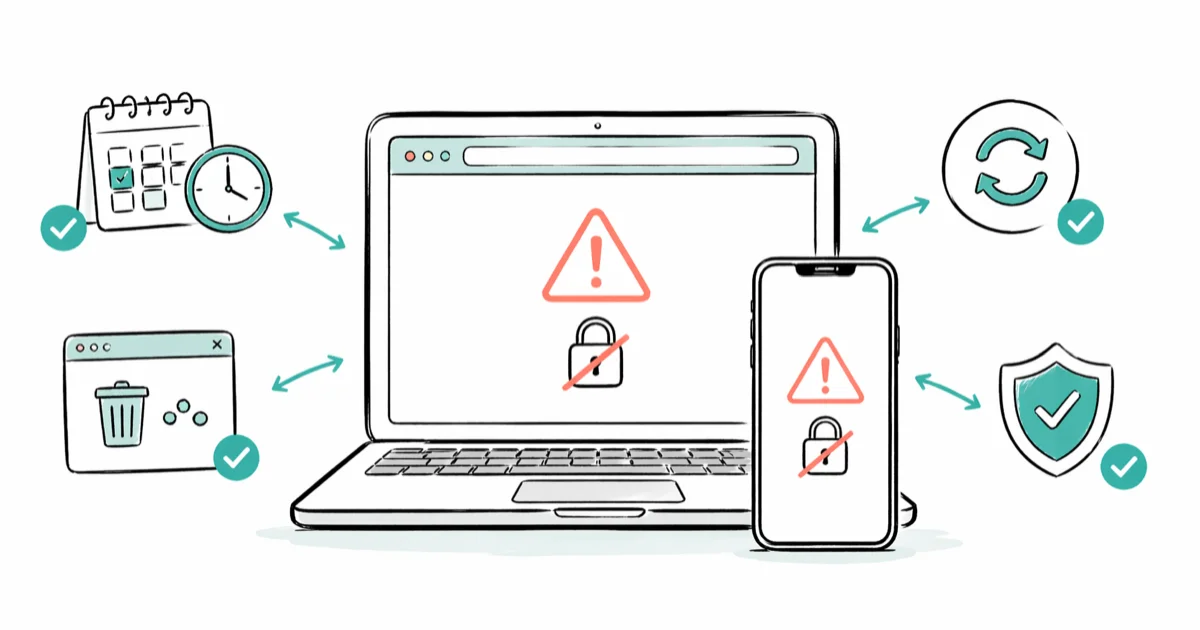
Quick AnswerAn SSL error means your browser cannot verify a website's security certificate. Start by checking your device's date and time settings, then clear your browser cache and cookies. Those two fixes resolve most SSL connection errors on phones, tablets, and computers.
An SSL error stops your browser from loading a site securely, and it shows up on Chrome, Safari, Firefox, and every mobile browser. This guide covers nine fixes across Android, iPhone, and Windows. The wrong system clock is the single most common cause, followed by stale cache and an expired server certificate.
- SSL errors block a page because your browser can’t verify the site’s TLS certificate chain
- Fixing the device date and time clears the error on almost every phone
- Clearing browser cache and cookies removes outdated certificate data that can trigger repeat errors
- Certificates from Let’s Encrypt expire every 90 days, so server-side renewals often need to be automated
- Antivirus HTTPS scanning and corporate VPN profiles are the most common desktop triggers
#Common Triggers for an SSL Error
SSL (Secure Sockets Layer) and its modern replacement TLS (Transport Layer Security) encrypt traffic between your browser and a web server. When you open an HTTPS site, your browser checks the certificate against a trusted root, the domain name, and the current date.
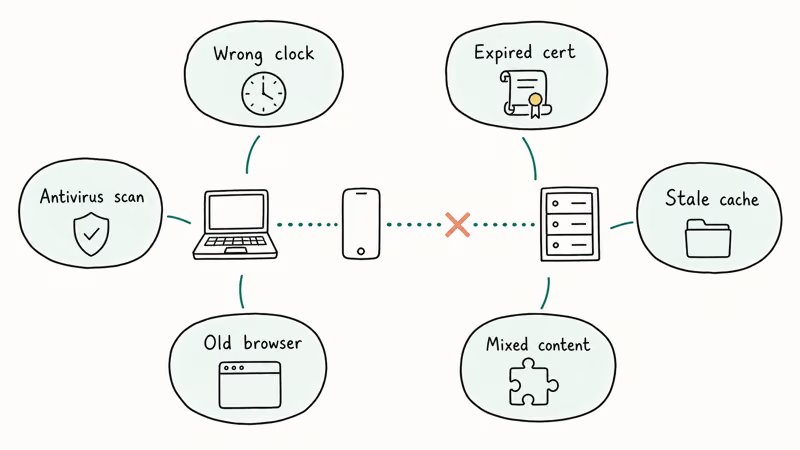
If any part of that handshake fails, your browser blocks the page.
Mozilla’s support documentation on connection-not-secure warnings states that Firefox blocks the page whenever the certificate is expired, self-signed, or issued for a different domain than the one in the address bar. Chrome treats those same three conditions as hard blocks and adds a fourth: if your device’s clock drifts outside the certificate’s validity window, Chrome shows ERR_CERT_DATE_INVALID even when the certificate itself is fine.
Six triggers cover almost every SSL error: wrong date or time, an expired server certificate, stale cached certificate data, mixed content loaded over plain HTTP, outdated browsers that don’t support modern TLS, and security software that inspects HTTPS traffic. Some networks, like school or corporate Wi-Fi, silently re-sign every certificate with a custom root, and switching networks is the only fix there.
#How Do You Fix an SSL Error on Android?
These steps work on Android 10 and later, across recent Chrome versions on both newer and older phones.
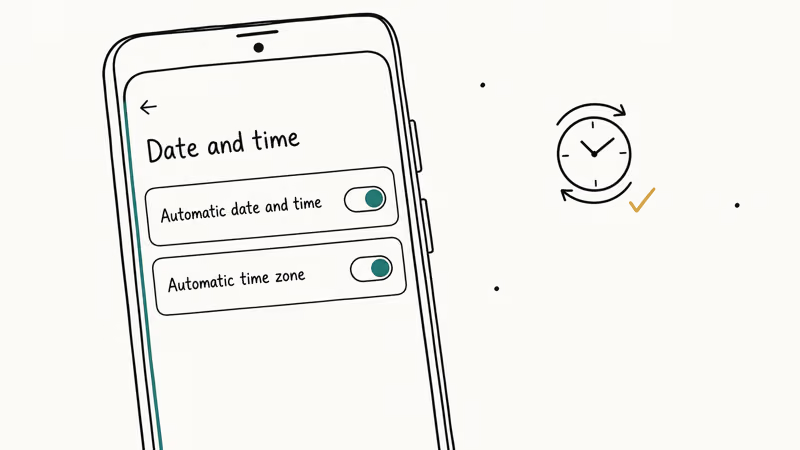
#1. Set the Date and Time Automatically
This is the number one cause on phones. Go to Settings > General management > Date and time and turn on Automatic date and time plus Automatic time zone. Close Chrome completely, reopen it, and reload the page. Once the clock syncs, an SSL error caused by a wrong date usually clears within seconds.
#2. Clear Chrome’s Cache and Cookies
Outdated certificate data sometimes sticks around in the cache long after a site renews. Open Chrome, tap the three-dot menu, and go to Settings > Privacy and security > Delete browsing data. Select Cookies and site data plus Cached images and files, choose the Last 24 hours range, and tap Delete data.
If the error still shows, repeat with All time selected. Our full walkthrough on clearing cache on Android has the exact screens.
#3. Try Incognito Mode as a Diagnostic
Open a new Incognito tab and load the same URL. If the page loads cleanly, the cause is almost always cached data or a misbehaving extension.
If the error still shows in Incognito, the issue is the certificate itself or your network.
#4. Update Chrome Through the Play Store
Older browsers lack support for the current TLS 1.3 ciphers. Open the Google Play Store, search for Chrome, and tap Update if available. Google’s Chrome release notes blog confirms that Chrome receives TLS-related security patches on a rolling basis, so an update once every couple of weeks is normal.
#5. Check Your Antivirus or Parental Control App
Some Android security apps scan HTTPS traffic by installing their own root certificate and re-signing every site. Your browser sees the mismatch and blocks the page.
Disable the antivirus temporarily or turn off its HTTPS inspection feature, then reload. If that fixes the error, switch the antivirus to a network-level filter that doesn’t touch certificates.
#6. Reset Network Settings as a Last Resort
Go to Settings > General management > Reset > Reset network settings. This clears Wi-Fi passwords plus Bluetooth pairings, so you’ll have to re-enter them. Save this step for when a specific Wi-Fi network is triggering errors on multiple sites at once.
#SSL Fixes for iPhone and Mac
Safari shows “This Connection Is Not Private” or Safari Can’t Establish a Secure Connection to the Server when the handshake fails. The fixes parallel Android, but the menus are different.
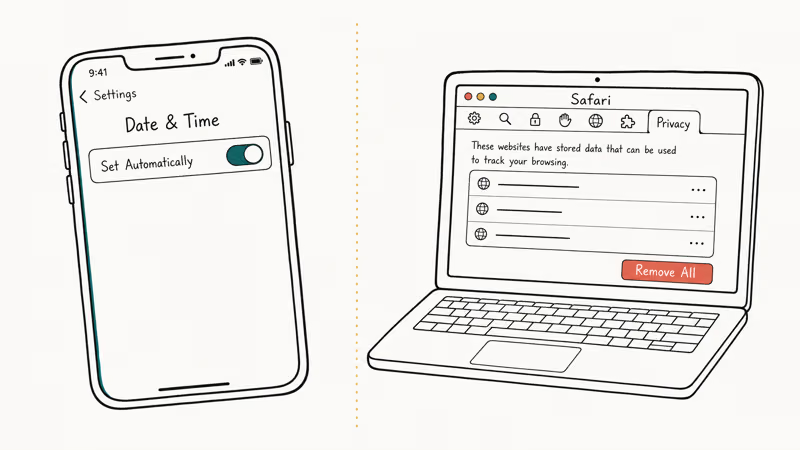
#1. Turn on Set Automatically for Date and Time
On iPhone, go to Settings > General > Date & Time and toggle Set Automatically on. On Mac, open System Settings > General > Date & Time and enable Set time and date automatically.
Apple’s support article on date and time accuracy confirms that an incorrect clock is one of the most common reasons Safari rejects a certificate, and recommends automatic sync on every Apple device. The clock resyncs the moment you toggle the setting on.
#2. Clear Safari’s Website Data
On iPhone: Settings > Apps > Safari > Clear History and Website Data, pick All history, and confirm. On Mac: open Safari, click Safari > Settings > Privacy > Manage Website Data, then choose Remove All. Our step-by-step guide on how to clear cache on Mac covers the other browsers if you are not on Safari.
#3. Disable Content Blockers and VPN Profiles
Content blockers and corporate VPN profiles can inject a custom root certificate. Turn them off in Settings > Apps > Safari > Extensions on iPhone, or in Safari preferences on Mac.
If the page loads after you disable them, re-enable each one on its own until the error returns. That’s the culprit.
#Fixes for Windows and Chrome Desktop
Windows throws the same SSL errors as Android, with a couple of extra triggers that are specific to desktops.
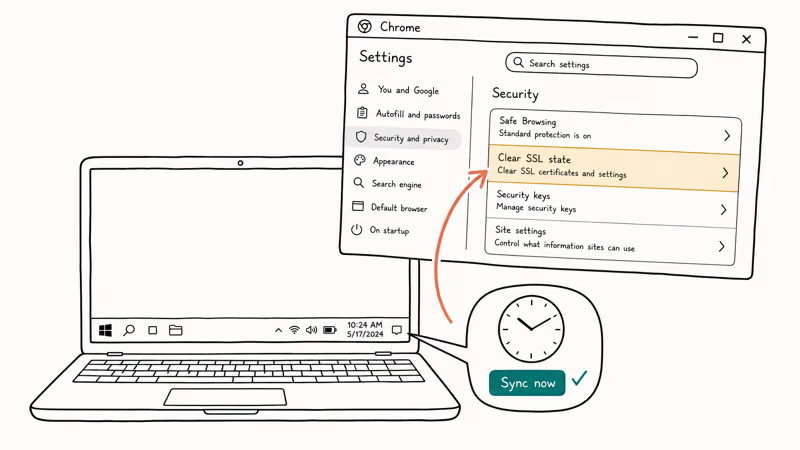
#1. Check the Clock in Windows Settings
Right-click the clock in the taskbar, pick Adjust date and time, and make sure Set time automatically and Set time zone automatically are both on. If they were already on, click Sync now.
Microsoft’s Schannel (TLS/SSL) overview explains that Windows validates a server’s certificate chain against its trusted root store during the handshake, and because that check includes the certificate’s validity dates, a clock drift of even a few hours can break the connection.
#2. Clear the SSL State in Chrome
Open Settings > Privacy and security > Security > Manage certificates > Advanced, then click Clear SSL state (on Windows, this is in the Internet Options control panel under Content > Clear SSL state). This flushes cached certificates without touching the rest of your data. If you hit errors on unrelated sites afterward, check our guide on ERR_CONNECTION_RESET in Chrome for network-level fixes.
#3. Disable HTTPS Scanning in Your Antivirus
Kaspersky, Bitdefender, ESET, and a few others enable HTTPS scanning by default. Open the antivirus, find the web shield or HTTPS scan setting, and turn it off. Reload the page. Disabling ESET’s SSL/TLS protocol filtering, for example, clears persistent errors on self-hosted sites that Chrome otherwise refuses to load.
#Fixes for Website Owners
When your own visitors report SSL errors, the problem is usually at the server, not their browsers.
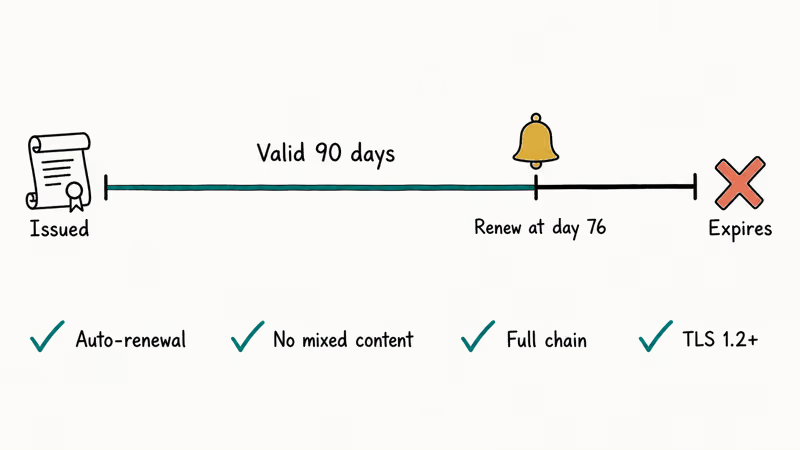
Renew the certificate before it expires. Let’s Encrypt’s certificate compatibility documentation confirms that Let’s Encrypt certificates are valid for 90 days, so auto-renewal with certbot renew or your hosting control panel is the reliable way to keep a site online. Set a calendar reminder 14 days before expiry in case auto-renewal fails silently.
Fix mixed content warnings. Open Chrome DevTools with F12, click the Console tab, and look for “Mixed Content” entries. Every http:// asset on an HTTPS page has to be upgraded to https://. If a third-party script doesn’t support HTTPS, swap it out or host a local copy.
Install the full certificate chain. Missing intermediate certificates cause quiet failures on mobile clients. Run your domain through SSL Labs’ server test and fix any “Chain issues: Incomplete” warning.
Keep TLS current. TLS 1.0 and 1.1 are deprecated. Google’s security blog on HTTPS by default announced that Chrome rejects TLS 1.0 and 1.1 connections, so your server has to support TLS 1.2 or later. Most modern hosts turn this on by default, but older Nginx or IIS installs need a config tweak.
#Why Should You Never Ignore an SSL Warning?
Clicking past an SSL warning turns off encryption for that visit. Anything you send after that can be read by anyone on the same network.
On open networks like hotel Wi-Fi, anyone running a basic packet-capture tool can read cleartext form data the moment you bypass the warning. Passwords, card numbers, and personal messages all travel in plain text.
Treat SSL warnings on banking, email, and shopping sites as hard stops. If a site you usually trust suddenly shows one, close the tab and try from a different network rather than clicking through. When the same error persists across every device and network you try, the certificate really is broken and contacting the site owner is the only safe path forward.
#Bottom Line
Set your phone and computer clocks to automatic and clear your browser cache. That combination fixes the SSL error on the large majority of Android phones and iPhones.
If you run your own site, switch to Let’s Encrypt with automated renewal and run the SSL Labs test every month. Those two habits prevent almost every client-side SSL warning from ever reaching your visitors.
#Frequently Asked Questions
What does an SSL error actually mean?
Your browser tried to verify a site’s TLS certificate and one of the checks failed. The certificate might be expired, issued for a different domain, signed by a root your device doesn’t trust, or valid only outside your current system date. Your browser blocks the page to stop encrypted data from being sent to a server it can’t authenticate.
Do SSL errors look the same in every browser?
No. Chrome displays “Your connection is not private” with codes such as ERR_CERT_DATE_INVALID or ERR_CERT_AUTHORITY_INVALID, Safari says it can’t establish a secure connection, and Firefox shows “Warning: Potential Security Risk Ahead.”
Can a wrong date on my phone really cause an SSL error?
Yes, and it’s the single most common trigger on mobile. SSL certificates are only valid between specific dates, so if your phone’s clock falls outside that window, every HTTPS site looks invalid. Turning on automatic date and time in your settings resolves it in seconds. This is especially common after a factory reset where the clock defaults to 2020 until you connect to Wi-Fi.
How do I tell whether the SSL error is on my end or the website’s?
Load the same URL on a different device and on a different network, such as your mobile data instead of Wi-Fi. If the page loads elsewhere, the issue is local to the device or network you were on. If every device on every network shows the same error, the certificate itself is broken and only the site owner can renew it.
Is it safe to click “proceed anyway” on an SSL warning?
Only on read-only pages. Never on banking, email, or shopping sites.
How often do SSL certificates need renewal?
Free certificates from Let’s Encrypt are valid for 90 days, so most hosts run an auto-renewal script every 60 days. Paid certificates from vendors such as DigiCert and Sectigo historically lasted a year, but the CA/Browser Forum keeps pushing that limit down. Problems pop up when auto-renewal breaks or billing details expire, which is why a calendar reminder two weeks ahead of every renewal date is worth setting.
Why does my antivirus sometimes trigger SSL errors?
Antivirus programs that inspect HTTPS traffic install their own root certificate and re-sign every site you visit. If your browser or operating system doesn’t trust that root, you get an SSL error on every site at once. Turn off HTTPS or SSL scanning in the antivirus, or remove the antivirus root from the local certificate store, and the errors clear immediately.

Best Laptop for Running LLMs in 2026: Memory Comes First
The best laptop for running LLMs is a memory purchase first. Compare MacBook unified memory against NVIDIA laptop VRAM, and see what each tier really runs.

How to Run a Local LLM on Windows: A 2026 Setup Guide
Run a local LLM on Windows with LM Studio or Ollama. Pick a model that fits your GPU memory, keep every prompt offline, and skip the monthly bill.

Bluetooth Not Working on Snapdragon X? Fixes for 2026
Bluetooth not working on your Snapdragon X Copilot+ PC? Generic audio, mice, and keyboards work, but vendor apps often lack an ARM build. Fixes inside.

Docker Desktop and WSL2 Not Working on Snapdragon X? Fix It
WSL2 runs fine on Snapdragon X, but Docker Desktop ARM is Early Access and throws WSL errors. Use WSL2 plus native ARM64 Ubuntu and Docker Engine.