Fix Safari Can't Establish a Secure Connection (7 Ways)
Fix 'Safari can't establish a secure connection' with 7 methods. Covers date/time, DNS, certificates, cache clearing, and IPv6 on Mac and iPhone.
Quick AnswerFix your date and time first by going to Settings > General > Date & Time and turning on Set Automatically. If that doesn't work, switch your DNS to Google (8.8.8.8) and clear Safari's cache.
Safari blocks websites when it can’t verify their SSL/TLS certificates, and the “can’t establish a secure connection” error is the visible symptom of that handshake failure. The 7 fixes below work across both macOS and iOS, starting with the two that resolve the error most often: correcting a skewed device clock and swapping to a reliable DNS resolver.
- A wrong device clock causes the largest single share of Safari secure connection errors because SSL certificates check validity dates against your local time
- Switching DNS to Google 8.8.8.8 or Cloudflare 1.1.1.1 resolves lookup failures that block certificate validation
- Clearing Safari’s cache forces the browser to fetch a fresh copy of the site’s certificate instead of a stale local one
- Mac antivirus apps that scan HTTPS traffic replace real certificates with their own and trigger the warning on Safari only
- Some errors come from the website itself, not your device, when its certificate is expired, self-signed, or missing intermediate links
#Why Does Safari Block Certain Websites?
Safari validates every site’s SSL/TLS certificate before loading the page.
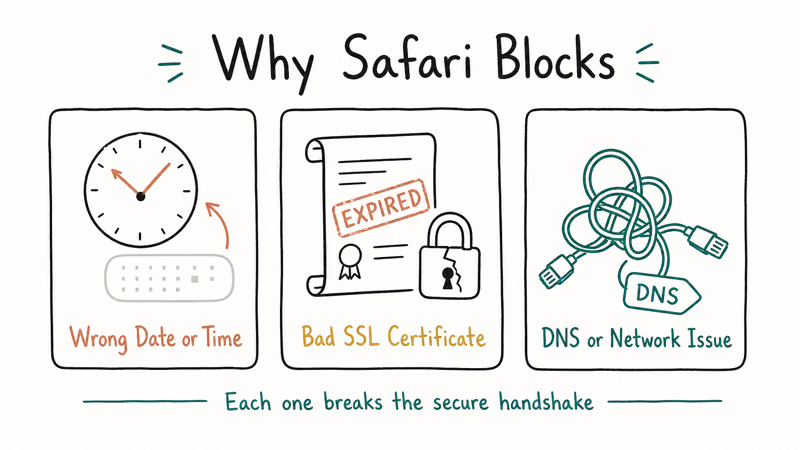
Apple confirms that around 165 root certificate authorities ship with the macOS and iOS system trust store, and Safari leans on that exact list rather than maintaining its own; the full inventory and validation rules live in Apple’s Safari security documentation. When the site’s certificate doesn’t chain back to one of those roots, the handshake fails immediately.
If the certificate is missing, expired, self-signed, or signed by an unknown authority, Safari refuses to connect.
You may also see “This connection is not private” or NSURLErrorDomain -1200 in console logs. They all point to the same underlying SSL handshake failure on the same line of code in WebKit’s network stack, just surfaced through different UI strings depending on whether the failure happens during DNS resolution, TLS negotiation, or certificate verification.
The fix depends on whether the problem lives on your device or on the website’s server. If Safari isn’t working at all, check that guide first.
For clock-related issues that also affect iPhone messaging timestamps, the same automatic date settings apply.
#How Do You Fix Date and Time Settings?
This is the most common cause and the fastest fix.
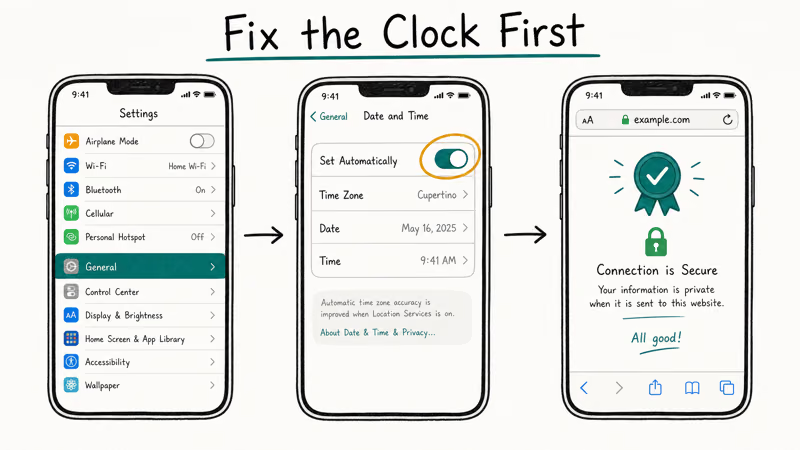
SSL certificates carry a “valid from” and “valid to” date. If your device’s clock falls outside that window, even by a few minutes, Safari treats the certificate as expired and blocks the page before the encrypted session ever starts, even when the certificate is perfectly valid against real-world UTC time.
On Mac:
- Open
System Settings>General>Date & Time - Toggle on Set date and time automatically
- Confirm the time zone matches your location
On iPhone or iPad:
- Open
Settings>General>Date & Time - Toggle on Set Automatically
A clock set months ahead will make Safari throw the secure connection error on almost any site within seconds. Switching the date back to automatic usually clears the error on the next refresh.
Quit Safari with Command + Q on Mac and reopen it. iOS doesn’t need a quit step.
#Change Your DNS Settings
Your DNS server translates website names into IP addresses, and a slow or hijacked resolver can break SSL validation in subtle ways. If DNS returns the wrong record, Safari can’t reach the certificate authority’s validation servers, the handshake stalls, and the secure connection error appears even though the website itself is healthy.
On Mac:
- Open
System Settings>Network - Pick your active connection and click
Details>DNS - Remove existing entries and add
8.8.8.8and8.8.4.4 - Click OK to save
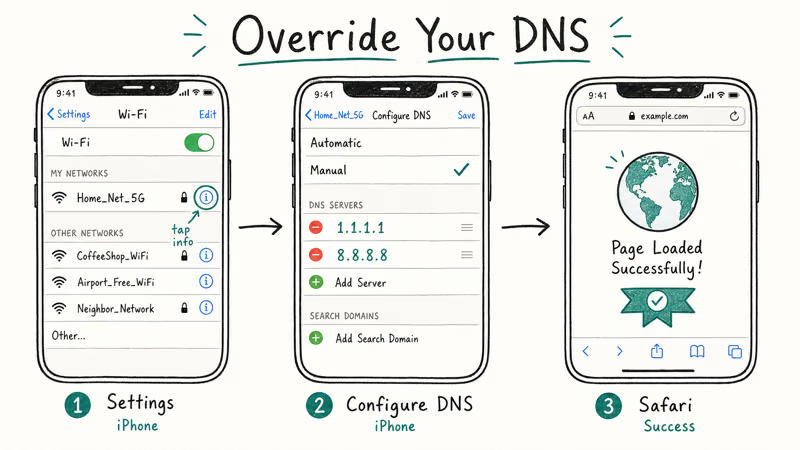
On iPhone or iPad:
- Open
Settings>Wi-Fi - Tap the info icon next to your network
- Tap
Configure DNS>Manualand add8.8.8.8and8.8.4.4
Google announced 1 trillion daily queries on its public DNS service in early 2023, and the Google public DNS overview confirms DNSSEC validation runs by default on every lookup. That validation step matters here because it stops poisoned DNS records from sending Safari to a server with the wrong certificate.
Cloudflare’s 1.1.1.1 service works the same way and is a fine alternative.
If your home network sits behind a captive portal, forget the network on Mac and rejoin so the new DNS values stick.
#Clear Safari’s Cache and Website Data
Stale cached data can pin Safari to an old certificate that no longer matches what the server presents.
On Mac:
- Open Safari and choose
Safari>Settings - Open Privacy and click
Manage Website Data>Remove All - Open Advanced, check Show Develop menu, then click
Develop>Empty Caches
On iPhone or iPad:
- Open
Settings>Safari - Tap Clear History and Website Data and confirm
Clearing the cache forces a fresh certificate fetch on the next page load. This fix helps when a website’s certificate was renewed in the last 24 hours but Safari is still serving the old, expired version from cache, which is exactly the kind of stale-state problem the cache layer is designed to absorb in normal conditions but mishandles around certificate-renewal boundaries.
Close every Safari tab after clearing data and reopen the browser cold.
#Check Your Antivirus Software
Norton, Kaspersky, Bitdefender, and Avast each ship a “web protection” or “HTTPS scanning” feature on Mac.
These features intercept your browser’s SSL handshake and replace the website’s real certificate with one signed by the antivirus, so Safari sees the antivirus certificate, refuses to trust it, and blocks the page even though the actual destination server is presenting a perfectly valid certificate from a real authority.
Apple recommends checking 4 specific layers when third-party security software interferes with network traffic: the antivirus configuration itself, system network preferences, the browser cache, and the user account. The full troubleshooting flow lives in Apple’s third-party security software guidance.
To test if your antivirus is the cause:
- Disable the antivirus’s web protection feature for 5 minutes
- Reload the website in Safari
- Re-enable web protection and add the site to the antivirus allow-list
Each antivirus handles the allow-list differently. The principle is the same: tell the app to skip SSL inspection on that domain so the real certificate reaches Safari untouched.
iOS doesn’t allow third-party apps to intercept SSL traffic, so this fix only applies to Mac.
#Trust a Certificate Manually in Keychain Access
If you trust a specific website but Safari keeps blocking it because of a certificate issue, you can manually mark that certificate as trusted in macOS. This is a per-certificate override, so use it only for sites you’ve verified through another browser first and only when you’re certain the certificate belongs to the real site rather than to an attacker on your network.
- Open the website in Chrome or Firefox to inspect the certificate details
- Note the certificate name from the padlock icon in the address bar
- Open Keychain Access on your Mac via Spotlight
- Find the certificate under
System Roots>Certificates - Double-click it, expand Trust, and set “When using this certificate” to Always Trust
- Close the window and enter your admin password to save
The trust override applies only to the one certificate you marked.
If you’ve forgotten your Keychain password, reset it before you try to edit any trust settings.
#Disable IPv6 on Your Network
Some websites and home routers have IPv6 quirks that interfere with SSL certificate validation, and forcing IPv4-only routing sidesteps the issue without permanently disabling anything important on your local network.
On Mac:
- Open
System Settings>Network - Pick your Wi-Fi connection and click Details
- Open the TCP/IP tab
- Set “Configure IPv6” to Link-Local Only and click OK
This is a diagnostic step.
If disabling IPv6 fixes the error, the root cause is your router’s IPv6 deployment or the website’s IPv6 support, and those need a longer-term fix on the network side. Contact your ISP about IPv6 settings or check whether your router has a firmware update available.
For SSL handshake failures in other browsers, our SSL error troubleshooting guide covers Chrome and Firefox.
#When the Problem Is the Website, Not Your Device
Sometimes the error has nothing to do with your settings. The website’s SSL certificate may be:
- Expired: The CA/Browser Forum states that all publicly trusted SSL certificates issued after September 2020 must be valid for 398 days or less, per the CA/Browser Forum baseline requirements. A single missed renewal blocks the entire site.
- Self-signed: The certificate is issued by the website itself with no chain back to a trusted authority, so Safari refuses it by default.
- Misconfigured: The certificate is valid but the server doesn’t send the intermediate certificates that complete the trust chain.
You can confirm a certificate’s status with SSL Labs’ SSL Test. Enter the domain. The tool grades the configuration from A+ down to F and lists every certificate problem in detail.
If the issue is on the website’s side, you can’t fix it from your device. Wait for the site owner to renew, or contact them directly.
#Bottom Line
Start with date and time settings. That single check resolves more secure connection errors than every other method on this page combined. If your clock is right, switch DNS to Google 8.8.8.8 or Cloudflare 1.1.1.1 and clear Safari’s cache. For stubborn macOS-only failures, check whether your login keychain is out of sync before reinstalling Safari.
#Frequently Asked Questions
Is it safe to ignore the secure connection warning?
No. Bypassing the warning lets attackers on shared networks read or change everything you send.
Does clearing Safari’s cache delete my passwords?
Clearing website data and history removes cached files, cookies, and browsing history. It doesn’t touch your passwords.
Saved passwords live in iCloud Keychain, which is a separate store from Safari’s web cache, so wiping cookies and history never reaches them.
Why does this error only happen on Safari and not Chrome?
Safari and Chrome use different certificate validation systems. Safari leans on the macOS or iOS system trust store, while Chrome ships its own Chrome Root Store. A certificate that one browser trusts may not be trusted by the other, especially during the rollout window for newly added or removed authorities, when the two stores can disagree for weeks at a time before the lagging one catches up.
Can a VPN cause the secure connection error?
Yes.
Some VPN apps intercept SSL traffic for content filtering or ad blocking, which makes Safari see the VPN’s certificate instead of the real one. Disconnect the VPN and load the site again to confirm.
Why does the error appear on some sites but not others?
Each site uses its own SSL certificate from its own certificate authority, and Safari validates each one independently against the trust store. The error fires only when a specific site has a problem, while another site with a clean, current certificate loads normally on the same network connection in the same Safari window.
Will updating Safari fix the error?
Sometimes. Apple updates the trusted authority list through macOS and iOS releases. An older Safari may not recognize newer authorities. Run Software Update first when nothing else works.
How do I check if a website’s SSL certificate has expired?
Click the padlock icon in Safari’s address bar on Mac and select Show Certificate to see the validity dates and full certificate chain. You can also paste the URL into SSL Labs’ free test for a complete report including expiration, chain trust, and protocol support.

Mac mini M6 vs M5 Pro: Which Model Should You Buy?
Mac mini M6 vs M5 Pro compared on price, memory, ports, displays, and real workloads. Find the better 2026 Mac mini for your desk and budget.

Apple Siri Settlement: Who Qualifies and How to Claim
Apple's $250 million Siri settlement covers iPhone 15 Pro and iPhone 16 models bought June 2024 to March 2025. See who qualifies and how claims work.

iOS 26.6.1 Security Update: What Apple Fixed and Who Gets It
Apple released iOS 26.6.1 on August 17 with 29 security fixes, including an IPSec interception bug. See what it patches, who gets it, and how to update.

iPhone Adaptive Power: How It Works and When to Use It
Learn how iPhone Adaptive Power works, which models support it, what it changes, and when Low Power Mode is still the better battery-saving choice.