Why Is Chrome So Slow? 9 Proven Fixes for a Faster Browser
Chrome running slow? Fix it by clearing cache, disabling extensions, enabling Memory Saver, and updating Chrome. Works on Windows, Mac, and Android.
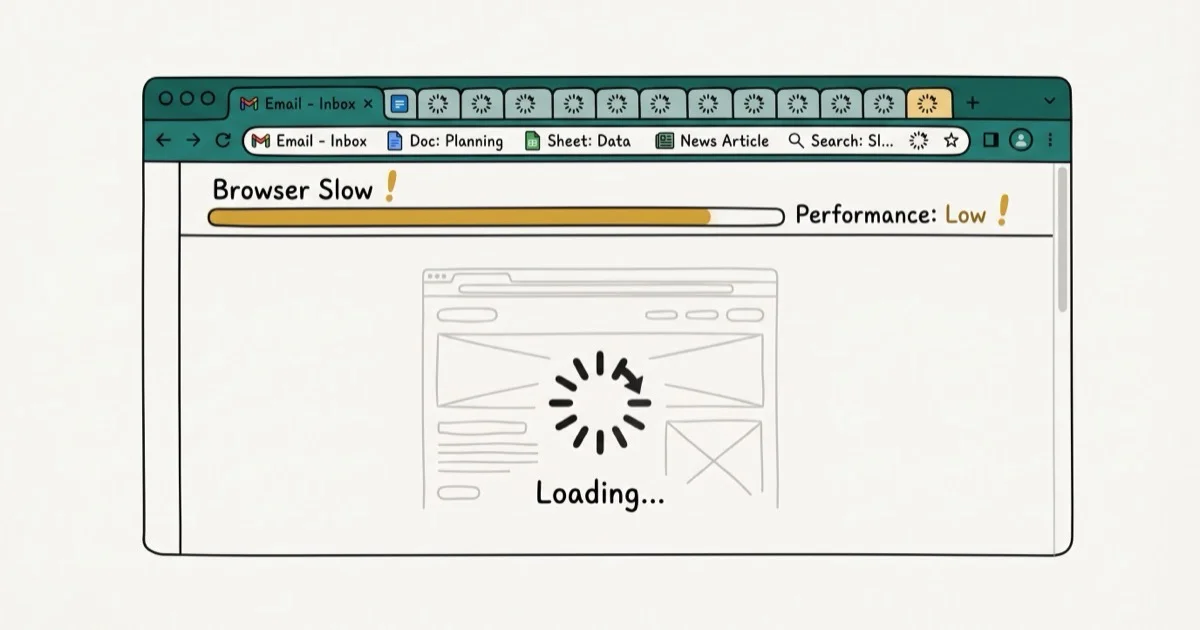
Quick AnswerChrome slows down mostly due to too many open tabs, a bloated cache, memory-hungry extensions, or an outdated browser version. Clearing your cache, disabling unused extensions, and enabling Memory Saver in Chrome Settings usually fixes it in under five minutes.
Google Chrome can still bog down when tabs pile up, the cache swells, or an extension starts hogging CPU. Even a mid-range laptop with 8 GB of RAM can feel squeezed by tab-heavy browsing and media-heavy sites. The good news: most slowdowns clear up with a few targeted fixes.
- Too many open tabs is the single most common cause, as each tab keeps a live process in memory
- Chrome’s Memory Saver feature (
Settings>Performance) automatically frees RAM from inactive tabs - Clearing cached images and cookies recovers the most speed in the shortest time
- Extensions run in every tab; disabling unused ones can reduce background CPU and memory use
- An outdated Chrome version often carries performance bugs fixed in newer releases
#Why Is Chrome Running Slow?
Before jumping to fixes, it helps to know what’s actually causing the slowdown. Common culprits include:
- Too many open tabs consuming RAM and CPU
- Outdated Chrome version with unpatched performance bugs
- Excessive cache and browsing data slowing lookups
- Resource-heavy extensions running in every tab
- Malware redirecting traffic or injecting scripts
- Hardware acceleration mismatches with your GPU driver
- A slow internet connection masking as a browser problem
According to Google’s Chrome Help documentation, Chrome’s multi-process architecture assigns at least 1 separate process per tab, which means 20 open tabs can spawn 20 or more background processes on your machine.
#Fix 1: Enable Memory Saver and Close Unused Tabs
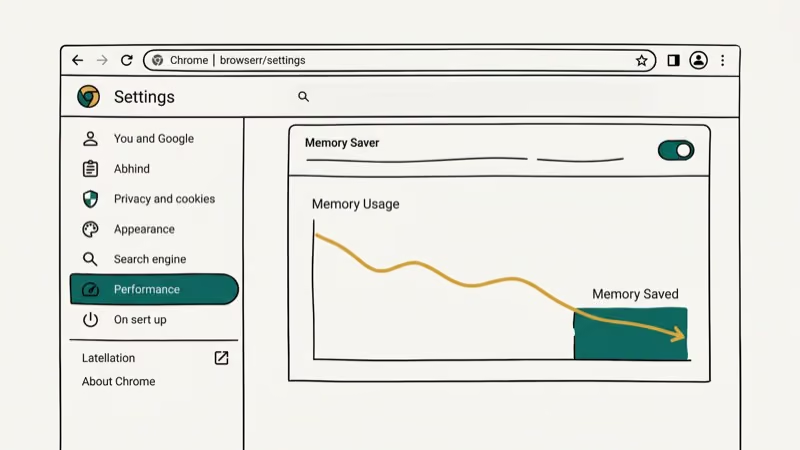
Memory Saver is Chrome’s built-in solution for tab-heavy sessions. It frees RAM from inactive tabs and reloads them when you return.
To enable it: go to Settings > Performance and toggle Memory Saver to on. Chrome then frees memory from inactive tabs and keeps it available for the tabs you actually keep open.
You can also open Chrome’s built-in task manager with Shift + Esc to see exactly which tabs and extensions are consuming the most memory and CPU right now. Sort by Memory to find the worst offenders and close them.
#Fix 2: Clear Cache and Browsing Data
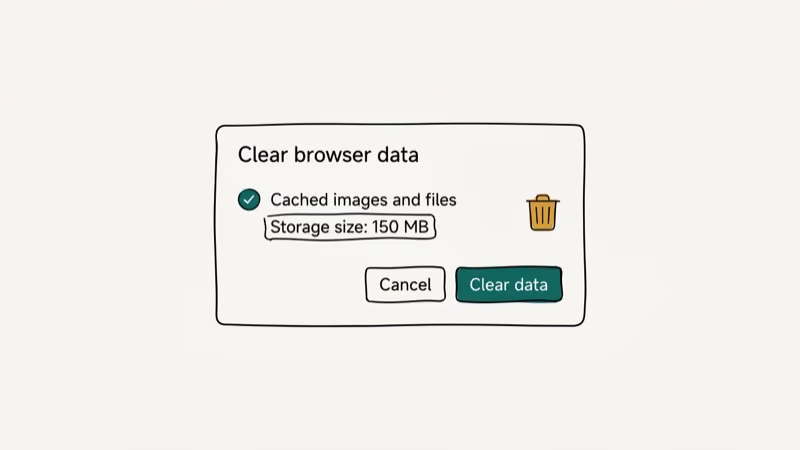
Over time, Chrome’s cache grows. A large or partially corrupted cache slows every page load.
To clear it: click the three-dot menu, go to More tools > Clear browsing data, set the time range to All time, check Cookies and other site data and Cached images and files, then click Clear data.
Clearing cache removes stale files Chrome may be trying to reuse. It can also resolve the ERR_CACHE_MISS error.
#Fix 3: Disable or Remove Extensions
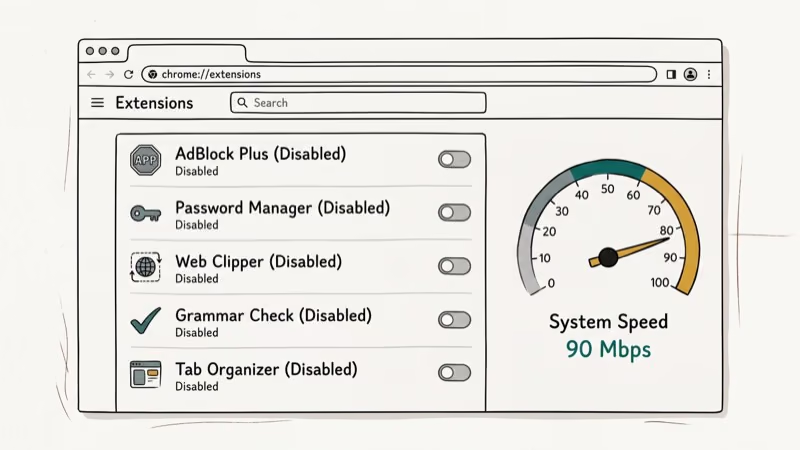
Extensions run a background process in every tab you open. Even ones you’ve forgotten about can each consume 50 to 150 MB of RAM and add meaningful CPU overhead on every single page load, regardless of whether you’re actively using that extension.
To audit them: type chrome://extensions in the address bar. Toggle off any extension you don’t actively need, and remove ones you haven’t used in over a month. Pay special attention to ad blockers, PDF converters, and screenshot tools, which tend to be the heaviest.
If your Chrome bookmarks disappeared recently, a buggy extension update is a common cause. Disabling extensions one at a time helps isolate the culprit.
#Is Chrome Slow Because It Needs Updating?
Yes, outdated Chrome versions often carry memory leaks and rendering bugs. Google patches these in subsequent releases, but you only get those patches if Chrome updates. Running a version more than 2 to 3 weeks old means you’re missing fixes that could directly affect the slowdowns you’re seeing right now, particularly JavaScript engine improvements shipped in recent stable builds.
To update: click the three-dot menu > Help > About Google Chrome. Chrome checks for updates automatically and installs them. Restart the browser to apply. According to Google’s Chrome release schedule, stable channel updates ship roughly every 4 weeks, with security patches arriving faster.
#Fix 5: Adjust Hardware Acceleration
Hardware acceleration offloads rendering work to your GPU instead of your CPU. On most modern machines with up-to-date drivers, this speeds up page rendering noticeably, especially on video-heavy pages and sites that use WebGL or CSS animations. But on systems with outdated or incompatible GPU drivers, hardware acceleration can cause stuttering, flickering, or crashes that look exactly like browser slowness rather than a graphics driver problem.
To toggle it: go to Settings > Advanced > System and switch Use hardware acceleration when available off or on, then restart Chrome. If Chrome feels sluggish specifically on video pages or after GPU driver updates, try flipping this setting.
#Fix 6: Scan for Malware
Malware embedded in Chrome or running system-wide can silently redirect traffic, inject ads, and consume CPU in ways that look like browser slowness.
Use Chrome’s built-in scanner: Settings > Advanced > Reset and clean up > Clean up computer, then click Find. For system-level threats, run a full scan with Windows Defender or a dedicated tool like Malwarebytes. According to Google’s Safe Browsing support page, Chrome’s built-in cleanup tool detects unwanted software that interferes with browser settings and removes it automatically.
#Fix 7: Reset Chrome to Default Settings
If nothing else has worked, a settings reset clears misconfigured flags, broken startup pages, and stuck extensions without touching your bookmarks, history, or passwords.
To reset: go to Settings > Advanced > Reset and clean up > Restore settings to their original defaults, then confirm. Your extensions get disabled but not deleted, so you can re-enable only the ones you actually need. A reset is especially useful when misconfigured Chrome flags or broken startup settings keep causing slowdowns after simpler fixes.
#Fix 8: Optimize Your Internet Connection
Sometimes what feels like Chrome being slow is actually a slow connection. A 5 Mbps connection will make even a perfectly optimized Chrome feel sluggish on media-heavy pages.
Run a speed test at fast.com or Speedtest.net to check your real speeds. Restart your modem and router if speeds are below what your plan promises. Switch to a wired Ethernet connection when possible, since Wi-Fi adds 5 to 40 ms of latency that stacks up across every page element Chrome loads.
For Android users experiencing slow downloads specifically, our guide on how to increase download speed in Chrome Android covers mobile-specific fixes including DNS switching and download manager settings.
#Fix 9: Troubleshoot Persistent Chrome Issues
Specific error patterns often signal specific causes.
No sound in Chrome: If you’re experiencing Chrome not playing sound, check your system audio settings and confirm Chrome has audio permission in Site Settings. This is one of the most common Chrome-specific issues that gets reported alongside slowdowns.
ERR_CONNECTION_RESET: Our ERR_CONNECTION_RESET fix guide covers the proxy settings and network stack resets that resolve it.
Plugin not supported: See our guide on fixing unsupported plugins in Chrome.
Incognito test: Open Chrome’s incognito window (Ctrl+Shift+N). Faster loading there means a rogue extension is your culprit.
#Bottom Line
Enable Memory Saver, clear your cache, disable unused extensions. Those three steps fix most slowdowns. If they don’t, update Chrome, scan for malware, or reset settings. Chrome’s task manager identifies the real culprit in real time.
#Frequently Asked Questions
Why is Chrome so slow even with one tab open?
One tab can still consume 500 MB or more of RAM if it’s running Google Docs, YouTube, or a heavy web app. Open Chrome’s task manager with Shift + Esc to confirm. A slow connection mimics browser slowness too, so run a speed test at fast.com to rule that out before spending time on browser fixes.
Does Chrome use more RAM than other browsers?
Yes, significantly. Chrome’s multi-process model assigns a dedicated process to each tab and extension for stability and sandboxing. According to browser benchmarks published by Tom’s Hardware, Chrome typically uses noticeably more RAM than Firefox on equivalent workloads. The isolation tradeoff means a single crashing tab won’t take down your entire session, but memory usage adds up fast on machines with less than 8 GB RAM.
How often should I clear Chrome’s cache?
Once a month works for most people. If you visit a lot of content-heavy or frequently updated sites, clearing every two weeks keeps the cache from bloating past a few gigabytes. Chrome’s Memory Saver setting handles active-session RAM more effectively than periodic manual cache clearing does.
Will disabling extensions break my Chrome?
Disabling an extension only removes its functionality. It doesn’t delete it or affect your data. You can re-enable any extension from chrome://extensions at any time. Start by disabling extensions you installed more than six months ago that you no longer actively use.
Does Chrome slow down on older computers?
Yes, noticeably. Chrome’s minimum recommended specs include 4 GB of RAM, but comfortable daily performance requires 8 GB or more. On machines with 4 GB or less, Memory Saver helps, and limiting open tabs to fewer than 10 makes a real difference day to day. If Chrome stays sluggish even after tuning, switching to a lighter Chromium-based browser like Microsoft Edge or Brave can recover significant speed on older hardware without losing your bookmarks.
Can Chrome slow down my whole computer?
Absolutely. When Chrome consumes most of your available RAM, your OS switches to disk-based virtual memory, which is 10 to 100 times slower than real RAM. Every application on your machine feels sluggish until that memory is freed. Closing Chrome tabs or restarting the browser typically recovers it within seconds.

Google Messages Error 3100: Why RCS Is Broken on Galaxy
Google Messages RCS error 3100 hits Galaxy owners after phone or carrier switches. Google told 9to5Google a fix is coming. Here's what actually helps.

Is This Bank App Real? Spot a Fake App on Your Home Screen
A bank app can land on your home screen from a web page with no install warning. Learn the checks that tell a real banking app from a phishing web app.

Apps Crashing After iOS 27 Update? Fix Order (2026)
Apps crashing after the iOS 27 update? Update the app in the App Store first, then offload and reinstall to clear stale cache, then restart. The fix order.

Do AI Translation Earbuds Work Offline? What to Know
Do AI translation earbuds work offline? A few do with downloaded language packs, but most need the cloud. Here's what works offline and what you give up.