Writing Tools Greyed Out? Apple Intelligence Fix (2026)
Writing Tools greyed out on iPhone? Check your model, turn on Apple Intelligence, match your languages, and drop any VPN or work profile blocking it.
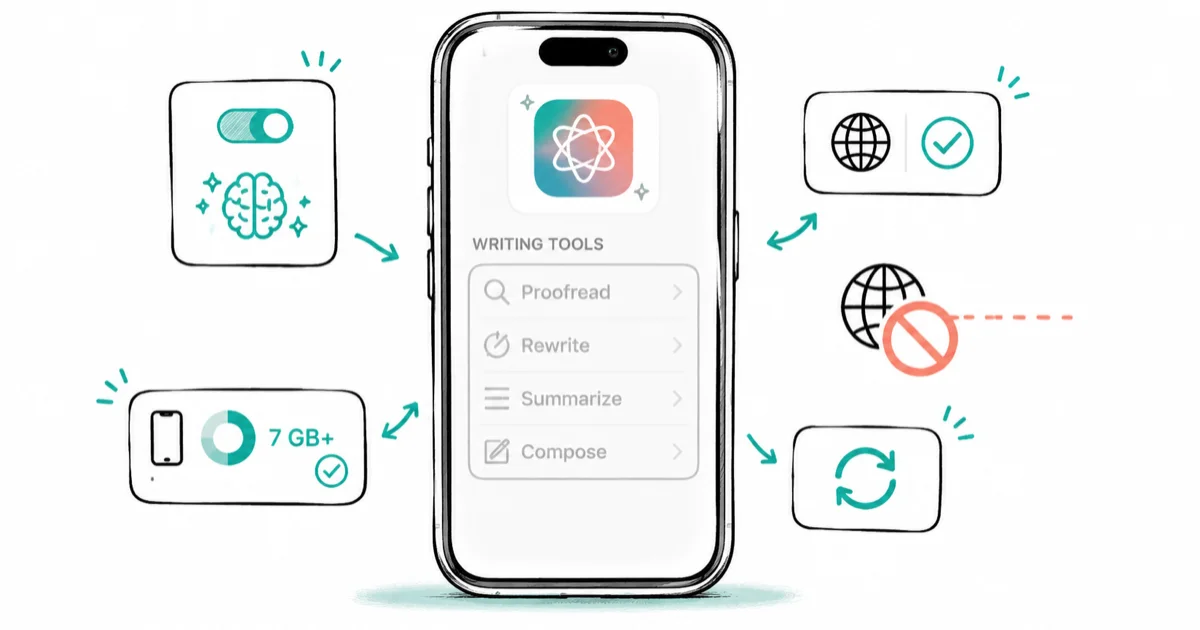
Quick AnswerWriting Tools is greyed out because Apple Intelligence is off, still downloading, or unsupported on your iPhone. Turn it on, free up 7 GB, match your languages, and drop any VPN blocking the download.
Writing Tools greyed out on iPhone almost always comes down to a setup gap, not a bug. Writing Tools is part of Apple Intelligence, so when that feature is off, mid-download, or unsupported, the button does nothing. The parent guide on Apple Intelligence not working on iPhone covers the bigger picture if more than Writing Tools is broken.
- Writing Tools rides on Apple Intelligence, so it stays greyed out until that feature is fully on and downloaded.
- The feature needs an iPhone 15 Pro or any iPhone 16, not just iOS 27 or later.
- Apple Intelligence requires 7 GB of free storage for the on-device models.
- Your device language and Siri language must be the same supported language.
- A VPN or a company or school work profile blocking Apple’s endpoints is a common cause on work iPhones.
#Why Is Writing Tools Greyed Out?
Writing Tools isn’t a standalone feature, and that’s the root of most confusion. It’s a front end on Apple Intelligence, so it only lights up after Apple Intelligence is turned on and its on-device models have finished downloading.
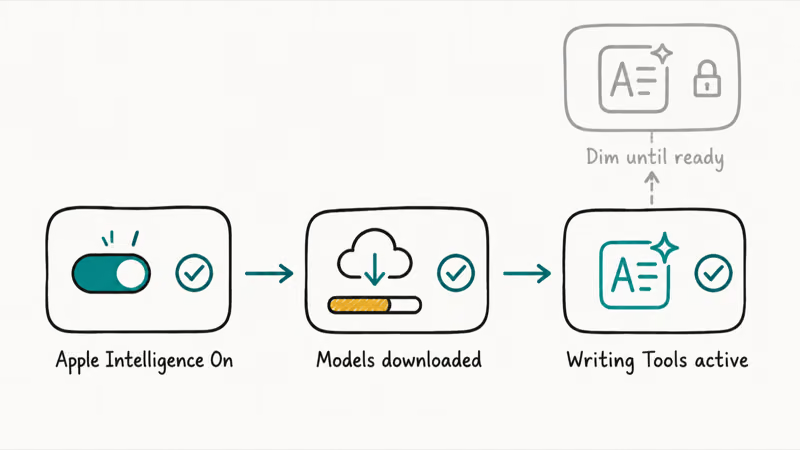
According to Apple’s guide to using Writing Tools, you can use it “nearly everywhere you can type, even in third-party apps,” and the feature is “available on compatible devices starting in iOS 18.1.” The key phrase is compatible devices. If your iPhone can’t run Apple Intelligence, or hasn’t finished setting it up, the Writing Tools button appears dimmed or returns “Writing Tools is unavailable” the moment you tap it.
So before you treat this as a glitch, check the conditions below in order. Most people find the cause in the first two.
#Check Your iPhone Model First
This is the cause that catches the most people, because iOS 27 and Apple Intelligence have different hardware floors. iOS 27 installs on a wide range of iPhones, but Writing Tools doesn’t follow that list.
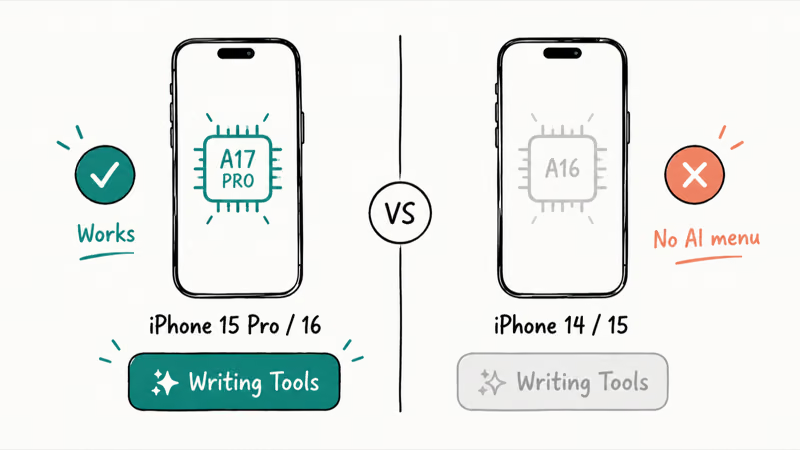
According to Apple’s Apple Intelligence requirements page, the feature works on “iPhone 15 Pro models, and iPhone 16 models or later.” That means an iPhone 14, an iPhone 15, or an iPhone 15 Plus will run iOS 27 fine and still show no Apple Intelligence or Writing Tools at all.
Apple’s hardware requirements are the cutoff, not just the iOS version, so no setting turns Writing Tools on below that line. Confirm your model in Settings > General > About, and the iOS 27 compatible iPhones guide lists which phones get the update versus the AI features.
If you do have a supported phone but Writing Tools is still dim, the problem is one of the software causes below.
#The Causes, in Check Order
Use this symptom-to-cause-to-fix map whenever Writing Tools is greyed out after an update. Each row is independent, so scan the left column for what your iPhone is actually doing and jump to the matching fix.
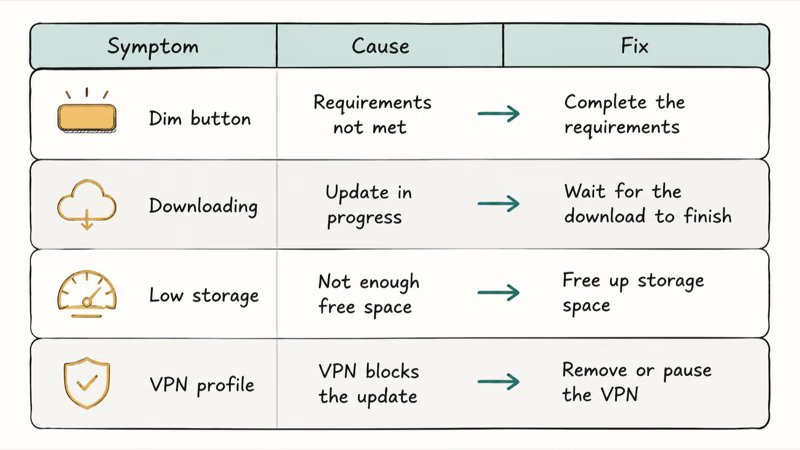
| Symptom | Likely cause | Fix |
|---|---|---|
| Button dim in every app | Apple Intelligence is turned off | Turn it on in Settings, then wait for the download |
| "Writing Tools is unavailable" on tap | On-device models still downloading | Plug in, stay on Wi-Fi, let it finish |
| No Apple Intelligence menu at all | Unsupported iPhone model | Needs iPhone 15 Pro or any iPhone 16 |
| Toggle flips itself back off | Not enough free storage | Free up 7 GB, then re-enable |
| Dim only in some languages or apps | Device and Siri language mismatch | Set both to the same supported language |
| Greyed out on a work or school iPhone | VPN or MDM profile blocking endpoints | Disconnect the VPN, ask IT to allow Apple Intelligence |
#Turn On Apple Intelligence and Let It Finish
The fix for a dim button in every app is usually the simplest one. Go to Settings > Apple Intelligence & Siri and turn Apple Intelligence on. Then leave it alone, because the next part is what people skip.
When you first enable it, your iPhone downloads the on-device models in the background. Until that finishes, Writing Tools stays greyed out even though the feature is technically “on.” Plug the iPhone in, keep it on Wi-Fi, and lock the screen until the download finishes.
If the toggle won’t even stay on, the cause is almost always storage. Apple’s requirements page lists “7 GB of storage on device” as a hard floor, and a nearly full iPhone makes the install fail quietly and flip the switch back off. Clear space in Settings > General > iPhone Storage, then re-enable. The iPhone storage almost full guide covers what to delete first.
#Does a Work Profile or VPN Block Writing Tools?
Yes, and this is the cause people miss on work and school iPhones. Apple Intelligence reaches Apple servers to finish setup and to handle heavier requests, so anything that filters that traffic can leave Writing Tools permanently greyed out.
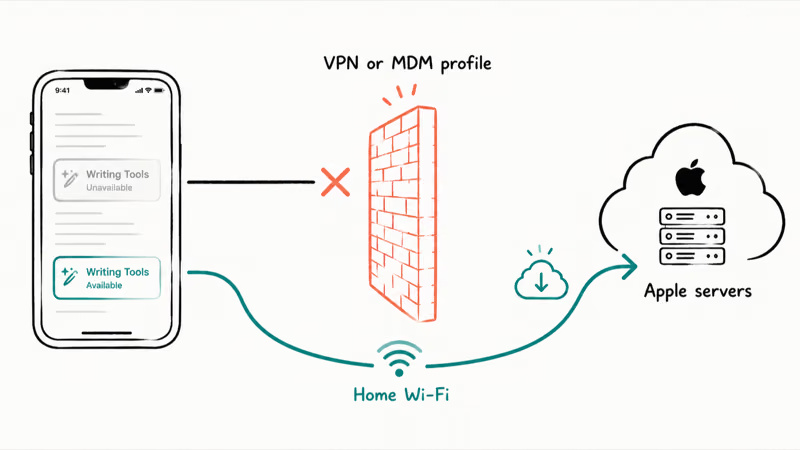
A VPN is the usual culprit. As macReports’ Writing Tools troubleshooting guide notes, “VPNs can sometimes block certain services or disrupt connections,” and it recommends disconnecting the VPN, switching to a different network or hotspot, then re-enabling Apple Intelligence so the components can download. On iPhone you’ll find active VPNs and managed profiles under Settings > General > VPN & Device Management.
The same logic applies to a company or school MDM profile. If your iPhone is managed and Apple Intelligence never downloads, the network or device-management policy may be blocking Apple’s endpoints, and only your IT admin can change that. Turn off the VPN, get onto a plain home Wi-Fi network, and if it works there but not at the office, that confirms the work network is the blocker.
One boundary worth stating: on a company or school iPhone, leave the VPN and MDM profile alone. Editing either yourself can be a legal violation, so ask IT.
#Fix Language, Updates, and a Stuck Install
Three quick things clear the rest of the cases. Work through them if your model, storage, and network all check out.
Match your languages. Apple’s requirements page states Apple Intelligence needs your “device language and Siri language set to the same supported language.” If your phone is in English but Siri is set to another language, Writing Tools won’t appear. Line them up in Settings > General > Language & Region and Settings > Apple Intelligence & Siri. Apple also notes that changing the Siri language leaves the feature unavailable until the new language finishes downloading.
Update iOS. Writing Tools landed in iOS 18.1, per Apple’s Writing Tools page. Beta builds ship frequent fixes for unavailable-feature bugs, so install whatever’s pending in Settings > General > Software Update.
Force a fresh install. If everything looks right but the button stays dim, turn Apple Intelligence off, restart the iPhone while it’s charging, then turn it back on to re-trigger the download. macReports recommends this disable-then-re-enable cycle on a stable network.
Switch to a different Wi-Fi network or a personal hotspot before you re-enable to rule out a router, DNS, or network filter problem. Give the models time to finish again after the toggle goes back on, since Writing Tools won’t activate until they do. If Siri itself is the part misbehaving, the Hey Siri not working guide has the Siri-specific resets.
#Bottom Line
Two reasons cover most cases: Apple Intelligence is off or still downloading, or the iPhone is older than the 15 Pro.
Turn the feature on, plug in, and wait on Wi-Fi until the download finishes. If your menu is missing entirely on an iPhone 14 or older, stop there, because the hardware can’t run it.
On a work iPhone, drop the VPN and test on home Wi-Fi before blaming the feature. If it works there, ask IT to allow Apple Intelligence on the managed network. Once it’s running, the iOS 27 AI features guide covers the rest, and the iOS 27 third-party AI guide shows how to route requests through ChatGPT, Claude, or Gemini.
iOS 27 Beta
#Frequently Asked Questions
Why is Writing Tools greyed out on my iPhone?
Writing Tools is part of Apple Intelligence, so it stays dim until that feature is turned on and finished downloading. The most common reasons are an unsupported iPhone, Apple Intelligence switched off, the on-device models still downloading, low storage, or a VPN blocking the install. Check your model first, then the toggle.
Does Writing Tools work on iPhone 14?
No. Writing Tools requires Apple Intelligence, which needs an iPhone 15 Pro, iPhone 15 Pro Max, or any iPhone 16 or later. An iPhone 14 runs iOS 27 but won’t show Apple Intelligence or Writing Tools, because it lacks the chip and memory the on-device models need.
Why does it say “Writing Tools is unavailable” when I tap the button?
That message usually means the on-device models haven’t finished downloading. Plug your iPhone in, stay on a reliable Wi-Fi network, and leave it while the download finishes. If it persists, a VPN or work profile may be blocking the download.
Can a VPN or work profile block Writing Tools?
Yes. Apple Intelligence reaches Apple servers to set up and run, so a VPN, custom DNS, or company MDM profile can block it and leave Writing Tools greyed out. Disconnect the VPN under Settings > General > VPN & Device Management and test on plain home Wi-Fi. On a managed work iPhone, your IT admin may need to allow Apple Intelligence.
How do I turn on Writing Tools on iPhone?
You don’t enable Writing Tools directly. Go to Settings > Apple Intelligence & Siri and turn on Apple Intelligence, then wait for the models to download. After that, select any text you’ve typed, tap the Writing Tools button, and choose Proofread, Rewrite, or Summarize.
Do I need to change my language settings for Writing Tools?
Only if they don’t match. Your device language and Siri language must be set to the same supported language, or Writing Tools won’t appear. If you change the Siri language, the feature stays unavailable until that language finishes downloading and lines up with the device language.
Why is Writing Tools missing in third-party apps?
Writing Tools is meant to work nearly everywhere you can type, including third-party apps, so a missing button there usually points back to Apple Intelligence itself being off or still downloading rather than the app. Fix the core setup first, then re-check the app.
Will updating iOS fix Writing Tools being greyed out?
It can. Writing Tools launched in iOS 18.1, and later updates ship fixes for unavailable-feature bugs. If your model and settings are correct but the button stays dim, install any pending update in Settings > General > Software Update, then restart while charging.
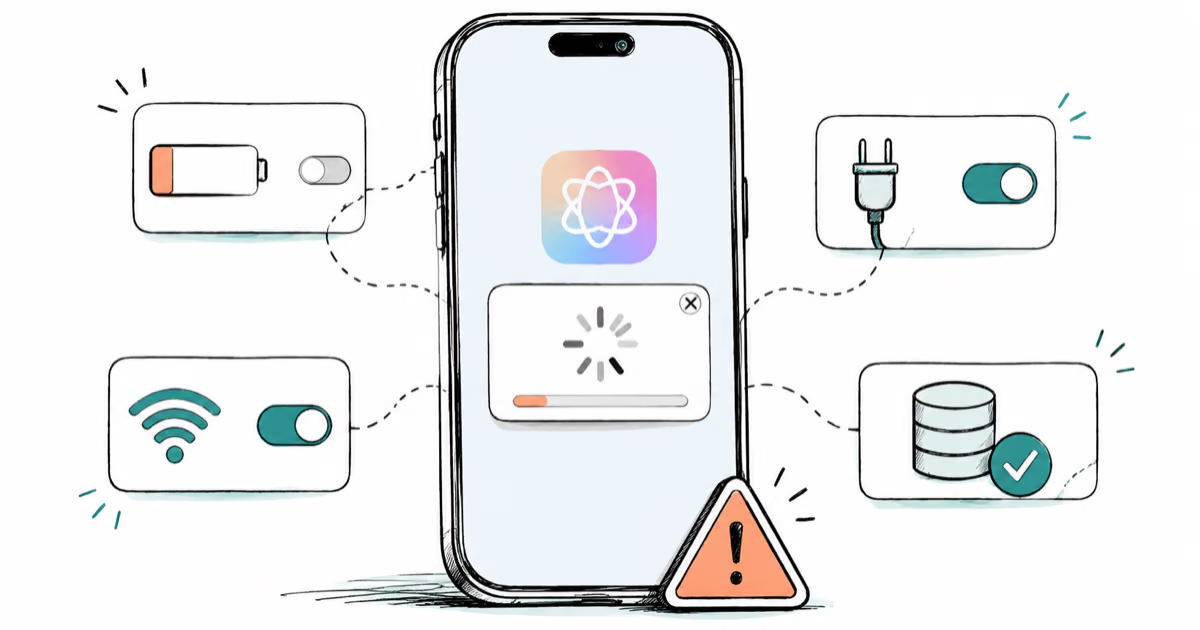
Apple Intelligence Not Working on iPhone? Fixes (2026)
Apple Intelligence not working on iPhone after iOS 27? Turn off Low Power Mode, stay on Wi-Fi while charging, and free up 7 GB. Step-by-step fixes.

Apps Crashing After iOS 27 Update? Fix Order (2026)
Apps crashing after the iOS 27 update? Update the app in the App Store first, then offload and reinstall to clear stale cache, then restart. The fix order.

Genmoji or Image Playground Not Working? iOS 27 Fix
Genmoji or Image Playground not working on iOS 27? Turn on Apple Intelligence, free up 7 GB, drop Low Power Mode, and let the image model finish.
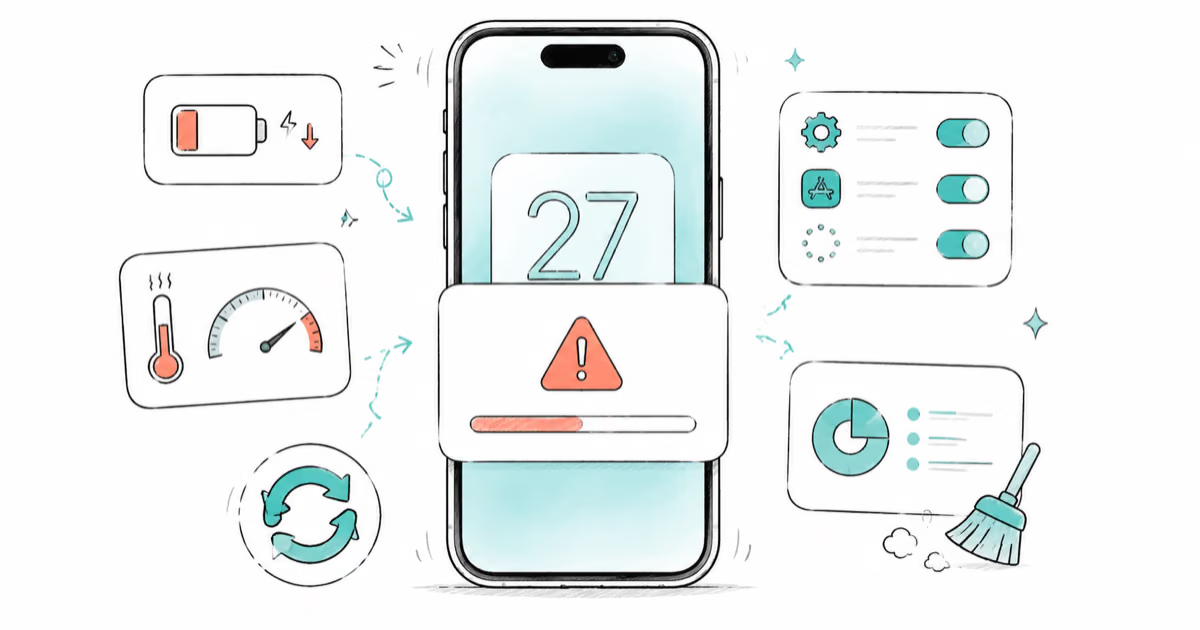
iOS 27 Problems and How to Fix Each of Them (2026)
iOS 27 problems? Battery drain, overheating, Wi-Fi drops, crashing apps, and Apple Intelligence stuck. Each problem with its top fix and full guide here.