Wi-Fi Keeps Dropping After iOS 27 Update? Fixes (2026)
Wi-Fi keeps dropping after the iOS 27 update? Turn off Wi-Fi Assist, forget and rejoin the network, then reboot your router. The fix order that works.
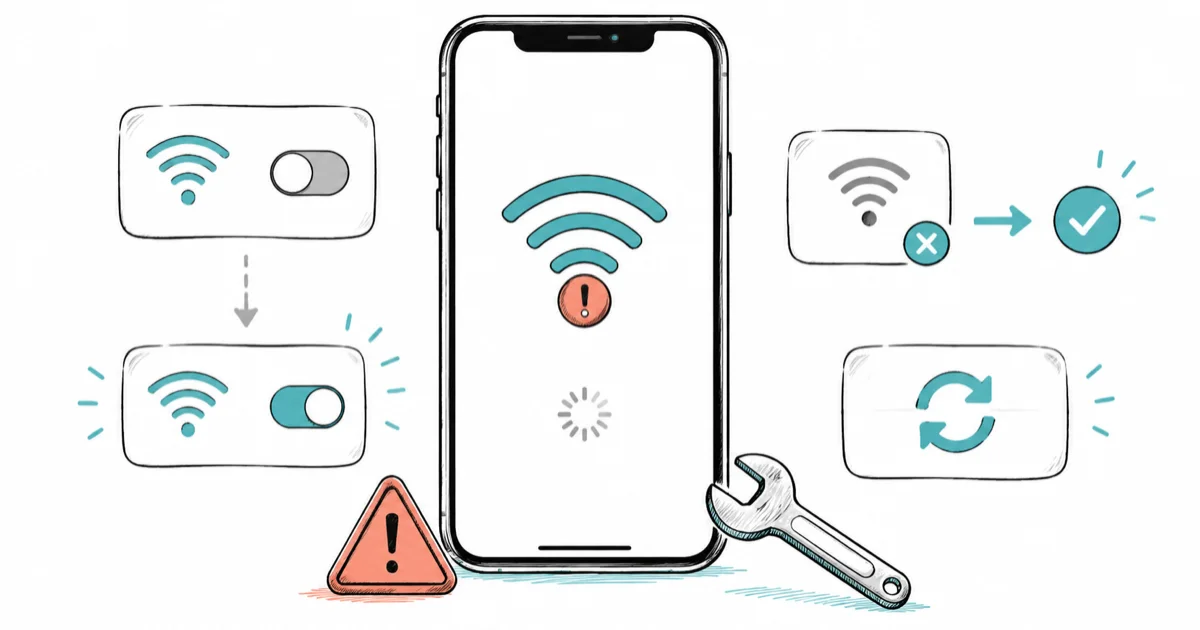
Quick AnswerTurn off Wi-Fi Assist first, since it switches you to cellular the moment Wi-Fi dips and looks like a dropout. Then forget the network and rejoin it to clear the stale saved state the update left behind.
Wi-Fi keeps dropping after the iOS 27 update for a handful of reasons, most fixable in minutes. The connection cuts out mid-stream, the iPhone won’t reconnect, or the icon flickers off and on. A major update shuffles enough network plumbing that saved settings stop lining up, so devices that worked fine before can drop Wi-Fi until the fixes below clear it.
- Wi-Fi Assist quietly switches to cellular when signal dips, which reads as a dropout even when Wi-Fi is fine.
- A major update can corrupt the saved network record, so forgetting and rejoining fixes most repeat disconnects.
- Reset Network Settings wipes every saved Wi-Fi password, so try it only after the lighter fixes fail.
- Rebooting the router clears a stale DHCP lease that your iPhone got a new device fingerprint for after the update.
- Give background sync a few hours after the update before assuming the connection itself is broken.
#Why Does Wi-Fi Keep Dropping After an iOS Update?
“Dropping” actually describes three different problems with three different causes, and sorting which one you have saves you from running the wrong fix. If the trouble started before you updated, our iPhone Wi-Fi not working guide is the broader walkthrough.
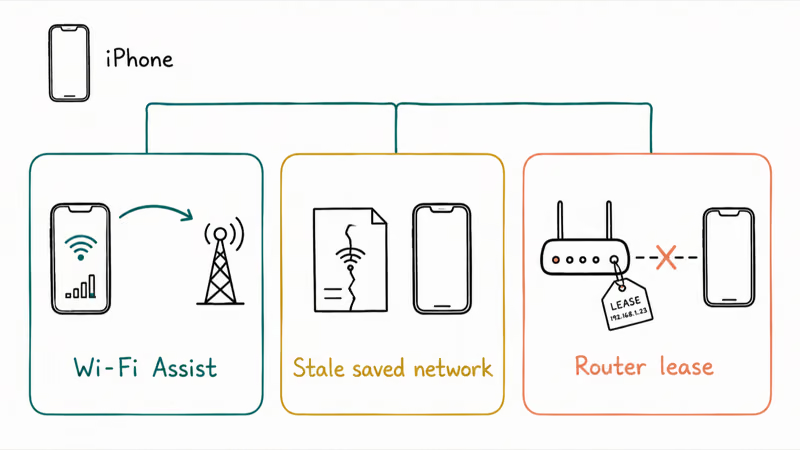
The first is fake. Wi-Fi Assist hands you off to cellular whenever your signal weakens, so a weak-but-working connection looks like it cut out. According to Apple’s About Wi-Fi Assist page, the feature lets you “stay connected to the Internet even if you have a poor Wi-Fi connection,” and it’s on by default. You may notice it more right after an update, when the radio is busier.
The second is a corrupted saved-network record. iOS stores each network’s settings, and a big update can leave that record half-stale, so the iPhone connects, chokes, and drops. The third is router-side: your phone presents a slightly different fingerprint post-update and the router’s old DHCP lease no longer matches. Each has a clean fix below.
#The Fixes, in Order
Here’s the symptom-to-cause-to-fix map we run through whenever Wi-Fi won’t hold after an update. Scan the left column for what your iPhone is doing, then start at the top, since the first two fixes are free and clear most cases.
Do this only on your own device or a network you manage; on workplace or school Wi-Fi, changes can cross legal and privacy lines.
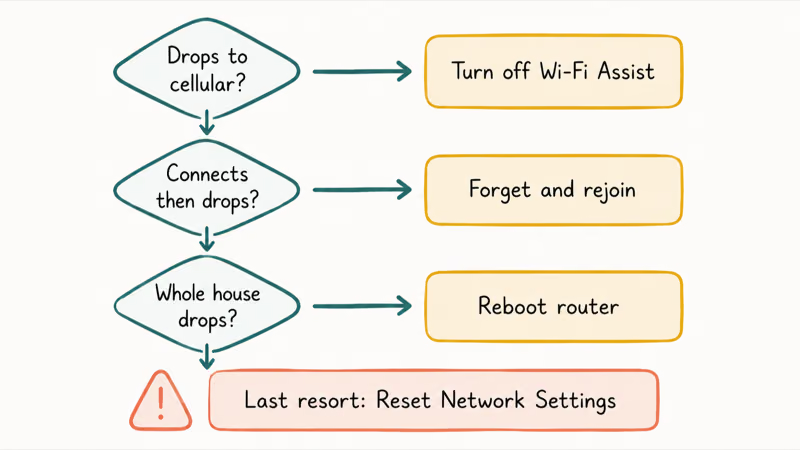
| Symptom | Likely cause | Fix |
|---|---|---|
| Drops to cellular mid-stream, then "recovers" | Wi-Fi Assist switching on weak signal | Turn off Wi-Fi Assist in Settings > Cellular |
| Connects, then disconnects within seconds | Corrupted saved-network record after update | Forget the network, then rejoin it |
| Won't reconnect after waking the phone | Private Wi-Fi Address mismatch post-update | Toggle Private Wi-Fi Address for that network |
| Every device on the network struggles | Stale router DHCP lease | Reboot the router and cable modem |
| Nothing above helps and it's persistent | Deeper network-config corruption | Reset Network Settings (wipes saved passwords) |
| Spotty only in the first hours after update | Background sync and re-indexing | Wait a few hours, keep it on Wi-Fi |
#Turn Off Wi-Fi Assist and Rejoin the Network
These two settings changes clear most post-update drops, and you can undo both. Do them before you touch anything heavier.
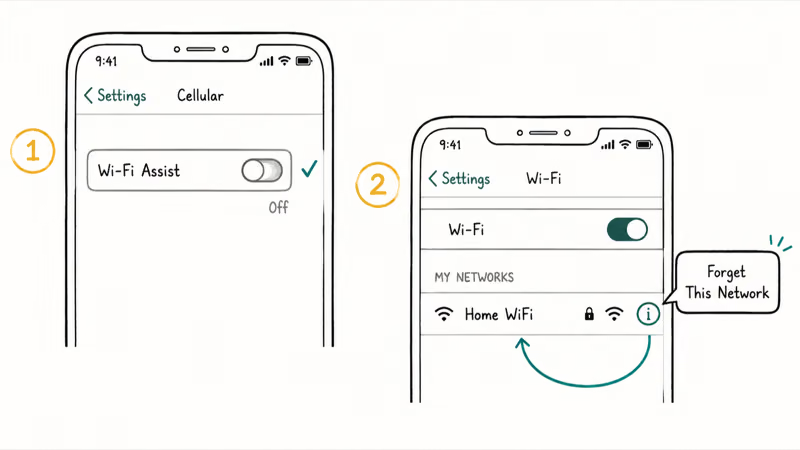
Start with Wi-Fi Assist, the fix most people skip and the one that makes a “dropping” connection look worst. Go to Settings > Cellular, scroll to the bottom, and tap the Wi-Fi Assist slider off. With it off, the iPhone holds a weak signal instead of bouncing to cellular, which is what reads as a dropout.
Next, forget the network and rejoin it, since a major update is when the saved record goes stale. Go to Settings > Wi-Fi, tap the info icon next to your network, and choose Forget This Network. Then tap the name and re-enter the password to rebuild the record from scratch, the best fix for a connection that holds for seconds and drops. If yours fails on cellular too, our iPhone no service after iOS 27 guide covers that path.
#Should You Reset Network Settings?
Only after the lighter fixes fail, because the reset has a real cost: it erases every Wi-Fi password you’ve saved. Treat it as the second-to-last step.
Go to Settings > General > Transfer or Reset iPhone > Reset > Reset Network Settings. According to Apple’s Wi-Fi connection support page, this “resets all Wi-Fi networks and passwords, cellular settings, and VPN and APN settings,” and Apple advises using it “only if other solutions fail.” So have your router password handy first, because you’ll retype every saved Wi-Fi password afterward. It’s effective for stubborn post-update corruption that forgetting one network doesn’t clear, but overkill for a single-network problem.
One smaller toggle is worth trying first if drops happen right after the screen wakes. Private Wi-Fi Address gives each network a unique device address, and after an update the router can briefly distrust the address it sees. Apple’s Use private Wi-Fi addresses support page confirms the iPhone “uses a different MAC address for each Wi-Fi network.” Toggle it off for that one network in Settings > Wi-Fi, then reconnect. If that holds, you’ve found it without wiping every password.
#Reboot the Router for Whole-House Drops
If every device on your network drops, not just the freshly updated iPhone, the router is holding a stale lease. This is the cheapest fix you’ve got, so try it before the network reset.
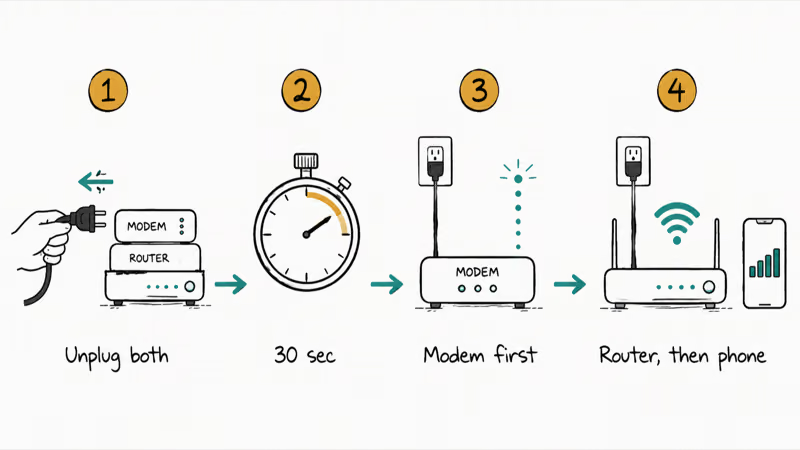
Reboot the router and modem together. Apple’s Wi-Fi connection support page recommends you “restart your router and cable modem by unplugging the devices and then plugging them back in.” Pull the power on both, wait about 30 seconds, plug the modem back first, let it fully come up, then the router. This hands your iPhone a fresh DHCP lease that matches its post-update fingerprint.
#Give the Update a Few Hours to Settle
The first hours after a major update are rough on connectivity. The phone is re-indexing, re-syncing iCloud, and downloading background assets, all of which lean on the radio. Keep the iPhone on Wi-Fi and charging, and recheck once it settles.
If you’re seeing other first-day symptoms too, our iOS 27 beta battery drain guide explains why that opening stretch is hard on the whole system. And if you’re still deciding whether to take the update at all, our should I install the iOS 27 beta guide walks through the trade-offs.
#Bottom Line
For most people, two settings clear it. Turn off Wi-Fi Assist so a weak signal stops kicking you to cellular, then forget the network and rejoin to rebuild the stale saved record. That pairing usually works on the first try, and it’s the order worth reaching for on any iPhone that starts dropping Wi-Fi right after a major iOS update lands.
If every device drops, reboot the router instead. Save Reset Network Settings for last, since it wipes every saved Wi-Fi password. To see what else changed, our iOS 27 new features guide has the rundown.
iOS 27 Beta
#Frequently Asked Questions
Why does my Wi-Fi keep dropping after updating to iOS 27?
Usually one of three things. Wi-Fi Assist switches you to cellular on weak signal and looks like a dropout, the saved network record went stale during the update, or your router is holding an old DHCP lease. Turn off Wi-Fi Assist, forget and rejoin the network, and reboot the router. The first two fix most cases.
Does turning off Wi-Fi Assist actually stop the drops?
Often, yes. Wi-Fi Assist is on by default and jumps you to cellular the moment Wi-Fi weakens, so a working connection reads as a dropout. Turn it off at the bottom of Settings > Cellular.
Will resetting network settings delete my Wi-Fi passwords?
Yes, and that’s exactly why it isn’t a first step. Apple’s support page says the reset removes all Wi-Fi networks and passwords, plus cellular, VPN, and APN settings, so every network the phone has ever joined drops off and has to be re-entered by hand. Have your home and work router passwords ready before you tap it. Reach for the reset only when the lighter fixes, like forgetting one network and rebooting the router, haven’t held the connection.
How long should I wait after the update before troubleshooting?
Give it a few hours. The first stretch after a major update is busy with re-indexing, iCloud sync, and background downloads, and connectivity can be spotty while that runs. Keep the phone on Wi-Fi and plugged in, and recheck once it settles before assuming the connection itself is broken.
Why does my iPhone connect to Wi-Fi then immediately disconnect?
That pattern points to a corrupted saved-network record, which a big update can cause. Forget the network in Settings > Wi-Fi, wait a few seconds, then rejoin and re-enter the password. Rebuilding the record from scratch is the most reliable fix for a connection that holds for a moment and drops.
Could my router be the problem instead of the iPhone?
It can be, especially if every device on the network is dropping and not just the updated iPhone. After an update your phone can present a slightly different fingerprint, and a stale router lease no longer matches it. Reboot the router and cable modem, modem first, to hand out a fresh lease.
What is Private Wi-Fi Address and should I turn it off?
Private Wi-Fi Address gives each network a unique device address for privacy. After an update the router can briefly distrust the address it sees, which causes reconnect failures when the screen wakes. Toggle it off for that one network in Settings > Wi-Fi to test, and leave it on for networks where the connection is stable.
Apple Intelligence Not Working on iPhone? Fixes (2026)
Apple Intelligence not working on iPhone after iOS 27? Turn off Low Power Mode, stay on Wi-Fi while charging, and free up 7 GB. Step-by-step fixes.

Apps Crashing After iOS 27 Update? Fix Order (2026)
Apps crashing after the iOS 27 update? Update the app in the App Store first, then offload and reinstall to clear stale cache, then restart. The fix order.

Genmoji or Image Playground Not Working? iOS 27 Fix
Genmoji or Image Playground not working on iOS 27? Turn on Apple Intelligence, free up 7 GB, drop Low Power Mode, and let the image model finish.
iOS 27 Problems and How to Fix Each of Them (2026)
iOS 27 problems? Battery drain, overheating, Wi-Fi drops, crashing apps, and Apple Intelligence stuck. Each problem with its top fix and full guide here.