iPhone No Service After iOS 27 Beta? 9 Fixes (2026)
iPhone stuck on No Service after the iOS 27 beta? Try Airplane Mode, carrier settings, SIM reload, network reset, beta reporting, and rollback options.

Quick AnswerTurn on Airplane Mode for at least 15 seconds, turn it off, then install any waiting carrier settings update under Settings > General > About. If No Service persists, reset network settings or roll back to iOS 26.
An iPhone showing no service after iOS 27 usually means the modem never re-registered with your carrier after the update. iOS 27 is still a developer beta, so the fixes run from standard radio resets to beta-only escape hatches. Work through them in order.
- Turn Airplane Mode on for at least 15 seconds before turning it off; Apple’s own no-service steps start there
- A carrier settings update under
Settings>General>Aboutclears many post-update service drops - iOS 27 runs on iPhone 11 and later, but the current developer build is beta 7 from August 24, 2026
- Resetting network settings wipes saved Wi-Fi passwords and VPN profiles, so note those before you tap
- Rolling back to iOS 26 requires a full erase and restore, and backups made on the beta won’t restore to iOS 26
#Why Does Your iPhone Show No Service After iOS 27?
A major iOS update touches every layer of the cellular stack at once. The installer loads new modem firmware, swaps in updated carrier bundles, and forces your eSIM or physical SIM to re-register with the network. When any one of those handshakes fails, the status bar lands on No Service or sticks on Searching.
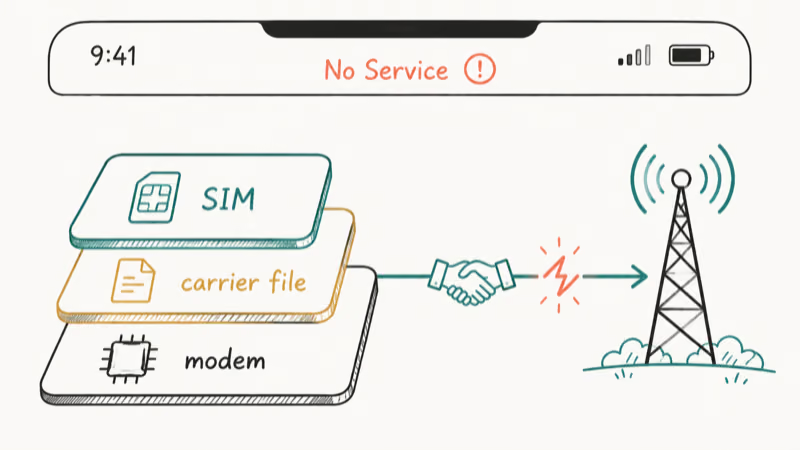
According to Apple’s no-service troubleshooting page, either reading means your iPhone isn’t connected to a cellular network at all. Apple’s first moves are an Airplane Mode cycle and a restart, the same order this guide follows.
The beta angle raises the odds of a failed handshake. According to Apple’s August 24 release entry, developer beta 7 is build 24A5424a. Carriers tune their settings files against stable releases, not fresh betas. Check the iOS 27 release timeline if you’d rather move to the public beta track or wait for the finished version in the fall.
Hardware eligibility isn’t the issue here. Every phone on the iOS 27 compatibility list, which starts at the iPhone 11, runs the same beta builds, so a 2019 device and a current flagship hit this bug the same way.
#Start With the Airplane Mode Cycle and a Restart
Apple’s first prescription is specific: turn on Airplane Mode, leave it on for at least 15 seconds, then turn it off. That forces the modem to tear down its radio state and attempt a fresh registration with your carrier.
- Open Settings and turn on Airplane Mode.
- Count out 15 seconds or longer.
- Turn Airplane Mode off and watch the status bar.
If the phone stays on No Service after the Airplane Mode cycle, restart it and check the status bar again.
A restart matters more than it sounds on a fresh beta install, since background migration tasks can hold up the radio stack on first boot. If your signal problems started before the update rather than after it, the broader iPhone network not available fixes cover that separate failure chain in depth.
#Update Your Carrier Settings
Carrier settings are small configuration files your carrier publishes separately from iOS. After a big OS jump, an outdated file is a classic registration killer.
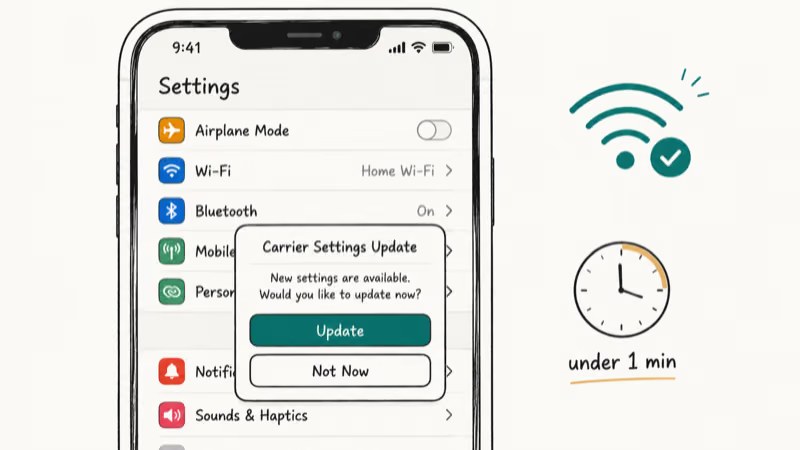
Apple’s carrier settings documentation states that installation takes less than one minute and you can keep using the phone while it runs. The catch on a no-service phone: the check needs a connection, so join Wi-Fi first.
- Connect to a Wi-Fi network.
- Open Settings, tap General, then tap About.
- Install the update if a prompt appears.
When an update is waiting, the prompt usually appears soon after you open the About screen. No prompt means your carrier file is already current, and you can confirm the version number next to Carrier on the same screen.
#Reload Your SIM or eSIM
Re-registering the SIM itself clears a surprising share of post-update service drops. The method depends on which kind of line you run.
Physical SIM: power off the phone, eject the tray, check the card for damage, reseat it, and power back on. If the phone now complains about the card instead of showing No Service, you’ve moved into invalid SIM card territory, which has its own fix chain.
eSIM: go to Settings, tap Cellular, then tap your line and toggle it off. Give it ten seconds, then tap Turn On This Line. Apple’s eSIM setup guide covers re-adding the line through your carrier if it vanishes from Settings entirely.
#Reset Network Settings
Still stuck? A network settings reset rebuilds the configuration layer the update may have mangled, without touching your photos, messages, or apps.
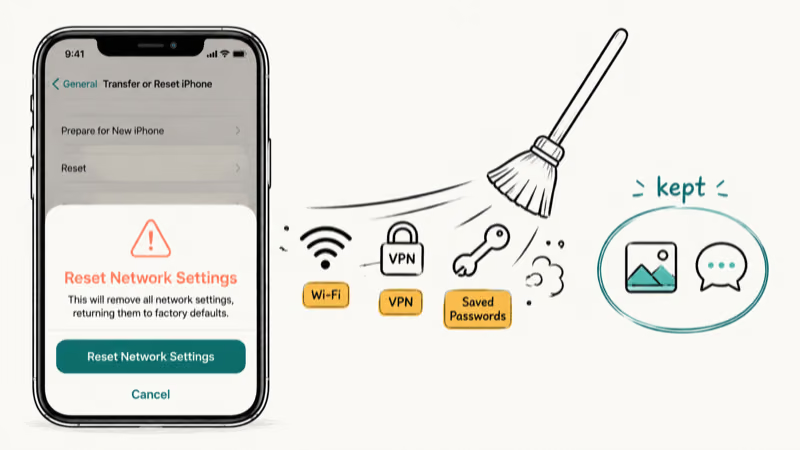
- Open Settings and tap General.
- Tap Transfer or Reset iPhone, then tap Reset.
- Tap Reset Network Settings and enter your passcode.
The trade-off is real: saved Wi-Fi networks and passwords, VPN configurations, and cellular preferences all get wiped, so note anything you can’t recover before you confirm. If calls come back but data stays dead afterward, that split symptom points to the cellular data not working checklist instead.
#Should You Roll Back to iOS 26?
If every step above failed, the most likely remaining cause is a modem bug inside the beta build itself, and nothing in Settings fixes that. At this point you have two honest options: wait for the next developer build, or leave the beta.
Waiting costs nothing but patience. Turning Beta Updates off under Settings, General, Software Update stops new builds, but you stay on the broken one.
Leaving means a full erase and restore through recovery mode. Apple’s beta uninstall guide states that backups created while using beta software might not be compatible with earlier versions of iOS, so the trip back can cost you recent data unless you archived a backup on iOS 26 first.
The step-by-step path, including the recovery mode button combos and the IPSW signing window, lives in our downgrade iOS 27 beta to iOS 26 guide. Budget an hour and a computer.
#Report the Bug to Apple
Beta installs ship with Feedback Assistant, and a cellular failure is exactly what the app exists to catch. File while the problem is active.
If you’d rather test with a safety net, the Apple Beta Software Program runs the public beta track, which trails developer builds and dodges their roughest bugs. And if your battery has also cratered since installing, our iOS 27 beta battery drain guide covers that pattern separately.
#Bottom Line
Most no-service drops after the iOS 27 beta clear in the first ten minutes: run the 15-second Airplane Mode cycle, restart, and install any carrier settings update under Settings > General > About. Those three steps target the exact registration handshake a major update breaks most often, and none of them risks any data. The deeper tools, network reset and SIM reload, sit behind them for the stubborn cases.
If the modem still won’t register after a SIM reload and a network reset, stop fighting the build. File the bug in Feedback Assistant so the diagnostics reach Apple, then roll back to iOS 26 and rejoin at a later build. A daily driver with no calls isn’t worth a beta badge.
iOS 27 Beta
#Frequently Asked Questions
Is no service a known bug in the iOS 27 beta?
Apple doesn’t publish a per-build list of known cellular issues, so there’s no official confirmation either way. Early developer betas have a long history of radio quirks, which is why the fix sequence above leans on resets and carrier files first. Treat hardware failure as the last suspect, not the first.
Will turning off Beta Updates fix no service?
No. Turning off Beta Updates under Settings > General > Software Update only stops future beta builds from arriving. Your iPhone stays on the iOS 27 build it’s already running, so any modem bug stays with it until a newer build lands or you do a full rollback.
Does resetting network settings delete photos or apps?
No, your photos, messages, and apps stay untouched. The reset clears saved Wi-Fi networks and passwords, cellular preferences, and VPN settings. Plan on rejoining your home network and re-entering any VPN details afterward.
Why does my carrier settings version matter on a beta?
Carrier settings files ship separately from iOS itself, and carriers tune them for new iOS versions over time. On a beta, the matching carrier file sometimes lands days or weeks after the OS build does. Checking Settings > General > About after each new beta build catches those late arrivals, and the install finishes in under a minute.
Will my eSIM survive a rollback to iOS 26?
Not always, and that’s the risky part. An erase and restore can remove the eSIM from the phone, and some carriers need to reissue the line on their end. Confirm with your carrier that they can re-provision your eSIM before you start the downgrade, especially if it’s your only number.
How long until Apple fixes a beta cellular bug?
There’s no published schedule. Apple ships new developer builds throughout the beta cycle, and radio fixes tend to arrive quietly inside those builds rather than as standalone patches. If the bug blocks calls on your main number, rolling back beats waiting for an unannounced fix.
Should I put the iOS 27 public beta on my main iPhone?
Not if it’s the phone you depend on for calls. The public beta track runs behind the developer one and skips the roughest builds, but cellular regressions are exactly the kind of thing betas exist to surface. A spare device is the safer host until the stable release this fall.
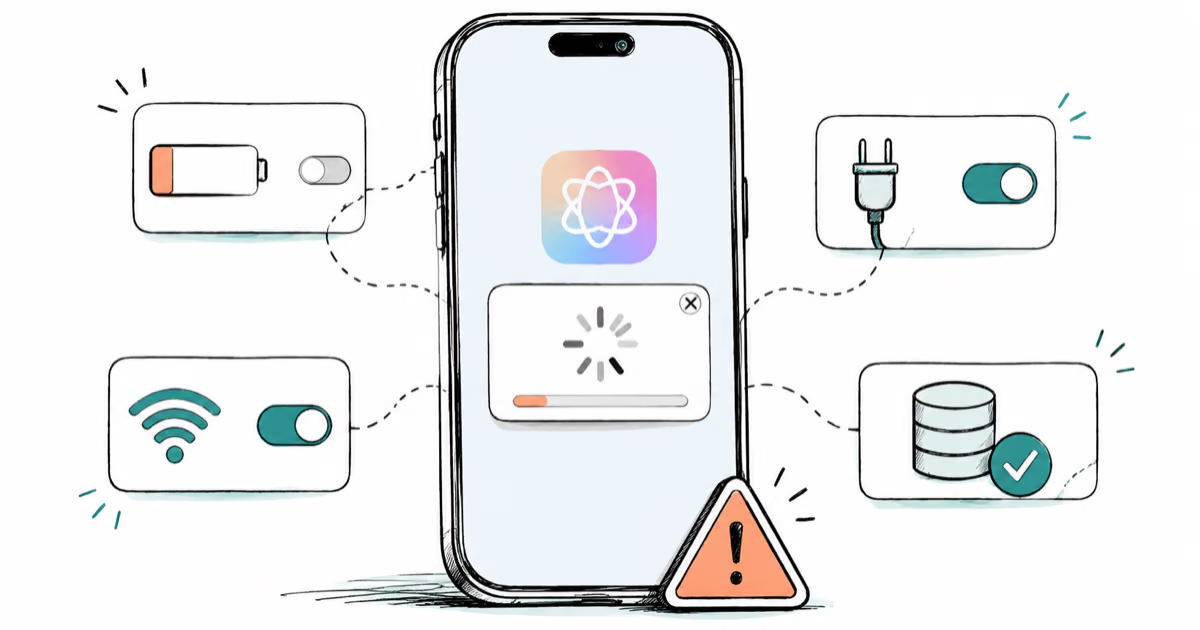
Apple Intelligence Not Working on iPhone? Fixes (2026)
Apple Intelligence not working on iPhone after iOS 27? Turn off Low Power Mode, stay on Wi-Fi while charging, and free up 7 GB. Step-by-step fixes.

Apps Crashing After iOS 27 Update? Fix Order (2026)
Apps crashing after the iOS 27 update? Update the app in the App Store first, then offload and reinstall to clear stale cache, then restart. The fix order.

Genmoji or Image Playground Not Working? iOS 27 Fix
Genmoji or Image Playground not working on iOS 27? Turn on Apple Intelligence, free up 7 GB, drop Low Power Mode, and let the image model finish.
iOS 27 Problems and How to Fix Each of Them (2026)
iOS 27 problems? Battery drain, overheating, Wi-Fi drops, crashing apps, and Apple Intelligence stuck. Each problem with its top fix and full guide here.