Transfer Google Authenticator to a New Phone (2026 Guide)
Transfer Google Authenticator to a new phone safely: export QR codes, cloud sync, backup codes, and what to do if your old phone is lost in 2026.
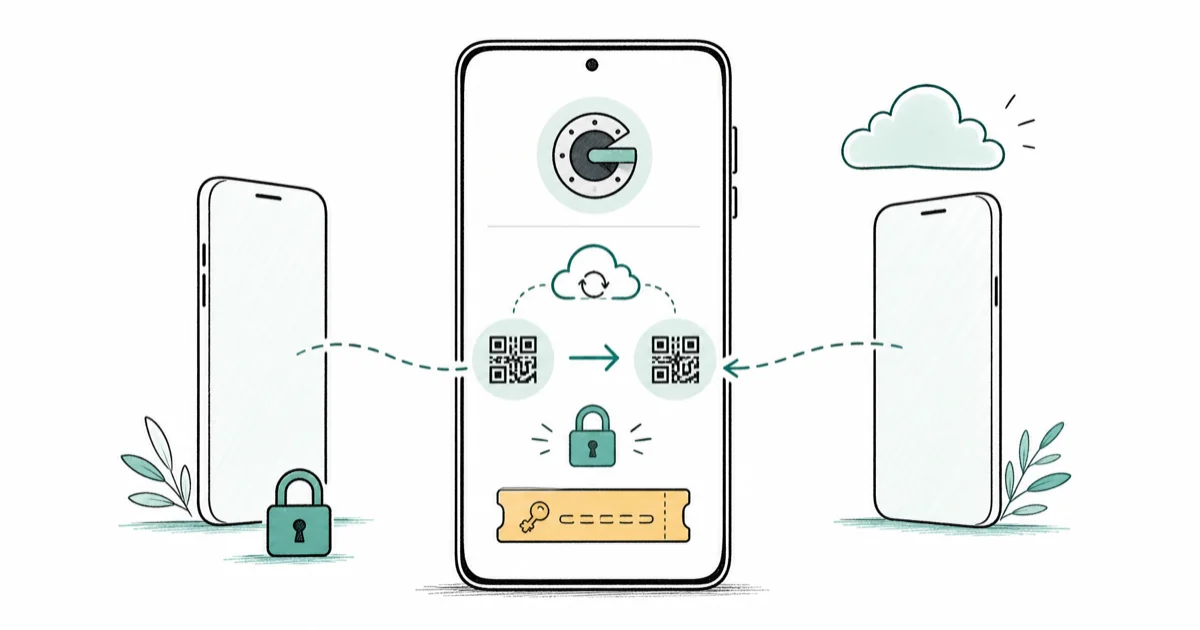
Quick AnswerIf you still have your old phone, transfer Google Authenticator using the built-in export QR code or Google Account cloud sync. If the old phone is gone, sign in with backup codes and reset two-factor on each account one at a time.
To transfer Google Authenticator to a new phone, the easiest path depends on one thing: whether you still have the old phone in hand. With both phones, you export your codes via a QR code or let Google Account cloud sync carry them over automatically. Without the old phone, you fall back to backup codes and per-account recovery. Use the export flow only when both phones are available and the old phone still opens Authenticator.
- With the old phone, use the built-in Export accounts QR code or Google Account cloud sync
- Cloud sync ties codes to your Google Account so they appear on any signed-in device
- Without the old phone, sign in with backup codes you saved earlier
- If you have no backup codes, recover each account through its own support process
- Always set up new backup codes after transferring to avoid this scramble next time
#How Do You Transfer Google Authenticator to a New Phone?
The method depends entirely on whether the old phone still works. There are three real paths: cloud sync, the export QR code, and backup-code recovery.
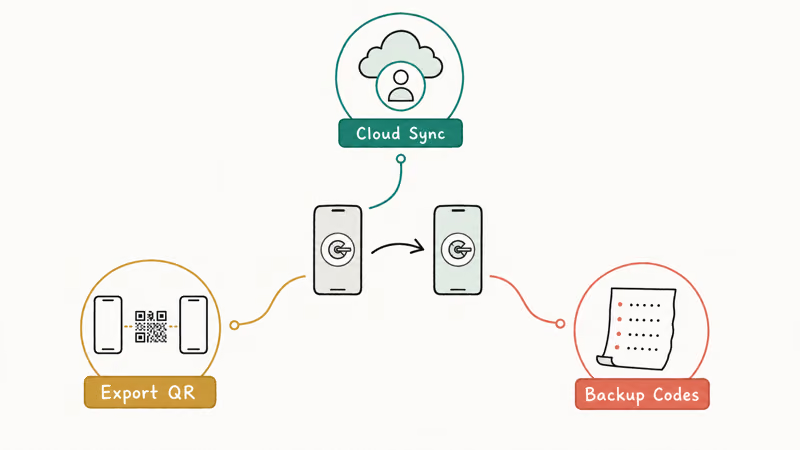
Cloud sync is the smoothest if you’ve turned it on. Google states that 1 Google Account can sync all your codes so they appear automatically on any device where you sign in. The full steps live in the Google Authenticator help. The export QR code is the manual fallback for moving codes directly between two phones, and backup codes are your safety net when the old phone is gone.
Which transfer method fits your situation
| Your situation | Best method |
|---|---|
| Have old phone, cloud sync on | Sign in on new phone |
| Have old phone, sync off | Export accounts QR code |
| No old phone, have backup codes | Sign in, then reset 2FA |
| No old phone, no backup codes | Per-account recovery |
If you’re weighing whether to keep using codes at all, the passkeys vs authenticator app comparison explains why passkeys are gradually replacing six-digit codes.
#Do You Still Have the Old Phone?
This single question decides everything, so answer it before you do anything else. With the old phone working, transfer is quick and low-stress. Without it, plan for more steps.
If the old phone still turns on and you can open Google Authenticator, you’re in the best position. You can export every code at once or rely on cloud sync. Don’t wipe or trade in the old phone until the new one shows all your codes and you’ve tested logging into a couple of accounts.
If the old phone is lost, stolen, or dead, skip ahead to the backup-code section. Acting fast matters here, because the longer a lost phone is out there, the more urgent it becomes to secure the accounts it protected. The how to prevent SIM swapping guide covers locking down the phone number those codes often back up.
#Use Cloud Sync, Export, or Backup Codes Safely
With the old phone in hand, pick the method that matches your setup. Both the export QR and cloud sync are official and safe.
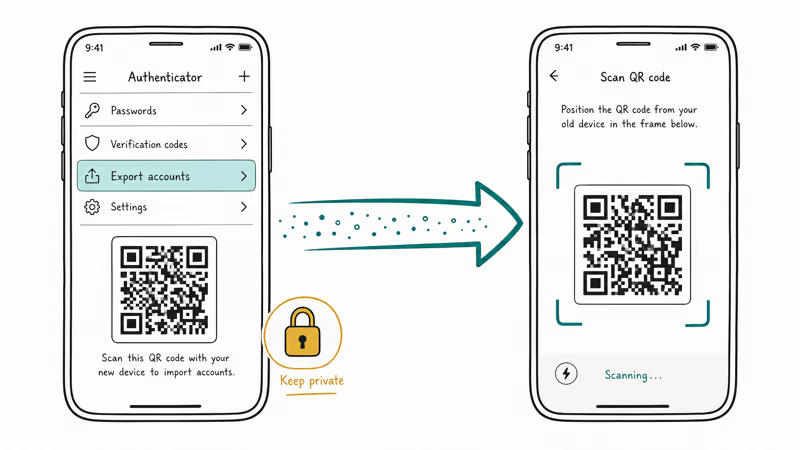
For cloud sync, just sign into Google Authenticator with the same Google Account on the new phone, and your codes appear.
For a manual move, open Authenticator on the old phone, tap the menu, choose Transfer accounts, then Export accounts, and select which codes to move. The app shows a QR code you scan with the new phone’s Authenticator. After scanning, wait for the new phone to list each imported account, then try your most important logins before wiping the old device.
Keep the QR code private during this process, since anyone who scans it gets your codes. Don’t screenshot it to cloud storage or share your screen. Only ever transfer codes for accounts you legally own, and treat the export QR like a password under Google’s privacy terms.
#When the Old Phone Is Lost or Broken
Then backup codes are your way in, and this is exactly why you save them. Each Google service and most other accounts offer one-time backup codes for situations like this.
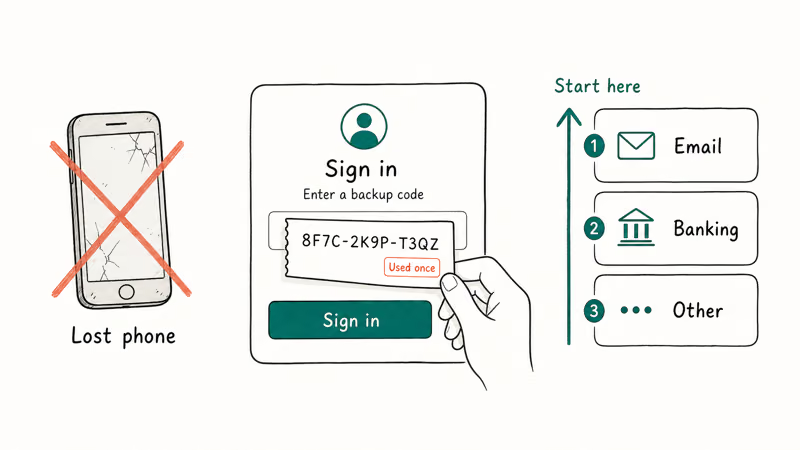
Sign into each account using a saved backup code instead of an Authenticator code, then go into security settings and set up Authenticator fresh on the new phone. According to Google’s backup codes documentation, each backup code works once and is meant for when you can’t get your normal second factor. Work through your most important accounts first: email, banking, then everything else.
If you have no backup codes and no old phone, you’ll need each account’s recovery process, which can take days for sensitive services. For a single locked account like a social login, the forgot Instagram password guide shows what per-account recovery looks like in practice.
#Re-Enroll Authenticator on the New Phone
Once you’re signed in, the last step is putting Authenticator back on the new phone for each account. This rebuilds your second factor so future logins work normally.
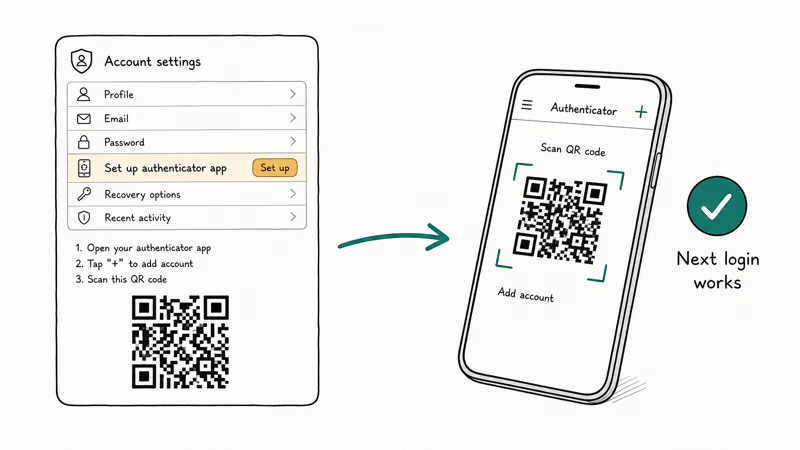
In each account’s security settings, choose to set up an authenticator app, then scan the new QR code with Authenticator on the new phone. After scanning, use the next login prompt to confirm the new code works before removing the old setup. If you also want a phishing-resistant upgrade while you’re here, the how to set up passkeys on Android guide walks through adding a passkey alongside your codes.
#How to Avoid Getting Locked Out Next Time
The whole scramble is preventable with two habits. Set them up now while you’re already in your security settings.
First, turn on cloud sync in Google Authenticator so your codes ride along with your Google Account automatically. Second, generate and save fresh backup codes for every important account, and store them offline somewhere you’ll find them, like a password manager or a printed sheet in a safe. Google recommends reviewing your Google Account security settings regularly to confirm your recovery options are current. Avoid SMS-only two-factor where you can, since it’s the weakest option and vulnerable to SIM swapping.
These steps mean a lost phone is an annoyance, not a lockout. For the bigger picture on choosing sign-in methods, the passkey vs password vs 2FA explainer covers where authenticator codes fit alongside passkeys.
#Bottom Line
If your old phone still works, use cloud sync or the export QR code, and don’t wipe the old phone until every code shows on the new one. If the old phone is gone, sign in with backup codes and re-enroll Authenticator account by account, starting with email and banking. Either way, set up cloud sync and save fresh backup codes afterward so the next phone swap is painless.
#Frequently Asked Questions
Can I transfer Google Authenticator without the old phone?
Yes, if you saved backup codes. Sign into each account with a backup code, then set up Authenticator on the new phone from the account’s security settings. Without backup codes or the old phone, you’ll need each service’s full account recovery process instead.
Does Google Authenticator sync to the cloud automatically?
Only if you’ve turned on cloud sync and signed in with your Google Account. If sync is off, you must export codes manually with the QR code instead.
Is it safe to use the export QR code?
Yes, as long as you keep it private. The QR code contains your account secrets, so anyone who scans it gets your codes. Don’t screenshot it to cloud storage or share your screen while it’s displayed, and only scan it on your own new phone.
Should I delete Authenticator from my old phone after transferring?
Wait until the new phone shows every code and you’ve confirmed important logins. Deleting too early risks losing access if the transfer was incomplete, so confirm everything works first, then wipe the old phone or remove the app at your leisure once you’re fully confident the new device has every account.
What happens to my codes if I just buy a new phone and restore a backup?
A standard phone backup doesn’t always carry Authenticator codes. Use cloud sync or the export QR to move them reliably.
How do I avoid this problem next time?
Turn on Google Authenticator cloud sync and save fresh backup codes for every important account, stored offline. With both in place, a lost or replaced phone becomes a quick recovery instead of a lockout. Avoid SMS-only two-factor where a stronger option exists.

Is This Bank App Real? Spot a Fake App on Your Home Screen
A bank app can land on your home screen from a web page with no install warning. Learn the checks that tell a real banking app from a phishing web app.

Passkeys Not Syncing Between iPhone and Windows? Read This
Passkeys not syncing between iPhone and Windows is by design, not a bug. Here is why iCloud passkeys skip Windows Hello and the three ways to fix it.

VPN Not Working on Snapdragon X? Why It Fails, How to Fix
Your VPN won't install or connect on a Snapdragon X Copilot Plus PC because Windows on ARM can't emulate the network driver. Here are the fixes that work.

How to Check If a Link Is Safe Before You Click It
Learn how to check if a link is safe with official-first steps: read the real domain, use the app instead, and treat scanners as a second opinion only.