VMware vCenter Converter Guide: 12 P2V Tips for 2026
VMware vCenter Converter handles free P2V and V2V migrations. 12 practical tips to speed conversions, avoid driver issues, and ship clean VMs.
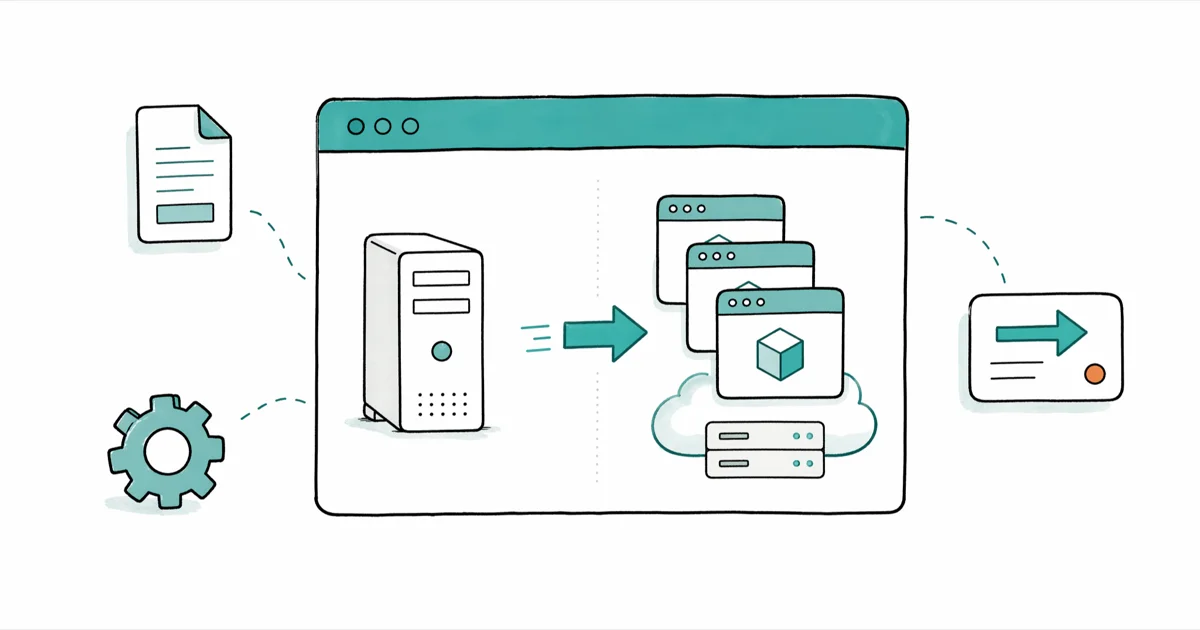
Quick AnswerVMware vCenter Converter is a free tool that handles physical-to-virtual and virtual-to-virtual machine conversions for Windows and Linux servers. Version 6.6 was relaunched in early 2024 after a multi-year hiatus.
VMware vCenter Converter is the free utility that turns physical Windows and Linux servers into VMware virtual machines, and reshapes existing VMs across vSphere clusters or VMware Workstation. After Broadcom acquired VMware in late 2023, the Converter Standalone download disappeared for over three years.
The tool returned as version 6.6 in February 2024. Many admins assumed P2V tooling was dead and wasn’t coming back, so this guide walks through what changed and how to use the relaunched build without losing a weekend to driver problems. Everything here assumes legitimate use on your own infrastructure or hardware you administer for an employer that owns the source machines.
- VMware vCenter Converter Standalone 6.6 supports Windows Server 2025, Windows 11 24H2, and Linux source machines, but not macOS.
- The 6.6 build uses TLS 1.2 by default and ships with OpenSSL 3.0, so older 6.2 worker installs can’t upgrade in place.
- Disabling SSL on the wire speeds up large-volume transfers, but only do it on trusted internal links because data crosses unencrypted.
- VMXNET3 is the default target NIC; E1000 is kept only for legacy guest operating systems that lack VMXNET3 drivers.
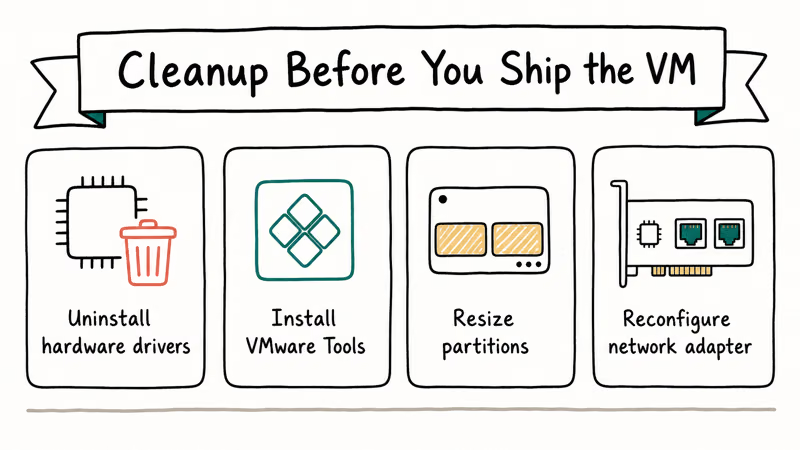
- After conversion, uninstall vendor management agents, RAID utilities, and OEM drivers before joining the new VM to its domain.
#What Is VMware vCenter Converter and Why Did It Return in 2024?
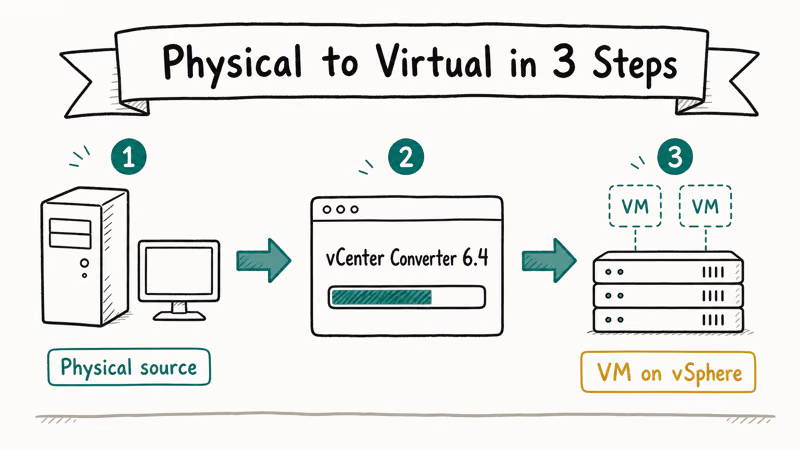
VMware vCenter Converter Standalone is a Windows application that creates a virtual machine from a running physical server, a powered-off image file, or a third-party virtual disk. It supports two modes: P2V, which captures live Windows or Linux servers, and V2V, which reshapes existing VMs by changing their disk layout, hardware version, or hypervisor. The wizard-based interface has been the default P2V path for vSphere shops since 2008.
Broadcom retired the Converter Standalone download in early 2022 ahead of the VMware acquisition. The absence stretched on long enough that many teams switched to Veeam B&R, Zerto, or in-place reinstalls.
According to Broadcom’s Converter Standalone 6.6 release notes, the rebuilt tool shipped on 22 February 2024 with rebuilt security libraries, support for current Windows and Linux releases like Windows 11 and RHEL 9, and the same wizard that long-time admins already know. The relaunch matters because the alternatives either cost money, require an agent rollout, or skip the cleanup steps that vCenter Converter handles inside the same workflow.
If you’re new to physical-to-virtual workflows, our VMware P2V converter walkthrough covers the core mechanics, and the benefits of virtualization overview explains why consolidating bare-metal workloads onto vSphere is usually worth the migration cost.
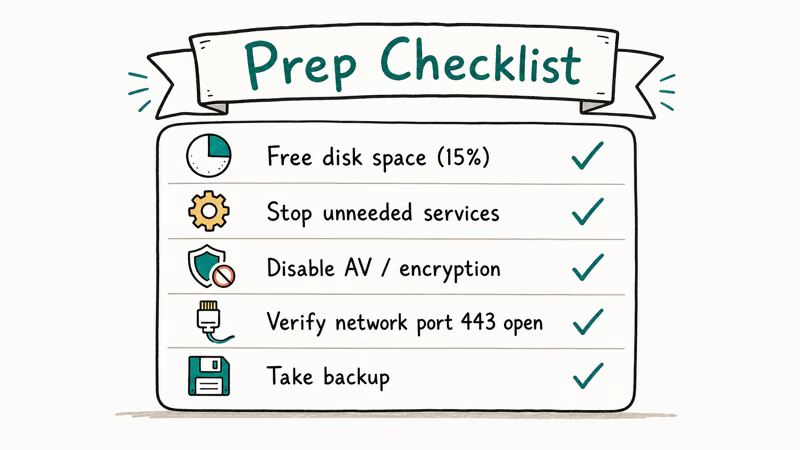
#Pre-Migration Prep: 5 Tasks That Speed Up Every Conversion
The single biggest source of slow conversions is doing prep work after the wizard fails instead of before it starts. A typical Windows Server file server on multi-terabyte SAS volumes can convert in roughly half the time once the cleanup pass below is done first.
#1. Uninstall agents and management software you don’t need on the VM
Before launching the wizard, remove anything tied to the physical chassis: Dell OpenManage, HPE iLO agents, Lenovo XClarity, RAID monitoring tools, hardware health daemons, and OEM update services.
These services have no targets on a virtual NIC, they keep running anyway, and they generate disk activity that competes with the Converter worker. Leaving something like Dell OpenManage in place can add several minutes of churn at the end of each conversion as services fail and retry against hardware that no longer exists.
#2. Disable services that hammer the disk
Background defragmenters, antivirus on-access scanners, indexing services, and database log writers all fight the Converter snapshot. Stop them in services.msc for the conversion window. If antivirus refuses to stop, exclude the volume being converted from the on-access scan, or uninstall the agent entirely and reinstall it on the VM after cutover.
#3. Cache the local admin password and Active Directory credentials
A converted VM gets new virtual NICs with new MAC addresses, which means cached AD logins on the source can fail on the destination until the network is settled. Confirm the local administrator password works on the source first, and have it written down. If you don’t know the source’s local admin password and the VM can’t reach a domain controller on first boot, reset the local password on Windows Server before you start the conversion, not after.
#4. Save the IP configuration to a file
Static IP servers lose their addressing because the VM presents a different network adapter to Windows. Save the configuration to a text file on the source so you can read it back over a console session if DHCP doesn’t take over:
ipconfig /all > C:\preconvert-ip.txtMicrosoft’s official ipconfig documentation confirms that the /all flag dumps the full TCP/IP configuration, including DNS suffixes, gateways, and per-adapter MAC addresses. Keep the file inside the source filesystem so it travels with the converted VM.
#5. Update Converter to the current build before any production job
The 6.6 release ships with OpenSSL 3.0 and TLS 1.2. It won’t negotiate with older vCenter Server endpoints unless they’re on a current patch level. If a job fails on connect, the first thing to check is whether the Converter installer matches the build documented in the release notes, not whether the source server has a network problem.
#In-Wizard Choices: Disk Layout, Sizing, and Network Settings
#6. Right-size the destination disks instead of cloning at source size
The wizard’s destination disk page lets you change disk size, controller type, and partition layout per volume. This is the most underused feature in the tool. A 1 TB physical D: drive with 120 GB in use should land on the VM as a 200 GB thin-provisioned VMDK, not as a 1 TB blob that wastes datastore. Use the “Create optimized partition layout” option to compact partitions on the destination at the same time.
#7. Pick VMXNET3 for the target NIC unless the guest OS is ancient
VMware’s vSphere networking documentation recommends VMXNET3 as the default adapter for current Windows and Linux guests because it supports MSI/MSI-X interrupt delivery, multi-queue, IPv6 offloads, and 10 Gbps link speeds. E1000 is kept only for legacy guests like Windows Server 2003 that lack the VMXNET3 driver. After the conversion completes, verify in the guest OS that the new adapter has its driver and isn’t sitting in a “Code 31” state.
#8. Downgrade VM hardware version when targeting older vSphere clusters
V2V conversions get a hardware version field on the destination page. If you’re moving a VM from a workstation or a newer cluster to an older ESXi host, set the destination hardware version to one the older host supports. Otherwise the VM will refuse to power on. The wizard will warn you if the requested version isn’t supported by the target.
#9. Disable SSL only on trusted internal links
The wizard has a checkbox that disables SSL on the data path between the worker and the destination. On a large volume over a fast dedicated link, this drops transfer time meaningfully because the worker stops encrypting blocks before sending them.
The trade-off is that the data crosses the wire in cleartext, so this is only acceptable on isolated management VLANs or air-gapped lab networks. Never use it across a shared corporate LAN or any segment that touches the internet.
#Post-Migration Cleanup: 4 Tasks Many Admins Skip
#10. Boot in safe mode if the source OS is older than Windows Server 2012
Legacy guests like Windows Server 2003 or NT4 need a safe-mode first boot so the OS can pick up the new virtual hardware without trying to install OEM drivers that no longer have backing hardware. Boot once in safe mode, let plug-and-play settle, restart normally, then continue cleanup.
#11. Remove ghosted devices that survived the conversion
Windows keeps drivers and entries for hardware that’s no longer present but was once attached. After a P2V, the device manager hides these by default. Reveal them with:
set devmgr_show_nonpresent_devices=1
start devmgmt.msc
Then choose View > Show hidden devices and uninstall anything greyed out. Ghosted NICs are the most common offender because they hold onto the source server’s static IP and prevent the new virtual NIC from claiming the same address.
#12. Strip vendor-specific software you missed before conversion
If the prep pass missed an OEM update agent or a RAID utility, uninstall it on the VM now. Reboot, then install VMware Tools if Converter didn’t push it during the job. VMware’s Tools documentation states that the package provides paravirtualized drivers, time synchronization, and guest heartbeating, none of which the converted guest gets for free.
#Compare Cleanup Tasks by Source Machine Type
Table 1. Common pre- and post-conversion cleanup tasks by source machine type.
| Cleanup task | Physical Windows source | Physical Linux source | V2V from older VMware |
|---|---|---|---|
| Uninstall OEM management agents | Yes | Yes | No |
| Remove RAID monitoring utilities | Yes | Yes | No |
| Save static IP to file before cutover | Yes | Yes | Yes |
| Reveal ghosted devices post-boot | Yes | No (lsmod check) | Yes |
| Install VMware Tools / open-vm-tools | Yes | Yes (open-vm-tools) | Refresh to current version |
| Downgrade hardware version | N/A | N/A | Sometimes |
Use this table as a starting checklist. Linux sources skip the device manager step, but they still benefit from the IP-config dump and the OEM-agent uninstall pass.
#What Are the Most Common Reasons P2V Conversions Fail?
Conversion failures cluster around five recurring root causes. Knowing the pattern saves hours of log diving.
Permissions. Converter needs local administrator on the source and admin or equivalent on the destination vCenter. A domain account that “should” have rights often doesn’t, because the source’s local SAM doesn’t trust the domain SID the way you’d expect. Test with a known-good local admin first.
Open file handles. Database servers, mail stores, and antivirus quarantines hold exclusive locks that Converter’s snapshot driver can’t capture. Stop the service, run the conversion, then restart the service. For SQL Server or Exchange, take a maintenance window rather than fighting volume shadow copy errors.
Network ports. The worker, the source, and the destination all need to reach each other on Converter’s ports. If the source sits behind a firewall, open TCP 443, 902, and 9089 between source, worker, and destination. According to Broadcom’s Converter port reference, this is the minimum set for a successful job.
Disk geometry. Source machines with dynamic disks, software RAID 5 volumes, or BitLocker-encrypted partitions cause Converter to either skip the partition or fail outright. Decrypt BitLocker before starting, and break software RAID 5 down to basic disks if possible.
NIC teaming. If the source uses NIC teaming or LBFO, the converted VM inherits a virtual team that points to nothing. On the first VM reboot, remove the team, drop back to a single VMXNET3 adapter, and then reconfigure DNS by hand if needed.
#Bottom Line
For most vSphere shops doing one-off P2V or cluster-to-cluster V2V work, VMware vCenter Converter Standalone 6.6 is the right choice over paid alternatives like Veeam or Zerto. It’s free, it handles Windows and Linux source machines, and the 2024 relaunch fixed the TLS and OpenSSL issues that made the 6.2 build painful with current vCenter releases.
Skip it only when you’re migrating dozens of machines at once and need orchestration, scheduling, and reporting that the standalone wizard doesn’t have. If you also need to plan the underlying ESXi or virtualization hardware, our notes on the VMware vSphere Hypervisor and the best laptops for running virtualization labs cover the host side of the equation.
#Frequently Asked Questions
Is VMware vCenter Converter still free in 2026?
Yes. Broadcom kept Converter Standalone 6.6 as a no-cost download under the VMware Cloud Foundation portal. You’ll need a Broadcom support account to fetch the installer.
Can VMware vCenter Converter convert macOS machines?
No. The tool supports Windows and Linux source machines only. macOS isn’t a supported guest OS on vSphere either, so the gap exists across the whole platform, not just in Converter.
Why was VMware vCenter Converter pulled in 2022?
Broadcom’s release notes state that the product was removed because its TLS and OpenSSL libraries had aged out, and the team needed time to rebuild the worker against current security standards. The relaunched 6.6 build ships with TLS 1.2 and OpenSSL 3.0 to address that gap.
Can I run multiple conversions in parallel?
Yes. The “Connect to Another Server” option in the wizard lets you queue multiple jobs across multiple worker nodes. With several parallel P2V jobs on a single worker, network I/O usually becomes the limit before CPU does, so add worker nodes rather than threads when scaling out.
Does the new 6.6 build support dynamic disks and BitLocker?
Dynamic disks are supported. BitLocker-encrypted partitions aren’t: decrypt the volume on the source before launching the conversion, then re-enable BitLocker on the VM if your security policy requires it.
What’s the difference between P2V and V2V in Converter?
P2V captures a running or powered-off physical machine and writes it as a VMDK on a vSphere datastore. V2V takes an existing VM, including VMware Workstation, Hyper-V, or third-party formats, and reshapes it for a different target. Both modes use the same wizard and the same worker.
Should I install VMware Tools before or after the conversion?
After. Converter doesn’t push Tools during the job in most configurations, so install it as the first post-cutover step. The Tools package replaces generic Windows drivers with paravirtualized versions and lets vCenter see guest heartbeats.
Can VMware vCenter Converter migrate to Hyper-V or KVM?
No. The destination is always a VMware target, whether that’s ESXi, vCenter, or VMware Workstation. To move into Hyper-V or KVM, use Microsoft’s MVMC successor tools, or virt-v2v on the Linux side.

Google Messages Error 3100: Why RCS Is Broken on Galaxy
Google Messages RCS error 3100 hits Galaxy owners after phone or carrier switches. Google told 9to5Google a fix is coming. Here's what actually helps.

Is This Bank App Real? Spot a Fake App on Your Home Screen
A bank app can land on your home screen from a web page with no install warning. Learn the checks that tell a real banking app from a phishing web app.

Apps Crashing After iOS 27 Update? Fix Order (2026)
Apps crashing after the iOS 27 update? Update the app in the App Store first, then offload and reinstall to clear stale cache, then restart. The fix order.

Do AI Translation Earbuds Work Offline? What to Know
Do AI translation earbuds work offline? A few do with downloaded language packs, but most need the cloud. Here's what works offline and what you give up.