Benefits of Virtualization: 10 Pros and 5 Key Cons
Virtualization can cut hardware costs, improve server usage, and simplify recovery. Here are 10 benefits and 5 drawbacks to guide your decision.
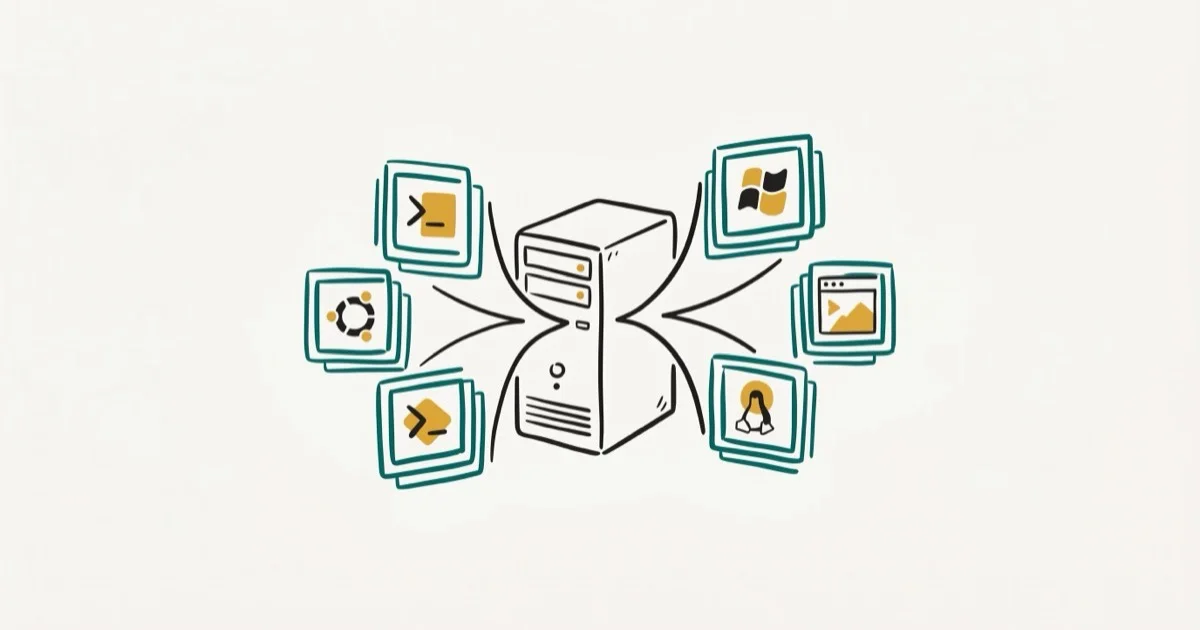
Quick AnswerVirtualization lets you run multiple operating systems on one physical machine, cutting hardware costs by up to 50% and improving server utilization from around 15% to over 60%. The tradeoffs include added complexity and potential security risks from shared resources.
Virtualization splits one physical server into multiple isolated virtual environments, each running its own operating system. If you’ve ever wondered whether consolidating your hardware or moving workloads to virtual machines is worth it, the short answer is yes for most use cases, but the tradeoffs matter.
- Server virtualization can improve hardware utilization by consolidating multiple workloads onto shared hosts
- Companies running virtualized infrastructure report 30-50% lower hardware costs within the first year
- A single physical server can host 10-20 virtual machines depending on RAM and CPU cores
- VM snapshots let you roll back a broken system much faster than rebuilding bare-metal infrastructure
- The main risks are hypervisor vulnerabilities, resource contention between VMs, and licensing complexity
#How Virtualization Works
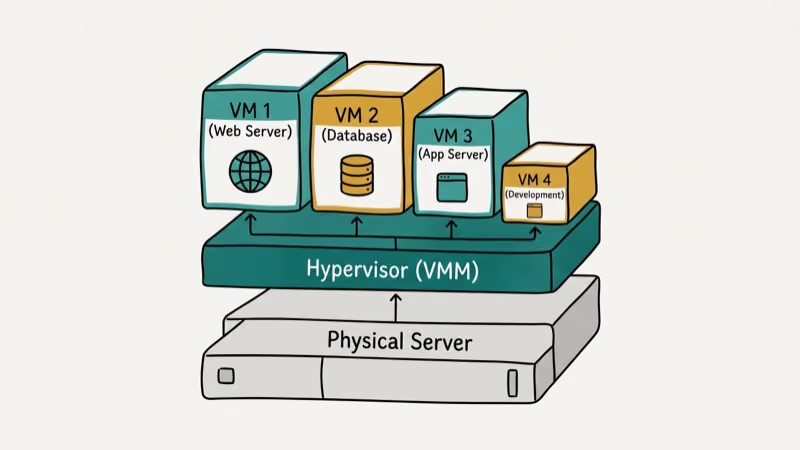
Virtualization uses a layer of software called a hypervisor to create virtual machines (VMs) on top of physical hardware. The hypervisor sits between the hardware and the operating systems, allocating CPU, RAM, and storage to each VM independently.
There are two types. Type 1 hypervisors (like VMware ESXi and Microsoft Hyper-V) run directly on the hardware without a host OS. Type 2 hypervisors (like VirtualBox and VMware Workstation) run on top of an existing operating system. According to Wikipedia’s virtualization overview, bare-metal hypervisors are common in enterprise production deployments because they eliminate host OS overhead.
Planning to run VMs locally? Our guide to the best laptops for virtualization covers the specs you’ll need.
#10 Key Benefits of Virtualization
#Lower Hardware Costs
Running multiple workloads on one server means fewer physical machines to buy, rack, and maintain. A mid-range server costing $3,000-$5,000 can replace three or four older single-purpose servers.
Organizations that adopt server virtualization typically consolidate many physical servers onto far fewer hosts, which cuts hardware spending substantially in the first year. According to PCMag’s virtualization overview, that consolidation translates directly to fewer purchase orders, fewer maintenance contracts, and less floor space in your server room.
#Higher Server Utilization
Many bare-metal servers run below their available capacity. That’s a lot of wasted compute power sitting idle.
Virtualization improves utilization by packing multiple workloads onto shared hardware instead of leaving single-purpose servers idle.
#Faster Disaster Recovery
VM snapshots change everything about failure recovery. Take a snapshot before any risky update, and if something breaks, roll back without rebuilding the whole machine.
Compare that to bare-metal recovery. Reinstalling an OS, reconfiguring applications, and restoring data from backup tapes or drives is a much heavier process. Tools like Veeam Backup and Replication can restore an entire VM to a different physical host, which is the kind of flexibility that bare metal simply can’t match.
#Simplified Testing and Development
Developers love VMs for one reason: zero-risk experimentation. Spin up a clean test environment in minutes, break it completely, and restore from a snapshot without touching production.
Need to test your app on Windows 10, Windows 11, and Ubuntu simultaneously? Run all three on one workstation. If you’ve hit Java errors in VMs before, our guide on fixing the “could not create the Java virtual machine” error walks through the common causes.
#Better Energy Efficiency
Fewer servers means lower power bills. Simple math.
The U.S. Environmental Protection Agency estimated that server virtualization could cut data center energy use by up to 80% for consolidated workloads. A small business running five physical servers at 200 watts each uses about 1,000 watts continuously, and consolidating those onto one 500-watt server cuts that number roughly in half.
#Faster Deployment
Provisioning a new physical server takes days or weeks between purchasing, shipping, and racking. A new VM? Under 30 minutes.
Templates speed things up even more. Create a base VM image with your standard OS configuration, security patches, and monitoring tools, then clone it on demand when a team needs a new environment.
#Hardware Independence
VMs abstract the software layer from the underlying hardware. You can migrate a VM from one physical server to another without reinstalling anything, and the VM doesn’t care whether it’s running on Dell, HP, or Lenovo hardware.
No vendor lock-in. Swap hardware whenever you want.
#Improved Security Isolation
Each VM runs in its own sandbox. A compromised application in one VM can’t directly access the file system or memory of another VM on the same host, which is a meaningful security upgrade over running everything on one bare-metal OS where a single breach exposes all services.
Network segmentation between VMs adds another protection layer. You can put your web server, database, and internal tools on separate virtual networks with firewall rules between them. For more on how isolation works in network security, check out our access control security overview.
#Easier Backups
The entire machine exists as files on disk. Copy those files, and you have a complete backup.
Incremental backups work well too. Changed block tracking identifies only the modified disk blocks since the last backup, so even a 500GB VM might produce a backup file of just a few gigabytes after a normal workday of changes. That keeps backup windows short and storage costs down.
#Simpler Cloud Migration
If your workloads already run in VMs, moving to a cloud provider is relatively straightforward. Most cloud platforms (AWS, Azure, Google Cloud) can import VM images directly, which gives you a clear path from on-premises infrastructure to hybrid or full cloud setups without rebuilding everything from scratch.
You can even run Chrome OS in VirtualBox to test cloud-based operating systems before committing to a migration.
#What Are the Main Drawbacks?
#Performance Overhead
The hypervisor layer adds overhead. CPU-intensive tasks typically run 5-10% slower inside a VM compared to bare metal, and I/O-heavy workloads like database transactions can see performance hits of 15-20% depending on your storage configuration.
That overhead is acceptable for most use cases, but real-time trading platforms and competitive gaming servers still tend to run on dedicated hardware.
#Security Risks From Shared Resources
VMs share physical hardware. That’s the core tension.
A vulnerability in the hypervisor itself (like the 2018 Spectre/Meltdown CPU flaws) can expose data across every VM on that host. Security teams should treat the hypervisor as a high-value target and apply patches immediately, because a single compromised hypervisor puts every VM on that host at risk. According to PCMag’s security analysis, production hypervisors should follow regular patch cycles.
#Licensing Complexity
Licensing gets messy fast. Some vendors charge per physical CPU socket, others per virtual core, and some want a separate license for every single VM instance you spin up.
Microsoft changed its Windows Server licensing model with the 2016 edition from per-socket to per-core pricing, which caught many organizations off guard and doubled costs for some. Oracle is even stricter, requiring licenses for every core in a physical host if you don’t use their approved hypervisor list. Always check your license agreements before spinning up additional VMs.
#Resource Contention
When multiple VMs compete for shared resources, everyone suffers. This is the “noisy neighbor” problem.
It hits hardest in shared hosting and public cloud environments. Monitoring tools and resource limits help prevent one VM from starving the others, but they add another layer of management work that someone on your team needs to own.
#Single Point of Failure
Put ten workloads on one server, and a single hardware failure takes all ten down at once. A failed power supply or motherboard becomes a much bigger event than it was when each service had its own dedicated box.
High availability clustering fixes this. But it adds cost and complexity, so plan for at least N+1 redundancy at the host level for anything production-critical.
#Virtualization for Small Businesses
If you’re running two or more physical servers, virtualization pays for itself within a year through hardware savings alone. A business with separate servers for email, file sharing, and a web app can consolidate everything onto one machine running three VMs.
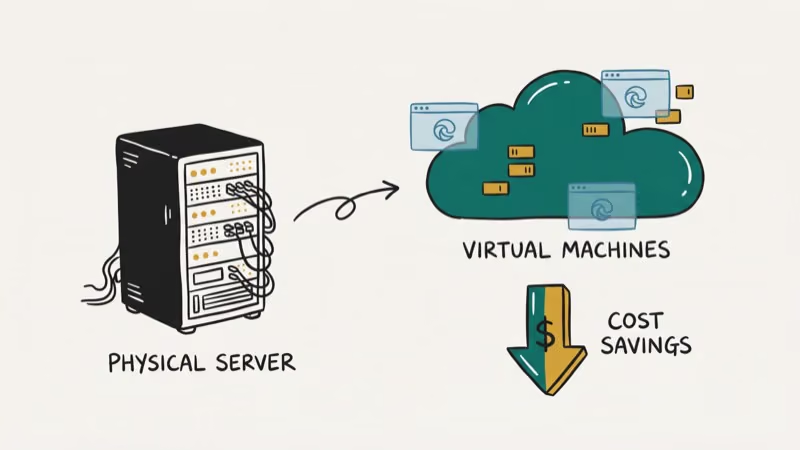
Small businesses commonly see meaningful IT infrastructure cost reductions after virtualization. According to PCMag’s virtualization overview, consolidation reduces the number of physical systems that need to be purchased, maintained, powered, and housed.
You’ll need someone comfortable with hypervisor management, though. VMware ESXi and Proxmox VE are free to start with, but they require Linux and networking knowledge. If your team doesn’t have that expertise, managed virtualization from providers like Linode or DigitalOcean starts at $5-$20 per month and includes most of the setup and maintenance work for you.
If you’re also evaluating VPN solutions for your business network, our guide on what VPN does on iPhone explains the basics of encrypted connections.
#Containers vs. Virtual Machines
Containers and VMs solve different problems. VMs virtualize entire operating systems, giving you full OS isolation with separate kernels. Containers share the host OS kernel and only isolate the application layer, making them lighter and faster to start.
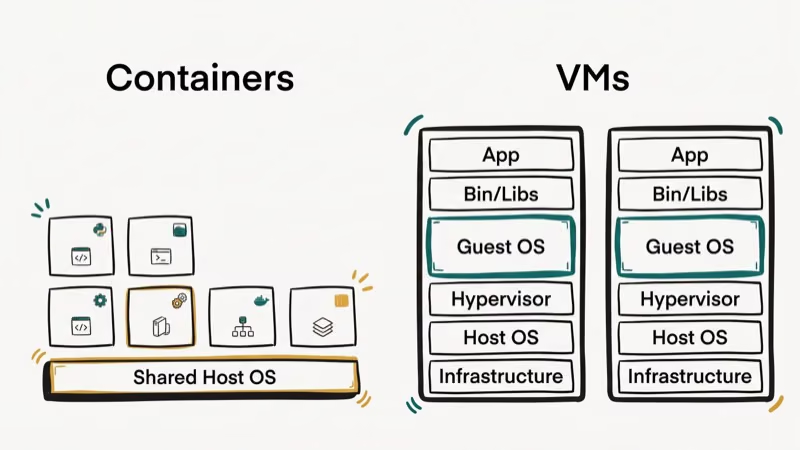
A typical VM needs 1-4 GB of RAM and takes 30-60 seconds to boot. A container needs 50-200 MB and starts in under a second. Docker and Kubernetes have made containers the default for modern web application deployment, but VMs still win for workloads that need full OS-level isolation, like running Windows alongside Linux or testing across different kernel versions.
For most teams, the answer isn’t either/or. Run your VMs for infrastructure services like databases and Active Directory, and use containers for stateless web applications that need to scale quickly.
#How To Pick the Right Hypervisor?
The choice between hypervisors depends on your budget, team skills, and scale.
VMware ESXi is the industry standard with the largest ecosystem of management tools, but licensing costs have increased significantly since Broadcom’s acquisition. Proxmox VE is free and open-source, runs on Debian Linux, and handles both VMs and containers. It’s a strong pick for teams comfortable with Linux. Microsoft Hyper-V comes free with Windows Server and integrates naturally with Active Directory environments.
VirtualBox is the go-to for home labs. It’s free, cross-platform, and your first VM can be running in 15 minutes. Our Degoo review covers one cloud storage option worth pairing with local VMs.
#Bottom Line
Virtualization delivers measurable savings in hardware costs, energy consumption, and deployment speed. Consolidating several workloads onto shared hosts is what drives those gains, and the effect is large enough to show up plainly in your own utilization numbers rather than something you have to take on faith. Start with a single non-critical workload on VirtualBox or Proxmox, migrate a test environment, and measure the results yourself.
#Frequently Asked Questions
What is the difference between Type 1 and Type 2 hypervisors?
Type 1 hypervisors run directly on physical hardware without a host operating system. VMware ESXi and Microsoft Hyper-V are the most common examples. Type 2 hypervisors run as applications on top of an existing OS, like VirtualBox running on Windows or macOS. Type 1 delivers better performance because it eliminates the host OS overhead, making it the standard for production servers.
How many virtual machines can one server run?
With 64GB RAM and 16 cores, expect 10-15 VMs. RAM is the bottleneck.
Is virtualization the same as cloud computing?
No. Virtualization is the underlying technology that makes cloud computing possible, while cloud computing adds automation, self-service provisioning, and pay-as-you-go billing on top. You can run virtualization entirely on-premises without any cloud involvement whatsoever.
Can you run games inside a virtual machine?
You can, but expect poor 3D performance without GPU passthrough. GPU passthrough (available in KVM and some VMware setups) assigns a physical GPU directly to a VM, bringing gaming close to bare-metal speeds. You’ll need a second GPU for the host.
Does virtualization affect data security?
VM isolation blocks lateral attacks. But the hypervisor is a high-value target. Patch it immediately and always encrypt VM storage.
What hardware do you need to start with virtualization?
A laptop with 16GB RAM, a quad-core CPU, and a 256GB SSD handles basic testing. Enable Intel VT-x or AMD-V in BIOS first. Production setups need 64GB+ RAM and enterprise SSDs.
How long does it take to set up a virtual machine?
About 10-15 minutes if you have an OS installation ISO ready. Using templates or pre-built images cuts that to under 5 minutes. The initial Type 1 hypervisor installation takes 20-30 minutes, and the longest part is usually downloading the OS image file itself.
Is Proxmox VE a good alternative to VMware for small teams?
Proxmox VE is free, open-source, and handles both VMs and containers in one interface. It runs on Debian Linux and supports KVM for full virtualization. For small teams that don’t need VMware’s enterprise features (like vMotion or distributed resource scheduling), it’s a practical choice. Paid support subscriptions start at around $100 per year per server if you want official backing.

Best Laptop for Running LLMs in 2026: Memory Comes First
The best laptop for running LLMs is a memory purchase first. Compare MacBook unified memory against NVIDIA laptop VRAM, and see what each tier really runs.

How to Run a Local LLM on Windows: A 2026 Setup Guide
Run a local LLM on Windows with LM Studio or Ollama. Pick a model that fits your GPU memory, keep every prompt offline, and skip the monthly bill.

Bluetooth Not Working on Snapdragon X? Fixes for 2026
Bluetooth not working on your Snapdragon X Copilot+ PC? Generic audio, mice, and keyboards work, but vendor apps often lack an ARM build. Fixes inside.

Docker Desktop and WSL2 Not Working on Snapdragon X? Fix It
WSL2 runs fine on Snapdragon X, but Docker Desktop ARM is Early Access and throws WSL errors. Use WSL2 plus native ARM64 Ubuntu and Docker Engine.