Best Laptops for Virtualization: Top Picks for Running VMs
Find the best laptops for virtualization in 2026. We cover RAM, CPU, and storage specs you need to run VMware, VirtualBox, or Hyper-V smoothly.
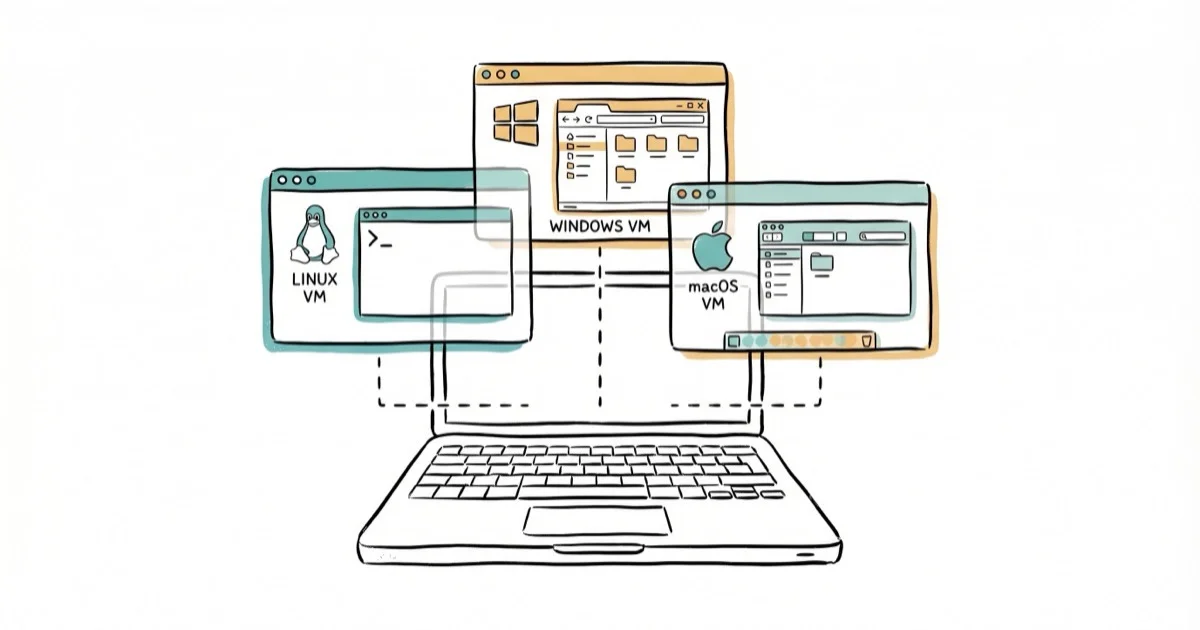
Quick AnswerThe best laptop for virtualization needs at least 32 GB of RAM, an Intel Core i7 or AMD Ryzen 7 processor with VT-x or AMD-V support, and a 1 TB NVMe SSD. For most users running 2-4 VMs simultaneously, budget around $1,200 to $1,800.
Running virtual machines on an underpowered laptop is painful. VMs freeze, the host OS crawls, and you end up rebooting more than working. This guide maps the laptop specs that handle 2-4 simultaneous VMs in VMware Workstation and VirtualBox without choking.
Use virtualization buying advice for your own computer, lab, workstation, or equipment you are authorized to configure. Before enabling hypervisors or cloning test systems, check official documentation and support options from CPU, Windows, macOS, Linux, and vendor sources so the laptop supports the features you need and stays within supported licensing and update paths.
- 32 GB of RAM is the practical floor for multiple VMs since each guest needs dedicated memory
- Intel VT-x or AMD-V hardware virtualization support is mandatory for hypervisors
- NVMe SSDs cut VM boot times by 40-60% compared to SATA SSDs
- A 6-core or 8-core processor handles 2-4 VMs, while 12+ cores suit heavier lab setups
- Budget $1,200-$1,800 for a laptop that won’t bottleneck your virtualization workflow
#What Specs Actually Matter for Virtualization?
RAM is the single biggest factor. Each virtual machine needs its own dedicated block of memory that can’t be shared with other VMs or the host OS. According to VMware’s host system requirements documentation, the host needs at least 2 GB just for Workstation itself, plus whatever each guest demands. Run a Windows 11 VM with 8 GB allocated and a Linux VM with 4 GB, and you’ve already eaten 14 GB before the host OS gets its share.
CPU core count matters too, but less than you’d expect for light workloads. A modern 6-core chip handles 2 VMs fine. When you’re spinning up 4+ VMs for network testing or development environments, you’ll want 12+ cores with VT-x or AMD-V support enabled in your BIOS.
Storage speed directly affects how snappy your VMs feel. A PCIe Gen 4 NVMe drive cuts VM boot times to roughly half what a SATA SSD delivers, because guest images load far faster off the higher-bandwidth bus. NVMe is the only reasonable choice in 2026.
#How Much RAM Do You Need for Virtual Machines?
Here’s a realistic breakdown of what each RAM tier can run:
| RAM | What You Can Run | Best For |
|---|---|---|
| 16 GB | 1 light VM (Linux) | Students, casual testing |
| 32 GB | 2-3 VMs with 8 GB each | Developers, IT admins |
| 64 GB | 5-8 moderate VMs | Enterprise labs, pen-testing |
16 GB technically works for a single VM, but we don’t recommend it. Your host OS needs 4-6 GB, leaving barely enough for one guest.
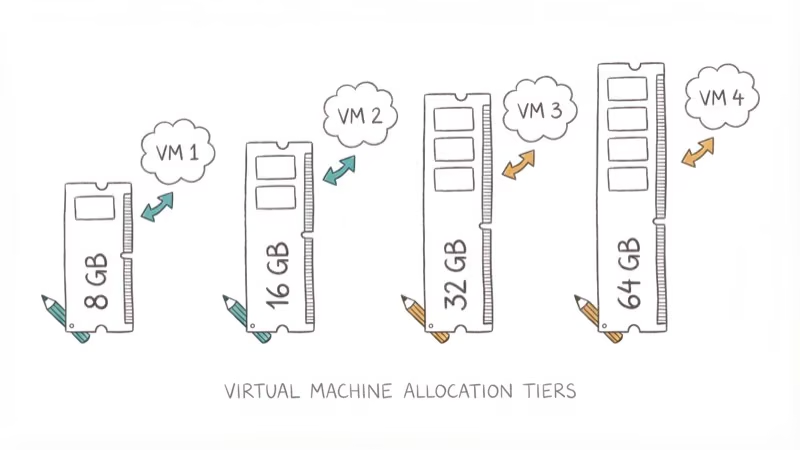
32 GB hits the sweet spot for most professionals. You can comfortably run 2-3 VMs while keeping the host responsive. This is where we’d point anyone doing software development or IT administration work.
#Top Laptop Configurations for Running VMs
Instead of recommending specific models that go out of stock or get replaced every product cycle, here are the spec tiers that matter for running virtual machines in 2026, along with the price ranges you should expect and the workloads each level can realistically handle without throttling or running out of memory.
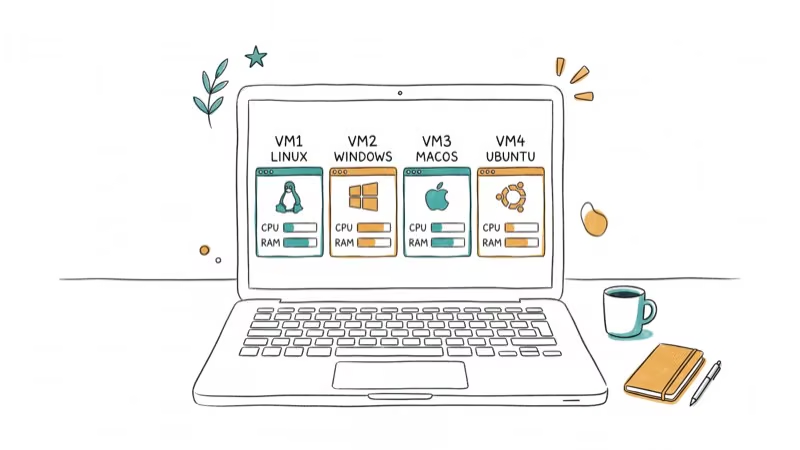
#Entry Tier ($800-$1,200)
An Intel Core i5-13500H or AMD Ryzen 5 7535HS with 16 GB RAM and a 512 GB NVMe SSD handles a single VM for coursework or light testing.
#Mid Tier ($1,200-$1,800)
Target an Intel Core i7-13700H or AMD Ryzen 7 7745HX with 32 GB RAM and a 1 TB NVMe SSD. Based on Oracle’s VirtualBox documentation, the host machine should retain about 2 GB of free memory, and this tier gives you enough headroom for 2-3 concurrent guests.
#Professional Tier ($1,800-$2,500)
Go for an Intel Core i9-13900HX or AMD Ryzen 9 7945HX with 64 GB RAM and 2 TB NVMe storage. This is where enterprise-level tools like VMware vSphere become practical, letting you spin up 5+ VMs without the host stuttering. Expect these machines to weigh 5-6 lbs and run fans at full speed under VM load.
#Choosing the Right Hypervisor
Your choice of hypervisor affects hardware needs. Three options dominate.
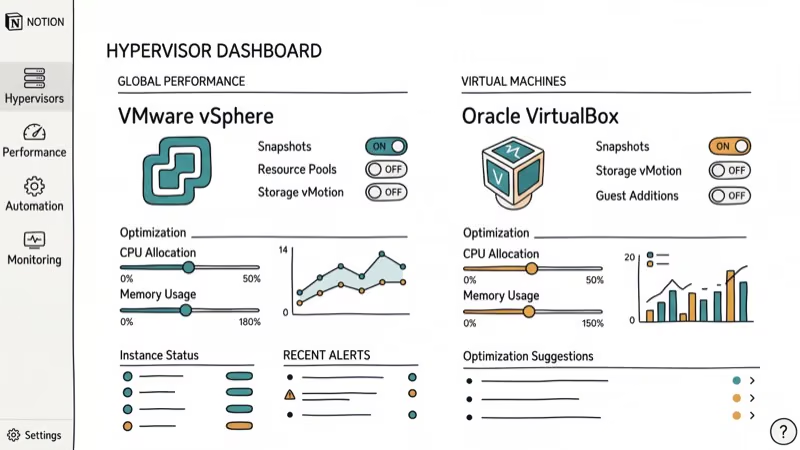
VMware Workstation Pro (now free for personal use) delivers the strongest performance of the three. It handles snapshots, cloning, and networking between VMs much better than alternatives. According to Broadcom’s VMware Workstation documentation, a 64-bit processor with SLAT support is required.
VirtualBox is free, open-source, and runs on Windows, macOS, and Linux. It’s particularly useful on budget-friendly laptops where every gigabyte of RAM counts.
Hyper-V comes built into Windows 10/11 Pro and Enterprise. It runs as a Type 1 hypervisor directly on the hardware, giving it a performance edge. The downside: enabling Hyper-V can interfere with other hypervisors, and it only runs on Windows hosts.
#GPU, Cooling, and Battery Considerations
For most virtualization tasks, a dedicated GPU isn’t needed. A discrete graphics card only matters if you’re doing GPU passthrough where a VM gets direct access to the card, which is common in 3D modeling or animation workflows.
Cooling is a bigger concern than most buyers realize. Running multiple VMs pushes CPU utilization to 60-90% for sustained periods, and laptops with poor thermal design will throttle hard. A thin ultrabook with the same i7 chip as a thicker workstation laptop will throttle sooner under sustained VM load, because the slimmer chassis can’t shed heat as fast. Gaming laptops and mobile workstations generally have better thermal management than ultrabooks do.
Battery life tanks during VM workloads. Expect 2-3 hours versus the advertised 8-10 hours. For portable VM work, you’ll want a 75+ Wh battery. A detachable laptop won’t cut it.
#Performance Optimization Tips
Enable hardware virtualization (VT-x or AMD-V) in your BIOS/UEFI first. Most laptops ship with it on, but some manufacturers disable it by default.
Allocate RAM wisely. Give each VM only what it needs and leave 4-6 GB for the host OS. Over-allocating causes the host to swap to disk, which slows everything down. TechRepublic’s VirtualBox guide confirms that right-sizing RAM is the highest-impact optimization you can make for virtual machine performance on any laptop or desktop.
Store VM disk images on your fastest drive. Put the VMs on the NVMe if your laptop also has a secondary SATA drive.
#Bottom Line
A laptop with 32 GB of RAM, an 8-core processor with VT-x or AMD-V, and a 1 TB NVMe SSD handles most VM workloads. Spend $1,200-$1,800 for a machine that runs 2-3 concurrent guests without issues.
Skip 16 GB configurations unless you’ll only ever run one lightweight Linux VM. For lab environments with 5+ VMs, jump to 64 GB RAM and a 12+ core processor.
#Frequently Asked Questions
Can you run virtual machines on a laptop with 16 GB of RAM?
Barely. After the host OS takes 4-6 GB, you have roughly 10 GB left for a single guest. Two VMs at that level means constant memory pressure, disk swapping on the page file, and host responsiveness that degrades to the point where even switching between windows takes several seconds.
Is Intel or AMD better for virtualization?
Both work well. Intel VT-x and AMD-V provide equivalent virtualization support. AMD offers more cores per dollar in the Ryzen 7000 series, while Intel edges ahead in single-thread speed. Pick whichever fits your budget.
Do you need Windows Pro for running VMs?
Only for Hyper-V. VMware Workstation and VirtualBox run on Windows Home just fine. If you’re on a Mac or Linux host, the Windows edition doesn’t matter at all since Hyper-V isn’t available on those platforms anyway, and the other two hypervisors have full macOS and Linux support without any edition restrictions whatsoever.
How much storage should a virtualization laptop have?
1 TB minimum. Windows VM images run 20-40 GB each, Linux VMs take 10-20 GB, and snapshots eat space fast.
Can gaming laptops handle virtualization?
Yes, and they’re often a surprisingly good value. Gaming laptops pack strong multi-core processors, 16-32 GB of RAM, fast NVMe storage, and aggressive cooling systems, and all of that directly benefits VM performance. The dedicated GPU is a bonus if you ever need GPU passthrough for graphics-intensive guest workloads like CAD or 3D rendering inside a virtual machine.
What’s the difference between Type 1 and Type 2 hypervisors?
Type 1 runs directly on hardware (Hyper-V, VMware ESXi). Type 2 runs inside your OS (VMware Workstation, VirtualBox). Laptop users should pick Type 2.
Should you enable hardware virtualization in BIOS?
Yes. Intel VT-x and AMD-V must be enabled in BIOS/UEFI for hypervisors to function at full speed. Check under CPU Configuration or Security in your BIOS. Without it, VirtualBox and VMware either refuse to start 64-bit guests or run them with severe performance penalties that make the VM nearly unusable for any productive workload.
Is an NVMe SSD worth it over a SATA SSD for VMs?
NVMe drives deliver 3,000-7,000 MB/s sequential reads versus 500-550 MB/s for SATA. That bandwidth gap cuts average VM boot time substantially. The improvement compounds across every snapshot restore, state save, and cold boot throughout a workday, making it one of the most cost-effective upgrades you can make for a virtualization-focused laptop since NVMe drives have dropped to near price parity with SATA models in recent years.

Best Laptop for Running LLMs in 2026: Memory Comes First
The best laptop for running LLMs is a memory purchase first. Compare MacBook unified memory against NVIDIA laptop VRAM, and see what each tier really runs.

Pixel 11 vs Pixel 10: What Changed and Who Should Upgrade
Pixel 11 vs Pixel 10: same screen and camera resolution, new Tensor G6, 25W wireless, and Gemini Intelligence. Here is who should actually upgrade.
Best Power Bank for iPad in 2026: Pro, Air, and Mini
Best power bank for iPad in 2026. Compare mAh tiers and USB-C PD wattage for iPad Pro, Air, and mini, plus airline Wh math, cables, and travel tips.
Best Power Bank With Built-In Cable: Top 2026 Picks
Best power bank with built-in cable picks for 2026. Compare single USB-C, multi-connector, and retractable laptop banks, plus airline Wh math.