How to Upgrade Windows 10 to Windows 11 the Right Way
Windows 10 support ended October 2025. Check TPM 2.0 and CPU eligibility, back up, then upgrade via Windows Update, Installation Assistant, or ISO.
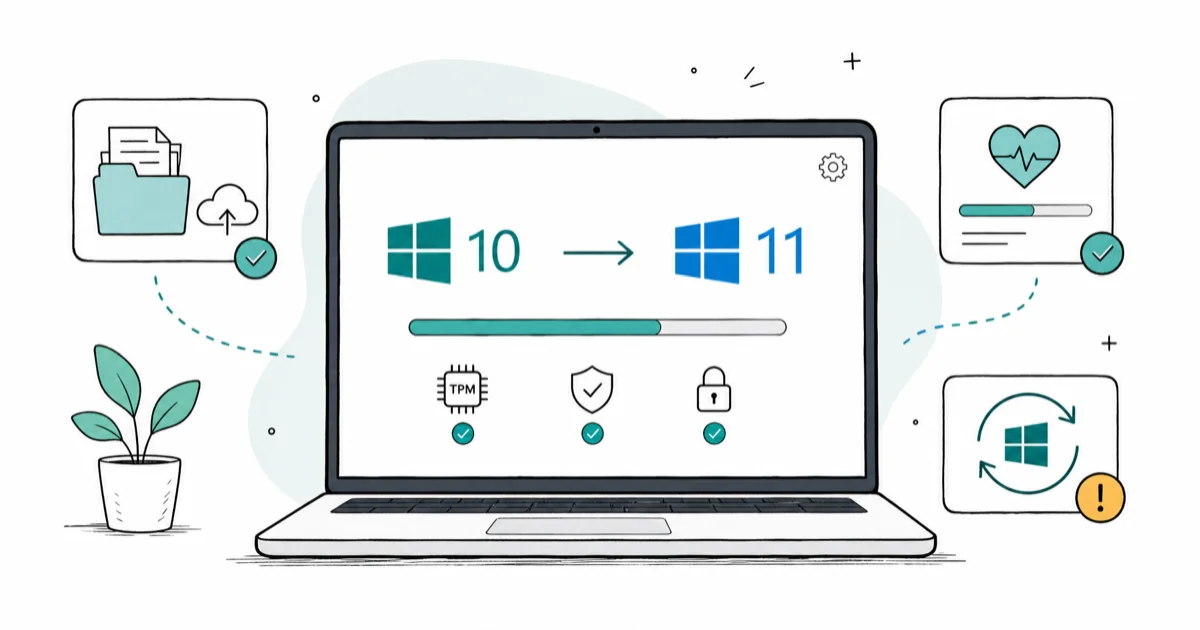
Quick AnswerRun PC Health Check to confirm TPM 2.0, Secure Boot, and a supported CPU. Back up your files, then upgrade through Windows Update, the Installation Assistant, or an ISO.
Upgrading Windows 10 to Windows 11 became urgent in October 2025, when Microsoft ended Windows 10 support. The free upgrade is still available for eligible PCs, but the path matters: check your hardware, back up first, and pick the right installer. This guide covers the requirements, the three official upgrade routes, and what happens to your files.
- Windows 10 support ended on October 14, 2025, so unpatched PCs no longer get security fixes and grow more exposed over time.
- Windows 11 requires TPM 2.0, Secure Boot, a 64-bit 1 GHz dual-core CPU on Microsoft’s supported list, 4 GB RAM, and 64 GB storage.
- TPM is often present but switched off in BIOS, so a “not eligible” result is frequently a firmware toggle, not a dead end.
- The three official upgrade paths are Windows Update, the Installation Assistant, and the Media Creation Tool, in that order of safety.
- An in-place upgrade keeps your apps and files, but a verified backup is non-negotiable before you start.
#Why Should I Upgrade From Windows 10 Now?
Windows 10 reached end of support on October 14, 2025. Your PC keeps working, but the meter is running on its security. According to Microsoft’s Windows 10 end-of-support page, version 22H2 was the final release, and the OS no longer receives security or feature updates.
That matters more than it sounds. An unpatched OS becomes a softer target for malware every month. Browsers and apps also begin dropping support for the older platform.
If your PC can’t run Windows 11, you have options short of upgrading, including the consumer Extended Security Updates program. We cover that in our guide on how to enroll in Windows 10 ESU for free. For everyone with eligible hardware, though, the cleanest move is to upgrade.
#The Windows 11 System Requirements
Microsoft sets a specific hardware floor for Windows 11, and the security-related parts trip up the most people. PC Health Check is the cleanest way to separate a quick firmware toggle from a hardware blocker.
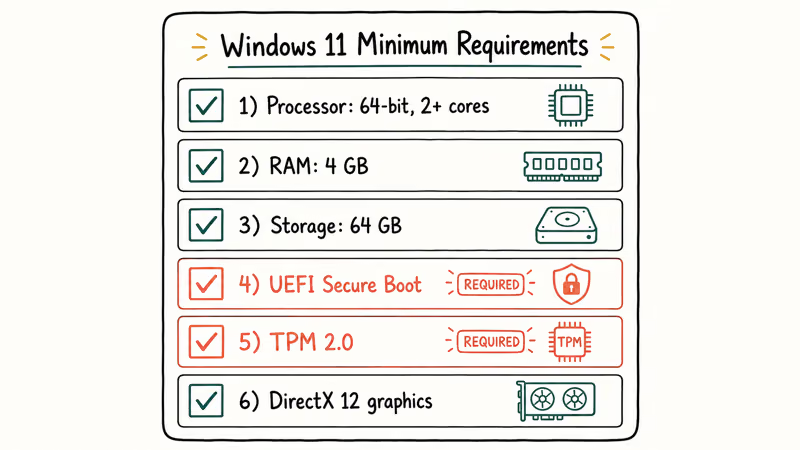
Minimum Windows 11 hardware requirements
| Component | Requirement |
|---|---|
| Processor | 1 GHz or faster, 2+ cores, 64-bit, on Microsoft’s supported list |
| RAM | 4 GB or more |
| Storage | 64 GB or larger |
| Firmware | UEFI with Secure Boot capable |
| Security chip | TPM 2.0 |
| Graphics | DirectX 12 compatible with WDDM 2.0 |
According to Microsoft’s TPM 2.0 support documentation, most PCs sold in the last 5 years can run TPM 2.0, and it underpins features like Windows Hello and BitLocker. The CPU list is the other common blocker. Microsoft maintains explicit supported-processor lists for Intel, AMD, and Qualcomm, and older chips simply aren’t on them.
#How Do I Check if My PC Can Run Windows 11?
The official tool is PC Health Check. Download it from Microsoft, click Check now, and it reports a clear pass or fail plus the exact blockers: TPM, Secure Boot, CPU, RAM, or storage. Read the result carefully, because the wording tells you whether you face a quick fix or a hardware wall.
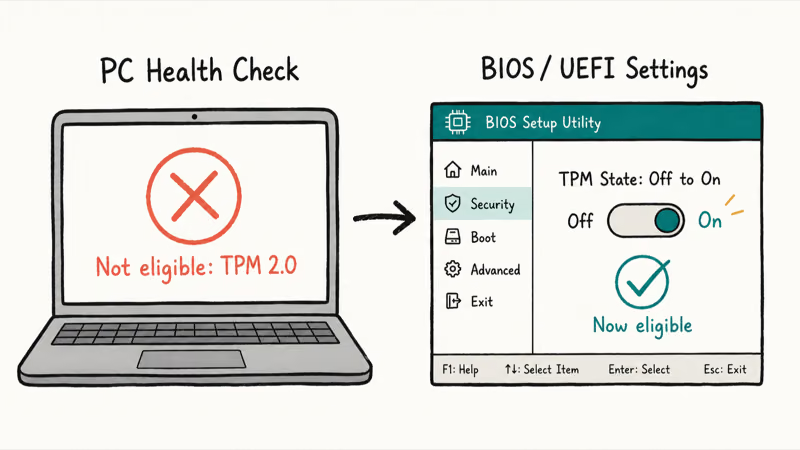
Often the blocker is TPM showing as missing when it’s just disabled. Many motherboards ship with it turned off by default even though the chip is present and ready.
To enable it, go to Settings > Update & Security > Recovery > Restart now, then choose Troubleshoot > Advanced options > UEFI Firmware Settings > Restart. In the BIOS, look for a setting labeled TPM State, AMD fTPM, Intel PTT, or Platform Trust Technology, and switch it on.
On some machines you may need a firmware refresh first; our Dell BIOS update guide shows the process on that brand. For a deeper eligibility walkthrough, see how to check if your PC can run Windows 11.
#The Three Ways to Upgrade
Microsoft offers three official routes. Pick the first one that’s available to you, since they get progressively more hands-on.
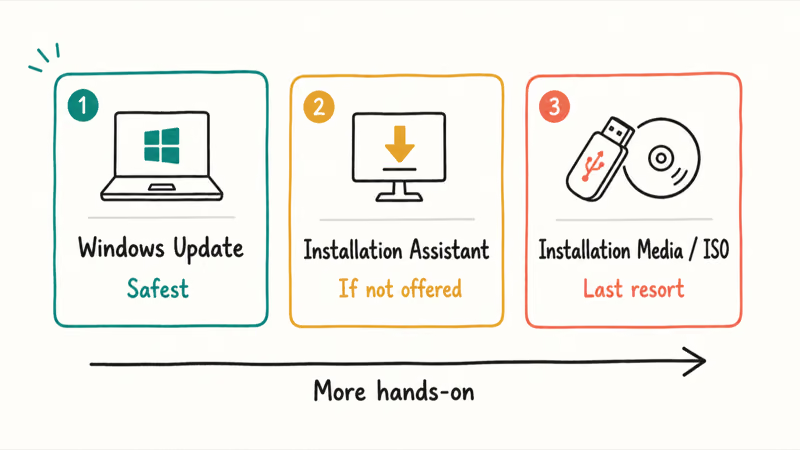
1. Windows Update (the safe default). If your PC is eligible, the upgrade is offered under Start > Settings > Update & Security > Windows Update. It’s the least likely to cause problems. If it stalls, clear the cache via how to delete Windows Update files completely.
2. Windows 11 Installation Assistant. This app upgrades an eligible PC that hasn’t been offered the update yet. Microsoft recommends waiting for the Windows Update offer first, but the Assistant works if you’d rather not wait. Run it; if your device passes the hardware check, it installs while keeping your files and apps, which makes it the natural second choice when Windows Update hasn’t surfaced the upgrade on its own schedule yet.
3. Installation media (ISO or Media Creation Tool). This builds a bootable USB or ISO, normally for clean installs on a blank PC, though it can also run an in-place upgrade. Reach for it only when the first two routes won’t run, since it’s the most hands-on of the three and the easiest to get wrong if you boot from the wrong drive.
According to Microsoft’s “ways to install Windows 11” page, in-place upgrades preserve apps and data most of the time. The phrase “most of the time” is exactly why a verified backup matters before you commit to any of these three routes.
#Back Up Your Files Before You Start
An in-place upgrade through any of the three routes keeps your apps, settings, and files. The key word is “should,” because upgrades occasionally fail mid-process, and a power cut or a disk error at the wrong moment can leave you with a half-installed system and no easy way back.
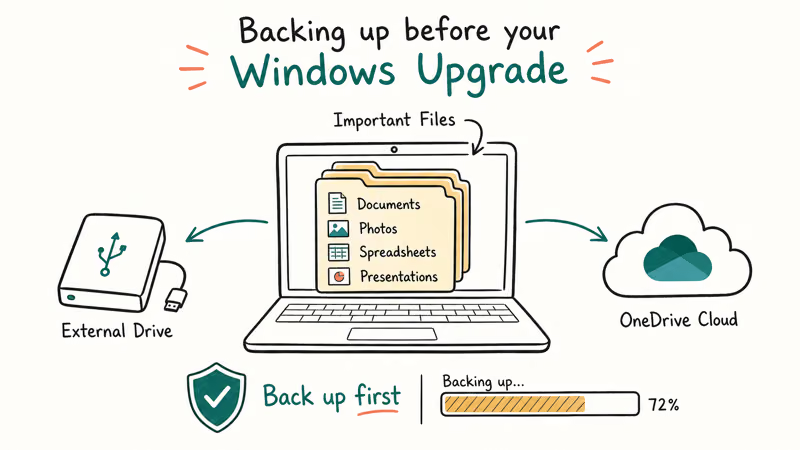
Back up before you start. Copy your important folders to an external drive or a cloud service like OneDrive. Don’t skip this just because the upgrade is supposed to be non-destructive.
If something does go wrong and you need to start fresh while keeping personal files, our guide on how to factory reset Windows 11 and keep your files walks the recovery path. Most people never need it, but the backup and that guide are your safety net.
#What to Do if Your PC Isn’t Eligible
If PC Health Check flags a CPU that isn’t on Microsoft’s list or a board with no TPM at all, the official upgrade is blocked. Microsoft’s stance is clear: stay on Windows 10 rather than force an unsupported install.
You still have practical options. Enroll in the consumer ESU program to keep getting security updates through October 2026, which buys planning time. On some desktops you can fit a discrete TPM module or enable fTPM in firmware to convert an ineligible board into an eligible one. And when neither works, a newer Windows 11-ready PC is the long-term answer.
Forcing Windows 11 onto unsupported hardware with registry tweaks is possible, but Microsoft doesn’t support it and updates aren’t guaranteed to work. Skip that route for any PC you rely on daily.
#Bottom Line
If PC Health Check gives you a green light, upgrade through Windows Update first; it’s the route Microsoft tuned for your machine. Back up your files beforehand even though an in-place upgrade keeps them, because the rare failure isn’t worth the risk. If your PC isn’t eligible, don’t force an unsupported install. Enroll in ESU to stay patched through October 2026 and plan a hardware path from there.
#Frequently Asked Questions
Is the Windows 11 upgrade still free?
Yes. The upgrade from a licensed Windows 10 install to Windows 11 is free for eligible PCs, with no separate purchase if your existing Windows 10 is genuine. You just need the hardware to meet the requirements, including TPM 2.0 and a supported CPU.
Can I upgrade if my PC fails the TPM 2.0 check?
Often, yes. Many PCs have TPM 2.0 present but disabled in BIOS, so enabling it in the UEFI firmware settings flips a failing check to passing. If the chip is truly absent or your CPU isn’t on Microsoft’s supported list, the official path is blocked, and Microsoft recommends staying on Windows 10 rather than forcing an unsupported install.
How long does the Windows 11 upgrade take?
Plan for 1 to 2 hours on most machines. A faster SSD and a fully patched Windows 10 baseline both shorten it.
What happens to Windows 10 after October 2025?
Your PC keeps running, but it no longer gets security updates, feature updates, or technical support from Microsoft. Over time that makes it more vulnerable to malware and incompatible with newer software. The consumer ESU program can extend security updates through October 2026 as a temporary bridge.
Should I do a clean install or an in-place upgrade?
For most people, an in-place upgrade is better because it keeps your apps, settings, and files. A clean install gives you a fresh start with no clutter, but you reinstall everything and restore data afterward. Choose it only if your current Windows 10 is already unstable.
Can I roll back to Windows 10 if I don’t like Windows 11?
Yes, within 10 days of upgrading. Windows keeps a recovery copy and lets you go back through Settings > System > Recovery. After 10 days, the old files are deleted to reclaim space.

Bluetooth Not Working on Snapdragon X? Fixes for 2026
Bluetooth not working on your Snapdragon X Copilot+ PC? Generic audio, mice, and keyboards work, but vendor apps often lack an ARM build. Fixes inside.

Docker Desktop and WSL2 Not Working on Snapdragon X? Fix It
WSL2 runs fine on Snapdragon X, but Docker Desktop ARM is Early Access and throws WSL errors. Use WSL2 plus native ARM64 Ubuntu and Docker Engine.
Does iTunes Work on Snapdragon X? ARM Windows 11 Guide
Yes, iTunes runs on Snapdragon X laptops through Prism emulation, but the Apple Devices app is the smoother route. Here is what to install on ARM.
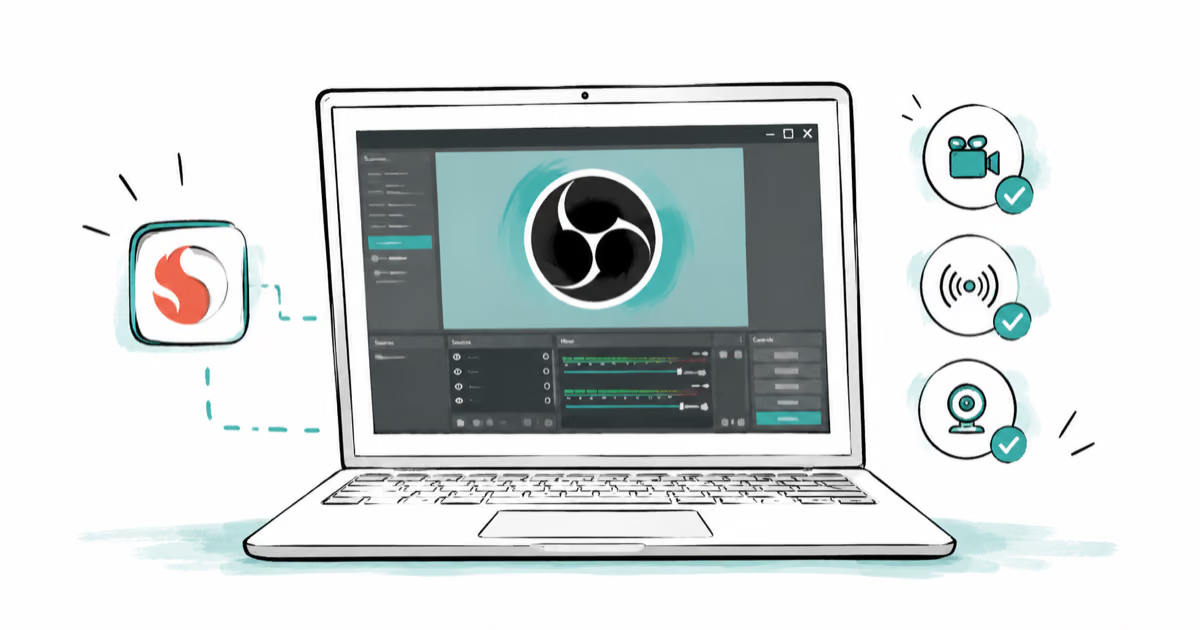
Does OBS Studio Work on Snapdragon X? ARM64 Build Guide
Yes, OBS Studio has an experimental ARM64 build since version 31.1, but x64 plugins won't load and hardware encoding is missing. Here is what works.