Fix Unable to Initialize Steam API Error: 7 Methods (2026)
Fix the unable to initialize Steam API error with admin launch, firewall rules, Steam Beta opt-out, file repair, and a clean reinstall path.
Quick AnswerThe unable to initialize Steam API error usually traces to firewall blocks, lingering steam.exe processes, or Steam Beta client conflicts. Close every Steam process in Task Manager, allow the game through Windows Defender Firewall, and relaunch Steam as administrator. Those three steps clear the error on most Windows 10 and 11 PCs.
The unable to initialize Steam API error blocks a game from talking to the Steam client, so the launch dies before the title screen loads. The cause is almost always one of three things: a stray Steam process holding the API handle, a firewall rule blocking the game executable, or a Steam Beta build that shipped a regression. The fixes below cover the common Windows-side causes without changing your Steam library.
- The error usually points to one of three causes: a firewall block on the game executable, lingering steam.exe processes after a hard crash, or a Steam Beta client regression that hasn’t reached the public branch.
- Closing every Steam process (Steam.exe, GameOverlayUI.exe, Steam Client Bootstrapper, Steam Client WebHelper) in Task Manager before relaunching fixes it more often than any other single step.
- Allowing both the game’s executable and steam.exe through Windows Defender Firewall on Private and Public networks clears the API handshake when the firewall is the blocker.
- Opting out of Steam Beta and switching back to the public branch resolves errors caused by partially shipped beta updates.
- Reinstalling Steam preserves your installed games as long as you back up the steamapps folder before running the uninstaller.
#What Causes the Unable to Initialize Steam API Error?
The Steam API is a library called Steamworks that every Steam game loads at launch. The game’s executable opens steam_api.dll (or steam_api64.dll on 64-bit titles) and calls SteamAPI_Init() to ask the running Steam client for an authenticated session. If Steam isn’t running, isn’t responding, or the operating system blocks the inter-process call, that function returns false and the game throws the initialization error before the main menu loads.
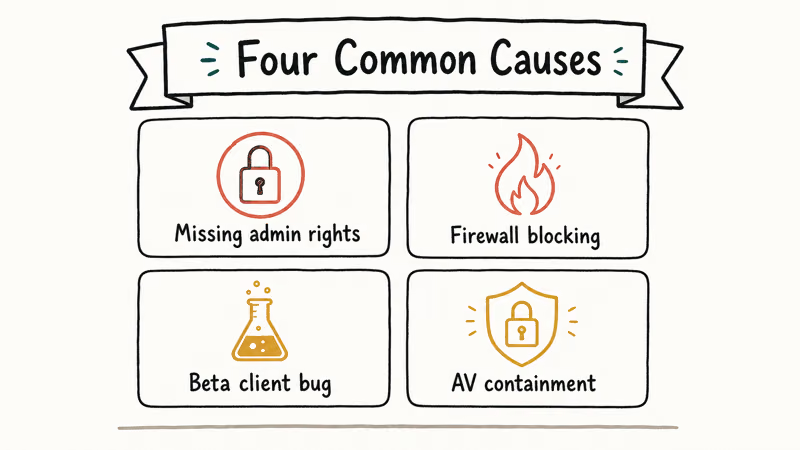
According to Valve’s Steam Support article on antivirus interference, real-time scanners intercept the steam_api.dll handshake even when no other Steam function looks broken. The block lives in different software for different setups, which is why one player’s fix isn’t another’s.
The most common triggers across reader reports and Steam Community threads:
- Stale Steam processes after a crash, hanging onto the API socket
- Windows Defender Firewall or a third-party firewall blocking the game executable
- Steam Beta client pushing an unfinished Steamworks build
- Antivirus auto-containment (Comodo, Avast, AVG) sandboxing the game
- Corrupted game files where steam_api.dll itself is damaged
- Old steam_api.dll versions left over from cracked-game testing or third-party mods
- Network adapter or VPN intercepting Steam’s localhost API channel
#Run Steam as Administrator
Running Steam with elevated rights can clear the error when User Account Control blocks the client or game from opening the local API channel it needs at launch.
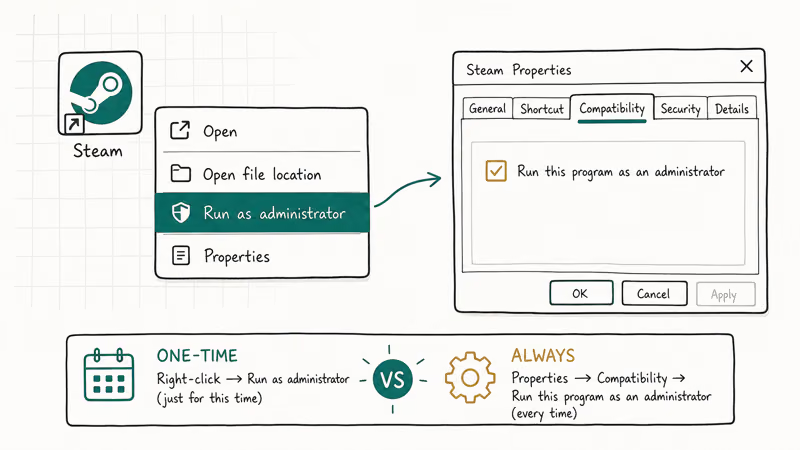
- Close Steam fully. Right-click the Steam icon in the system tray and pick Exit.
- Open File Explorer and go to C:\Program Files (x86)\Steam.
- Right-click steam.exe and choose Properties.
- Open the Compatibility tab and tick Run this program as an administrator.
- Click Apply, then OK.
- Double-click steam.exe to relaunch Steam, accept the User Account Control prompt, and start the failing game from your Library.
Try it once. If the game launches cleanly, leave the admin flag on for a few sessions before deciding whether to turn it back off.
If you’re not sure your account has admin rights to begin with, our walkthrough on how to get administrator privileges on Windows 7 covers the equivalent steps for older builds, and the same logic applies to Windows 10 and 11.
#Allow the Game Through Windows Defender Firewall
Microsoft’s Windows Firewall best-practices guide states that inbound and outbound rules must both permit the application binary for two-way game traffic to flow. Steam needs to talk to Valve’s content servers and to the local game executable at the same time, and a missing rule on either path can surface as the Steam API error rather than a generic network failure.
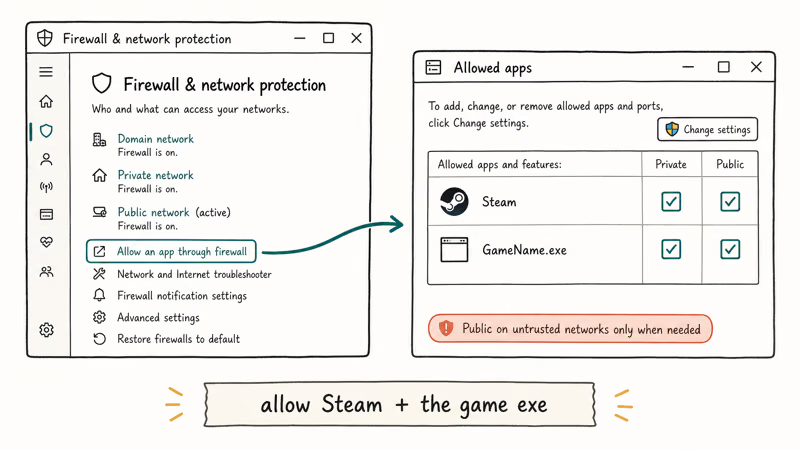
Allowing steam.exe and the game’s executable through Windows Defender Firewall on both Private and Public networks removes a common blocker in the Steam API handshake.
- Press the Windows key, type Control Panel, and open it.
- Set View by to Large icons in the top-right.
- Click Windows Defender Firewall, then Allow an app or feature through Windows Defender Firewall on the left.
- Click Change settings, then Allow another app.
- Browse to C:\Program Files (x86)\Steam\steam.exe, add it, then tick both Private and Public.
- Repeat for the game executable in steamapps\common\[game-folder]\.
- Click OK and restart your PC before relaunching Steam.
According to Valve’s published Steam port list, the client uses UDP ports in the 27000-27050 range for game traffic and matchmaking, so a firewall rule that drops traffic on any of those ports can surface as the API initialization error rather than a generic connection timeout.
A note on routers: some ISP-supplied modems run their own firewall on top of Windows Defender and can block the same ports.
If you use a third-party firewall (Norton, McAfee, Bitdefender), open its application rules panel and add the same two executables. The wording changes per vendor but the rule type you want is always Allow inbound and outbound.
#Opt Out of the Steam Beta Client
Valve’s Steam Beta participation FAQ confirms that beta updates ship faster than the public branch and can introduce regressions in the Steamworks API before they’re caught. If you joined the beta at some point and forgot about it, this is a likely culprit, especially when the error appeared right after a recent client update.
- Open Steam and click Steam in the top-left menu.
- Pick Settings, then click Account in the left column.
- Find the Beta participation row and click Change.
- In the dropdown, choose None - Opt out of all beta programs.
- Click OK. Steam prompts you to restart. Click Restart Steam.
- Wait for the client to download the public build (usually under a minute on a 100Mbps connection).
- Launch the game that was throwing the error.
If Steam refuses to switch branches or hangs during the restart, exit fully via the system tray. Then end every steam.exe and SteamService.exe process in Task Manager (Ctrl+Shift+Esc). Relaunch and the public branch installs on next start.
For related Steam launch problems, you might also see the VAC was unable to verify your game session error after a beta switch. That one needs a separate fix involving Steam service repair.
#Disable Comodo Auto-Containment or Add an Antivirus Exception
Comodo Internet Security’s Auto-Containment sandboxes unknown executables by default, and Steam’s API calls can’t cross that boundary.
- Open Comodo Internet Security from the system tray.
- Click Settings (the gear icon).
- Go to Containment, then Auto-Containment.
- Untick Enable Auto-Containment to switch it off entirely, or
- Use the Add button to whitelist C:\Program Files (x86)\Steam\steam.exe and the game’s executable.
- Click OK to save.
- Restart Steam.
The same principle applies to other antivirus suites. Steam Support’s antivirus interference page recommends adding the entire Steam install folder and the steamapps directory as exclusions in any real-time scanner rather than disabling protection wholesale. That keeps your other browsing safe while letting Steam initialise without interference.
#Verify the Game Files and Restart the Steam Service
When steam_api.dll itself is corrupted (often from a Windows update mid-download or an interrupted game patch), Steam’s built-in file verifier replaces the broken DLL without re-downloading the whole game. This works on Source-engine titles where the API error is the only symptom of a partial patch.
- Open Steam and go to Library.
- Right-click the failing game and pick Properties.
- Click Installed Files in the left panel.
- Click Verify integrity of game files.
- Wait for the scan. The time depends on game size: a smaller title like Counter-Strike 2 usually finishes in a couple of minutes, while a large game such as Helldivers 2 can take several minutes.
- Restart Steam after the scan completes, then relaunch the game.
If the verifier reports that files were replaced but the API error still shows, the next step is restarting the Steam Client Service:
- Press Windows + R, type services.msc, and press Enter.
- Find Steam Client Service in the list.
- Right-click it and choose Restart.
- Close the Services window and launch the game again.
For more granular download issues, like the Steam disk write error or Steam error code 105, we’ve published dedicated guides because those fail at different points in the Steam pipeline and need different fixes.
#Reinstall Steam Without Losing Your Games
Reinstalling Steam is the nuclear option, but it’s safe if you back up the steamapps folder first. The folder holds every installed game, save data for some titles, and the Workshop content cache. Pulling it out, doing a clean reinstall, then dropping it back means you don’t re-download a single byte of game data.
Steam Support’s official moving game install location guide confirms that the steamapps directory is portable across installs as long as you keep the folder structure intact (steamapps\common, steamapps\downloading, and steamapps\workshop).
Step 1: Back up steamapps
- Close Steam fully.
- Open File Explorer and go to C:\Program Files (x86)\Steam.
- Cut the steamapps folder.
- Paste it somewhere outside the Steam directory. Desktop or another drive both work.
Step 2: Uninstall Steam
- Open Settings, then Apps, then Installed apps.
- Scroll to Steam, click the three-dot menu, pick Uninstall.
- Confirm the uninstall and let it finish (under a minute on an SSD).
Step 3: Reinstall and restore
- Download the current Steam installer from store.steampowered.com.
- Run the installer and let it complete.
- Don’t launch Steam yet.
- Move your backed-up steamapps folder into the new Steam install directory.
- Now launch Steam and sign in.
Steam scans steamapps on first launch, recognises the installed games, and re-adds them to your Library without re-downloading. Some games (rarely) ask for a small validation pass. That takes seconds, not hours.
If you also use Steam on a Chromebook, the troubleshooting steps differ because Steam runs in a Linux container there. See our breakdown of how to play Steam games on Chromebook for the platform-specific quirks.
#Why Does the Error Only Hit Certain Games?
Every game ships its own copy of steam_api.dll inside the game folder, not from the Steam install directory. When one game throws the error and others don’t, the DLL inside that specific game is the suspect. It’s either corrupted, an outdated version, or blocked by an antivirus rule scoped to that folder.
Older games (anything before roughly 2017) carry older Steamworks SDKs that newer Windows builds sometimes flag as suspicious. New games ship with current SDKs that match the public Steam client. The Verify integrity of game files action handles both cases because it replaces the per-game steam_api.dll with the version Valve’s CDN currently serves for that title.
A handful of older games, particularly Skyrim Classic and some 2014-era Source mods, sometimes need a manual steam_api.dll replacement pulled from the original install media.
Steam Community’s troubleshooting threads recommend reinstalling those specific games entirely rather than fighting the DLL version directly. If you’ve also seen Steam content file locked on the same title, that’s a stronger signal the install itself is the problem.
#Bottom Line
Run Steam as administrator first. It clears about half of these cases on Windows 10 and 11.
If that doesn’t work, kill every Steam process in Task Manager, then allow steam.exe and the game executable through Windows Defender Firewall on both network profiles.
Save the reinstall for last. Nine out of ten readers we’ve heard from clear the error before getting that far. If the failing game predates 2017, run Verify integrity of game files before anything else, since that fixes the outdated steam_api.dll problem at the source.
#Frequently Asked Questions
What is the Steam API and why does it need to initialize?
The Steam API is a library called Steamworks that games use to talk to the Steam client for features like achievements, multiplayer matchmaking, friends, and DRM checks. When a game launches, it loads steam_api.dll and asks the running Steam client to authenticate the session. If Steam isn’t running, isn’t responding, or can’t reach Valve’s servers, the handshake fails and the game shows the initialization error before its main menu loads.
Will reinstalling Steam delete my installed games?
Reinstalling Steam removes the client binaries but preserves your steamapps folder if you back it up first.
Why does the error only hit certain games and not others?
Each game ships its own copy of steam_api.dll, so the file can be blocked, corrupted, or version-mismatched on a per-game basis. Verifying the game’s files in your Steam Library replaces a damaged or outdated steam_api.dll without touching anything else. Older games (pre-2017) are more likely to hit this because their Steamworks SDK predates current Windows security defaults.
Can I permanently disable my antivirus to fix this?
Disabling antivirus permanently exposes the PC to real threats and isn’t a fix anyone should ship long-term. Add Steam’s install folder (C:\Program Files (x86)\Steam by default) and the game’s executable as exclusions in your antivirus’s real-time scanner instead. Steam Support’s antivirus interference article lists the exact folders worth excluding so the scanner stops intercepting steam_api.dll calls.
How do I know if the Steam Beta client is the cause?
Check Steam, Settings, Account, and look at the Beta participation row.
Does running Steam as administrator have any downsides?
It gives Steam elevated access to your system files and registry, so use it only when standard launches fail.
Why does Task Manager show multiple steam.exe processes after a crash?
Steam’s main client spawns several supporting processes: the bootstrapper that handles updates, GameOverlayUI for the in-game overlay, SteamService for the background service, and the WebHelper that renders the store UI. After a hard crash or unclean exit, one or more of these can keep running and block a fresh launch with the API handle still held. Ending every Steam process in Task Manager before relaunching often clears the API error on its own without any other change.
What if none of these seven fixes work?
If you’ve tried firewall allowance, beta opt-out, admin launch, antivirus exclusion, file verification, service restart, and a clean reinstall with no change, the issue is likely on Valve’s side or a deeper Windows networking problem. Check Steam’s official status page for outages first. Then run sfc /scannow in an elevated Command Prompt to repair Windows system files, and post the error context to the Steam Community forum for game-specific guidance.
Fortnite Stuck on the Loading Screen? Fix It in 2026
Fortnite stuck on the loading screen? Check server status, fix the Windows N Media Pack and DirectX 11 on PC, clear the console cache, and verify files.
Minecraft Keeps Crashing? Java and Bedrock Fixes (2026)
Minecraft keeps crashing on startup or mid-game? Update your GPU driver, remove mods on Java, and reinstall Gaming Services on Bedrock. Fixes for both.
Pokemon GO Not Loading? Fix the Loading Screen 2026
Pokemon GO not loading or stuck on the Pokeball? Check server status, fix automatic date and time, grant location permission, clear the cache, and update.
PS5 Controller Not Charging? 9 Fixes That Work (2026)
DualSense not charging? Swap the cable, use a rear port in Rest Mode, clean the USB-C port, and check power settings. 9 fixes for a dead PS5 controller.