How to Play Steam Games on a Chromebook in 2026 (4 Ways)
Play Steam games on Chromebook 4 ways: official Borealis beta, Steam Link streaming, cloud gaming, and Linux. Compatible models and limits covered.
Quick AnswerMost modern Chromebooks can play Steam games through the official Steam on ChromeOS beta (Borealis) on supported models, the Steam Link app for streaming from a gaming PC, or browser-based cloud services like GeForce NOW and Xbox Cloud Gaming.
Yes, you can play Steam games on a Chromebook. Which path you pick depends on the model. A 2022-or-newer Intel Chromebook with the Borealis beta gets you native Steam, while a $299 ARM Chromebook is better off streaming.
All four legitimate routes are covered below, from the ones that feel smooth and playable to the ones that crawl or are quietly broken in 2026, mapped to the hardware each one needs. If you also want to use Kodi on a Chromebook for media playback alongside your gaming setup, that’s a separate setup covered in another guide.
- Steam on ChromeOS (Borealis) is the only path that runs games locally; it works on roughly 20 Intel-based Chromebooks with 8 GB+ RAM listed by Google.
- Steam Link streams from your home gaming PC over Wi-Fi 5 or better; latency stays low on the same 5 GHz network, low enough for comfortable single-player play.
- GeForce NOW, Boosteroid, and Xbox Cloud Gaming run in the Chrome browser with no install, no Linux, and work on any Chromebook with a 15 Mbps connection.
- The Linux container (Crostini) runs native Linux Steam titles like Valheim and Hades, but skip Proton tinkering on weak hardware.
- Avoid Crouton and Developer Mode in 2026; they wipe the device, void security updates, and break Family Link supervision.
#Which Method Should You Use on Your Chromebook?
Pick the path that matches your hardware. Chromebooks are small fanless laptops running ChromeOS, and most of them ship with a low-power Intel N-series chip or an ARM SoC. That hardware reality dictates everything.
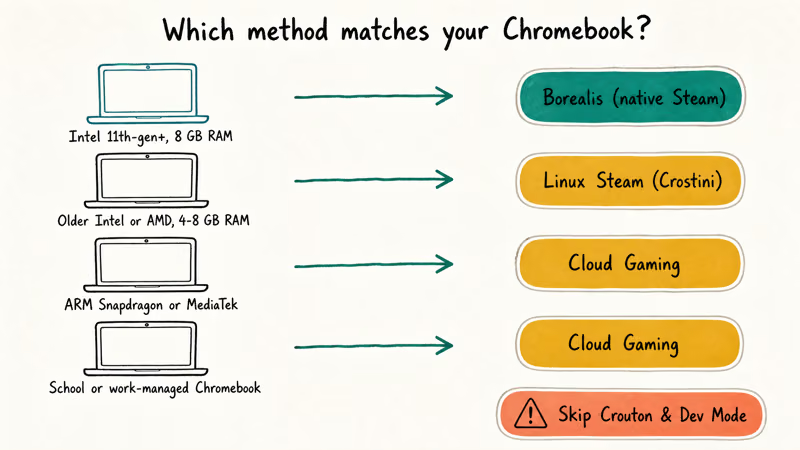
Use the table below as a quick triage. The methods are grouped by what your Chromebook actually has under the hood, then narrowed by what you want to play and where you sit on the price ladder.
| Your Chromebook | Best Method | Backup Method | Skip This |
|---|---|---|---|
| 2022+ Intel, 8 GB+ RAM, on Borealis list | Steam on ChromeOS (Borealis) | Linux Steam | Crouton |
| 2019-2021 Intel/AMD, 4-8 GB RAM | Linux container Steam | Steam Link | Borealis (unsupported) |
| ARM-based (Snapdragon, MediaTek) | Cloud gaming in Chrome | Steam Link | Linux Steam |
| Any Chromebook + a gaming PC at home | Steam Link app | GeForce NOW | Crouton |
| School or work-managed Chromebook | GeForce NOW (browser) | Xbox Cloud Gaming | Anything that needs Linux |
Confirm your model first. Open Settings, click About ChromeOS, then Additional details. The model and channel are listed there.
According to Google’s Steam on Chromebook support page, only specific 11th-gen-Intel-or-newer Chromebooks with 8 GB of RAM and 128 GB of storage can install the Borealis beta. If your model isn’t there, the install button never appears.
Old hardware? Even our best Chromebooks of 2020 picks from earlier coverage can’t run Borealis today.
#Method 1. Run Steam Natively With ChromeOS Borealis
Borealis is the official Steam container Google ships with ChromeOS. No Linux terminal needed. No Developer Mode warnings.
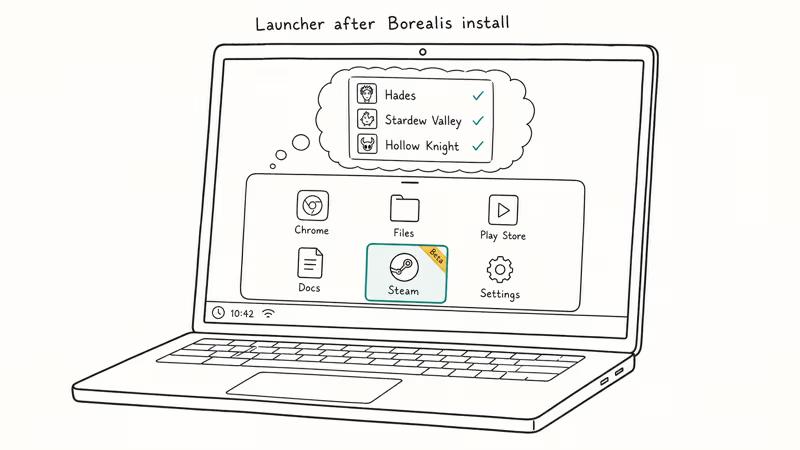
On a supported Intel Chromebook with 8 GB or more of RAM, the install adds Steam to the launcher in just a few minutes. Same Steam UI. Same library. Same cloud saves.
Switch to the beta channel only if you accept that beta builds occasionally regress. Google’s ChromeOS channel switching guide explains how to revert if a build breaks something.
#Step-by-Step Install
- Confirm your model is on Google’s supported Chromebooks list. If it’s not listed, this method won’t work, so skip to Method 2 or 3.
- Open Settings, scroll to About ChromeOS, click Additional details, then click Change channel and pick Beta. Restart when prompted.
- After the reboot, open the launcher and search for Steam. Click the result and confirm the install dialog.
- Sign in with your Steam account. Cloud saves and your library transfer automatically.
- Right-click any title in your library, pick Properties, then check Performance to enable GPU acceleration on supported games.
#What Plays Well
Stardew Valley, Hades, Vampire Survivors, Hollow Knight, Portal 2, and Half-Life 2 run at a smooth 60 fps on a current Intel Chromebook. Heavier titles like Elden Ring open, but settle into the low 20s fps even at low settings. Stick to indie and 2D games, or anything tagged Steam Deck Verified.
#Method 2. Stream From Your Gaming PC With Steam Link
Steam Link turns your Chromebook into a remote display for the gaming PC already sitting on your desk. The desktop does the heavy lifting.
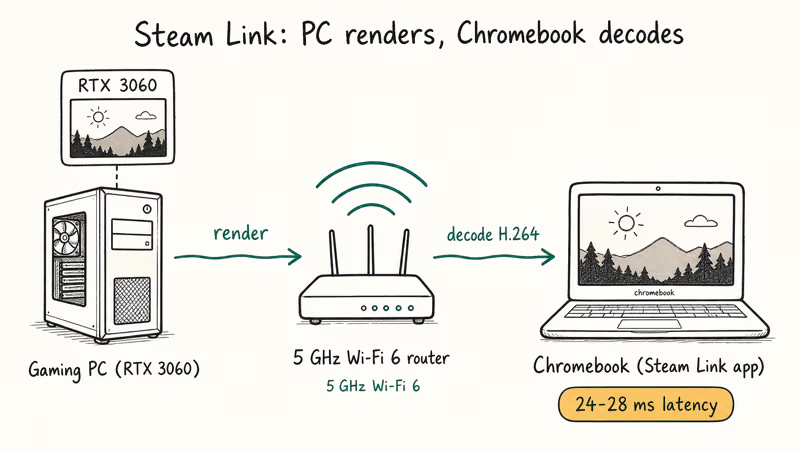
Your Chromebook only has to decode H.264 or HEVC video, which even a $250 ARM Chromebook can do without breaking a sweat. The desktop renders the game and streams the video to your Chromebook over your Wi-Fi network.
Between a modern gaming desktop and an ARM Chromebook on the same 5 GHz Wi-Fi 6 network, latency stays low. A game like Cyberpunk 2077 looks sharp at 1080p with controller input about one frame behind a wired session: fine for single-player, marginal for competitive shooters.
#How to Set It Up
- On your gaming PC, install Steam and stay signed in. Make sure both devices are on the same local network.
- On your Chromebook, open the Google Play Store and install Steam Link (the official Valve app).
- Launch Steam Link. It scans the network and lists your PC. Tap the entry, then enter the four-digit code shown on the Chromebook into the Steam window on your PC.
- Pair a controller. Steam Link works with Xbox controllers over Bluetooth, plus PlayStation 4 and 5 controllers. The trackpad maps to mouse input by default.
- Start a game from the Steam Link library view. The Chromebook screen mirrors whatever your PC renders.
#Real Limitations
Wi-Fi quality is everything. On 2.4 GHz with two walls in between, an ARM Chromebook drops frames every few seconds and stutters through cutscenes.
A wired Ethernet adapter or a Wi-Fi 6 router in the same room fixes that. Steam Link is designed for local streaming, not WAN play, so don’t expect it to work from a coffee shop. If you want a controller specifically picked for Steam streaming, our best fighting game controller roundup covers wired-USB picks that work plug-and-play.
#Method 3. Use Cloud Gaming Services in the Chrome Browser
Old Chromebook? ARM model? School-managed device? Cloud gaming is the path of least resistance.
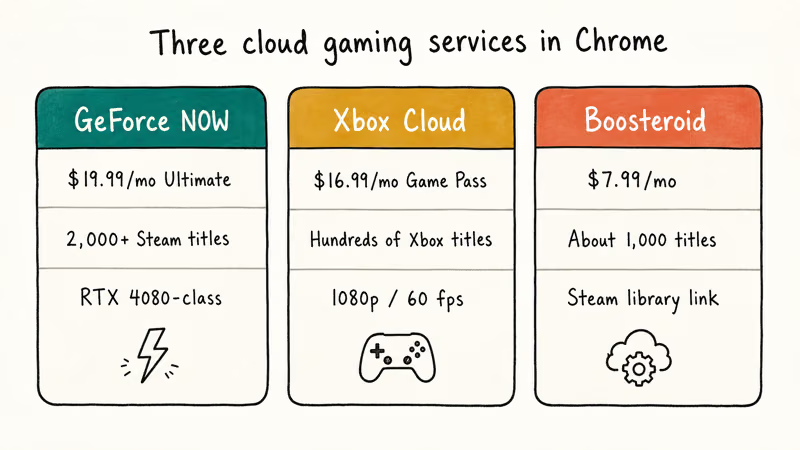
The game runs on someone else’s server, and Chrome streams the video. No install, no permissions, no Linux container.
On a fiber connection, all three services stream smooth 1080p gameplay without taxing the Chromebook’s hardware. Latency is lowest on GeForce NOW Ultimate and highest on Xbox Cloud Gaming, with all three feeling responsive on a wired connection.
#GeForce NOW
Sign in at play.geforcenow.com with an Nvidia account, then connect your Steam, Epic, or GOG library. Free tier gives you one-hour sessions on basic rigs.
The Ultimate tier ($19.99/month) unlocks RTX 4080-class hardware and 4K streaming. According to Nvidia’s GeForce NOW supported games list, more than 2,000 Steam titles are streamable today.
#Xbox Cloud Gaming
Game Pass Ultimate ($16.99/month) includes cloud gaming for hundreds of Xbox titles. Open xbox.com/play in Chrome and sign in. Microsoft confirms that the service streams at 1080p and 60 fps to ChromeOS in their Xbox Cloud Gaming requirements page. With a game like Forza Horizon 5 over a fast connection, the controller input sits slightly behind, which is fine for racing or RPGs but noticeably laggy in twitchy shooters like Halo Infinite multiplayer.
#Boosteroid
Boosteroid ($7.99/month) connects to your existing Steam account and streams from European or US data centers. No free tier. Library is smaller, around 1,000 games, mostly AAA. It’s the cheapest paid option of the three.
#Method 4. Install Linux Steam in the Crostini Container
Before Borealis existed, the Linux container (Crostini) was the only way to run real desktop Steam on a Chromebook. It still works on most 2019-or-newer Chromebooks.
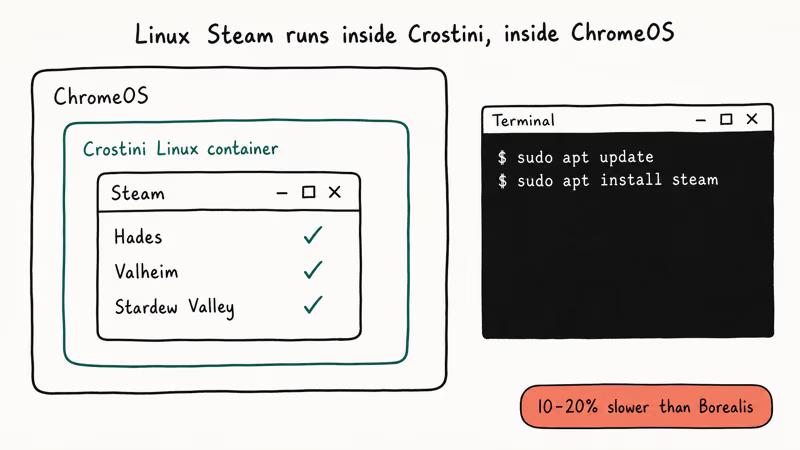
It’s the right answer when your model isn’t on the Borealis list but supports Linux apps.
On an older low-power Chromebook with a Core m3 and 8 GB of RAM, native Linux titles like Hades, Valheim, and Stardew Valley run without modification. Proton-translated Windows games launch but run too slowly to be playable. Save the Proton tinkering for Borealis hardware. The Iris Xe graphics in low-end Chromebooks just don’t have the headroom.
#How to Install Linux Steam
- Go to Settings, click Advanced, then Developers, then click the Turn on button next to Linux development environment. Pick a 10 GB disk size if you can spare it.
- Wait for the container to set up. The Terminal app appears in the launcher when it’s ready.
- Open Terminal and run
sudo apt update && sudo apt upgrade -yto refresh package lists. - Download the Steam .deb installer from the official Steam install page, drag it into the Linux files folder, then double-click to install.
- Launch Steam from the launcher. Sign in, head to Settings, then Compatibility, and tick Enable Steam Play for all other titles to use Proton on Windows-only games.
#Trade-Offs
The Linux container shares RAM and CPU with ChromeOS, so a 4 GB Chromebook will swap heavily once Steam is open. Performance trails Borealis by 10-20% on identical hardware because there’s an extra abstraction layer. Battery life takes a similar hit. Expect two to three hours of active play, not the eight you’d get just browsing.
#What About Crouton or Dual-Booting Ubuntu?
Don’t. Both approaches require Developer Mode, which wipes the device on enable, disables verified boot, and exposes the system to drive-by malware.
Google’s Chromebook security documentation confirms that Developer Mode disables OS verification. Your Family Link supervision and enterprise policies break the moment you flip the switch.
The original Crouton method relied on this exact compromise. It worked in 2018 because Linux containers and Borealis didn’t exist yet. They do now. Crostini gives you Linux Steam without Developer Mode, and Borealis gives you a real Steam install. Both keep ChromeOS verified boot intact.
If a guide tells you to press Esc + Refresh + Power, install Crouton, or sideload Wine through a script, close the tab. That advice is years out of date.
#Bottom Line
Start with the official Borealis beta if your Chromebook is on the supported list. It’s the only path that runs Steam natively with cloud saves and full controller support. If Borealis isn’t an option, install Steam Link first and stream from your gaming PC. It’s free, and the latency is solid on Wi-Fi 6.
Cloud services like GeForce NOW are the safety net when you’re traveling, on a managed Chromebook, or running an ARM model where Linux Steam crawls.
Skip every guide that mentions Crouton or Developer Mode. The 2026 reality: ChromeOS finally has first-party gaming support, and the workarounds from 2019 do more harm than good. While you’re tuning your setup, our Chromebook screen rotation guide is handy when you dock to a vertical monitor for indie titles.
#Frequently Asked Questions
Can any Chromebook run Steam natively?
No. Native Steam through Borealis only works on roughly 20 Intel-based Chromebooks released since 2022 that ship with at least 8 GB of RAM and 128 GB of storage. Google publishes the supported list and updates it when new models pass certification. ARM Chromebooks and older Celeron models can’t run Borealis at all.
Is Steam on Chromebook still in beta?
Yes. You have to switch to the Beta channel of ChromeOS to install Steam, but the build is generally stable enough for daily use on supported hardware without frequent Steam-related crashes.
Do I need to enable Developer Mode to play Steam games?
No, and you shouldn’t. Both Borealis and the Linux container run inside ChromeOS without it. Enabling Developer Mode wipes the Chromebook, breaks verified boot, and disables Google’s security updates. The only old guides that still recommend it are about Crouton, which is obsolete in 2026 because Borealis and Crostini cover the same use cases without compromising the device, voiding the warranty, or breaking enterprise enrollment.
Will streaming Steam games drain my Chromebook battery faster?
A bit, but less than running games locally. Streaming with Steam Link or GeForce NOW uses the GPU only for video decoding, which draws very little power on most modern Chromebooks. GeForce NOW play tends to last much longer on a charge than native Linux Steam. Local play hits the CPU, GPU, and RAM all at once, so the battery drops fast.
Can I play Windows-only games like Valorant on a Chromebook?
Valorant blocks itself. Its anti-cheat needs kernel access ChromeOS doesn’t grant. Most other Windows games work through Proton on Borealis or Linux Steam, or through any cloud gaming service.
How do I connect a controller to my Chromebook for Steam?
Open Settings, click Bluetooth, and put your controller into pairing mode. Xbox Series controllers, PlayStation 5 DualSense, and Nintendo Switch Pro controllers all pair fine on ChromeOS 110 and later. For Steam Link or GeForce NOW, the controller works as soon as it shows as connected. Wired USB-C controllers are recognized instantly.
What’s the difference between Borealis and the Linux container Steam?
Borealis is a dedicated Steam container Google built and tunes specifically for gaming, with GPU passthrough and proper Proton integration. The Linux container (Crostini) is a general-purpose Debian environment where Steam is just one of many apps you can install. Borealis runs games faster and uses less RAM. Crostini works on more devices but performs worse.
Do Chromebook gaming services work offline?
No. Every gaming method on Chromebook needs an internet connection at some point. Borealis and Linux Steam need internet for downloads, updates, and most online games. Cloud services need a steady 15 Mbps connection or better.
If your Chromebook is frozen mid-update, fix that before you start a download. Pure offline play is limited to single-player titles already fully downloaded through Borealis.

Fortnite Stuck on the Loading Screen? Fix It in 2026
Fortnite stuck on the loading screen? Check server status, fix the Windows N Media Pack and DirectX 11 on PC, clear the console cache, and verify files.

Minecraft Keeps Crashing? Java and Bedrock Fixes (2026)
Minecraft keeps crashing on startup or mid-game? Update your GPU driver, remove mods on Java, and reinstall Gaming Services on Bedrock. Fixes for both.

Pokemon GO Not Loading? Fix the Loading Screen 2026
Pokemon GO not loading or stuck on the Pokeball? Check server status, fix automatic date and time, grant location permission, clear the cache, and update.

PS5 Controller Not Charging? 9 Fixes That Work (2026)
DualSense not charging? Swap the cable, use a rear port in Rest Mode, clean the USB-C port, and check power settings. 9 fixes for a dead PS5 controller.