VAC Was Unable to Verify Your Game Session: 7 Fixes
Fix the VAC was unable to verify your game session error in CS2 and other Steam games with practical Windows 10 and 11 repair steps for 2026.
Quick AnswerRestart Steam, then run the Steam service repair command in an elevated Command Prompt. If that doesn't work, verify your game files through Steam's Library. These two fixes resolve the VAC verification error for most players.
The “VAC was unable to verify your game session” error blocks you from joining matchmaking in CS2, Team Fortress 2, and other VAC-secured Steam games. The Steam service repair command is usually the best first fix because it rebuilds files VAC depends on before you move to broader troubleshooting.
- Repairing the Steam service fixes the error for most players in under 2 minutes
- Verifying game file integrity catches corrupted files that VAC flags as suspicious
- Third-party overlays, skin changers, and certain antivirus programs trigger false VAC failures
- Resetting Windows boot settings to default restores kernel integrity checks that VAC relies on
- A full game reinstall is the last resort but guarantees clean files if nothing else works
#What Causes the VAC Verification Error?
VAC (Valve Anti-Cheat) scans your system while you play. When it can’t confirm your game files are clean, it throws the “unable to verify your game session” error and kicks you out of matchmaking. This isn’t a ban.
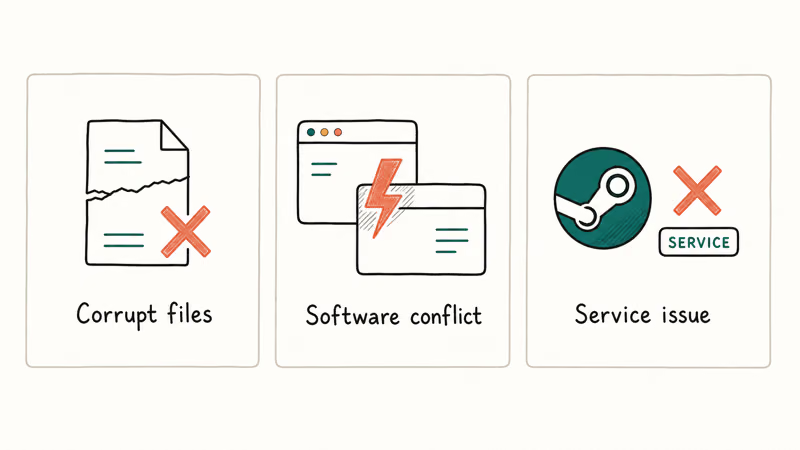
According to Steam’s official VAC troubleshooting page, the most common triggers include corrupted Steam service files, modified game data, and interference from background software. The error affects any game that uses VAC-secured servers, not just CS2. It’s a temporary block that disappears once you fix the root cause.
If you’re dealing with other Steam issues like a Steam content file locked error or a Steam disk write error, those can also point to the same corrupted file problems that cause VAC failures.
#How Do You Repair the Steam Service?
The Steam service repair command is the fastest fix and works for most players who hit this error. It rebuilds the service files that VAC depends on for verification. Restart Steam after the repair so VAC can re-check the service state.
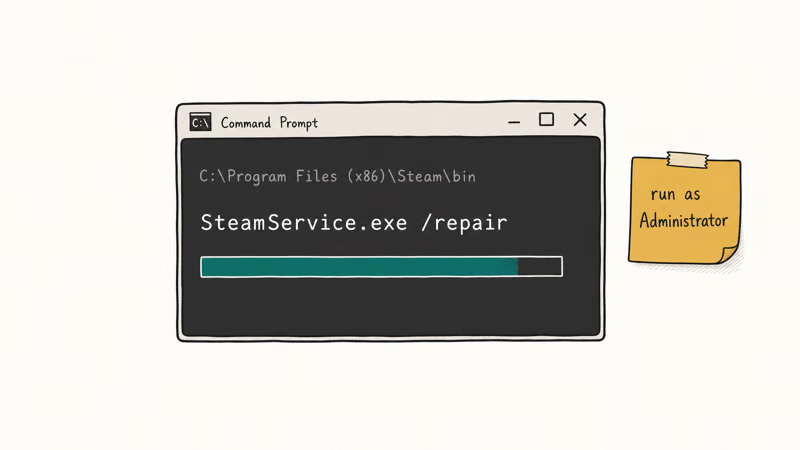
Here’s the process:
- Close Steam by clicking Steam > Exit
- Press Windows Key + R and type:
"C:\Program Files (x86)\Steam\bin\SteamService.exe" /repair - Wait 30-60 seconds, then restart your computer and launch Steam
If Steam is installed somewhere else, swap out the default path with your actual Steam folder location. Right-click the Steam shortcut and check Properties to find it.
According to Steam’s VAC system documentation, service file corruption is one of the top reasons VAC can’t complete verification.
#Verify Your Game Files
Corrupted or missing game files make VAC suspicious. Steam has a built-in tool that checks every file against its server copies and replaces anything that doesn’t match. Larger games can take several minutes to verify, especially on slower drives.
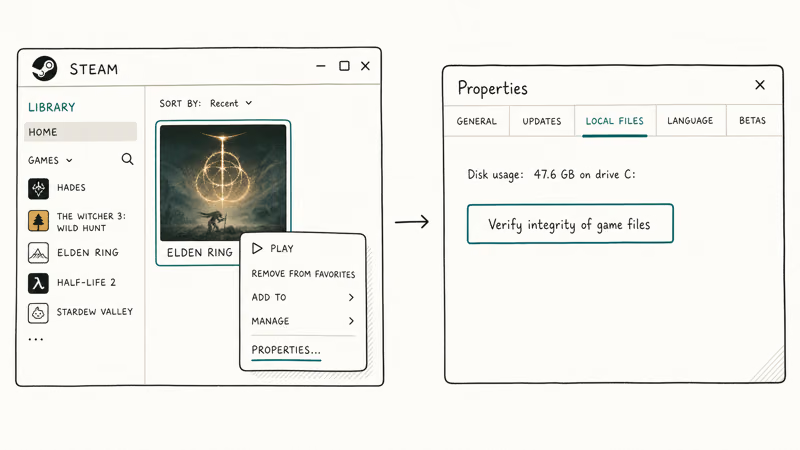
- Open Steam and go to your Library
- Right-click the affected game, select Properties, then click Installed Files
- Select Verify integrity of game files
According to Steam’s file verification guide, some files may “fail to verify” after the scan finishes. That’s normal for local config files and doesn’t mean the fix failed. Don’t run this while your antivirus is doing a full scan.
#Remove Third-Party Software That Interferes With VAC
Overlay apps, skin changers, and certain security software can trip VAC’s detection system. Disable third-party overlays first when the repair command doesn’t help.
Software that commonly causes conflicts:
- Custom skin changers or texture mods
- CCleaner or similar system cleaners running in the background
- Aggressive antivirus programs (Avast, AVG, and Kaspersky real-time shields are frequent offenders)
- Third-party anti-cheat clients
- BitTorrent or other P2P programs consuming bandwidth
Uninstall or disable the suspect software, restart your PC, then try joining a match. If the error stops, re-enable programs one at a time to find the exact culprit.
Players who experience Discord getting hacked sometimes install extra security tools that end up conflicting with Steam’s verification process.
#Reset Windows Boot Settings to Default
VAC checks your system’s kernel integrity settings during verification. If you’ve changed boot configuration data (BCD) settings for debugging or other purposes, VAC may refuse to verify your session. This fix matters for developers and power users who tinker with Windows boot options.
- Press Windows Key, type cmd, right-click Command Prompt, select Run as administrator
- Enter each command one at a time:
bcdedit /deletevalue nointegritychecks
bcdedit /deletevalue loadoptions
bcdedit /debug off
bcdedit /deletevalue nx- Restart your computer and launch Steam
Some commands may return “Element not found.” That just means the setting was already at its default value. Skip it and move on.
As noted in Steam’s server verification guide, VAC performs similar kernel-level checks during session verification.
#Run a System File Check
Damaged Windows system files can cause VAC verification to fail even when your game files are intact. Windows has a built-in scanner that finds and repairs corrupted OS files in about 5-15 minutes.
- Open Command Prompt as administrator
- Type
sfc /scannowand press Enter - Wait for the scan to reach 100%
If SFC finds and fixes corrupted files, restart your PC and test the game. For bad pool caller errors and other Windows system issues, SFC is a standard first step that often resolves multiple problems at once. On Windows 11, you can also run DISM /Online /Cleanup-Image /RestoreHealth before SFC if the system file checker itself reports errors.
#Reinstall the Game
When nothing else works, a clean reinstall gives VAC a completely fresh set of game files to verify.
- Open Steam, go to Library
- Right-click the game, select
Manage>Uninstall, and confirm - Download and install the game again from your Library
CS2 is about 35 GB. Before reinstalling, back up any custom config files or autoexec scripts you want to keep. If you play other games that crash on launch, like players dealing with the Ark fatal error, a reinstall often fixes both the crash and VAC issues caused by file corruption during bad shutdowns.
#Restart Steam in Offline Mode
Cycling Steam between offline and online mode can clear cached session data that VAC uses for verification.
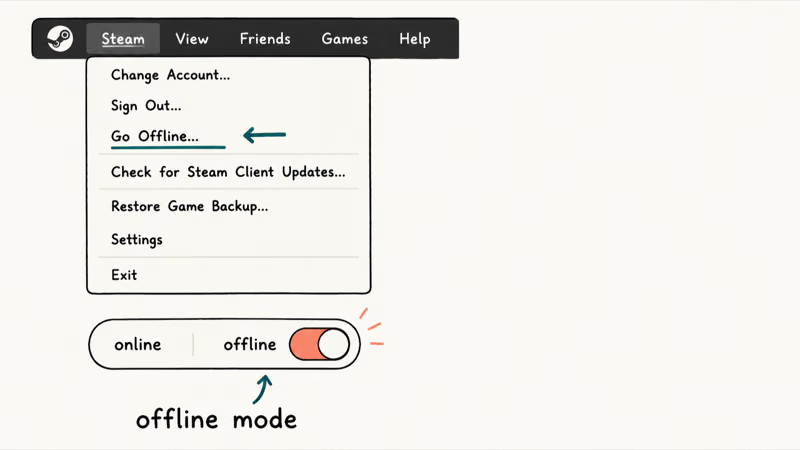
- Click Steam in the top-left, then Go Offline
- Click Restart in Offline Mode
- After Steam restarts, click Steam again, then Go Online and confirm
The whole process takes about 30 seconds and forces Steam to re-establish its connection with VAC servers from scratch. It’s most useful when the error comes from a temporary connection issue rather than local file corruption.
Players who tweak their mouse settings for gaming or use custom configs sometimes see VAC errors after Steam updates overwrite cached data. The offline-online cycle clears that stale cache.
#Bottom Line
Start with the Steam service repair command because it targets the service files VAC needs for verification. If that doesn’t do it, verify your game files next.
Only move to the reinstall option if you’ve tried everything else. The error isn’t a VAC ban and doesn’t affect your account standing. If you’re into games like Counter-Strike, bookmark these fixes for the next time VAC acts up.
#Frequently Asked Questions
Is “VAC was unable to verify your game session” the same as a VAC ban?
No. This is a temporary verification glitch. VAC bans are permanent and show a completely different message.
Which games does this VAC error affect?
Any multiplayer Steam game running on VAC-secured servers. CS2, TF2, Dota 2, and Left 4 Dead 2 are the most common.
Can antivirus software cause this error?
Yes. Programs with aggressive real-time scanning sometimes flag Steam or game files as suspicious. Avast and Kaspersky are frequent culprits. Adding your Steam folder and game directory to the antivirus exclusion list usually fixes it.
Will verifying game files delete my settings or saved progress?
No. Steam’s verification only replaces corrupted or modified game files. Your settings, saved games, and configs stay intact.
How long does the Steam service repair take?
About 30-60 seconds. You won’t see a progress bar or confirmation. Restart your computer after the command finishes before launching Steam again.
Do I need to run Command Prompt as administrator?
Yes, for both the Steam service repair and the boot settings reset. These commands modify system-level services that require elevated privileges. Right-click Command Prompt and select “Run as administrator” before entering any commands. On Windows 11, you can also open Windows Terminal as admin and use the Command Prompt tab.
Can I get a cooldown penalty if this error kicks me from a match?
In CS2, getting disconnected mid-match triggers a competitive cooldown regardless of the reason. Fix the VAC error before queuing for competitive. Test your fix in Casual or Deathmatch first.
Does this error happen on macOS or Linux?
Rarely. The VAC verification error is almost always Windows-specific because it’s tied to Steam service files and Windows boot configuration. macOS and Linux users encounter other VAC issues, but this particular message is a Windows problem.

Fortnite Stuck on the Loading Screen? Fix It in 2026
Fortnite stuck on the loading screen? Check server status, fix the Windows N Media Pack and DirectX 11 on PC, clear the console cache, and verify files.

Minecraft Keeps Crashing? Java and Bedrock Fixes (2026)
Minecraft keeps crashing on startup or mid-game? Update your GPU driver, remove mods on Java, and reinstall Gaming Services on Bedrock. Fixes for both.

Pokemon GO Not Loading? Fix the Loading Screen 2026
Pokemon GO not loading or stuck on the Pokeball? Check server status, fix automatic date and time, grant location permission, clear the cache, and update.

PS5 Controller Not Charging? 9 Fixes That Work (2026)
DualSense not charging? Swap the cable, use a rear port in Rest Mode, clean the USB-C port, and check power settings. 9 fixes for a dead PS5 controller.